Author: Brent Evans

  • Great Weekend Deal on 2TB Hard Drive $135

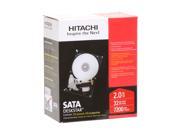
    HITACHI Deskstar 2TB 3.5

    I always watch the prices for the high capacity, internal hard drives and noticed a nice price on Newegg (affiliate) which expires after February 28th.

    HITACHI Deskstar 2TB 3.5" SATA 3.0Gb/s Internal Hard Drive –Retail $134.99 ($154.99 less $20 after Mail in Rebate)


  • Deal of the Day – SiliconDust HDHR Dual Tuner $126 Free Shipping


    Amazon (affiliate) has my favorite tuner of all time, the SiliconDust HDHR dual QAM tuner for $126.

    SiliconDust HDHomeRun HDHR Dual Networked HD Tuner $126.46 with Free Shipping

    Next best price is RitzCamera for $129, but the going price online these days is around $150


    To follow deals just like this one, subscribe to GeekTonicDeals


  • Microsoft Releases Windows 7 Media Center Update

    Microsoft pushed out a Microsoft Cumulative Update for February 2010 with some new Windows 7 Media Center updates.  I recommend you have automatic updates turned off & manually update or at least set the update time to be an off-peak time.  I say this for two reasons:

    1. You don’t want an update to muck up things while you’re watching or recording your favorite shows.  Most of these sort of updates require a reboot and you certainly don’t want your machine deciding to reboot during recordings now do you?

    2. You might just want to wait a couple of days to be sure the update doesn’t have any unintended consequences – a few days is usually enough time to hear from other, more brave folks to tell us if bad things happen from the update or not.

    The updates include some useful items – especially for CableCard users.  Here’s the main points from the update:

    • Improves the overall experience for systems that are configured by using digital cable card tuners. – I’m not sure what particular things this is focused on, but hopefully it will address the problems some CableCard users have been complaining about such as intermittent crashing etc.
    • Resolves backward compatibility issues for some legacy Windows Media Center extensibility applications.
    • Resolves an issue with how recorded TV shows are managed when switching to a user locale that is based on the Hijri calendar.
    • Improves the overall experience when you use Integrated Services Digital Broadcasting (ISDB) tuners. ISDB is a Japanese standard for digital television and digital radio.

    More info at this Microsoft Support Page


  • Deal of the Day – $30 MSI Radeon HD 4550 Video Card

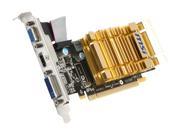
    MSI Radeon HD 4550 R4550-MD1GH Video Card

    Looking for a very inexpensive HTPC videocard?  Newegg (affiliate) has a deal for the MSI Radeon HD 4550 R4550-MD1GH Video Card $29.99 (after $15 mail in rebate) with free shipping.  This card normally sells for around $45 – $50


  • MissingRemote Reviews the Asus


    MissingRemote has another Media Player Review up – this time the ASUS O!Play HDP-R1 Media Player.  It sells for $99 and has a lot going for it.  The non-extender, Media Player market is pretty competitive though so I wonder how many of these can survive in today’s tough economic environment without some sort of edge – like extender capabilities for instance.

    Mike Garcen at MissingRemote has this to say about the ASUS:

    After living with both the Patriot Box Office and this ASUS O!Play HDP-R1 media players, it has proven difficult to choose a clear winner. I have centralized storage with torrent support in my Windows Home Server, so the inclusion of hard drive support and extras would be of no use to justify the extra $30 Patriot asks for its device. As the two compete features via firmware updates, I would imagine they would stay on par with each other as well, making the ASUS’ sub-$100 MSRP a frontrunner.

    The ASUS O!Play – TV HD Media Player is $99 at Amazon (affiliate) with Free Shipping

    Read the complete review at MissingRemote.com


  • Reviewing the GlideTV Navigator Touchpad Remote

     GlideTV Navigator Remote

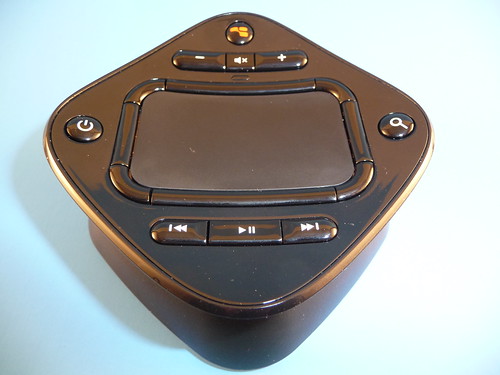
    When you think of the TV remote control the first thing that comes to mind is something like this:  A long, slender, candy-bar like device that fits in your hand and loaded with buttons to control your TV and other AV devices.  And when you think of a computer mouse you think of the shell-looking object with at least on “clicker” – something you use to control the pointer on your computer.  But what if you meshed those two devices into one and purposed it as a Home Theater PC remote control of sorts – that’s exactly what GlideTV has done with their Navigator device.  It’s something quite unique in the world of remote controls and is the focus of today’s in-depth review.

    GlideTV touts this new controller as “the worlds 1st couch mouse.”  The fact that they call it a “couch mouse” in their marketing should clue us in that this is no ordinary remote control.  The GlideTV Navigator is sort of a remote-control, touchpad device with some well laid out hard buttons surrounding a touchpad in the center.  The design is a good example of out-of-the-box thinking and while it takes some getting used to, it’s actually very functional.  Read on for all of the details and my conclusion.


    What’s Included
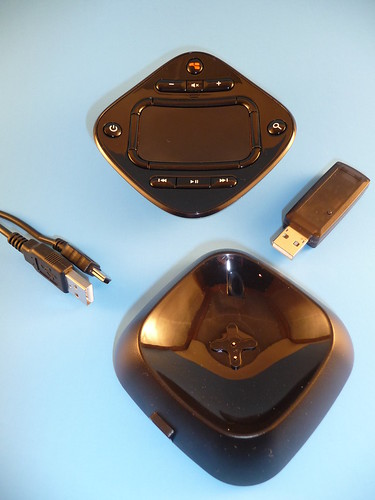
    GlideTV Included Hardware

    • Navigator – this is the basic remote control itself
    • Charging Station  – A simple charging “dock” where you’ll sit the Navigator remote on when not using it charges the device.  This can be plugged into the USB port of your computer (separately from the USB receiver) or plug the USB cord into the AC Charger.
    • USB Receiver – A USB dongle plugs into the USB port of your computer.  This is what allows the Navigator to communicate via 2.4GHz RF wireless
    • AC Charger – Just as it says a small power adapter that you can plug the charging station into via the USB plug
    • USB Cable – One 6-foot USB 2.0 cable is packaged with the Navigator to connect between the charging station and either the AC Charger or the computer.

    I should mention here that I think it was a great decision to keep the charging station separate from the USB receiver.  I say this because sometimes it really makes sense to have the charging station close to the couch – instead of close to the computer.


    Dimensions, Look/Feel & Appearance

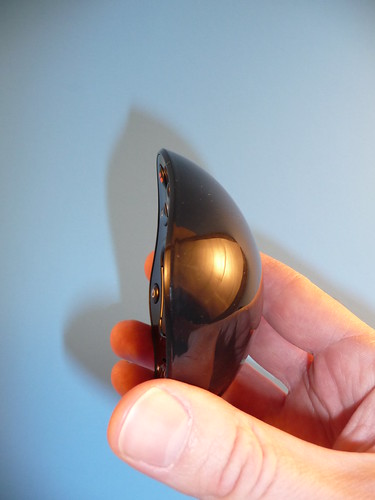
    The GlideTV Navigator remote is fairly small at 3.5 inches wide (both ways) and a depth of about 1 inch in the center.  It weighs a very light 3.2 ounces and is curved to form an curved form factor that fits your hand quite nicely.  It’s designed with a glossy-black, hard plastic look that seems very solid.
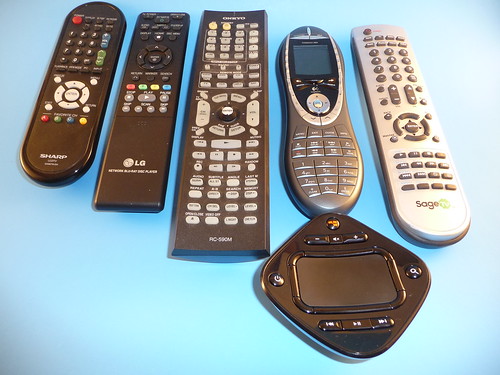
    P1040427The GlideTV next to Several Remote Controls

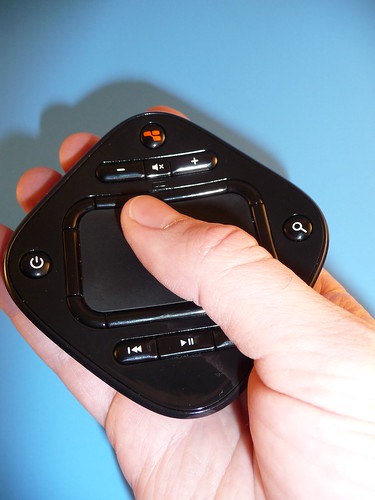
    The concept is to hold this device in your hand and use your thumb to control everything.  At the center-top of the device is the clickable 2” X 1.25” touchpad that will remind you of the touchpad on your laptop.
     P1040429

    Buttons & Remote Layout

    First, there are eight “directional” buttons that surround the touchpad.  These buttons serve as both directional buttons as well as multi-function buttons to do things like close-application, escape, backspace, mouse clicks, channel-up/down, live TV etc.  Learning these different purposes of the same keys does take some getting used to and makes the learning curve a bit more difficult – especially for the other family members of the house.
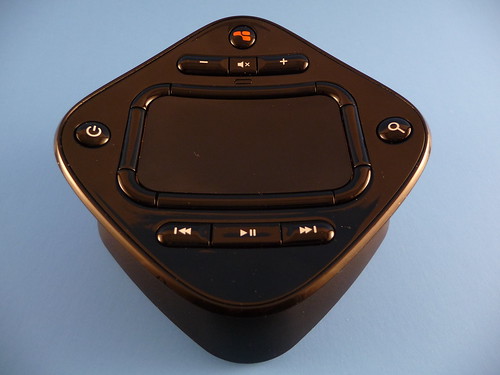
    P1040418

    On the four corners of the device you’ll find a search button to the far-right and a power button to the far left.  On the upper section is a “GlideTV” button that opens up the custom GlideTV UI, a volume mute toggle button, a volume-down and volume-up button.  On the lower section is a play/pause/stop toggle button, a skip-left button and skip-right button.

    Beyond those main buttons you’ll find a designated GlideTV button that fires up their custom software, a power button (it controls the PC power), volume control, search button (opens up GlideTV’s search which can be designated to Hulu, Google, etc) and media player controls (play, pause, etc).   The 8 surrounding buttons each do something different in their respective applications, so a little trial and error will help you figure that out.

    So fewer buttons than a typical remote control means they’ve attempted to simplify the inputs right?  So what common remote control buttons are missing? 

    Here’s a short list of common remote control buttons you won’t find pre-designated on this remote:

    • Number keys
    • Channel up/down
    • Power TV on/off
    • Power Receiver on/off

    And if you’re a full-fledged HTPC user you know there are many other buttons you might want.  The GlideTV Navigator is “keeping it simple” when it comes to hard-buttons on the device, but it does get a bit more complicated when you want to do something beyond the ordinary.  For example, lets say you want to switch applications such as going from iTunes to MediaCenter (like function-tab on a standard keyboard) in this case you must remember to hit the function key (the directional key on the south-west region of the touchpad.  You get the idea – nearly every function is covered but it requires that you learn which combination of buttons do what function.


    Using the Remote– Controlling your HTPC

    The GlideTV Navigator can be used in two different modes:

    Relative Mode – this is like using a computer touchpad on a laptop.  You move the cursor around as you move your thumb around on the touchpad

    Absolute Mode – here the touchpad is meant to be a “representation” of your computer or TV display.  Touching a portion of the touchpad is like “pointing” to a place on your screen:  Tap the top-right of your touchpad and you “place” the cursor on the top-right of your screen and so forth.


    Supported Hardware

    Computers running these operating systems:

    • Windows XP (32 or 64 bit)
    • Windows Vista (32 or 64 bit)
    • Windows 7 (32 or 64 bit)
    • Mac OS X

    Game Systems:

    • PlayStation 3

    The Navigator does not support XBox360 thus far


    Receiver and remote range of use

    The GlideTV Navigator uses 2.4GHz wireless RF and according to GlideTV will work up to 30ft in an open space.  I tested mostly within 10-15 feet although I did push it to 20 feet and still had no problems with responsiveness.


    Charging & Battery Life:
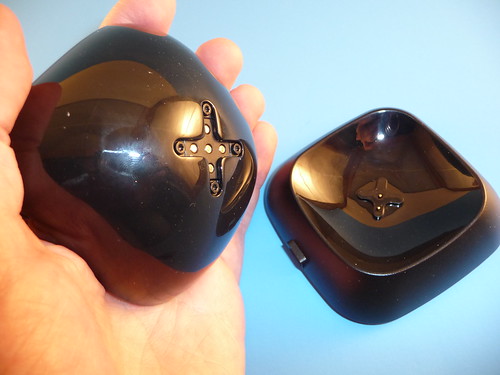
    P1040424

    I didn’t do a complete testing of the battery life, but did keep the GlideTV Navigator away from the charging cradle for multiple days at a time without charging and it seemed to hold its charge well.  The GlideTV goes into standby mode after approximately 10 seconds of inactivity and it automatically powers off after about an hour. 
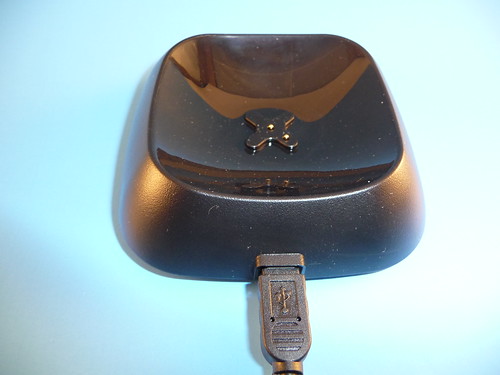
    P1040421

    It fits nicely into the charging cradle and I never had a problem with the charging contacts not meeting (and therefore not charging) like I have with multiple Logitech Harmony 880 remotes.

    Installation & Setup

    Setup was very easy.  Charge the remote fully the first time, connect the USB receiver into the computer you’ll be remote controlling and then select the operating system you’ll be using – its set as Windows out of the box but you can easily change it to Mac or PS3 with a switch in profiles.

    After that, you’ll need to determine if you want the touchpad to be in Absolute mode or Relative Mode.  Absolute Mode places the mouse cursor in correspondence with where you place your finger on the touch pad.  So if you touch the top left corner of the touch pad the mouse will appear there.  Personally, I prefer Relative Mode since this is more analogous to my laptop and as I discovered much easier to use out of the box.

    My remote seemed to lose it’s connection with the USB receiver one time during testing.  Fixing it was a simple re-pairing process described on their website.  Because of this stumble I delayed the review to be sure it wouldn’t be a recurring problem.  I’m happy to report that this seemed to be an anomaly as it hasn’t happened again since and I’ve been testing it for many weeks.


    Compatible Programs

    I used the GlideTV Navigator remote control with the following programs:

    • Media Center
    • SageTV
    • XBMC
    • Hulu Desktop
    • Boxee
    • Firefox
    • VLC
    • Windows Media Player

    The remote worked well with all of these programs although it will not work with extenders or media players.  As mentioned before, it also works with the Sony PlayStation 3


    User Interface

    You really don’t even have to be a HTPC user to enjoy the GlideTV Navigator.  That’s because they include a nice, downloadable GlideTV user interface software that makes it easy to navigate your favorite websites and applications.  It also makes web searches relatively easy as well.  To execute the GlideTV UI you simply press the “GlideTV” button at the top of the remote.

    The GlideTV app works in the background of your computer.  To start up the UI you either click on the little, GlideTV floating icon as I’ve noted in the screen-shot below:
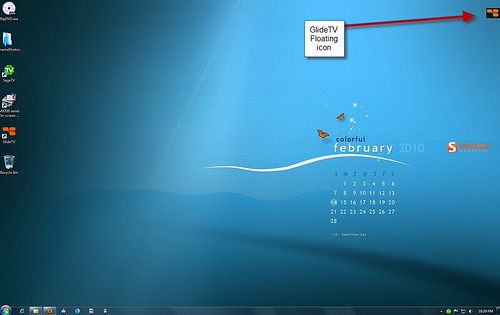
    GlideTV Floating icon


    The GlideTV application separates things into five main menu items:
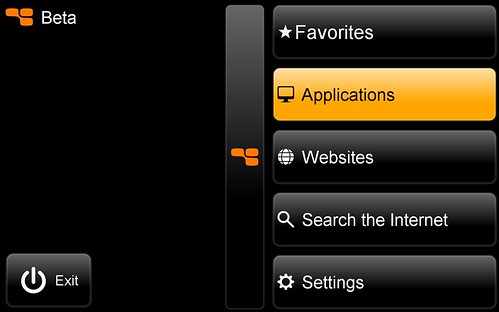
    GlideTV App Main Menu

    • Favorites – for favorite websites or apps – you configure these in the settings
    • Applications – All of your favorite, installed media applications should automatically appear on this menu item.  For me I see MediaCenter, Firefox, Skype, SageTV, XBMC etc.
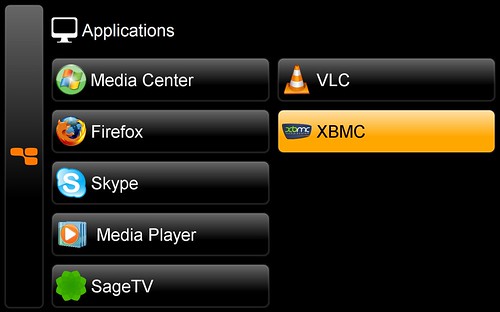
    GlideTV Applications 

    • Websites – a list of commonly-used websites will be found here such as YouTube, Hulu, TV.com, Facebook, Netflix, Pandora and others
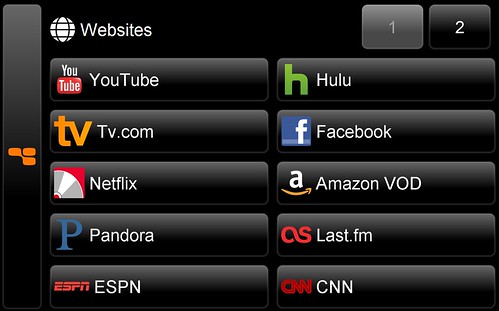
    GlideTV Websites

    • Search the Internet – A great web-search app designed with the 10-foot interface in mind.  When you select this an on-screen keyboard appears for you to “type” your search using the GlideTV Navigator.  Obviously, without a keyboard this isn’t as easy as typing the letters, but you can “hunt-&-peck” with the mouse on the virtual keyboard and it uses predictive input so that it tries to complete the word based on what you’ve typed so far.  This works pretty well actually.
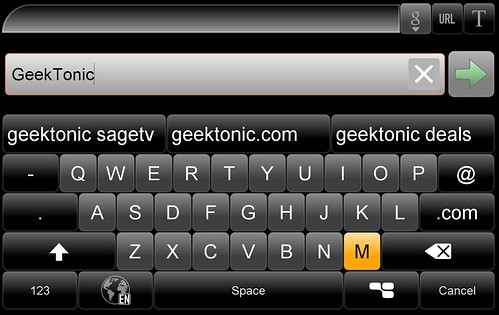
    GlideTV Search

    • Settings – this is where you can change many of the settings for the UI app.
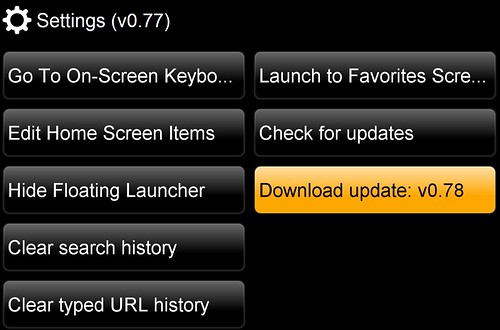
     Beta Update 1


    Touchpad Responsiveness

    If you’ve ever used a remote control that has a touchpad on it you likely know that the touchpad is often the weak-link in remotes of this kind.  I’ve found the Logitech DiNovo Mini touchpad to be somewhat unresponsive at times and this GlideTV touchpad is just about perfect in comparison.

    Conclusion

    Positives:

    • Attractive Design – it’s sleek looking and in my opinion, fits in nicely in the livingroom or anywhere you have a TV or computer setup.  You’re likely to get asked the question “what is that?” from visitors so prepare for that.
    • Easy to use the basic functions – and one of the best 10 foot web browsing functioning remotes I’ve used
    • Fits nicely in your hand – it’s definitely a change from what your used to, but it’s almost natural to use this as a mouse as it just fits perfectly in your hand.
    • Range is very good.  I was able to test to 20 feet from the receiver with no problem.
    • Works as a super-powered mouse that works from the couch – that alone is a very nice feature for those wanting to control their computer from across the room.
    • Simple setup
    • Rechargeable battery that holds its charge well 


    Negatives:

    • The cost is high.  $149 for the base price and add in 8-10 dollars for ground shipping.  The competition in the market is pretty tough for remote controls so this price puts it at the upper-middle of the cost range for a good HTPC remote control.  Price it closer to $99 and we have ourself a really good pricepoint in my opinion
    • Learning curve – for my household the learning curve was pretty steep.  Basic navigation for things such as up, down, right, left, play etc all were no-brainers, but when the user needs to go-back a screen or stop playback instead of pause it required a little explanation and retraining.  Not a deal-stopper by any means but the ability to use all of the remotes functionality requires someone willing to take the time to learn the functions.  I recommend you do read the manual for this one – you’ll miss out if you don’t.


    Bottom Line:

    If you go in thinking this device is going to be like your Logitech Harmony or even a Microsoft MediaCenter remote you might be disappointed.  If you understand the GlideTV Navigator’s purpose is to help you easily navigate your HTPC by melding a little remote control & a little computer mouse into a single device you’re going to love this device.  In a very simple way, the GlideTV Navigator makes browsing the web and the many web apps as easy as possible with a single 10-foot interface.  And it does a good job at controlling your Home Theater PC as well.

    It takes some adjustment and it’s likely not for everyone, but I see this remote as a great solution for many who are looking for a better way to control their HTPC with the myriad of new web-centric applications available today.


    The GlideTV Navigator is available for purchase at the GlideTV Website or at Amazon (affiliate) – both for $149 plus shipping.  Thanks to the folks at GlideTV for providing the review unit!


  • TV Premieres, Finales & Specials This Week 02/21/2010

    We’re in the final week of February and the TV sets are on cruise control with all of the Winter Olympics on the air.  It’s slim pickings here, but there are a few non-repeats on the set so read on.

    Don’t miss the Ultimate Guide to the 2010 Winter TV Season Premieres with free downloads by premiere date & by show name!  I’ve updated this guide with some additions and network changes.

     Family Crews

                    New series Family Crews premieres next Sunday


    Sunday, February 21

    School Gyrls (7pm on Nickelodeon) – A musical made-for-TV show where three freshmen (Mandy Rain, Jacquelyn Rae Pyles, Monica Parales) who love to sing and dance showcase their talents at an all-girl boarding school.

    Weather Proof (9pm on Weather Channel) – New series on weather channel – yes you read that right…


    Monday, February 22

    Lost in the Nevada Triangle (8pm on National Geographic – Available in HD) – The disappearance of aviator Steve Fossett during a flight sparks a manhunt that shows dozens of aircraft have dropped from radar in California’s Sierra Nevada mountains.

    Men of a Certain Age (8pm on TNT – Available in HD) – Season 1 finale

    Blood, Sweat & T-Shirts (10pm on Planet Green – Available in HD) – Season 1 finale


    Tuesday, February 23

    Frontline – Behind Taliban Lines (9pm on PBS – Available in HD) – The PBS documentary newsmagazine returns with an Afghan video journalist travels a region that has reverted back to Taliban control; Pakistan’s troubled school system.

    The Little Couple (10pm on TLC – Available in HD) – Season 2 finale


    Wednesday, February 24

    Aaron Stone (8pm on Disney XD) – Season 2 premiere

    Dude, What Would Happen (8pm on Cartoon) – Season 2 premiere

    Destroy Build Destroy (8:30pm on Cartoon) – Season 2 premiere

    Conviction Kitchen (10pm on Planet Green – Available in HD) – Season 1 finale

    Thursday, February 25

    The Deep End (8pm on ABC – Available in HD) – Season 1 finale

    Police Women on Maricopa County (9pm on TLC – Available in HD) – Season 2 premiere

    XXI Winter Olympics – Ladies’ Figure Skating Final (9pm on NBC – Available in HD) – always popular, the womens figure skating final is on NBC


    Friday, February 26

    Live from Abbey Road (8pm on Sundance – Available in HD) – Season 3 premiere is here with Counting Crows, Sugarland and Seal among other artists remembering the the 40th anniversary of the Beatles’ "Abbey Road"


    Saturday, February 27

    Dance-a-Lot Robot (6:25am on Disney – Available in HD) – Series premiere

    Mickey Mouse Clubhouse (9am on Disney – Available in HD) – Series premier

    Pit Boss (10pm on Animal Planet – Available in HD) – Season 1 finale

    Sunday, February 28

    The Family Crews (10pm on BET) – The guy who played the father on “Everybody Hates Chris,” Terry Crews stars in this docu-series

    Sinbad: Where U Been? (11pm on Comedy) – Sinbad does a standup comic routine


    If you follow GeekTonic just for the TV Premieres and news, you’ll want to click Here If You Would L-ike to Get a Regular E-mail for GeekTonic TV Premieres & News


  • MediaPortal 1.1 Release Candidate Arrives to HTPC World

    MediaPortal

    MediaPortal, one of the more popular open-source and free HTPC software programs released the 1.1.0 (release candidate) version of MediaPortal 1. 

    The beta version of 1.1 was released last August with many updates.  Now that it has been moved out of beta the developers have made some major changes to increase the stability of MediaPortal as well as improvements in compatibility between the TSReader filter and third party video codecs.  In addition they’ve increased the user interface in many areas (most noticeable inside MyTV).

    The MediaPortal 1 version will continue to be updated for bug fixes and the like, but this release marks the shift of focus for the developers towards the next-generation, MediaPortal 2 software.

    Major changes between 1.1.0 Beta 1 and RC1 are:

    • New official MediaPortal Logo, Icons and DeployTool graphics created by Joost !
    • Added NALU support to TsReader
      Now MediaPortal also supports:
      • Windows 7 DTV DVD codecs
      • divx h.264
      • MPC-HC VideoCodec (h.264) (current version of this codec contains a deadlock bug – MPC.HC Team working on a fix!)
    • Added support for Apple AIFF Musc Format
    • Added support for MIDI (*.mid, *.kar) file format
    • Added VUMeter Support for skins
    • Faster shares browsing
    • Integrated MPTray
    • Better overall usability
    • Integrated CI menu in MyTV
    • Support of ISO/IEC 10646-1(UTF-16) text encoding in DVB
    • Added DVB-S2 modulation and DiseqC support for ProfRed cards
    • Added DiseqC support for TeVii cards
    • Added support for Freesat DVB EPG
    • Added support for Dolby Digital Plus (E-AC3)
    • Added support for GenPix DVB-S devices

    Head over to the MediaPortal blog for a complete list of changes and the installation/upgrade process


  • TV Premieres, Finales & Specials This Week 02/15/2010

    The winter olympics dominate this weeks TV, but there are a few notables to check out.

    Don’t miss the Ultimate Guide to the 2010 Winter TV Season Premieres with free downloads by premiere date & by show name!  I’ve updated this guide with some additions and network changes.

    Sunday, February 14

    The Amazing Race (8pm on CBS) – Season 16 of the popular “race around the world” realityTV show.  Still not in HD and off my list of shows to watch.

    High Stakes Poker (9pm on GSN) – Season 6 premiere

    Tool Academy (9pm on VH1) – Season 3 premiere

    Celebrity Fit Club (10pm on VH1) – Season 7 premiere – realityTV

    The Life & Times of Tim (10:30pm on HBO) – Season 2 premiere

    How to Make it in America (11pm on HBO – Available in HD) – New comedy series on HBO


    Monday, February 15

    Cake Boss (8pm on TLC) – Season 2 finale


    Tuesday, February 16

    16 and Pregnant (9 pm on MTV) – Season 2 premiere

    Maneaters (10pm on Animal Planet) – Seaosn 1 finale

    Paranormal Cops (10:30pm on A&E) – Season 1 finale

    Wednesday, February 17

    The Woman Who Stops Traffic (7 pm on Planet Green) – Series finale

    The Inbetweeners (9:30pm on BBC America – Season 1 finale
    Leverage (9 pm on TNT) – Season 2 finale


    Thursday, February 18

    LA Ink (9 pm on TLC) – Season 3 returns


    Friday, February 19

    The Ricky Gervais Show (8 pm on HBO – Series premiere
    The Life and Times of Tim (9:30 pm on HBO) – season 2 premiere
    Real Time With Bill Maher (9 pm on HBO) – Season 8 premiere
    Comedy Central Presents 10 pm on Comedy Central) – Season 14 premiere


    If you follow GeekTonic just for the TV Premieres and news, you’ll want to click Here If You Would L-ike to Get a Regular E-mail for GeekTonic TV Premieres & News


  • TV Premieres, Finales & Specials This Week 02/07/2010

    February is here and the new month brings us the final season of Lost – the one show we can count on to keep us scratching our head wondering what’s going on all the while we watch week after week.  There’s a few other new premiers and returning shows this week as well so read on.

    Don’t miss the Ultimate Guide to the 2010 Winter TV Season Premieres with free downloads by premiere date & by show name!  I’ve updated this guide with some additions and network changes.

     Past Life

              New series on Fox, Past Life premieres Thursday


    Sunday, February 7

    Superbowl XLIV (3pm although gametime is closer to 6:30pm on CBS – Available in HD) – Colts versus Saints battle on the 44th Superbowl

    Undercover Boss (10pm after Superbowl on CBS) – New realityTV series where CEO’s act as regular workers in their own companies hoping to gain a better appreciation for what their workers deal with daily.  Not in HD.

    Bathtastic (9:30pm on DIY) – Season 3


    Monday, February 8

    Antiques Roadshow UK (4pm on BBCA) – Season 32 premiere

    Winter Next X (5pm  on Disney XD) – New series

    Heroes (9pm on NBC – Available in HD) – The season 4 finale.  Will this be the last ever?  I’m betting yes and I honestly won’t miss it all that much…

    Celebrity Fit Club: Boot Camp (9pm on VH1) – Season 7 premiere

    NFL Full Contact (10pm on truTV – Available in HD) – New series


    Tuesday, February 9

    Past Life (9pm on Fox – Available in HD) – A preview of the new series premiering Thursday. 

    Jay Leno Show (10pm on NBC – Available in HD) – the last ever Jay Leno Show.  For the 10pm timeslot at least as Jay returns to late-night.


    Wednesday, February 10

    Faces of America (8pm on PBS – Available in HD) – A new PBS documentary series.  Henry Louis Gates looks for answers to: “what made America” and “What Makes Us?”

    Inside NASCAR (10pm on Showtime) – A new series not in HD.


    Thursday, February 11

    Past Life (9pm on Fox – Available in HD) – A two-hour series premiere episode.  Inspired by the book “The Reincarnationist” – the show is about investigators taking their clients back to their “previous lives” to resolve issues in the present.
    Survivor: Heroes vs. Villians (8pm on CBS – Available in HD) -  Season 20 of survivor is an All Stars episode starts with a two-hour premiere.  I had about decided to completely stop watching this realityTV series, but will probably see how the all stars episode goes.  Hey, at least it has Rupert…


    Friday, February 12

    Winter Games (9pm on NBC – Available in HD) The first ever all-HD Winter Olympics begins with the opening ceremonies.  You can catch some real Olympic action earlier at 7:30pm when ski-jumping qualifiers begin.

    Famous Crime Scene (9pm on VH1) – new series

    Friday Night Lights (9pm on DirecTV) – Season 4 finale.  If you don’t have DirecTV you’ll get to see season four beginning April 30th on NBC.

    The Haunted (10pm on Animal Planet– Available in HD) – Season 1 finale

    Operation Wild (10pm on Planet Green– Available in HD) – Season 1 finale


    Saturday, February 13

    Kick Buttowski – Suburban Daredevil (8:30am on Disney XD– Available in HD) – New series

    Survivors (8pm on BBCA) – New series

    But I’m Not Wrong (10pm on HBO – Available in HD) – Live comedy special on HBO


    Sunday, February 14

    The Amazing Race (9pm on CBS) – Season 16 of the popular “race around the world” realityTV show.  Still not in HD and off my list of shows to watch.

    Celebrity Fit Club (10pm on VH1) – Season 7 premiere – realityTV

    The Life & Times of Tim (10:30pm on HBO) – Season 2 premiere

    How to Make it in America (11pm on HBO – Available in HD) – New comedy series on HBO


    If you follow GeekTonic just for the TV Premieres and news, you’ll want to click Here If You Would L-ike to Get a Regular E-mail for GeekTonic TV Premieres & News


  • AVerMedia AVerTV USB HD DVR – Capture Content via Analog Hole

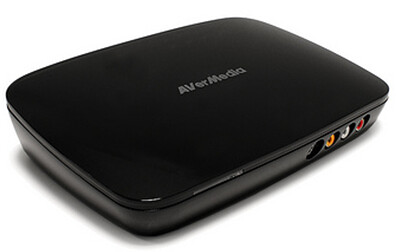
    AverMedia USB HD DVR


    A few days ago I hooked up with the fine folks at AVerMedia to learn a little more about their new USB HD DVR device set to compete with the Hauppauge HD-PVR.  This device, like the Hauppauge HD-PVR captures HD content (up to 1080i) via Component Video In and therefore uses the “Analog Hole” to record and tune the content you want from Cable and Satellite.

    My interview with AVerMedia was with Stephen Dix, VP of Sales & Marketing and Dominic Wong from engineering.  I’m really glad I had the chance to talk one-on-one with these guys as it gave me good insight into where AVerMedia is in the HTPC market and where they plan to be going forward.  I’ll get into the companies history and future plans with the North American HTPC market in a future post but the basic takeaway from my conversation is that AVerMedia is very serious about HTPC and working towards increasing their presence in the U.S. market.

    AverMedia USB HD DVR Ports

    There seemed to be some confusion when AVerMedia’s AverTV USB HD DVR was first announced at CES.  Despite several reports that it recorded with a HDMI input this is not the case.  Here’s the inputs and outputs on the device:

    Inputs:

    • Component Video In
    • S/Video In
    • Composite Video In (on front)
    • Composite Left/Right Audio In
    • Power
    • USB

    Outputs:

    • Component Video Out (1080p) pass through
    • HDMI Out (for playback directly to TV – not for HTPC)
    • Composite Left/Right Audio Out
    • IR Blaster

    Note two things in those specs above:  First, there is no Optical audio in or Optical audio out.  This is a biggie for some as it means no 5.1 audio.  But if priced right this might not be a huge deal really.  I confirmed with AVerMedia that this first generation of the device will only have stereo audio.

    Secondly you’ll note the HDMI output.  At first this seems a strange addition as it doesn’t record from HDMI.  But it will allow you to connect the device to a TV with HDMI inputs.

    I confirmed that the device will not ship with a remote control.

    Software Support:

    • TotalMedia Extreme 2.0 – comes bundled with the device and will be supported at launch
    • SageTV – AVerMedia has begun discussions with SageTV on support for the device.  I confirmed with Jeff Kardatzke (CEO of SageTV) of SageTV’s plans.  Kardatzke had this to say “

      “we do plan on working with AverMedia in the future to integrate support for the HD-DVR into SageTV”


    No word on support for Windows MediaCenter and based on how the Hauppauge HD-PVR device has been shunned by Microsoft, I’d expect the same situation here.  I’m also guessing that 3rd part support could be added for Windows MediaCenter if DVBLink gets it working as they have with the Hauppauge HD-PVR.

    Hardware Encoding

    Despite reports to the contrary, the AVerMedia AverTV USB HD DVR does hardware encoding just like the Hauppauge HD-PVR does.  Matter of fact the AVerMedia will pack in a very similar chip for hardware encoding to h.264.  AVerMedia tells me the semiconductor in their chip is a little more advanced too – we’ll have to check that in some real-time testing.

    Expected Launch Date?

    The estimated time of arrival for the AVerMedia AverTV USB HD DVR April 2010 which is a month later than originally announced.

    Expected Manufacturers Suggested Retail Price:

    The plan to launch with a MSR of $199 which is pretty close to what the Hauppauge HD-PVR is selling for.  I expect this should keep some pressure on Hauppauge to keep their price down and could mean the AVerMedia will sell for discounts at lower prices down the road – great news for HTPC owners!

    Other Info

    A few other tidbits I learned about the device:

    • Will not include a remote control – not a big deal for me since I never use the one that came with my Hauppauge HD-PVR
    • The use of more than one of these devices at one time on a single HTPC hasn’t been tested thus far but in theory should work.
    • There is no fan inside for cooling.  Overheating is an issue Hauppauge had with their HD-PVR initially so we’ll watch this closely with the AVerMedia.


    I’m excited about seeing competition for Hauppauge in this space – options are always a good thing.  Hopefully AVerMedia will put out a gen 2 device that supports 5.1 audio as well.

    As soon as they are available I’ll have a full review of the AVerMedia AverTV USB HD DVR here at GeekTonic so stay tuned!