Author: Martin Brinkmann

  • Best Windows 8 apps this week (Easter Edition)

    Twenty-second in a series. It has been a busy week filled with announcements and updates regarding Windows Store. The core applications Windows 8 Mail, Calendar and People got updated. Calendar users were in for a surprise if they used to sync their data with Google Calendar, as that does not work anymore after the update. The Mail app received significant improvements, including the ability to create, rename and delete folders inside the application and options to flag emails as important.

    The People app got a new feature that lets you post messages to the Facebook Wall of friends, and the Calendar app received an interface makeover. Microsoft updated Xbox Music, too — a new volume control option now acts independently from system volume and there are several other features, including the ability to make songs added to Xbox Music available on all compatible devices.

    The app of the popular password manager Last Pass received an updated as well, adding form filling and identity support to it. Barnes & Nobles, last but not least, is currently running a promotion in the Nook app for Windows 8 that gives users options to download five ebooks free of charge.

    The overall application growth this week is nearly as strong as last week’s — 1,484 new apps were added to the U.S. store, the bulk of them , 1,320, free to download and use. The overall app count in the US Windows 8 Store is 35,631.

    App of the Week

    Doom and Destiny

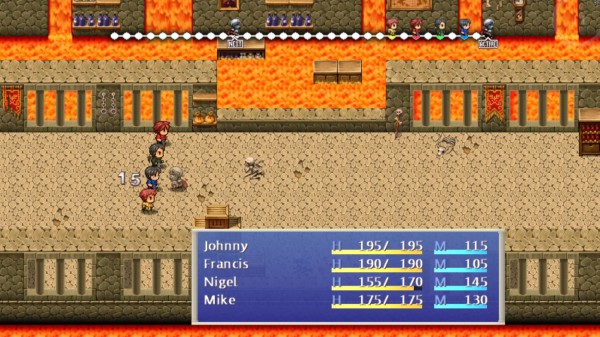
    Doom and Destiny reminds me a lot of classic role playing games of the 16-bit era. Your adventure starts in the real world but you quickly find out that the next D&D (Dungeons and Dragons) session turns into a real adventure quickly. You move around with the cursor keys and interact with items using the Z-key on the keyboard. The game runs in realtime, while you move around on the map and will switch to a turn-based combat system when you encounter foes.

    Here you have options to select one action per character, for instance to attack one of the foes, cast a spell or use an item. Foes come in different sizes and shapes, some are magic users, others undead that will attack you until they are lying on the ground or your party is. You earn experience and gain levels eventually that make your party more powerful. You can add power points to attributes which not only improves your chance of success, but also may be the prerequisite for using certain skills in the game.

    The game itself merges the real world with the fantasy world. You notice that for instance when you find pizza or beer instead of health and mana potions. The humor is special and adolescent at times. Doom and Destiny offers more than 25 hours of game play in its single player campaign that you will certainly enjoy if you like turn based roleplaying games.

    Other Apps

    Etsy8 ($1.49)
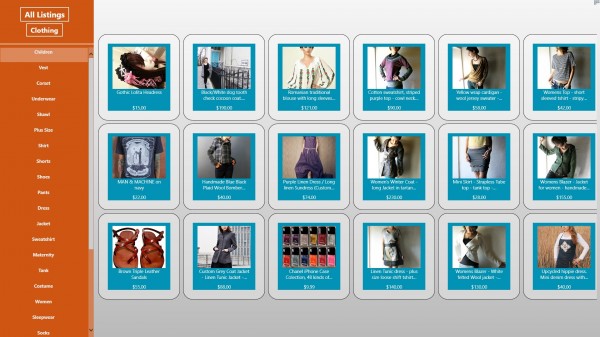
    You can browse items posted on the e-commerce website Etsy with the help of this application. Etsy is probably best know for handmade items that designers and creators from all over the world sell on the site. The application displays a selection of items on its start page. Each item is displayed with a thumbnail photo, its name and price. You can use the category listing on the left to explore a particular item group like Children, Candles or Geekery, or use the built-in search to find specific items of interest. Items open up in the application at first. Here you find additional photos, the item description and options to add the item to your cart. If you have an Etsy account, you can use it to sign in and make purchases right from within the app.

    Instagram Explorer
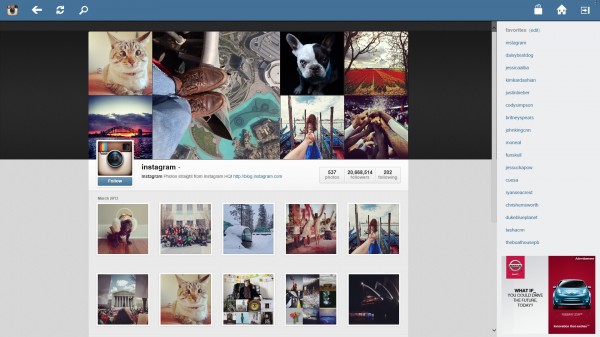
    Get Instagram profiles at your fingertip. You can sign in to your Instagram account or use the apps’ browsing and search options to view profiles and photos posted on them. If you sign in, commenting on and liking photos becomes available to you. Users who do not sign in can browse all photos and comments posted on Instagram profiles but can’t interact with the service in any other way. The app uses Windows 8’s search and share capabilities to find and display user profiles of interest, and share your findings with your friends or contacts.
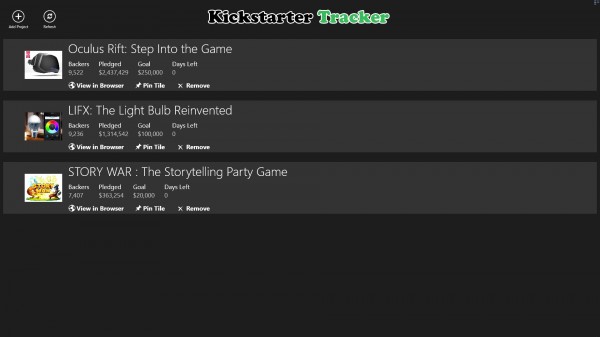
    Kickstarter Tracker

    If you are a regular on the crowd-funding platform Kickstarter, or just interested in some of the projects that are posted on it, you can use the Kickstarter Tracker application to monitor those projects. You can add as many projects as you like to the application. Doing so is not that comfortable as you have to paste the project URL into the application, and the only way of doing so is to visit Kickstarter in your web browser of choice to locate and copy the URL.

    A search would make the application more comfortable. Each project is listed with its name and funding goal, the amount pledged, the days left to reach that goal, and the backers. Projects can be pinned to the start screen so that you can monitor them from there directly without having to open the app first.
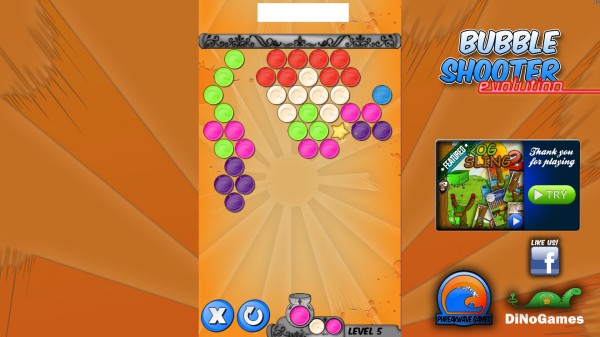
    Bubble Shooter Evolution

    This is a Windows 8 remake of the classic Puzzle Booble or Bust-a-Move game created by Taito Corporation. Your task in this game is to clear the level of all bubbles. At the start of each round, a prearranged pattern of bubbles emerges on the screen. The player controls a bubble cannon that shoots colored bubbles up the screen. The bubble travels in a straight line, bouncing of the sides, and stops when it touches any bubble on the screen. If three or more bubbles of the same color are next to each other, they pop and get removed from the screen.

    All bubbles hanging from them get removed as well provided that they are linked to a wall or the ceiling of the level. The ceiling moves downwards in intervals so that you need to be fast to avoid the game over sign on the screen.

    Photos+
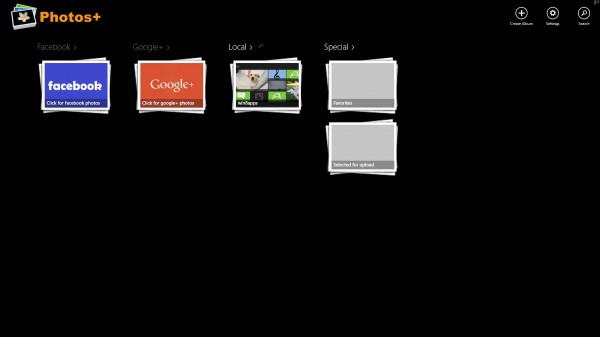
    Photos+ connects to your Facebook or Google+ account to make the photos that you have uploaded to those services available in its interface. You can furthermore use it to browse local folders with pictures, and to upload local photos to Facebook or Google+. To start, add one or multiple local folders to the application. You will notice that the folders become available as albums in the apps’ main interface. You can browse the pictures using the application, or use the upload functionality to share it on the two social networking sites you can connect the app to.
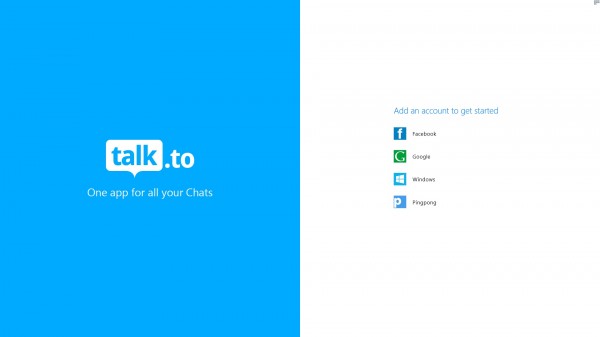
    Talk.to

    The Talk.to app provides you with access to the chat platforms Google Talk, Facebook Chat, Windows Live (MSN) and Pingpong so that you can chat with your friends and contacts right from the application interface. The first thing you need to do is authorize the app to connect to one of the accounts. Once done, you are taken to the chat interface to start chatting with your contacts right away.
  • Stardock ModernMix makes apps as usable as desktop programs on Windows 8 [Preview]

    Windows apps that you run on Windows 8 are limited to the Start screen environment by default. Here you can run them in full screen, or attached to a side of the screen so that they use 1/3 or 2/3 of the screen. What you cannot do is run them in windowed mode on the desktop.

    Attempts have been made in the past to bring that extra functionality to Windows 8 in the form of third-party applications. One of them, RetroUI Pro does so, but the implementation is fairly limited.

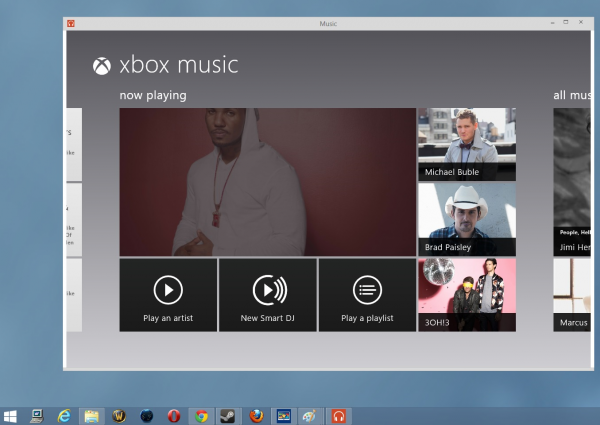
    Stardock’s ModernMix for Windows 8 is the first program — to my knowledge — that makes Windows apps as usable as desktop programs that run on the system. The application has been designed so that you can run one or multiple Windows apps that you have downloaded and installed from the built-in store on the desktop just like any other program you may have installed on the system — side-by-side with desktop programs or other apps.

    Even better is the fact that it does so in an unobtrusive way. Once you have installed the program on your system you are presented with an options menu where you can select how apps should be opened on the system.

    You can modify settings for apps that you launch from the Start screen, and settings for apps that you launch from the desktop. This works in sync with Start menu programs that you may have installed already on your system, which is probably the easiest way to run apps from the desktop.

    Your options are to launch apps in full screen like before, in full screen but with window controls, or in windowed mode on the desktop. The latter enables you to manage the app windows like any other program window that is currently open on the desktop. You can resize the window, minimize it to the taskbar or close it easily using the window controls that  you used to work with in previous versions of Windows.

    The applications retain all of their functionality when you run them on the desktop. You will notice that many become better to work with when you do so. The mail application, for instance, benefits from this greatly. You can now easily copy and paste multiple items into mails, fire up a browser without losing focus of the mail window, or watch a video on YouTube while you are composing an email.

    All apps that you launch that way on the desktop get their icon on the taskbar so that you can easily switch between them. App switching was never that easy on Windows 8 before.

    The developers have integrated a shortcut — F10 — in to the program that you can use to switch between app states easily. A tap on F10 switches between windowed mode and full screen mode. If you prefer to use the mouse, you can alternatively use the controls at the top right of every full-screen app window to do so. Both options can be disabled in the settings if you prefer so.

    The program has one small issue that I encountered during tests. If you try to add an attachment to an email, you are taken to a full screen file browser regardless of app state. That’s not a big issue but I thought I mention it anyway.

    If you’d ask me an hour ago which program I’d consider essential for Windows 8, I’d replied with the name of a start menu application for that operating system. This has changed with the release of ModernMix. The program improves the Windows 8 experience significantly by making apps as usable on the desktop as standard desktop programs.

    Stardock’s ModernMix is available as a 30 day free trial version. The full program is available as of now for $4.99. It is only compatible with Windows 8 and Windows 8 Pro, but not Windows RT.

  • Best Windows 8 apps this week

    Thirteenth in a series. Microsoft released the company’s fiscal second-quarter results on January 24 and to the surprise of many the company’s Windows division did well despite PC shipments being down during the same period.

    Windows Store has recovered from last week’s low number of new store apps. This week, 928 new apps were listed in the operating system’s US store, an increase of more than 31 percent over last week. Free apps, on the other hand, only increased by 136 this week while paid apps made a huge jump to 5,801 from 5,011 the week before.

    A large part of the paid apps this week are desktop apps that developers can add to the store which, technically, are not Windows apps but desktop programs — meaning the “real” increase of store apps is lower than that. Since there is no option to display only desktop apps, it is hard to tell how these programs are inflating the number of apps available in store.

    CNN

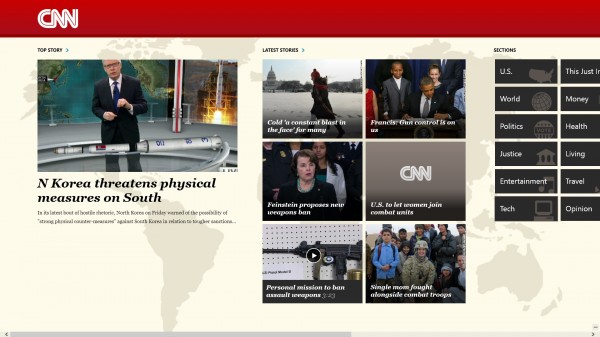
    This week’s big launch is the official CNN app for Windows 8 and RT. The news app displays the day’s top story on the front followed by a listing of latest stories and the various news sections that you may know from the site if you visit it occasionally or regularly.

    Reports include photos and textual contents but also recorded videos from CNN that you can play (again) using the application. A right-click opens a contextual menu that you can use to access various sections of the site including your access history. Here you get  a list of articles, videos and galleries that you accessed recently.

    The CNN app lacks search capabilities at the time of writing.

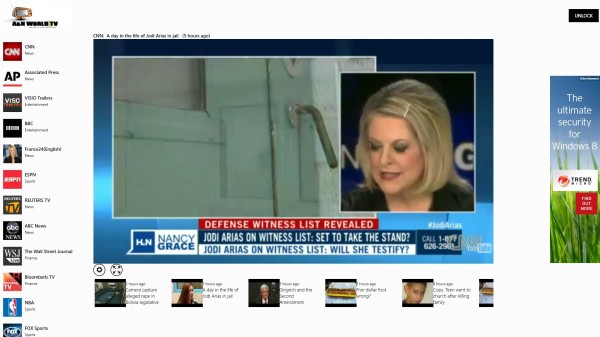
    World TV (free limited, paid $1.99)

    World TV offers pre-recorded TV clips to users of the application. Only a handful of TV channels are free to access including CNN and BBC Entertainment while the majority of channels including ESPN, Fox Sports or NBA TV are only available to users who purchased the application for $1.99

    A clip starts to play right after you open the application. You can switch clips using the thumbnail bar at the bottom of the screen and switch to full screen mode to view contents in HD quality without distracting interface elements.

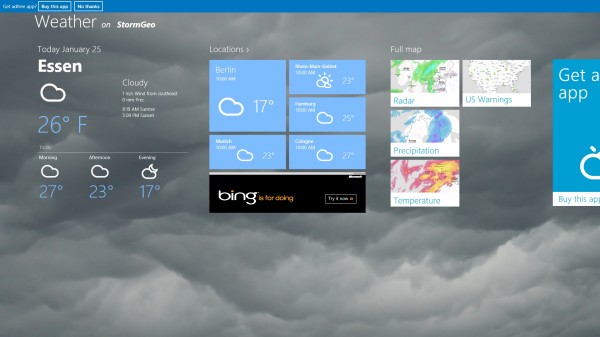
    Storm

    Storm is a weather application for Windows 8 that uses your location, if you allow it to, to display current weather conditions and forecasts for that location.

    Additional locations can be added to the favorites to have weather reports displayed for them automatically when the application is open.

    A click on a location opens a detailed weather forecast that not only displays temperatures for four periods of the day — morning, afternoon, evening and night — but also lists wind strength and direction, precipitation and a two week forecast.

    Last but not least it is also making available maps, radar, US warnings, precipitation and temperature.

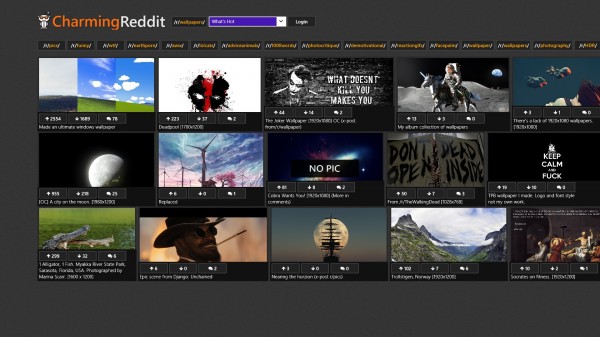
    Charming Reddit

    The other way to search Reddit. Charming Reddit concentrates only on pictures which is great if you are regularly browsing Reddit for the latest photo kick. Instead of having to do so on site, you can simply open the app and check out various picture categories of Reddit right here.

    The app displays the pictures in a photo Stream that not only displays thumbnail images of each pic, if available, but also the up and down votes, the comments it received and the description that was added to it by the original thread starter.

    A pull-down menu at the top enables you to display top scoring, new or controversial pictures posted this hour, day, week or all time. Basically, if you love Reddit’s photo section this app is for you.

    Hint: the wallpaper category offers some great wallpapers for your desktop.

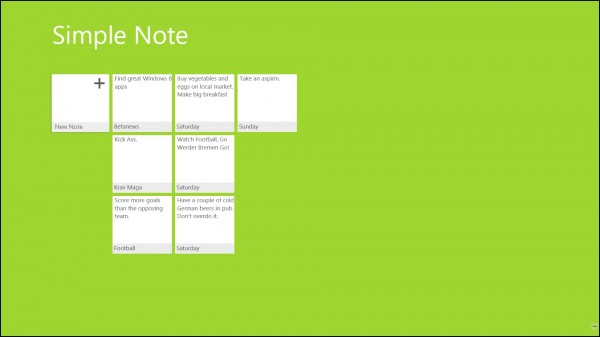
    Simple Note

    If you use notes as reminders of work or other activities / events then you may find Simple Note quite useful. As the name implies, it is one of the simpler note taking applications available for Windows 8. All you can do is create new notes, by entering a title and description and that’s about it.

    While this may not be enough for users who need to add images, documents, links or other information to notes, it should do it if you like your notes plain and simple. The program iterates through all notes on the start screen so that you have them always in reach when needed without having to open the application first.

    A couple of things would be helpful though, including setting expiration dates or reminders.

    World Clock

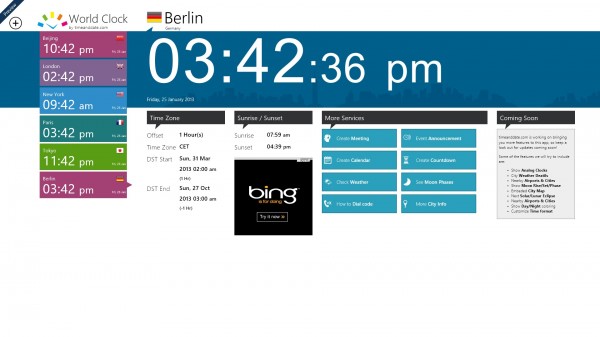
    The app displays the date and time of various locations. It ships with a selection of cities, including Beijing, London, New York and Tokyo by default, which you can add custom cities to if necessary.

    The application furthermore displays information about the time zone, as well as sunrise and sunset for the selected location. The more services options that you see on the screenshot above lead to the Time and Date website where you can configure those.

    The developers plan to add information such as weather information, embedded city maps or nearby airports and cities in future updates.

    Snap FX

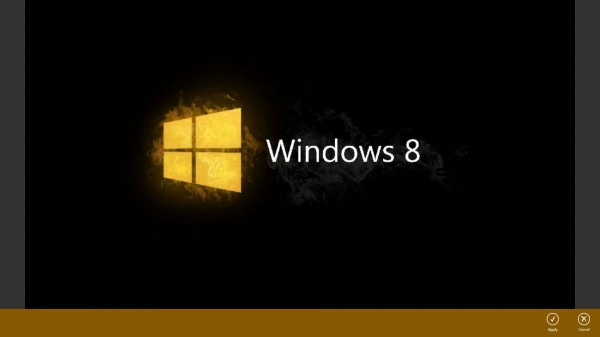
    Paint does not really cut it when it comes to image editing on Windows 8. Desktop users can install free programs like Paint.Net or GIMP to improve the capabilities, but RT users are more or less stuck with Paint or whatever the store has to offer to them.

    Snap FX is a program that makes many basic image editing tasks a breeze. You can use ot to change various parameters like the image’s brightness, sharpness or saturation, crop the image, rotate or flip it, or apply one of several Instagram-like filters to it to change its look and feel completely.

    What’s missing? Options to resize the image to a particular size for one, or the ability to add text to it.

    Edited images can be exported to Facebook or the local picture gallery.

    Duck Duck Go

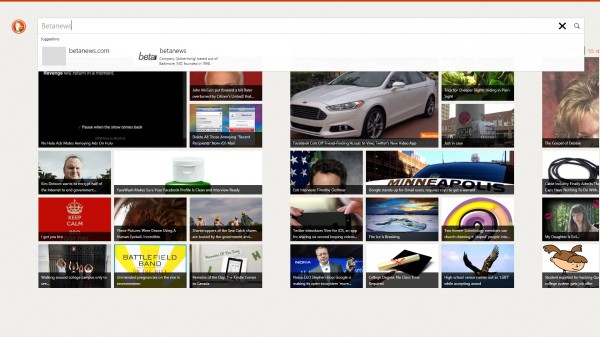
    DuckDuckGo.com is my search engine of choice and the launch of its Windows 8 app needs to be celebrated. Why I prefer the search engine over Google or Bing? Because it protects your privacy, does not put you in a filter bubble and makes available so called !bangs that you can use to redirect searches to other search engines.

    If a search for Windows 8 apps does not return the expected results on DuckDuckGo, you can add !g to the query to load Google’s search results right away or !ghacks to search on my site. These !bangs exist for lots of sites, Wikipedia, Flickr, popular search engines, tech blogs and more.

    The app makes available many of the features of the search engine, but !bangs and the majority of “goodies” are unfortunately not yet supported. Still, if you are looking for a different search engine that offers great results, I suggest you give it a try.

    Open Map

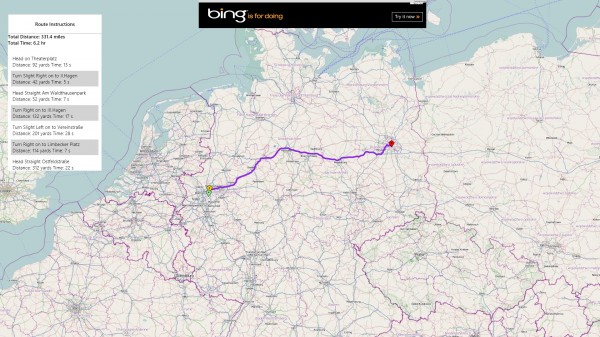
    This app brings the OpenMap project to Windows 8. While not the official app, it makes available the majority of features that Open Map supports. You can browse any location on a map and use the mouse to browse and zoom in or out of it.

    A right-click opens a basic menu with options to set locations and get directions. The app lacks a couple of features right now including the ability to enter the name of  a location to be taken there directly.

    Cloud Manga Reader

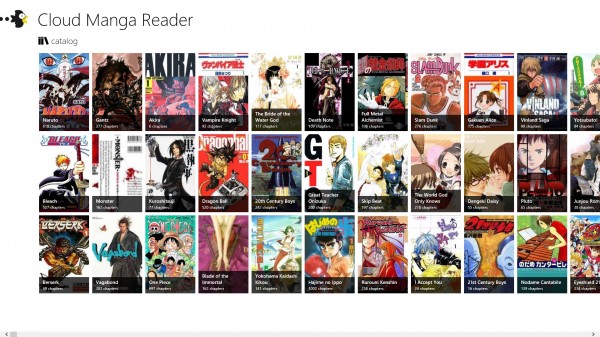
    If you can’t get enough Manga Cloud Manga Reader for Windows 8 is another application that helps you get your daily Manga fix.

    It makes available a catalog of Manga comics sorted by series including Naruto, Bleach, Vagabond or Dragon Ball to name a few. A click on a series opens the chapter list in full screen. From here it is just the matter of selecting a chapter to read to load the Manga right in the interface. As far as I can tell, all Manga offered here are translated to English.