Author: Brent Evans

  • Touch Screen UI Goodness for Whole Home Audio Video Home Automation

    When checking out new houses, I usually notice the whole house audio integration they build-in, albeit I was never a big fan of mounting speakers into the walls everywhere. Similarly, there are pretty neat home automation controls that use touch screen interfaces to control the various devices in your house. I always wanted something similar in my house, yet never saw the point in spending thousands of dollars on it. Now with computers becoming significantly more affordable I figured there’s got to be a way to set up a system with a nice touch interface. There are monitors available that provide a touch interface that start at a little less than $400. However, I wanted a system that I can mount to the wall with as little wiring as possible.

     NOTE:  This is a guest post by Thomas, a fellow HTPC enthusiast.  Thomas has an interesting setup and his talk of a touchscreen HTPC client caught my eye.

    While looking around, I came across the Shuttle X50, which is pretty much a 15.6 inch touch screen monitor with a built-in computer. It sports an Intel Atom 330 processor (1.6 GHz, dual core), built-in WiFi and sound, Intel GMA 3150, and an integrated webcam. Shuttle sells this as a full system or as a barebone. However, the barebone is considerably cheaper so I went for that. As a barebone it still needs the memory and hard drive to be installed. Specific information about this system is rather scarce, even on Shuttle’s own web site and the documentation that comes with it does not provide any more details. At the store, we actually had to take it apart to figure out what kind of hard drive and memory it needs. To save everybody from going through the same hassle, it actually needs notebook-style DDR2 memory and a 2.5 inch hard drive. So I got 2GB of memory and a 160GB hard drive for it. The computer is a little tricky in terms of taking it apart to install the memory and hard drive as you have to disassemble pretty much the whole backside of it, including any shielding and mounting material. In my case, the friendly guys at Microcenter put it all together as we had to open it up to find out for sure what type of memory and hard drive it requires anyway. All in all, I ended up spending slightly over $500 on the system (I still had a Windows 7 license lying around that I was able to use for this system).

    The Shuttle X50 comes with a little stand in the back that is mounted to the main case via a standard VESA wall mount. Hence, once this stand is removed any standard wall mount can be used. I then got the cheapest wall mount I could find in the local stores that allowed me to mount the system as flush to the wall as possible. In order to power the system, I drilled a whole into the wall located in such a way that it was covered by the computer later. In my case, the staircase to the basement is located on the other side of the wall. So I simply drilled another hole on that side, installed a power outlet in the staircase, and ran the power cable through the wall to plug into the new outlet. This way, there is no noticeable wiring around the touch screen computer and the white case of the computer blends in nicely with the wall. The following image shows the wall-mounted computer from the side. The white cable supplies power to the computer.
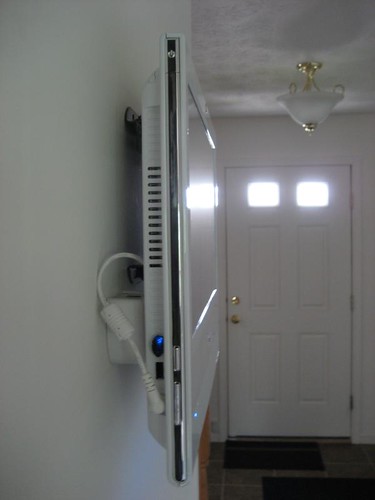
    IMG_0448

    Touch-Screen Security Monitor

    The main purpose of this system that I originally had in mind was to use it as a home security and whole house audio interface. So I installed the software that came with my Trendnet IP cameras which allows the computer to record from up to sixteen cameras. The dual core Atom processor is even fast enough to process the video feeds to only record when there is motion detected. I have four cameras hooked up and with hyper threading and the two cores there is basically one “processor” available for each camera to process the video feed and detect motion. The next photo shows the security camera software running on the touch screen computer.
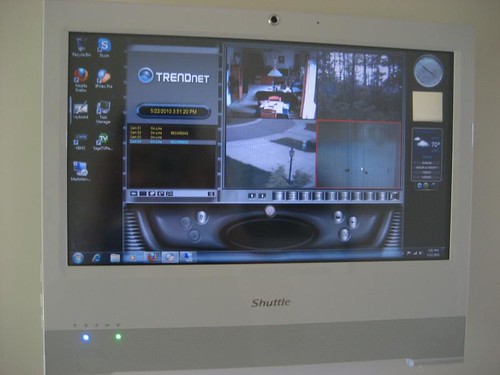
    IMG_0449

    A Touch-Screen HTPC

    In order to use the system as a whole house audio system, I tried several different audio players, including Windows Media Center, xbmc, and winamp. None of them really worked too well for me with just a touch screen. The touch interface emulates a mouse in a sense that wherever you touch the screen, a mouse click occurs. On the downside, this means that there basically is no support for any “mouse over” events. At some point, some of these audio players required some key press or the sorting of the audio files seemed too cumbersome to work with (all my audio files are arranged in folders and I like to browse them that way). Since I use SageTV throughout the entire house, I gave that a shot on this system as well. I tried both, the SageClient and the SageTV placeshifter. While the SageClient works on the system, it is struggling with 1080i video content where it does tend to studder once in a while. For a secondary system this is OK, even fine when used for 720p or lower resolution videos. The placeshifter works just fine as the server transcodes the videos first to a lower resolution, which this system can handle very well. Since SageTV can be controlled via a mouse, the touch interface works very well with it. Since all menu entries basically resemble buttons, they can be selected by just tapping onto them on the touch screen. When using the latest version of SageTV, v7, you will have to enable “focus follows mouse movement” (at least in the first beta version) in order for it to work properly or otherwise selecting menu items may open up the wrong sub-menus. Both, the client as well as the placeshifter work perfectly fine for just audio files and the fact that I was already quite familiar with its interface made it appear even more appealing. Selecting audio files to play and generate a play list is very easy and intuitive with the touch interface as you can essentially just tap on the audio file to add to the queue. Similarly, you can move the scroll bars around to browse through the list of audio files by just tapping on the arrows at the ends, on the scroll bar itself, or drag it up or down. Overall, this makes for a very intuitive user interface.

    Whole Home Audio Controlled by Touch Screen

    In order to achieve the whole house audio system I was looking for with this computer as the main touch-based user interface, I ended up going a slightly different route, though. This was mainly to reduce the amount of wiring in my house and to the system so that I only had to hide the main power cable going to the computer. The audio signal in my setup gets transmitted via an FM transmitter. I went for the C. Crane FMT Digital FM Transmitter as this model seems to be one of the better ones that actually can transmit throughout an entire home in stereo. The initial attempt was not overly satisfying as the distance it was able to transmit to was not that great. After searching through the internet, I found a couple of posts that tell you how to crank it up a notch (there is a potentiometer at the top inside the device that controls the output). These posts also recommended increasing the length of the antenna to the full 52 inches. So I just attached some copper cable I had lying around in the garage to get to that length. After these modifications, I was able to receive the signal properly everywhere in my house even with the transmitter being connected to my SageTV server in the basement. The FM transmitter can run on batteries but also comes with a power supply to deliver the necessary 5V. Just to get rid of yet another power supply for my setup I soldered together a USB power cable for it real quick so that the FM transmitter now is powered off of one of the USB connectors on my server. The following image depicts the SaveTV server in the basement with the FM transmitter in the lower left corner. The gray cable on the left is the antenna extension, whereas the black cable is the USB cable powering the FM transmitter.
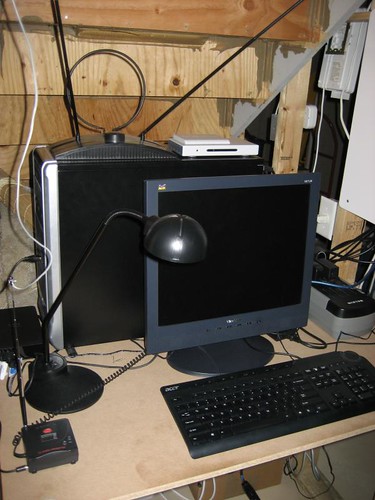
    IMG_0450

    Since the FM transmitter is connected to the sound card on the server, I now had to get the server to play the audio files instead of the touch screen computer. Of course, I still wanted to use the touch interface to select which audio files to play. The simplest solution for that was to just connect to the server via a remote desktop connection. The credential manager in Windows 7 can store the necessary username and password combination for this connection so that I was able to just put a remote desktop configuration file with all the necessary settings (mainly to make sure that the server still plays the audio instead of rerouting it to the touch screen computer) onto the desktop that establishes the RDP connection without any additional user input. On the server, I created a separate account designated to this RDP connection that just always runs the SageTV client. This way, I can still use the main account on the server for maintenance without disturbing the audio playback capabilities too much. The RDP connection is by no means fast enough to play video properly; but for selecting audio files it is still fast enough even with animations enabled in SageTV. This next picture shows the SageTV music interface running as a remote desktop session on the touch screen computer.
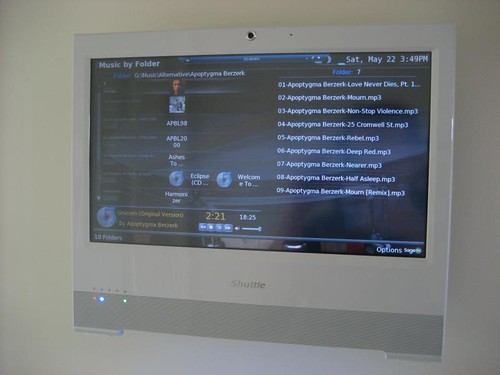
    IMG_0447

    All in all, this setup works very well for me and provides a very nice user interface to my house. As described earlier, it lets me select any of my music files available on the central server in the basement. In addition, it shows all the camera feeds of the security cameras so that I know what is going on around my house if need be (and it records everything in case something happens while I am out of the house). Since it is a regular computer, you can essential install anything you would want this computer to do. For example, I installed a weather gadget to always have the current weather displayed on the main screen. There is usually also a web browser running all the time which can be used to check up on something real quick. The web browser also allows me to connect to the home automation web server in my house that controls light and other devices in the house via the X10 protocol using a firecracker module. Overall, this small touch screen computer makes for a nice and intuitive user interface that can more than compete with many (significantly more expensive) commercial home automation and whole house audio systems. On top of that, it can serve many additional purposes, such as quick web browsing etc. As usual, your imagination is the limit in what you use something like this for.

    About the author: Thomas is an Assistant Professor for Computer Science and Engineering at Wright State University. He is an enthusiastic user of HTPCs for over six years. Starting with a simple setup using myHTPC and GotTV, he quickly moved on to SageTV to establish a whole house media solution.

  • Microsoft Update Kills Custom Menus in Media Center

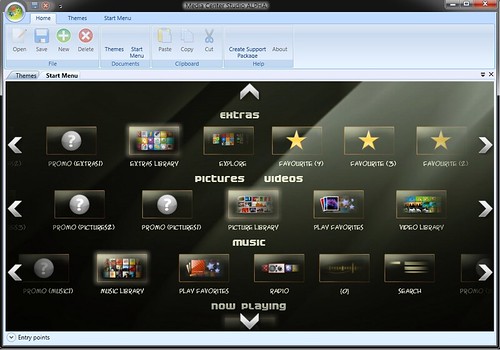
    A recent auto-update from Microsoft inadvertently (presumably) caused any custom menu changes to Microsoft MediaCenter to break.  This includes the popular Media Center Studio, a free 3rd party add-on to Microsoft Media center that enables you to customize menus of Media Center in Windows 7 and Vista Media Center.

    The update included MSN Video Player for those overseas, but somehow killed off any custom menu changes created by users hacks including changes made using the Media Center Studio.

    MCStudio

    Hopefully Microsoft will offer up a solution eventually, but there is no guarantee since any changes to the menus were unsupported by Microsoft.

    More at GreenButton Forums

    via theDigitalLifestyle


  • Netflix Using Microsoft PlayReady as primary DRM Tech

    The headline says it all.  Netflix Taps Microsoft PlayReady as Its Primary DRM Technology for Netflix Ready Devices and Applications.

    This is very good news for Microsoft as well as those who make hardware devices using Microsoft PlayReady for content protected playback.  Netflix already uses PlayReady for its Windows and Mac computer instant streaming service.  This announcement adds PlayReady for hardware devices as well.  The press release speaks of “Internet TVs, Blu-ray disc players, home theater systems, video game consoles and other devices.”  I wonder what they mean by other devices…

    According to the announcement, the first devices making use of the PlayReady DRM should hit stores this summer.  Supposedly XBox360, Wii, PS3 and other devices that already have Netflix streaming support won’t be affected by the move to PlayReady.

    Microsoft Press Release

    Netflix Press Release


  • GoogleTV – TV Meets Innovation

    Google TV Logo

    I (MrGeekTonic) started out being a little underwhelmed by GoogleTV’s announcement at first – much like my friend Dave Zatz, but I’ve been trying to keep an open mind about it and listening to those who are closer to the Google action to see what they think.  The following is a guest post by Sean Stuckless, someone who I respect a great deal because of his coding abilities (think SageTV Phoenix – stuff you may not realize yet but soon will) and also for his HTPC insight.  Read on for a look at GoogleTV from an attendee of the Google IO conference.

    NOTE:  This is a guest post by Sean, a HTPC guru and developer.  Sean attended the GogleIO conference so I asked him to contribute his thoughts on GoogleTV.  Definitely a must-read for those interested in the future of TV – in particular GoogleTV’s vision.

    This past week I had the pleasure of being one of the five thousand people to attend this year’s Google IO conference in San Francisco.  There were many highlights, such as releasing the VP8 codec and announcing Android 2.2, but something especially interesting to me was GoogleTV.  I had heard rumors about GoogleTV before, and the presentation on GoogleTV was not exactly impressive.   This was partly because of technical issues and the fact that this is a still a "concept" rather than a full featured product.  But the concept is intriguing.

    GoogleTV – Android-Powered

    If you are like me, then you have played with many different HTPC platforms over the years.  You routinely hear people asking to surf the net from their TV, and while Google decided to show off that feature, it wasn’t the ability to actually surf the net the got my attention.  It was the fact that GoogleTV is built on Android.  Android has a marketplace with 1000s of Applications, many of which will just run on the TV.  Android is a platform with a fast HTML5 capable browser.   Now, at the click of button, you have access to 1000s of applications and rich web applications from your TV, with a way to build a custom TV experience.

    Applications can take over the viewing experience, such as a media library manager that will playback HD content from your HTPC server.  Or it may simply sit on top of your current show in some non-obtrusive way.  Consider as case where a twitter feed is displayed down the right hand side of the TV as you are watching American Idol.  You can now engaging your TV shows in way that you could never do before.  Or you are seeing real time content related to your shows as you watch them.

    “I think the real potential here is the custom applications that you can access from your TV”

    Being able to browse the web from your TV is fine, but I think the real potential here is the custom applications that you can access from your TV.  Install them, remove them; Applications for Media Management, News Feeds, Pod Casts, etc, all from your couch.  And, because it’s built on Android, it inherits the capabilities of the Android and Google Cloud platforms.  Consider a case where where you are sitting with your tablet in the living room, and you find a cool YouTube video.  Everyone could simply gather around the tablet and watch the video, or, you can send a message from the tablet to the TV and the TV will begin playing the YouTube video that you have selected in the Tablet.  This isn’t simply displaying your content of the tablet on the TV, or firing up a remote application on the Tablet, this is real device communication where one device, such as a Tablet, phone or pc, can send intelligent messages directly to your TV, and your TV will understand what to do with them.   Consider the flip side of this.  What if you were watching a youtube video on your TV, and you had to leave.  You can have your TV send a message from the TV to your Android phone where the phone would automatically start playing the current video from the TV at the current location in the video, but now on your phone, as you leave the house.  This is one the exciting features in the new Android 2.2 release, and it something that will make it’s way into GoogleTV. 

    “Allowing your TV to become an extension of your existing devices”

    GoogleTV is a much more innovative concept than simply watching the web on your TV, or searching for content from your TV, although that’s part of it.  GoogleTV is making your TV interactive in way that has never been done before, and allowing your TV to become an extension of your existing devices. 


    About the author:  Sean got his first taste of computers at young age of 7, entering byte code from magazines on his VIC20.  Since that time he’s owned a Commodore64, a CoCo3, and numerous x86 machines (he currently have 7 active PCs in his home).   When he’s not working diligently for a large software corporation architecting software, he spends his spare time tinkering with his SageTV setup and writing code for various SageTV projects, include Sage Remote APIs, Batch Metadata Tools, and the ever so secret Phoenix Initiative (not to be confused with the Dharma Initiative).  Sean currently lives in a small city in Southwestern Ontario, and he’s really looking forward to Golf season to start.  At which time, his indoor hobbies take a backseat to great outdoors.


  • What SageTV 7 Can Do For You – A Video Demo of SageTV 7

    A SageTV enthusiast has created a very nice promo video of SageTV showing us many of the features of SageTV 7 in an entertaining way – it could be a SageTV commercial it’s so good.  Here’s what Jarred had to say about his demo:

    “SageTV’s highly anticipated Version 7 was released last week as a public beta. I decided to update my video with the new version, as it has a much sleeker look and feel.”

    Take a look:

    I’ll have more about Jarred’s interesting Home (and Car) Theater PC setup in the near future.

    via JarredInTheHouse

    More on SageTV7:


  • iPad plus Velcro = Mind Changing!

    Not what I expected to be my first iPad post after owning an iPad since it was available, but oh well:

    The awesomeness of the iPad plus the amazingness of velcro.  A match made in heaven.

    I decided to post this one after viewing the video about 1 minute and 20 seconds in.  Too funny!

    iPad Version Here

    Note:  This post and video is not necessarily meant to be taken seriously.  I had to say this for the fanboys on both sides of the “issue.”

    via http://jesserosten.com/2010/ipad-velcro


  • TV Premieres, Finales & Specials This Week 05/23/2010

    Each week GeekTonic covers the TV scene with a complete listing of premieres, finales and specials for the week.  This would be week two of the biggest finales.  Lost, 24, Chuck and More.

    Don’t miss the Ultimate Guide to the Summer 2010 TV Season with free PDF downloads!

    And the TV Status – Guide to which shows are canceled and renewed for next season

    24 Finale

    This week is the final episode of 24.  What happens to Jack?

    NOTE: All Times are Listed for EST – TV schedules subject to change


    Sunday, May 23

    The Simpsons (8pm on Fox – Available in HD) – Season finale

    The Cleveland Show (8:30pm on Fox – Available in HD) – Season finale

    Family Guy (9pm on Fox) – Season finale – A retelling of “The Empire Strikes Back”

    Celebrity Apprentice (9pm on NBC – Available in HD)  – 2-hour Season finale

    Lost (9pm on ABC – Available in HD) – 2 and 1/2-Hour Series finale (and there’s a recap special starting at 7pm in case you skipped some of the show)

    The World’s Fattest Man (9pm on TLC) – Series premiere of a new realityTV series about, well you get the point from the title.  And I’m sure it this episode will get tons of ratings since it’s competing with Lost’s finale right?


    Monday, May 24

    24 (8pm on Fox – Available in HD) – One of my favorite shows comes to an end with a 2-hour series finale

    Chuck (8pm on NBC – Available in HD) – Season finale

    How I Met Your Mother (8pm on CBS – Available in HD) – Season finale

    The IFC Media Project (8pm on IFC – Available in HD) – Season 3 of the Independent Film Channel’s docu-series that gives an inside look at how news gets made.

    10 Things I Hate About You (8:30pm on ABC – Available in HD) – Season finale

    Rules of Engagement (8:30pm on CBS – Available in HD) – Season finale

    Two and a Half Men (9pm on CBS – Available in HD) – Season finale

    The Bachelorette (9pm on ABC – Available in HD) – Season 6 begins

    The Big Bang Theory (9:31pm on CBS – Available in HD) – Season finale

    Law & Order (10pm on NBC – Available in HD) – Series finale.  This show ends with it’s 20th season.  Forever known in my house as the “Duh Dun” show…

    CSI: Miami (10:01pm on CBS – Available in HD) – Season finale


    Tuesday, May 25

    NCIS (8pm on CBS – Available in HD) – Season finale

    The Biggest Loser (8pm on NBC) – Season finale

    NCIS: Los Angeles (9pm on CBS – Available in HD) – Season finale

    Dancing With the Stars (9pm on ABC – Available in HD) – Season finale

    The Good Wife (10pm on CBS – Available in HD) – Season finale

    Parenthood (10pm on NBC – Available in HD) – Season finale


    Wednesday, May 26

    American Idol (8pm on Fox – Available in HD) – It’s Simon’s last time as a judge on American Idol.  Season finale

    Criminal Minds (9pm on CBS – Available in HD) – Season finale

    Cellblock 6: Female Lock Up Guilty… So You Think (9pm on TLC – Available in HD) – New documentary with 8 women coping with their incarceration in Gwinnett County Jail; one woman prepares for her release

    CSI: NY (10pm on CBS – Available in HD) – Season finale


    Thursday, May 27

    FlashForward (8pm on ABC – Available in HD) – This is the series finale since they cancelled it prematurely.  I’m many episodes behind so I’m torn between watching them all or just deleting the lot and moving on.

    So You Think You Can Dance? (8pm on Fox – Available in HD) – Season 7

    100 Questions (8:30pm on NBC – Available in HD) A new “ensemble” comedy project spotlighting the life of Charlotte Payne living in NYC looking for love.

    Police Women of Memphis (9pm on TLC) – New reality TV show

    Mall Cops: Mall of America (10pm on TLC) – A new reality TV show about mall cops at the Minneapolis Mall of America

    The OCD Project (10pm on VH1) – Another realityTV show.  This one has 6 patients with obsessive-compulsive disorder arriving at a treatment center.  Hmm.


    Friday, May 28

    The Tyra Banks Show (5pm Syndicated) – The end of Tyra Banks talk show.

    Past Life (8pm on Fox) – Season finale


    If you follow GeekTonic for the TV Premieres and news, you’ll want to click here if you would like to get a regular e-mail for GeekTonic TV Premieres & News


  • Quick Update – SageTV 7 Beta Available for Download

    You saw the preview of SageTV’s new version – SageTV 7 yesterday.  Now you can download SageTV 7 and try it out for yourself.

    From SageTV Forums:

    Version 7 Public Beta Has Begun!


    It’s that time again to start the public beta process for a new version of SageTV.

    We’ve been pretty busy over here for awhile and have a bunch of new things in V7 of SageTV. Let’s start of with the list of the major new features for V7 of SageTV.

    Get the complete changelog and download at SageTV Forums

    Stay tuned for a complete walkthrough of the new UI, features and add-ons here at GeekTonic coming soon.


  • Plex HTPC Software for Macs Shares Sneak Peek

    As I was working on my SageTV 7 post, Dave at ZatzNotFunny! picked up the latest on the next version of Plex:

    “The Mac OS X port (er, fork?) of the XBMC project continues to push forward. Like a Boxee, Plex turns our Macs into media centers — designed to be controlled via a 10′ interface. However, as the team’s sneak peek of recent alpha builds (video above) indicates, there are times when it’s more practical to manage our content libraries at the computer… rather than from the couch. With that in mind as we drive towards v1.0, Media Manager functionality has been removed from the primary, remote-controlled Plex UI and is accessed as a separate app, best worked by mouse. Additionally, Plex looks to embrace the whole home concept and pretty seamlessly links up to additional Plex Mac installs.”

    This Article was reprinted from ZatzNotFunny! with permission.  If you haven’t already, be sure and subscribe to ZatzNotFunny! for great coverage of digital media.


  • SageTV 7 Arrives Tomorrow – New UI, Plugin Manager, and More

    GeekTonic has big news about popular Home Theater PC software, SageTV.  The next version of SageTV – SageTV7 should be available as a public beta sometime tomorrow!
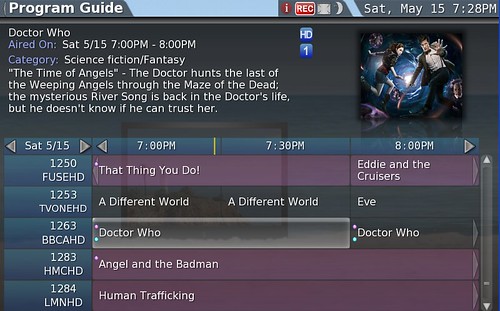
    EPG
    Since CES, we knew a new SageTV version was coming and that it would include a new UI.  I have had the opportunity to preview this new version and thought I’d run through the more significant new features, changes and improvements.

    More Info after the Jump…


    • New User Interface (UI)  – See below for a couple of screen-shots as well as more description on this.
    • Online Plugin Manager – This is really a big improvement over the past method of importing plugins, changing settings files etc.  Think of this as a simple way of viewing what plugins are available, what plugins you have installed, which plugins have updates available etc – all from the UI.  This takes what was a fairly onerous process of installing and setting up a plugin and makes it simple.

    Plugin Manager

    • XBMC Skin (xml) import support – Do you covet one of the beautiful XBMC skins?  SageTV 7 has created a way to automatically import those skins into SageTV 7 and use them as your UI.  It’s not an entirely automatic process and requires some modification, but it makes importing & using the XBMC skins possible without much coding.  The first imported skins should arrive in the near future.
    • Live TV seamless transition between shows – If you’re a SageTV user already you know about this one.  In the past say you were watching a sporting event and it ran past the scheduled end time.  SageTV used to pause playback for a few seconds while it transitioned into the next show causing an annoying irritant to users.  That problem is gone now and you’ll have seamless transitions.
    • BDMV (Blu-ray) folder playback – Blu-ray playback already exists with SageTV 6, but SageTV 7 adds Windows playback improvements (decoders required to be installed)
    • Support for playback of ISO DVD and Blu-ray files on all platforms that support non-ISO playback (requires Virtual Clone Drive (free) to be installed for Windows)
    • Windows Placeshifter uses DirectX 3D rendering instead of OpenGL
    • SageTV recordings now have their full metadata embedded into the video file instead of requiring a separate file to hold that metadata
    • Increased stability of Hauppauge HD-PVR – Enhancements to workaround Hauppauge HDPVR instabilities on Windows
    • DirectShow demux filter for handling MKV, MP4 and FLV media types
    • New ‘Effects’ rendering system with support for more advanced and easier to use animations (layers are no longer needed)
    • Background image loading system allows for faster loading of thumbnails and other image resources w/out interfering with UI responsiveness
    • New Pan/Zoom style slideshow transition effects
    • Automatic conversion of Favorite recordings
    • Removed the need for formatting disks with 64k clusters in order to get optimal disk performance on Windows
    • Significant performance increases for HD200 – you will notice this especially when navigating the UI.  And this allows for more animations in the UI as well.  NOTE: It was pointed out to me by a HD100 user of SageTV 7 that improvements were made that enhance the HD100 performance as well.  He stated that the HD100 is now as fast as the HD200 was with SageTV 6!
    • Support for DVB radio channels
    • Windows 7 compatibility – SageTV worked with Windows 7 already, but now installation on Windows 7 is more seamless.
    • Lots of new API calls and Widget options in the SageTV Studio
    • Various other optimizations and bug fixes  – the complete change log will be included in the official announcement tomorrow.

    New User Interface – Probably on the most-requested list for SageTV developers is a re-write of the user interface.  The SageTV user interface that comes installed in SageTV by default has made many changes over the years, but cosmetically it’s looked and worked about the same.  The SageTV team has made some significant changes in the UI that they hope will please those that liked the old UI the way it was as well as those looking for a more attractive appearance. 
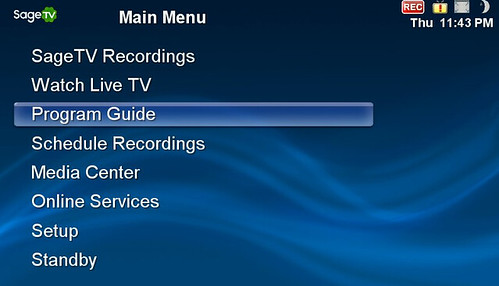
    For comparison, below is the old, default SageTV6 UI:
    Old SageTV 6 Main Menu
    Obviously pretty plain and that’s one reason many SageTV users flocked to the 3rd Party UI, SageMC.
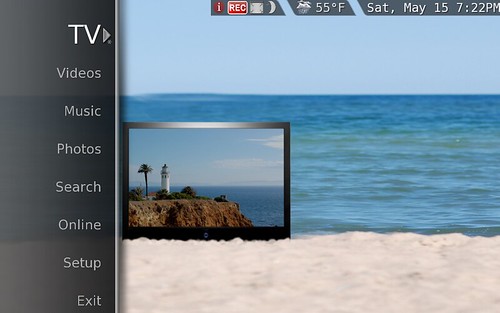
    The screenshot below shows the main menu in it’s pure form.  Included are new animations, improvements to the extender (HD200) firmware to allow for these animations.  I’ll be posting a demo video to show the UI in action later this week as it’s difficult to get the feel for it all with static photos.  Note that this UI is skinnable and background images can easily be changed.  The screen-shots I’m including here are from the current, beta version.
    Main Menu TV
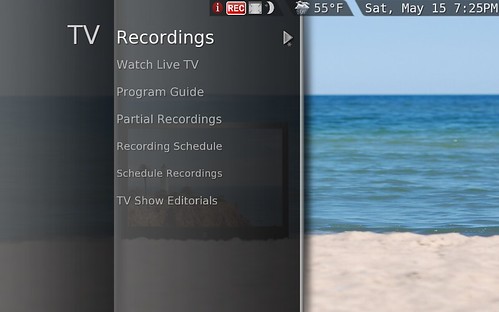
    You can either press select with your remote control to initiate a given function (such as TV) or as you move your cursor (remote control) right, a sub-menu slides open showing additional settings.
    Main Menu TV Submenu
    The entire UI works in a similar, unified way.  You’ll find the menu items and submenu items better organized and easier to navigate compared to the old, UI.  More on the UI later.
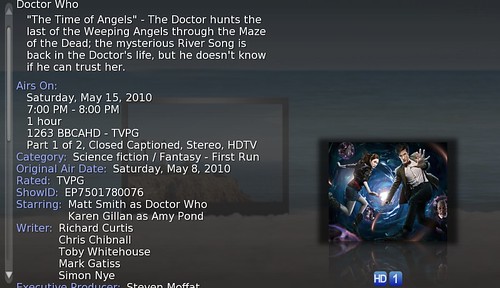
    EPG Program Details

    Many Important Changes “Under-the-hood”

    Many will focus on the new UI, transitions and effects and think that’s the biggest change here – and it is from a purely look & appearance perspective.  But for me it’s also the more subtle, under-the-hood changes that make this version a huge leap forward.  The new plugin manager makes installing and updating add-ons incredibly easy – I can’t stress enough how much of an improvement this is to those that use SageTV.  The changes the SageTV team has made the learning curve so much easier.
    Other non-UI items that are on the list of things I’m really appreciating here include the improved HD-PVR performance, improved HD200 performance (it handles navigation very fast), no more “pause” between shows when watching LiveTV like I used to experience when watching sports, improved Blu-ray functionality, the embedded metadata in the recorded TV file – those sorts of things will be appreciated by those familiar with SageTV 6.
    The other thing you might not notice at first with SageTV7 is the coordination and support that went on behind the scenes between SageTV developers and the third-party add-on developers.  There are three or four significant projects underway that will offer even more functionality and UI choices for SageTV users.  Projects underway include:

    • Project Ortus – A combination UI system and feature-set add-on being developed by a team of developers for SageTV.
    • Project Phoenix – Yet another combination UI system and feature-set add-on being developed by a team of developers for SageTV.  This one includes developers of the well-loved SageMC add-on.

    • SageTV MyMovies – Ever heard of MyMovies?  This add-on will be another port of MyMovies and looks to be very exciting.

    Each of the projects mentioned above have plans to make it to public beta sometime later this year or early next year depending on their progress.  I hope to provide previews of each of these add-ons in the near future on GeekTonic.
    Another important thing to note – the version you will see tomorrow will still be in beta albeit public beta.  This means there will be more changes before it’s completely finished – we know from past experience that SageTV improves and updates on a very frequent schedule.  There will be more good things to come for SageTV users…
    I noticed that there isn’t a new Mac client so far so this new SageTV 7 version is only for Windows and Linux users thus far.

    Upgrade Policy

    • All windows SageTV6 and SageTV6 upgrade licenses purchased on or after 12/1/2009 will be valid for SageTV 7.
    • All prior linux and mac and client and placeshifter and extender licenses will be valid for SageTV7 
    • The trial is reset on the SageTV7 beta. Upgrade licenses on windows are $39.95, and any prior Windows Version of SageTV license qualifies for an upgrade license.

    So everyone who would like to try out SageTV7 on Windows should get the opportunity with the 21-day trial.
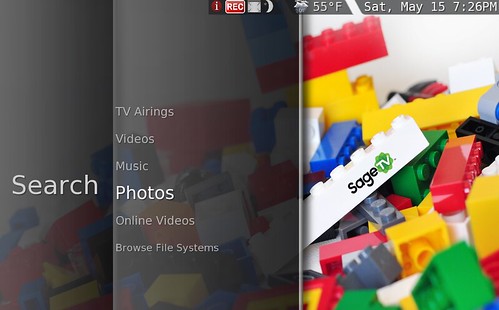
    Main Menu Search Submenu
    If you want to be first in line to download the new public beta, subscribe to this thread in the SageTV forums and you’ll get an e-mail.  Of course I’ll have a post up here at GeekTonic letting you know it’s available as well.  I also plan to have a couple of more detailed walk-through’s of the new features and UI for those that are curious so stay tuned!

    Thanks to the guys at SageTV for the special preview for GeekTonic


  • Moving Imported Video into TV Recordings – SageTV Tip

    One of my many hang-ups with HTPCs is organization of the media.  In my perfect world, all TV shows up under TV regardless of whether it is something I recorded using my HTPC tuners, something I imported from a video file or even a ripped TV-series DVD from my DVD collection.  When someone using my HTPC is looking for a TV show it should always be listed under TV.
    The problem with this is SageTV sees things differently.  If you import a video file – even if its a TV show it knows it hasn’t been recorded from the DVR function and therefore relegates it to “Videos.”  So what’s a perfectionist to do?
    The answer is actually quite simple although I haven’t found a clear-cut how-to on this so I decided to write one myself to help out other overly-orderly SageTV users like myself.
    There is another method that involves a very impressive metadata manager for SageTV called BMT (Batch Metadata Tools).  I’ll hold that method for a future how-to for now and focus on this simple method using SageTV Web Server:
    The complete how-to after the jump…

    Steps to Change a SageTV video file to the Recorded TV section

    Note:  This is assuming you’ve already imported the video in question into SageTV’s database.
    Step 1 – Install SageTV Web Server following these instructions
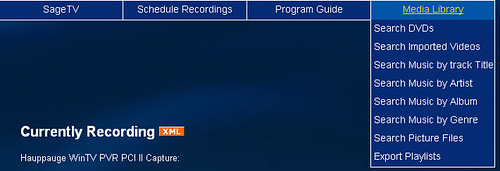
    Step 2 – Select “Media Library” and “Search Imported Videos” from the top menu of SageTV Web Server
    Convert to TV SageTV Howto 1
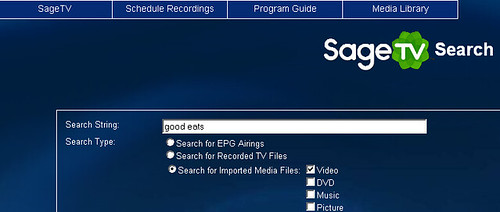
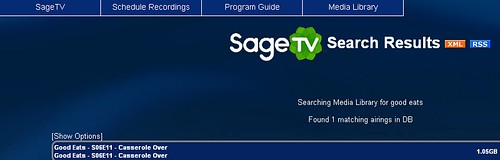
    Step 3 – Search for the video.  In this example I searched for “Good Eats”
    Convert to TV SageTV Howto 2
    Below you see the found video file which is a mpg.  It currently is listed in videos – and I want it to show up under TV.
    Convert to TV SageTV Howto 3
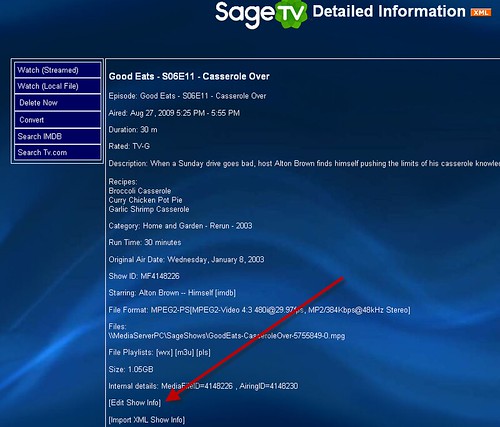
    Step 4 – Select the video file you wish to convert, then click on “Edit Show Info” with your mouse
    Convert to TV SageTV Howto 4
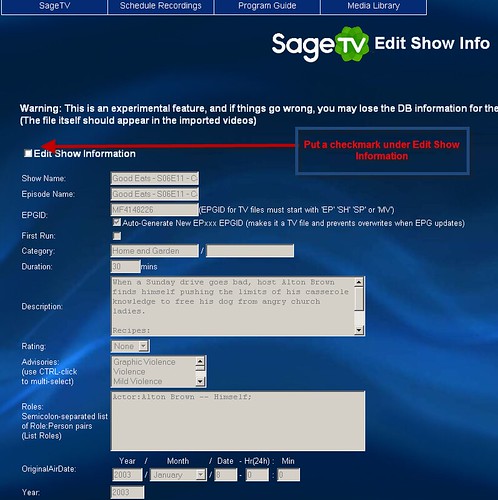
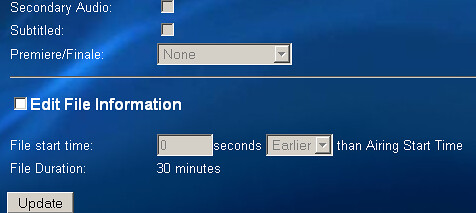
    Step 5 – Put a checkmark in the “Edit Show Information” box.  Don’t worry about the warning – it’s been there for years and I have yet to mess up my SageTV database.  To be safe you can always back up your wiz.bin (database) file – I recommend you do this regularly anyway.
    Convert to TV SageTV Howto 5
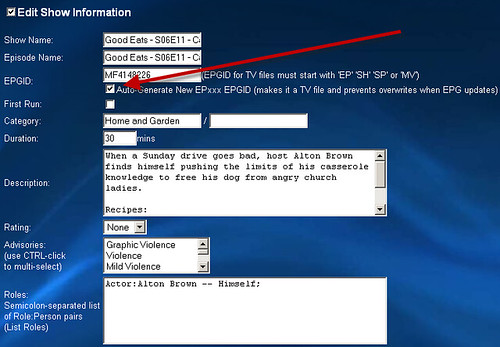
    Step 6 – Once you’ve selected “edit show information” all fields will be editable.  Feel free to fill in any of the blanks like show name, episode name, category, description etc.  The key here is to make sure “Auto Generate New EPxxx EPGID” is selected with a checkmark.  This is what will move the video to the TV section by tricking SageTV into thinking it was recorded by SageTV.
    Convert to TV SageTV Howto 6
    Step 7 – Now you can click on the “update” button at the bottom-left of the page.
    Convert to TV SageTV Howto 7
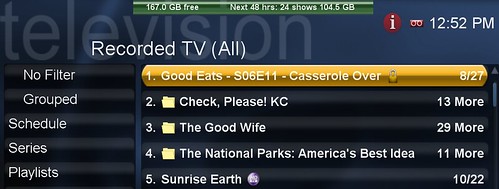
    That’s it.  You can now open up SageTV and the file will be listed under TV.  Note that I left the “Show Name” as “Good Eats – S06E11 – Casserole Over” which really isn’t a great way to name it.  It’s best to name the show by the series name “Good Eats” and then name the episode name with… well the episode name.  But you get the idea.
    Video to TV How to
    The other way is a bit more automated and involves a really nice add-on known as BMT (Batch Metadata Tools).  I’ll cover that in a future how-to.


  • Deal of the Day – Hauppauge HD-PVR $179.99 AR

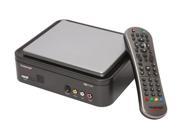
    It’s been a while since we’ve had the deal of the day here at GeekTonic, but honestly I haven’t seen anything that caught my eye until now.  The Hauppauge HD-PVR which is soon to be a supported Windows 7 Media Center device and already working great for all other HTPC software programs is on sale at Newegg (affiliate).

    Hauppauge HD PVR High Definition Personal Video Recorder 1212

    Newegg has the Hauppauge HD-PVR 1212 Hauppauge HD-PVR component tuners (read more about it here) for your HTPC setup now for $179.99 after rebate with free shipping:

    Hauppauge HD PVR High Definition Personal Video Recorder 1212 $179.99 ($219.99 – 15 instant off – $5 with promo code EMCYSZP46 ends 5/19 -20$ MIR  All with free shipping. 

    Thanks to NeilH for the tip!


  • Ask the Readers – Which OS For Your HTPC?

    As I prepare for the next in the “HTPC Basics” Series, I thought I’d reach out to GeekTonic readers to see which operating system you use.  Please vote for the OS you’re using on your HTPC – if you have multiple ones with different HTPCs in the home, feel free to select each OS in the poll.

    As an added benefit, I’m testing out the Polldaddy service as a possible tool for polls and surveys here. 

    Comments welcome as always!


  • Microsoft Shows It’s Hand – Embedded Windows 7 Could Mean HTPC Extenders and More

    Windows 7 Embedded

    Microsoft spent the week pulling surprises out if its giant hat this week with a couple of significant announcements.  The first one was a positive – embedded Windows 7 for CE devices which holds some promise – especially for Media Center fans.  The second a total disappointment albeit not an entirely shocking one where they admitted their awesome, courier Tablet PC concept was just that – a concept that will never see the light of day.  Since I’m a bit ticked about the courier announcement, we’ll focus on the positive, embedded PC concept today.

    The biggest tech news sites have sort of glossed over the announcement, but don’t for a second discount this one.  Microsoft has unleashed an embedded version of their hot-selling Windows 7 operating system to be used by OEMs in consumer electric devices such as TVs, set top boxes, DVD/Blu-ray players etc.  If this sounds a little Linux-like to you, you’re not crazy.  Embedded W7 is targeting Linux front-on since you can find Linux in many CE devices today – especially those things like set-top-boxes, TV firmware, DVD and Blu-ray players and HTPC extenders.  And because Microsoft included Media Center in the embedded W7 mix this is definitely a big deal.

    Microsoft has been calling the embedded Windows 7 project by the codename “Quebec”.  But starting this week it will be known as Windows Embedded Standard 7 (yeah, that’s a better name isn’t it…).  It will only be available to OEMs – original equipment manufacturers so you and I won’t ever get our hands on it directly, but we will likely see versions of it on some electronic device we purchase in the future.

    On Microsoft’s WindowsEmbedded 7 Site, you’ll find Media Center as one of the main features available to CE manufacturers:

    Enhanced TV experience: Windows Media Center functionality allows OEMs to merge broadcast TV, Internet TV with personal multimedia and photos and provide a unique integrated experience for the end user.

    This is a significant shift for Microsoft who for quite a long time has been touting Media Center as “TV on your PC.”  A saying that seemed to mean the company didn’t really care about getting MediaCenter to the TV – but instead “to the PC.”

    Media Center

    The lack of a viable HTPC extender for Media Center except for the XBox 360 continued to hold Media Center back from its potential.  Many who might even consider HTPCs simply did not want to put a computer next to each of their TVs.  In the meantime the small niche company, SageTV produced two of the most fully-featured and useable HTPC extenders ever – the SageTV HD100 and HD200 Theater.  This along with some features Microsoft was unwilling to allow enabled SageTV to hold its own against the behemoth Microsoft who just seemed to be hanging around to see how things go with the Media in the living room concept.

    Now that Windows 7 has proved to be a success and Media Center improved on many of the problems of earlier versions of Media Center, it appears that Microsoft is again ready to push its dominance into the living room.  Tuesday, Windows 7 Embedded was released to manufacturing with the intent to put Windows 7 into CE devices and in many cases into everyone’s living rooms one way or another.  Time will tell whether Windows 7 Embedded will convince CE manufacturers to give Media Center another chance.  Mediaroom seemed to get all the attention from that same audience at CES earlier this year so Microsoft seems to hope Windows 7 will get its due now as well.  I hope to see Media Center embedded into TVs, Blu-ray players and even set top boxes eventually.  If Microsoft succeeds at this and the implementation isn’t crippled too much, they’ll be a force that will give the TiVos of the world a very, very difficult time.

    Here’s a video by Microsoft to tout the features of Media Center to manufactuerers who might be interested in Windows 7 Embedded:

    Note that Microsoft seems to be open to allowing CE manufacturers to customize the software a bit to their own liking.  Allowing branding and special features to be included as desired within reason.  This could be a draw to Windows 7 Embedded over some other options available to CE manufacturers and Windows 7 MC definitely has the polish already built in that would be very attractive to them as well.  The negatives we might see as consumers – or more likely enthusiasts might be crippled features, less flexibility etc compared to the full-fledged HTPC implementation.  But for the masses, a well implemented CE device could be the perfect thing to bring Media Center into the eyes of the not-so-technical public.  The success or failure of this concept will likely be a result of which manufacturers buy in to the concept.  Time will tell.

    via Microsoft Blog

    More on the Microsoft Embedded Project


  • Kindle Update Coming: Collections, PDF Pan/Zoom, New Fonts, Facebook & Twitter

    Kindle on the bookshelf

    A post on the Mobileread forums pointed me to an Amazon announcement posted today about a new firmware (software) update for the Kindle and Kindle DX.  Based on the announcement, the update will go to a select group of beta testers first, and then move out to all Kindle users by late May 2010.

    New Firmware Features Include:

    • Collections: Organize your books and documents into one or more collections.  Sounds like some sort of “tag” implementation to me although it could be a way to sort your books and other materials by folder – something users have asked for repeatedly.
    • PDF Pan and Zoom: Zoom into PDFs and pan around to easily view small print and detailed tables or graphics.  – This will be a nice addition.  PDF viewing on the Kindle before this was less than ideal.
    • Password Protection: Password protect your Kindle when you’re not using it – I’m not sure how many have asked for this one, but I guess some will find it useful.
    • More Fonts & Improved Clarity: Enjoy two new larger font sizes and sharper fonts for an even more comfortable reading experience – A welcome addition.  The more fonts and size options the better.
    • Facebook & Twitter Posts: Share book passages with friends on Facebook and Twitter directly from your Kindle. – I’m not so sure how many Kindle owners will use this, but hey, why not.
    • Popular Highlights: See what the Kindle community thinks are the most interesting passages in the books you’re reading – This one sounds interesting.  I’ll have to try it out to know if its useful or not though.

    The official Amazon announcement is at Amazon.com.  I’m hoping we’ll see a price reduction as the next big news item from Amazon.


  • Make Your Own DVR, Movie, and Music Server – HTPC Basics

    Unless you’ve been living under a rock or two, you probably already know what a DVR can do.  And you very likely have seen and possibly even used a TiVo – a powerful and easy-to-use DVR.  But have you ever considered making your own DVR – one that runs from your home computer?  Many who read GeekTonic have done just that. 

    But countless others have either considered it too much work, too difficult, too expensive, too geeky or some other excuse.  If you’re one of those who hasn’t tried transforming their computer into a DVR or one who has tried unsuccessfully, this primer is for you.  And if you are already the proud owner of your very own HTPC, you’ll still learn from this series.  This is the first of a article series with the goal of helping you understand the pros and cons of Home Theater PCs (HTPCs), how to build an HTPC, which software and hardware to use in your HTPC and the amazing things you can do with your HTPC.

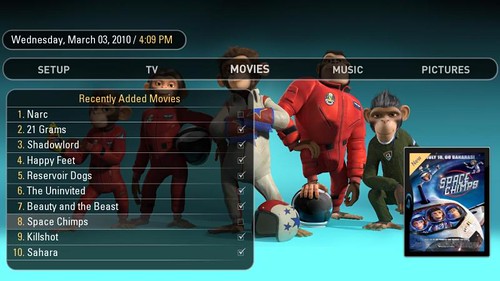
    An example of a nice UI for a HTPC Movie Server

    What is a HTPC?

    A Home Theater PC or HTPC for short is a “appliance” that takes a computer, adds software all with video & music playback and usually video recording capabilities to make a device many call a “Media Center.”  Think of it as a home theater super-set-to-box that combines everything media-related into your computer to power your TV and audio system.  The HTPC can be controlled with a keyboard and/or mouse, but typically a remote control is added to give the user that “10-foot user interface” so you can control everything on your TV and audio system from the comfort of your couch.  In it’s full-implementation, the HTPC acts as the DVR, DVD player, Blu-Ray player, Movie-on-demand, Online Video display, music jukebox, TV Guide, internet radio player, and home automation controller all in one device.

    In more complex setups, one HTPC “server” can power multiple TVs throughout a home all with once point of recording & storage, but controlled from the remote control at each TV set.

    Why HTPCs?

    I remember when I first began piecing together my first HTPC.  My family and friends didn’t understand why.  Those who haven’t witnessed a well implemented HTPC setup often ask these questions:  Why would anyone put a computer in the living room?  Why would you go to so much trouble to set that techno-monstrosity up and maintain it?  Why do you need a computer to do what your $10 per month cable company DVR box can do?

    I asked HTPC users this same question on twitter and one of the best answers was this from Jason:

    I use an HTPC “to get what I want, where I want, when I want it. Lower recurring costs, media aggregator, commercial skip, whole home dvr”

    The answers to those questions depend on the person asking of course.  But here are a few of the many reasons you might consider an HTPC for your setup:

    • HTPCs give you more control over your media
    • Record as many channels as you want.  I have six tuners in my setup although I’ve seen many more in other HTPCs.
    • Store as much TV content as you can afford to store with hard drives.  2 Terabytes or more of TV recording storage isn’t uncommon with HTPC users
    • You can convert and move media content to other devices.  Converting recorded TVs and movies to other formats is easy with HTPCs as the content is usually not locked down inside that “black box.”  Moving or copying content onto your mobile devices is typically not a problem and definitely much easier than with a DVR or other non-HTPC device.
    • Whole home DVR, music & movie server – watch a show in one room, move to another room and resume that same show where you left off!
    • Rip your DVD, Blu-Ray, and music collections for easy access from your remote in any room of the house
    • Cheap or better yet, free DVR
    • Instant Commercial Skipping with the press of a button – not just 30 second skip, but real commercial detection so you can click a button on the remote to skip to the end of the commercial.
    • Easy Access to Online video content on your TV.  Get your TV and movie content streamed from online sites to your TV.  And I”m not talking about that cheesy, “online” functionality built into those new TVs & Blu-Ray players either.  Real, online media browsing and viewing all inside the same user interface controlled with the same TV remote control you use to watch TV.

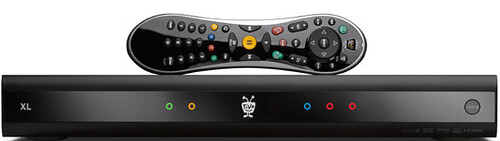
    TiVo Premiere

    • No monthly fee for the Tivo service or DVR rental.  Obviously you can take this as far as you want to – some go without cable or satellite service completely and get their content over the air and from online sources so these folks have no monthly fees.  Others like me subscribe to cable, but not to DVR rentals so we’re reducing our monthly fees.
    • A PC connected to the TV can bring you additional functionality.  Gaming – even old school games using MAME, online video, web browsing etc.

    There are countless other reasons to build and use a home theater PC.  Let me know in the comments if I missed any big ones.


    Challenges for HTPCs

    Now that we’ve covered some of the reasons you might want to implement a HTPC for your home media setup, it’s a good time to discuss the other side of the coin.  There are many challenges to building, setting up and maintaining your own HTPC including:


    • Trying to do too much.  The more you multi-task with your HTPC, the more likely you are to have issues.  Treat it like an appliance and you’ll be happier with it long-term
    • Computers have many possible points of failure.  The operating system annoyances & crashes, hard drives crashes, video card difficulties, overheating etc etc.
    • Getting things set up can be difficult and time consuming.  Depending on your experience with computers the setup process can be difficult and overwhelming at times.  There is simply a lot to learn when you build your first (or even second) HTPC.  We’re not talking plug-it-in and play here.
    • Recording cable & satellite content is getting more difficult, not less.  Cable companies are beginning to move channels away from the open, analog and towards the more closed digital.  And satellite company boxes are even more difficult to record from.  There are solutions for HTPCs here, but you need to do your homework so you know what you’ll be dealing with.  This topic will take at least an entire article to cover it properly.  Just know you can’t always plug your CATV cable into any PC TV tuner and always expect it to begin recording.  Sometimes it IS that easy, but better to know what your situation is first.
    • Have you ever jumped into the world of codecs and videocard drivers?  It can get messy very, very quick if you’re not careful.  It is NOT rocket science, but it can seem that way if you aren’t careful.  I’ll go into the basics in this area in a later article also
    • That TiVo or DVR or Fios or whatever is pretty darn easy – and sometimes it does enough for your situation.  Even if it’s not quite as powerful as an HTPC, sometimes its good enough for you.

    There are definitely more challenges – let me know if I missed any of the big ones.

    Up to the Challenge?  How Do I Get Started Setting Up My Own HTPC?

    You now know the main pros and cons of HTPCs.  If you’re still curious and think you might want to get started with HTPCs stay tuned.  Here’s a taste of what will be covered in the next few HTPC Basics articles on GeekTonic:

    • Which Operating System for HTPCs?
    • What HTPC software?  How do I choose?
    • Recording it All – How do you record from OTA, Cable, Satellite etc?  Which Tuner?
    • Getting it to the TV – Extenders, Game Systems, HTPC computers oh my!
    • Building the perfect HTPC/Server HTPC/Extender etc
    • Control via Remote Control – Which Remote Control
    • Where to go for help

    My goal here is to provide the framework to help those who decide they wish to power their media throughout the home with the HTPC.  After completing this series, you should have the basics to set up and run your own HTPC and how to make it work perfectly for you.

    More Coming Soon…

    Stay tuned to GeekTonic.  This series will walk you through everything you need to consider and do to make the perfect HTPC for your home.


  • Windows Home Server Vail Arrives to Public

    The latest version of the popular, Windows Home Server by Microsoft named “Vail” was unveiled today to the public.  We Got Served has several nice writeups to learn all about the new features and see a walkthrough of Vail.

    Feature-wise I wasn’t shocked, but definitely dissapointed that Microsoft again left out Media Center functionality.  Here’s what WeGotServed had to say about this omission:

    Let’s get one big elephant out of the way to kick off. Despite a lot of community requests, (and I know there’s been a lot of discussion within Microsoft regarding this) Windows Media Center has not been integrated into Vail. At this point, there is no in-box TV tuner support and TV guide service other than you’d expect to find in the underlying Windows Server 2008 R2 platform.

    This continues to be a head-scratcher for me.  Seems like an obvious thing Microsoft could add to WHS and add value to MediaCenter at the same time.  But again they left SageTV as the only HTPC software that had a true-WHS/HTPC solution for Windows Home Server users.

    The new features include:

    • Windows Home Server Dashboard  which is basically a new UI for the old Windows Home Server Console with mostly the same functionality.
    • Launchpad – a new, quick-access functionality that is very Windows 7-like giving you quick access to backups, remote access, shared folders etc.
    • Alert Viewer – A way to view alerts on all PCs in the system.
    • DLNA Compliant Media Streaming – A great addition to WHS is DLNA-compliant functionality for streaming your media.
    • Homegroups functionality – think Windows 7 homegroups here.
    • Add-in installation improvements
    • New SDK with improved add-ins

    The beta is now available for download.  Sign up & get your beta download here: www.connect.microsoft.com/windowshomeserver


    Check out We Got Served for a great overview of all things WHS Vail:

    What’s New in Windows Home Server Vail?

    Preview/Walk-Through of WHS Vail

    The official announcement is at the Windows Home Server Team Blog 

    Let me know what you think about the new featureset in Vail – is the HTPC omission a big deal?  Anything you’re excited or disappointed about with Vail?


  • TV Premieres, Finales & Specials This Week 04/25/2010

    Each week GeekTonic covers the TV scene with a complete listing of premieres, finales and specials for the week.  This week brings us a few more premieres & returns as well as a few finales.

    Happy Town

                     The new ABC Drama, “Happy Town” arrives Wednesday


    NOTE: All Times are Listed for EST – TV schedules subject to change


    Sunday, April 25

    Ray Johnston Band: Road Diaries (8pm on HDNet – HD) New series

    America the Story of Us (9pm on History – HD) – New series

    Into the Universe With Stephen Hawking (9pm on Discovery – HD) – new series

    River Monsters (9pm on Animal Planet – HD) – Season 2 premiere

    When Love is Not Enough: The Lois Wilson Story (9pm on CBS – HD) – a documentary/drama with Winona Ryder and Barry Pepper star as the co-founders of Alcoholics Anonymous and Al-Anon.

    8th Annual TV Land Awards (9pm on TV Land) – Shows such as Bosom Buddies, The Love Boat, Glee and others are highlighted.

    Girl Meets Gown (10pm on WE) New series


    Monday, April 26

    Bizarre Foods With Andrew Zimmern (10pm on Travel – HD) – Season 5 premiere

    Runaway Squad (10pm on A&E – HD) – Series finale

    Tuesday, April 27

    Food Party (10pm on IFC) – Season 2 premiere

    The Hills (10pm on MTV) – Season 7 premiere

    Dinner With the Band (10:30pm on IFC) – New series

    The City (10:30pm on MTV) – Season 2 premiere

    Wednesday, April 28

    High Society (9:30pm on CW – HD) – Season finale

    Sunset Daze (10pm on WE) – new series

    Happy Town (10:01pm on ABC – HD) – new drama series with Lauren German & Sam Neill starring.  The story is set in a small, Minnesota town that experienced its first crime in seven years with a murder.

    Thursday, April 29


    Friday, April 30

    Who Do You Think You Are? (8 pm on NBC) – Season 1 finale

    Bill Moyers Journal (8 pm on PBS) – A special, 90-minute episode marks the final episode of this long-running series.

    I Shouldn’t Be Alive (9 pm on Animal Planet – HD) – Season 3 finale

    The Life & Times of Tim (9:30 pm on HBO – HD) – Season 2 finale


    Saturday, May 1

    When I Was 17 (11 am on MTV) – New series

    10 on Top (11 am on MTV) – New series


    Sunday, May 2

    Cold Case (9pm on CBS – HD) – Season finale


    If you follow GeekTonic for the TV Premieres and news, you’ll want to click here if you would like to get a regular e-mail for GeekTonic TV Premieres & News


  • TV Premieres, Finales & Specials This Week 04/18/2010

    Each week GeekTonic covers the TV scene with a complete listing of premieres, finales and specials for the week.  This week brings us a few more premieres & returns as well as a few finales.

    Dhani Tackles the Globe

       Dhani Tackles the Globe returns to Travel Channel Monday

    NOTE: All Times are Listed for EST

    Sunday, April 18

    The Emeril Lagasse Show (8pm on ION) – New Series Premiere

    The 45th Annual Academy of Country Music Awards (8pm on CBS – Available in HD) – Reba McEntire hosts the Country Music Awards

    On the Case with Paula Zahn (10pm on Investigation Discovery) – Season 2 premiere


    Monday, April 19

    The Newlywed Game (6pm on GSN) – season 3 premiere

    Baggage (6:30pm on GSN) – New series

    Romantically Challenged (9:30pm on ABC – Available in HD) – New sitcom for ABC with Alyssa Milano.  The show starts like this:  An aspiring writer is torn between his new girlfriend and his high maintenance best friend.

    Dhani Tackles the Globe (11pm on Travel – Available in HD) – Season 2 premiere of the Travel Channel series hosted by NFL linebacker Dhani Jones of the Cincinnati Bengals.  The series follows Jones around the globe as he learns how to play international sports and simultaneously explores the culture of each location.


    Tuesday, April 20

    The Lazy Environmentalist (8pm on Sundance – Available in HD) – Season 2 premiere

    Ancient Aliens (8pm on History – Available in HD) – A special that goes in search of proof that aliens where here on Earth in the past.

    Cities on Speed (8:30pm on Sundance – Available in HD) – New series

    Deadliest Warrior (10pm on Spike) – Season 2 premiere


    Wednesday, April 21

    Accidentally on Purpose (8:30pm on CBS – Available in HD) – Season 1 finale

    The Locator (10pm on WEtv) – Season 4 finale


    Thursday, April 22

    Project Runway (10pm on Lifetime) – Season 7 finale

    Models of the Runway (11pm on Lifetime) – Season 2 finale


    Friday, April 23

    Say Yes to the Dress (9pm on TLC – Available in HD) – Season 5 premiere

    Jamie Oliver’s Food Revolution (9pm on ABC – Available in HD) – Season 1 finale

    Party Down (10pm on Starz – Available in HD) – Season 2 premiere

    Gravity (10:30pm on Starz – Available in HD) – New series on Stars that attempts to find comedy in dying.  The series follows members of a support group for those who have attempted suicide.

    Saturday, April 24

    You Don’t Know Jack (9pm on HBO – Available in HD) – A made-for-TV movie with Al Pacino portraying assisted-suicide advocate, Dr. Jack Kevorkian.

    Spice and Easy (9:30am on Food) – New series

    The Wanda Sykes Show (11pm on Fox – Available in HD) – Season 1 finale

    If you follow GeekTonic for the TV Premieres and news, you’ll want to click here if you would like to get a regular e-mail for GeekTonic TV Premieres & News


  • SiliconDust Networked CableCard HDHomeRun Beta Signup Begins

    SiliconDust 
CableCard HDHR

    One of the more interesting CableCard HTPC solutions, the SilicondDust HDHR CableCard device is accepting signups for their beta beginning today according to the SiliconDust forums:

    The beta is moving ahead as planned… beta signup now online!
    https://www.silicondust.com/beta/signup/
    Nick

    As mentioned earlier this year, the SiliconDust HDHR CableCard device is interesting because of these two facts:

    • This device appears to be coming in a USB version AND a networked version.  The networked version should work much like the current HDHomeRun QAM tuners meaning it will require no open “port” on your computer. 
    • SiliconDust has been a leader in terms of unique tuners and constant updates to keep their devices supported through continuing changes in the TV and HTPC world.

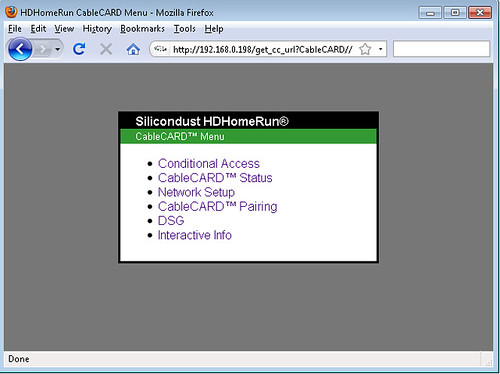
    SiliconDust HDHR CableCard Screenshot

    I’ll provide more information as I learn more.  In the meantime, you can sign up for the beta by following this link.