Author: Mark Wilson

  • Google gets it terribly, terribly wrong with Gmail tabs and makes me angry

    Like many Gmail users, I greeted the news of the introduction of tabs to the interface with a degree of anticipation — now it was just a matter of waiting for the feature to roll out so I could try it for myself. Earlier today I was randomly signed out of my Gmail account, and after signing back in and checking the settings menus, I could see that tabs were now available to me. Excitement was short-lived, however; it quickly became apparent that this new feature is a disaster.

    On the face of it, there’s a lot to be said in favor of adding tabs to one’s inbox. The idea is that emails that match certain criteria are automatically sorted so your inbox is easier to manage. I have an enormous number of filters configured that sort and label messages but the prospect of having a series of tabs to access certain types of mail was definitely appealing.

    So, what does Google think would be useful tabs to have as default? Forums, Updates, Promotions, Social and Primary, it seems. As there are only five tabs, each covers a multitude of sins. Forums will, supposedly, capture emails relating to groups and forums, as well as housing your mailing list subscriptions. Social — unsurprisingly — groups all social networking messages together.

    Promotions is fairly self-explanatory — all of your offers, marketing mail (aka secondary spam) should end up here. But then things get a little odd. The Updates tab displays messages that are determined to be receipts, bills and statements. Everything else gets lumped together in the Primary tab.

    OK, so these tabs may not be quite what you were expecting, but they can be customized, right? Right? Nope. The idea of tabs appealed to me at first as I thought I would be able to customize them to filter out emails from specific websites or people — such as a Family tab. But no. Google has decided that these are the only five tabs I can have and that I cannot rename them or create any more.

    This is not the only problem. Tabs are completely unintuitive. When a new message is received from Facebook, for example, Gmail determines that this is a Social email and filters it accordingly. A notification appears in the Social tab to let me know that there is an unread email, but nowhere else. Because the message has bypassed my Primary tab, my Inbox label is not updated with a new message count.

    If I happen to be browsing my starred messages, I am not informed of the arrival of a new mail. Why? Oh, one thing I haven’t mentioned yet is that tabs disappear when you are anywhere other than the inbox. But there’s more. Or less. Depending on how you look at it.

    The new message notification on each of the tabs does not tell you how many unread messages you have in this tab. Rather it lets you know how many new messages have arrived since you last visited that tab. This means that should I see that a number of messages are on my Social tab, click that tab to see them but then navigate elsewhere before actually reading any of the messages, the message count is zeroed.

    There are unread messages on my Social tab, but I am not told how many — I have to go and look. You might think that the craziness would end there, but it doesn’t. Gmail does a spectacularly bad job of determining where emails should go. It is possible to re-categorize emails to different tabs, but only when you are in the inbox or on a tab. Email cannot be categorized from folder or label views, which means it is nowhere near as user-friendly as it should be.
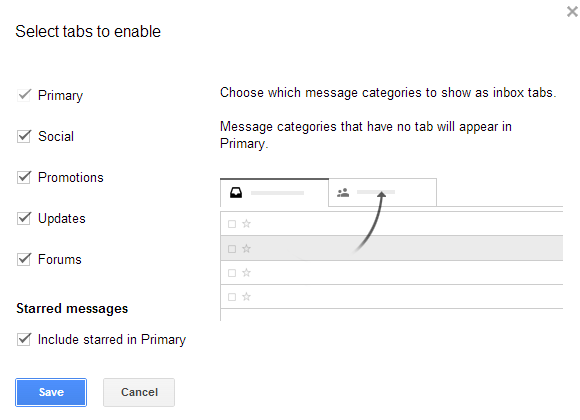
    But the biggest problem is undoubtedly the way in which the unread mail count has altered. I want to see at a glance how many emails I have yet to read — I don’t want to have to look at five different tabs. The terrible automatic categorization — an inexact science, easily on a par with spam not being correctly identified — means I really don’t know when I have unread messages to attend to.

    The five unread messages listed on the Social tab, are they emails that relate to Facebook and Twitter, or has that important work email I’ve been waiting for been misidentified? I have no way of knowing without looking at each tab manually thereby negating any timesaving their introduction was meant to bring about. The hoops you have to jump through to see everything in one place really beggars belief.

    I love Gmail. I really do. It’s not perfect, and there is a lot of room for improvement, but it gets so much right that I’m willing to cut it a little slack. But now things are starting to go awry. Tabs are a seriously bad idea. Yes, they are optional, but they are so close to unusable that hardly anyone is going to persevere with them to see if they improve with time.

    Change is good — it should be encouraged and embraced — but change needs to be for the better and it needs to have direction and purpose. Some of the recent changes to Gmail make me wonder just who is making the decisions and who the target audience for the various features is.

    Part of the problem is the fact that Gmail now offers so many different ways to organize and navigate emails. Labels are handy, as are folders (especially the more recent nesting option) and priority inbox — in theory at least — makes it easy to focus on the emails that are most important.

    But it doesn’t end there. Multiple inboxes can be displayed when Priority Inbox is enabled, conversations view can be used to group together related messages and line spacing can be adjusted to suit your liking.

    Having choice is nearly always a good thing, but Google is taking it to the extreme with Gmail. It’s getting to the point that there are just too many options to choose from.  It’s a mess. I moved away from Hotmail years ago, seeking refuge in Gmail’s cleaner, tidier interface. But now Google’s webmail is starting to anger me. It’s starting to be frustrating to use. I don’t think I’m alone in feeling this way.

    What do you think? Relieve yourself of your splenetic juices in the comments below.

    Oh… if you were wondering. Tabs have now been disabled in my account.

    Photo Credit: Roger Jegg – Fotodesign-Jegg.de/Shutterstock

  • Pre-order Verizon BlackBerry Q10 in black or white, and get it for June 6

    Touchscreen phones are just about the default choice these days, but there are still some users for whom a real QWERTY keyboard is an absolute must.

    If you’re one of these people, get ready to smile — Verizon is now accepting pre-orders for the BlackBerry Q10.

    The phone packs a 3.1-inch Super AMOLED touch display, dual-core Qualcomm CPU and 2GB of RAM, and if you order it now you could have it in a week’s time. Anyone happy to sign up for a two year contract can snap up the phone for $199.99, but commitment-phobes will have to part with $599.99 for the month-to-month option.

    Not put off by the price? Whizz over to the Verizon website to place your pre-order and get your hands on it by June 6.

  • Has software version numbering spiralled out of control?

    Software versioning has changed a great deal over the years. It used to be that version 1 of an application would be released and it would be followed in around a year’s time by version 2. You might well find that updates would be released in the interim — versions 1.1 and 1.2 for example — but it didn’t take long for things to start to get more complicated.

    Minor versioning changes became more and more common, so you might well encounter versions such as 1.2.13. In many respects this was a good thing. It was easy to compare the version of an application you had installed with whatever the latest version was.

    If there was a discrepancy, the level of difference was indicative of how important updating was; being x.x.01 versions behind was obviously less of a concern than finding yourself x.1 behind.

    But things were bound to change. Microsoft decided that labelling its operating system 3.11 was not meaningful to users and introduced year based versioning. Windows 95 was a big change for the OS so this was as good a time as any to introduce a new numbering system.

    Going down this route was something of a double edged sword. From a software publisher’s point of view this system made it easier to highlight just how out of date your software was. Still using Windows 95 in 1999? You immediately knew that your operating system was Old. With a fully warranted capital O.

    It made the release of Windows 98 seem ultra-important; who wanted to be the one using an OS that was years out of date? But it wasn’t that simple, particularly when other publishers got in on the act.

    This seemingly straightforward numbering system masked the “real” version that was being used and made it harder to determine whether or not all of the latest updates had been installed.

    Then things turned crazy. Windows Me, XP, Vista: meaningless names that revealed nothing about the precise version that was being used. Again, this was a problem that was exacerbated when other software houses followed suit.

    But it wasn’t long before common sense returned. Windows 7 brought a semblance of order to things, but publishers of other software had other ideas. It was still the case that different publishers used different systems (this is true now, with some applications having regular numbers, others being named after years, and others bearing some arbitrary tag).

    When things started to get really silly was when the new “browser wars” kicked off. Web browsers, like many other types of apps, tended to receive major updates on a relatively regular basis, but there could be gaps of many months (or years in the case of Internet Explorer) between releases.

    But it was the battle between Firefox and Chrome that really started to make a farce of version numbering. Both browsers’ update cycles were dramatically accelerated, with a major new version scheduled every six weeks. This is why we find ourselves in the absurd position of having Chrome at version 27 and Internet Explorer at 10.

    Joking aside, is Chrome really 17 versions more advanced than Microsoft’s browser? I’m far from being a fan of IE, but it’s not that bad!

    Numbers seem to have become the most important aspect of product names with every company keen to appear to offer the newest and shiniest toy. It’s not just browsers who are guilty of this. Security tools are major culprits. You might think that the 2014 version of an app would be due for release in a little over half a year, but in fact some have been available for quite some time now.

    Returning to web browsers — but it is something found in other areas too — version numbers also seem to be getting longer and longer. 1.x.x is not detailed enough these days, it needs to be 1.xx.xx.xx.xx.7562. But how much of an improvement is this over version 1.xx.xx.xx.xx.7561?

    Version numbering is out of control. Minor changes that would have previously resulted in an incremental increase to version x.x.1 of an application are now fanfared into the spotlight and assigned a full number version increase. It is nothing short of insane.

    It’s not going to be long before version numbers start to hit triple figures, and for what? A new icon? A re-labelled menu option? Actually, we already have Office 365. A completely nonsensical name that conveys literally nothing about where this particular version of the office suite fits into the chronology of things.

    The desire to appear newer than the competition is understandable, but is it good for the end user? Have the faster development cycles resulted in better software or just more versions?

    It could be argued that big version number changes should be reserved for big changes, not used just because it’s time for an update. There is a real risk that ever increasing version numbers get confusing, turning software releases into a willy-waving competition between rival companies.

    Have version numbers been rendered meaningless? With automatic updates enabled do you need to know the exact version number you’re working with? Share your thoughts below.

    Photo credit: Jozsef Bagota/Shutterstock

  • Microsoft celebrates as Office 365 hits 1 million users in 100 days

    Just over three months after its release, Microsoft is celebrating a million sales of Office 365 Home Premium. Going a long way to prove detractors of software subscriptions wrong, Microsoft’s latest version of its office suite has managed to maintain average sales of more than one unit per second.
    With a subscription costing $99.99 per year, Microsoft has clearly pocketed a healthy profit with this release, but the fact that the software can be installed on up to five machines may actually mean that sales figures are perhaps not as high as they could have been.

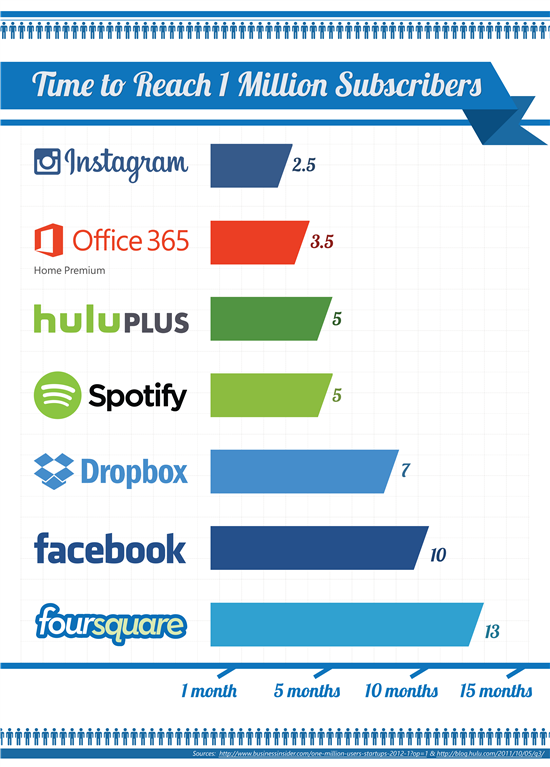
    The sales figures were revealed through the Office blog where Microsoft compares the speed of sales to other popular services. The infographic shows that while Office 365 Home Premium took 3.5 months to obtain a million users, Spotify took 5 months and Instagram just 2.5 months.

    Have you bought into the software as a service model?

    Photo Credit: Pincasso/Shutterstock

  • Apple to pay out $53m in iPhone ‘water damage’ lawsuit

    153,000 iPhone and iPod owners are in line for a payout from Apple after the company agreed to a $53 million settlement to a 2010 lawsuit. The class action suit concerned malfunctioning devices that the Cupertino, Calif. based company claimed had been damaged after coming into contact with water.

    A “liquid damage policy” allowed Apple to deny warranty coverage if the liquid indicator inside the device changed color from white to pink or red, “proving” contact with water.

    However, although the indicators were designed to show the presence of water, it was later found that heat could also cause the damning color change.

    Documents filed at the US District Court for the Northern District of California state that the money will be held in a fund and shared between the members of the class-action suit. Successful claimants can expect to receive around $200 — $300 each from Apple.

    The settlement is still to be approved by the court, but is unlikely to face further obstacles.

    Photo Credit: morrison77/Shutterstock

  • One third of UK web streamers pirate film, TV and music

    We all know that the internet is home to illegal software, music, movies and much more. It may seem like an impossible task to put figures to piracy levels, but a report by Ofcom, the independent regulator for the communications industries in the UK, has done just that. The Online Copyright Infringement Tracker report found that a staggering 30 percent of regular downloaders of media did so illegally.
    The report looked at the period November 2012 to January 2013 and analyzed UK consumption of online music, film, TV programmes, books, games and software. Compared to the previous three months, the percentage of web users accessing any of this type of content increased from 57 percent to 60 percent.

    But the really interesting figures are concerned with piracy. The results are based on anonymous questionnaires in which 18 percent of participants admitted to indulging in some form of online copyright infringement.

    Narrowing down the numbers to include only those who streamed or downloaded media, makes the findings particularly intriguing. 33 percent of movie watchers enjoyed films illegally, while 26 percent of music lovers got their singles and albums from illegal sources. Authors and publishers fared slightly better, with a mere 8 percent of digital book downloads taking place illegally.

    Those indulging in online theft of this nature were more likely to be male and aged under 34, and the reasons for illegally downloading or streaming media was that such content was free, convenient and quick.

    By far the most popular means of obtaining illegal content was through the use of P2P service, and uTorrent had the largest following, accounting for 20 percent of illegal downloads.

    Despite the apparent increase in piracy, there was also an increase in the number of people who claim to pay for all of their online TV watching, as well as those watching a mixture of free and paid-for content.

    As the study only looked at internet users aged 12 and over, it’s entirely possible that the real figures are even higher.  While some of those questioned said they would be discouraged from illegally downloading files if their ISPs wrote to them, 16 percent said nothing would stop them.

    If you fancy crunching the numbers yourself, the full report is available for download from the Ofcom website.

    Would you be honest about your online activities if questioned? Share your thoughts in the comments.

    Photo Credit: Didecs/Shutterstock

  • UK Sky apps hacked — uninstall immediately!

    It may be a national holiday weekend in the UK, marked with a traditional barbecue and a couple too many beers, but hackers are not taking a break. Broadcaster and news outlet Sky is apparently reporting that all of its Android apps have been compromised and users are advised to remove them immediately.

    Google Player listings for Sky Go, Sky+, SKY WiFi, and Sky News are said to have been tampered with and make reference to the Syrian Electronic Army. The hack appears to have been pushed out via a series of forced updates and the fact that the app listings were tampered with in such an obvious way means that this was an attack designed to be noticed.

    At this stage there are no details about exactly what threat is posed by the apps, if any, although at the time of writing, all Sky apps have been removed from Google Play while the comprise is addressed.

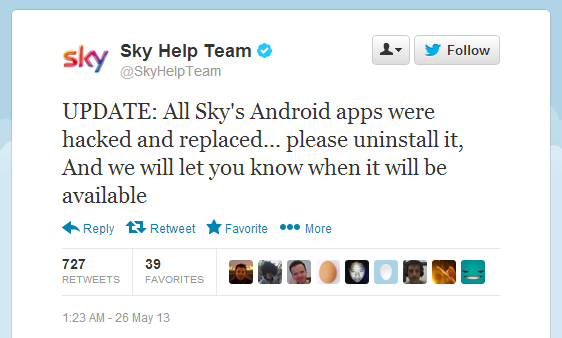
    Although the word direct from Sky’s Help Team, delivered via Twitter is to uninstall any Sky apps you may currently be using and keep an eye on the @SkyHelpTeam Twitter feed for updates, it appears as if the broadcaster’s Twitter feed was hacked as well and the advice to uninstall the apps might not have come from Sky.

    There seems to be a lot of confusion around at the moment, but it certainly won’t hurt to uninstall any Sky apps temporarily until the situation is resolved.

  • Spy on the world’s web searches with a Google Trends screensaver

    Google is all about searching. Well… not “all” about, but it’s what the company is known for. Any firm that logs information about how customers are using its services are usually berated, but Google Trends can provide a fascinating insight into how the rest of the world is using the internet. This tool has been available for a while but there’s now a sexy new full screen mode available — and you can turn it into a screensaver.

    If you’ve ever been curious about what people in other parts of the world are searching for, head over to the full screen visualization tool and you can find out. At the bottom of the screen you can choose from one of several countries, or opt to see an overview of global searches.

    By default you’ll be shown a single search at a time, displayed on a background in one of Google’s four colors. Want to see more? Whizz your mouse up to the upper left of the page and hover over the 3×3 grid icon that appears. In the popup you can then select a number of search tiles that should be displayed — each shows a different search term, and the display can become quite mesmerizing.

    As you change country and tile options, you may well notice that the URL in the address bar changes. Each setting change results in a unique URL, and this can be exploited to turn Google Trends into a rainbow search screensaver. When you’ve chosen a view you like, copy the address to the clipboard.

    Turning a web address into a screensaver isn’t something that’s built into Windows, but there’s a great free screensaver tool hosted on Google Projects. Download a copy of Web Page Screensaver (it’s free), and move the .scr file to C:\Windows\System32.

    The screensaver can then be configured from the Display Control Panel — right-click the desktop and select Personalize before clicking the Screen Saver icon at the lower right of the window. Select Web-Page-Screensaver from the drop down menu, click Settings and paste the URL you copied earlier.

    Now when your computer is idle, global web searches will be displayed on your screen. It’s hardly an incentive to get on with work, but it looks cool and is an interesting way to keep up with what’s happening in the world.

    There are various other search visualization options available on the Google Trends page.

  • On your marks, get set… GO Launch Dev Team releases Android Next browser

    The Android web browser market is a packed one, and users are almost spoiled for choice. If you’re a fan of Firefox, Chrome or Opera on your main computer, there’s an accompanying mobile version for you to work with, and there are plenty of others as well.

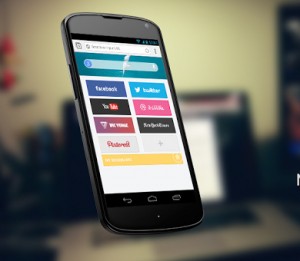
    The GO Launcher Dev Team is best known — it should go without saying — for the Android launcher GO Launcher EX, but it has now branched out and is bringing its stylish looks to a web browser — Next Browser.

    Like many of the other apps from the same team, Next Browser has a clean, Holo look but it is the features that are going to make or break it. The app borrows ideas from many of its existing competitors, including tabbed browsing, a speed dial screen, a combined search and URL bar, and bookmark syncing.

    Support for plugins means that the browser’s feature set can be further extended and this is something that is sure to make Next Browser extremely popular, especially as more and more add-ons are released.

    Voice searching is available, but this is not the only means of interacting with the browser. There is good use of gesture support in the app. Swipe down to close a tab, swipe left to access extensions, and swipe right to access Next View. This handy page provides a quick overview of headlines and stories from various websites.

    Could this be the browser to rule them all? Maybe not, but it’s a decent alternative to the big names and shows great signs of promise.

    Next Browser is available free of charge from Google Play.

  • Android users rejoice! BBC iPlayer 1.7 brings support for your 10-incher

    A week ago BBC iPlayer finally made its debut on Windows Phone 8, but the existing Android version has been far from forgotten about. BBC iPlayer 1.7 has hit Google Play and now boasts support for 10 inch tablets.

    While owners of larger tablets previously had to pay a visit to the iPlayer website, UK viewers can now enjoy their favorite programmes directly in the app. If you’re nursing a smaller 7-incher, there’s no need to feel left out. The UI for more diminutive tablet and phones has been updated with a few tweaks as well.

    Anyone holding out for the video downloads that are already enjoyed by users of the iOS version of the app may take heart in the update description. Developers state that “work continues” on this feature, although no timeframe is suggested.

    The app can be downloaded free of charge from Google Play.

  • Google X acquires flying turbine company Makani

    Google may be most readily associated with the Internet, apps and mobile devices, but the company has many more strings to its bow. Google X — the secretive research and development division best known for Project Glass and the driverless car — has acquired Mikani Power, a green energy company that generates power with flying turbines.
    Ground-based wind turbines are common all over the world, but Mikani Power takes a slightly different approach. Using wings fitted with miniature turbines it is possible to generate power with a series of self-piloted kites. Successful tests have been conducted on a 30kW prototype model, with plans to scale up to 600kW in the future.

    By placing turbines at an altitude of between 250 and 600m, it is possible to harness more consistent wind power. The manoeuvrability of the wings means that they can adapt and reposition according to weather conditions, and easily land if wind speeds become too high — a problem that can lead to traditional wind turbines becoming damaged.

    The acquisition is not completely out of the blue. Since 2006, Google has invested a total of $15m in the company.

  • TextExpander 2.0 for iOS gains fill-in snippets to catch up with OS X

    iOS may well have a halfway decent keyboard, but it is still far slower to use than a regular desktop or laptop keyboard. Anything that can be done to reduce the amount of typing that has to be done on a daily basis is to be welcomed, and this is something that TextExpander has offered for some time. Type a few letters and they can be expanded into longer words or even entire sentences. With version 2.0 things just got a whole lot better.

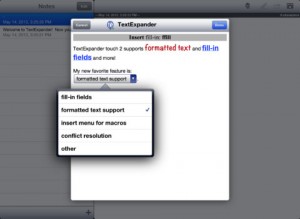
    There are a couple of key enhancements to be found in this latest release, not least of which is support for formatting. The context menu can now be used to add richly formatted text so you can save even more time.

    But the killer feature here has to be fill-in snippets. While regular snippets comprise static text, fill-in snippets can include input fields such as drop down menus, check boxes and more. This is great if you want to have a stock email on hand, but need the option to easily change a few key words or details here and there — just call up the relevant snippet and make the changes with a few taps.

    Another key new feature is a new Insert menu item which can be used in the creation of new snippets. It makes it much easier to include elements such as date, time and clipboard contents and brings the iOS version of the app more in line with the Mac edition. Snippets can be synced between the desktop and mobile apps so you always have access to the same snippets without the need to recreate them.

    Of course, all of this comes at a price. The app will set you back $4.99 and can be purchased from the App Store.

  • Cloud apps: the future or just a passing fad?

    Cloud, cloud, cloud, cloud, cloud. This fairly innocuous word has become one that is bandied around with abandon, often with the misplaced notion that it adds an element of ‘cool’ that was not previously present. But is working in the cloud all it’s cracked up to be? Is it necessary? Should you care about it?

    You don’t have to think back all that far to remember a time when simply being online seemed like a fairly alien concept — never mind actually working online. When the concept of Active Desktop was added to Windows 9x the notion of staying online throughout the day just to see the desktop update with the latest weather forecast, news, stock prices or other data was unimaginable.

    These were the days of dialup connections; every minute online cost money and downloading files of almost any size was a somewhat painful experience.

    For home users, the thought of using software that was not installed locally seemed incredibly futuristic.

    Software as a service was very much in its infancy and few people could imagine that in just a few short years internet connections would have become fast enough and stable enough to be used to deliver not just downloadable files, but also streaming videos and music, on-demand television shows and even online word processors, image editors and much, much more.

    But all of these things are now available to virtually everyone — and for the most part they are available completely free of charge. In some instances the concept of working online has become so commonplace that it’s easy to take some services for granted.

    It’s likely the only time you really think about Gmail consciously is when you find yourself somewhere remote enough to be devoid of wifi networks and data connections.

    The prevalence of online tools — particularly those from Google — means that it is very easy to take them for granted, but also become blinkered and forget just what is possible. Spend a moment thinking about Google Drive.

    Put aside any anti-Google prejudices you may have and just consider what an astonishing piece of technology it is. Anyone with an internet connected computer can create a free account and then create, edit, store and share documents online.

    The only software that’s needed is a web browser, everything else is taken care of by Google’s servers. How cool is that? Never forget to be astonished by the web.

    With an online word processor, spreadsheet, presentation and drawing tool — and your inbox not far behind — Google is a great starting point for anyone looking to start working in the cloud. Of course, it is far from being the end of the story, and there are certainly better tools available in each of these categories, but they are a great first point of entry.

    These are not just online versions of applications you need to use every day, the fact that they are online tool means that it is possible to introduce features such as collaborative working and much more.

    Need an image editor? There are plenty to choose from Aviary is a great example, but even Adobe has got in on the act and made a version of Photoshop available online.

    Received a file that is in a format you don’t have the software to open? Rather than seeking out the program you need, you could instead turn to any of a number of online for conversion tools which will quickly and painlessly provide you with a file you can open up online or using your preferred application.

    Comet Docs is one such online conversion service, but there are plenty of others to choose from.

    Working online using the tools and services is a great solution when you’re on the move or if you’re looking to keep software costs to a minimum.

    Of course there will be some tools you use that do not have online cousins. This does not mean that you need to find a new way of working as remote access is always an option.

    Even this does not mean that you need to have a great deal of traditional software installed on your laptop. If you have Chrome as your web browser you can use a handy extension to remotely tap into your desktop computer at home or in the office — a decent alternative to the likes of VNC. And Microsoft’s SkyDrive has remote access baked in too.

    So, could you work solely with cloud based tools? In theory, there is no reason why many day to day tasks could not be performed in this way. Could I do it? To be honest, I’m not sure. I do have a great deal of time for Google products in general, but whenever I have tried to switch to using Google Docs as my primary office suite, I always find something that makes me switch back to using Microsoft Office.

    At a very basic level this could be because of a simple difference between the way online and offline programs work. Integration with cloud storage services is outrageously useful for anyone working on multiple computers, but one issue that I tend to run into time and time again is when switching between tasks.

    Having used Windows for approaching two decades, Alt-tabbing between apps is something I do without a second thought. This is slightly different to working in a browser tab. When I’m researching something online and making notes in a Google document, I frequently find that I will try Alt-tabbing from the website I’m reading to try to reach my word processor.

    Of course, there’s nothing to stop me pulling me out a tab of my browser so I can then switch between two windows, but this is yet to become second nature. Memory muscle can be hard to re-train.

    But working in the cloud does not just mean finding online, browser-friendly tools that you can use to replace familiar desktop software, there are advantages to be found in tools that make use of cloud-based, shared information.

    System optimization tool Soluto makes great use of shared information to help provide a better experience for all of its users. Much like an antivirus tool uses a definitions database to cross-check finding, so this tool uses information gathered from computers all over the world to help provide the best system security and optimization advice.

    Speaking of security, Panda Cloud Antivirus (like a growing number of similar tools) takes its definitions online. Rather than requiring users to download updates, the most recent definitions can always be accessed from Panda’s servers.

    This takes the onus of being up to date away from the end user, thereby helping to increase overall security levels; in theory at least.

    So… what do you think? Is there additional value to be found in tools and services that make use of ‘the cloud’? Are there any programs you have dropped in favor of online alternatives? Is the ‘cloud’ tag nothing more than a faddish label? Could you ditch traditional software entirely? Share your thoughts and experiences in the comments below.

    Photo Credit: olly/Shutterstock

  • Sourcefire unveils new techniques to uncover malware sources

    For even the most security minded individuals and organizations, malware continues to be a serious problem. It is all well and good knowing that your system has become infected and ensuring that you have the tools to perform a clean-up operation, but the key to avoiding future problems is determining the source of infections.
    This is what Sourcefire aims to achieve with its new Network File Trajectory and Device Trajectory techniques. The company points out that in modern work environments the BYOD (Bring Your Own Device) model is becoming increasingly common. It is one thing to protect your own machines, but quite another to secure any device that may connect to a network.

    When infection strikes, the retrospective technologies make it possible to determine the source of the problem as well as tracking the damage that has been caused. Being able to determine the scope of an outbreak enables remedial action to be correctly focused.

    Network File Trajectory allows for malware tracking across an entire network while Device Trajectory is more concerned with determining which machine, device or user is the source of a security breach.

    The new trajectory capabilities can be found in Sourcefire’s latest Advanced Malware Protection range.

    Photo Credit: Andrii Kondiuk/Shutterstock

  • Sweet! Official new themes give Windows 8 a global makeover

    Desktop themes are so often catered for by third party tools that it’s easy to forget that Windows has built in support for theme packs. If you’re short of inspiration, don’t trust your own photography skill, or just can’t be bothered to browse Flickr for a new image, a new batch of themes direct from Microsoft could be what you need to breathe new life into your desktop.

    There are five new themes in total, four of which have a travel connection. The Alaskan Landscape theme features photography from Kyle Waters — a total of fifteen images. There is more of a seasonal feel to two New Zealand Landscapes themes.

    The Queenstown theme is cool and wintery, while the One Tree Hill theme is far more summer inspired. Both themes showcase the work of photographer Ian Rushton. Continuing the seasonal theme, and completing a previous collection, is Swedish Spring.

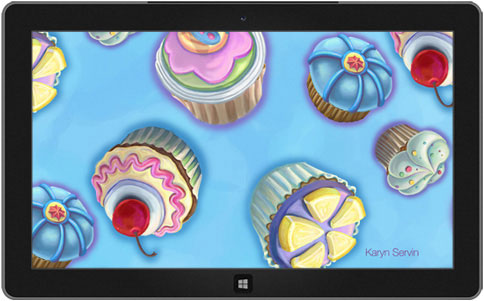
    Rounding off the new download selection is something rather more cartoony. The Delectable Designs theme offers a tasty selection of desktop images inspired by snack time — cupcakes, cookies, coffee and more are all on hand to help you build up an appetite

    The new themes, and others, can be downloaded from the personalization section of the Microsoft website, but you can find out more about the new releases at the Windows Experience Blog.

  • Photoshop for free? Adobe Photoshop Express hits Windows 8 and RT

    Not content with free versions of its cut-down photo editing software for iOS and Android, Adobe has released Photoshop Express for Windows 8 and RT. As this is available free of charge, it should come as little surprise that the app does not afford users access to an unfettered range of professional level image editing tools, but for quick and dirty tweaks and fixes, there are plenty of options.

    Taken a wonky photo? Getting things straightened up takes just a couple of taps and swipes. There are also tools for removing red eye, adjusting color levels and tweaking shadows and highlights. If you don’t feel like doing the hard work yourself, you can always turn to the auto-fix option to help take care of common issues in an instant.

    Simple controls appear as they are need to reduce clutter and helping to keep the interface as friendly and approachable as possible. With photo editing reduced to moving a slider here and there, things don’t really get much easier than this.

    As changes are made to an image, there’s a useful View Diff toggle that can be used to compare before and after versions of a photo. The obligatory sharing options are all present and correct.

    As is becoming increasingly common with free apps, the selection of bundled tools can be added to through in-app purchases. The Looks and Noise Reduction packs can be used to access additional filters and image improvement options, but it will set you back $4.99.

    If you fancy trying out the app on your photos, it can be downloaded free of charge from the Windows Store.

  • eBay for iOS update includes new UI and registration via driver’s license

    The iOS versions of eBay’s app have been updated with a redesigned interface and a raft of other changes. The latest release improves on the stripped back UI that was available in previous versions and larger photos can now be accessed. As before, there are versions of the app available for iPad (which is version 2.3.0) and iPhone (which has reached version 3.0.0).
    But there’s more than a new look to the latest version of the app. If you’re one of those people who has yet to create an eBay account, the signup process just got a whole lot easier — if you’re in the US, that is. Forget time-consuming form filling, you can now sign up for an account with a quick scan of your driver’s license.

    Improvements have been made for buyers and sellers alike, and anyone looking to grab a last-minute bargain will find that scope for sniping is now more accessible. There are better filtering options so sellers can be sorted by their feedback rating and seller can now more easily list items that are similar to those they already have for sale — no more starting listing from scratch.

    eBay users in both the US and UK can now buy multiple items faster than before thanks to a new option. It is now possible to checkout multiple items at the same time so there’s no need to skip back and forth between pages as much.

    You can find out more and download a free copy of the app by paying a visit to the eBay for iOS review page — there are separate versions available for iPhone and iPad.

  • iTunes 11.0.3 offers faster performance and improved MiniPlayer views

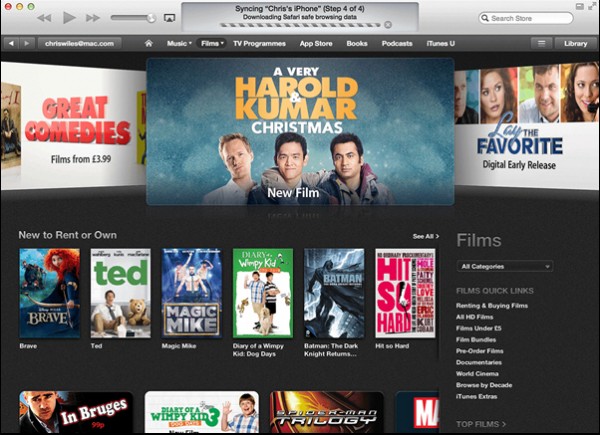
    Loved and loathed in just about equal measure, iTunes is installed on a huge number of computers around the world. It has been a while since the last update, but now iTunes 11.0.3 has been unveiled and there are a few important changes that make it worthy of installing, including new MiniPlayer views.

    In the initial update to iTunes 11, many users were disappointed to find that the progress bar has vanished from the MiniPlayer. In the most recent update, this has been reinstated and it is also possible to have album art displayed while playback controls are hidden.

    Album art can also be displayed in songs view and improvements have been made to the handling to multi-disc albums. To make those compilations, concept albums and other multi-parters easier to manage, iTunes now treats them as a single album rather than two or more.

    These are the most obvious changes, and all of them are cosmetic ones that should be immediately apparent. Apple also claims that this latest update helps to improve performance for people with large music libraries. There are no figures to elaborate on what constitutes a large library, but faster searching and sorting is promised.

    You can find out more and download a copy of the app — which is available for OS X and Windows — by paying a visit to the iTunes review page.

  • TweetBackup shuts up shop, recommends Norton Ditto as replacement

    If you were thinking of signing up for a TweetBackup account to create an archive of your Twitter account, it is now too late. Having been bought by Backupify around two and a half years ago, the project has been sidelined, and no new registrations are being accepted. So where does this leave anyone who has come to rely on the service?
    Although there are no new sign-ups, TweetBackup is not just going to vanish in a puff of smoke. Existing users will be able to log into their accounts until June 28 2013 but after this time it will no longer be possible to access your backup — so be sure to download your data before this date.

    So what are you supposed to do if you’ve become reliant on TweetBackup? As the service closes down, it does so with the recommendation that users check out Norton Ditto. This is another free backup service, but one that is not focused solely on Twitter.

    Norton’s offering can be used to automatically backup not only your Twitter account, but also Facebook and Gmail. All of this can be done on a schedule so even the forgetful Twitter user can rest assured that their data is kept safe.

    And of course, there’s always the option of manually downloading your Twitter archive; just head over to the Settings side of your account and hit “Request your archive”.

    Photo credit: Vitezslav Valka/Shutterstock

  • Google makes it easier to send money through Gmail

    Think about how to send money electronically and it’s probably PayPal that springs to mind first. But if Google gets its way, Google Wallet is about to become much more popular. For anyone in the US, Google Wallet is now integrated into Gmail meaning that it is possible to send money as easily as sending an email.

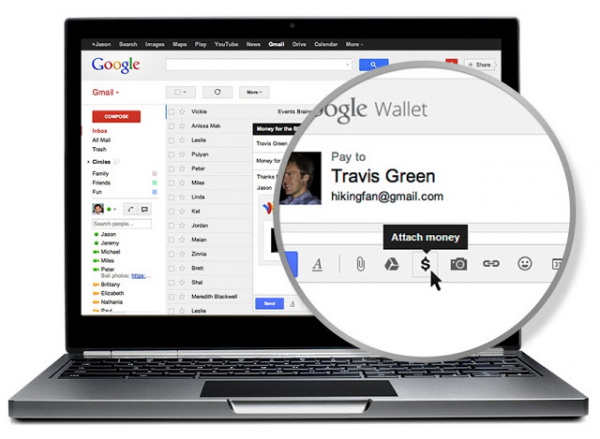
    Sending money works in much the same way as attaching a file to a message — you can attach payment to an email just as you would an image or other file. You may not see it just yet — Google plans to roll the feature out over the next few months — but once activated you’ll see a $ button at the bottom of the Compose window. It’s clear that Google is making electronic payments as simple as possible to help the company take a bigger share of the electronic payment pie.

    If you have money in your Google Wallet, sending money is free of charge as is the case when making transfers directly from your bank account. The payment system can also be used to make debit and credit card payments using cards you have associated with your account, but these will incur a 2.9 percent fee per transaction. As you would expect, receiving money is free.

    Should you start to get impatient with waiting for the feature to be enabled in your account, check with people you know to see if they already have access to it. As soon as someone else sends you money, email based payments will be enabled in your own Gmail account as well.