Author: Mike Williams

  • Export PDFs in a range of different formats with PDFMate PDF Converter

    Adobe’s PDF is a great format for sharing information with others, and normally you might go to considerable effort to export a particular file as a PDF document.

    Occasionally, though, you might have an existing PDF file which you’d really prefer to be in another format: HTML, plain text, images, whatever it might be. That’s when a PDF conversion tool comes in handy, and the free PDFMate PDF Converter — which claims to export your documents to EPUB, TXT, HTML, SWF and image formats, amongst others — just might be able to help.

    After a quick setup process (just be sure to choose the Custom Installation option to avoid installing a browser toolbar), PDFMate PDF Converter opens with a clean and simple interface. An “Add PDF” button enables you to add your source documents, and you can choose your output format from a toolbar. Specify the output folder, click the Convert button and simply wait for your first conversion to finish.

    One irritation you’ll spot immediately is a nag screen which pops up during every batch of conversions, unfortunately, as the authors invite you to upgrade to the Pro version (which adds export to DOC format, and the ability to specify the page range of PDFs to convert). You can dismiss this with a click, but it still becomes quickly annoying.

    And, a little oddly, there’s no option to immediately view an exported file when the conversion is complete. Instead you must click a button which opens the output folder, then double-click one of the files to see how it looks.

    Once you’ve figured this out, though, the results often work well. HTML output looks particularly good, with the program generating a page which looks much like a regular PDF viewer (you get Next and Back buttons, direct links to each page, page zoom options and more). And the SWF export option also delivered generally reliable conversions in our tests, although the core document viewer was a little simpler.

    And there was a nice bonus feature in the program’s ability to shrink bulky PDFs, where it would take each consecutive set of two (or four) pages in the source document, and reduce them to a single page in the destination.

    Not everything works so smoothly, unfortunately. Plain text export seemed extremely unreliable; it might work for very simple documents, but in our experience seemed to be rubbish for files of any complexity. And EPUB export was even worse, with various viewers complaining of problems with our finished documents (and that’s if they could display them at all).

    And we did have occasional issues even with the more successful formats, as for instance text or image from our source PDF would appear in the wrong place on an HTML page.

    Is PDFMate PDF Converter worth your time, then? If you’re using it a lot then the nag screen may become a major irritation. And its EPUB and TXT conversions aren’t something we’d recommend.

    If you’ll use the HTML or SWF exports then it’s a different story, though, as they mostly worked well. While the ability to shrink PDF pages is also useful. And that’s probably enough to justify taking the program for a spin on your own PC, just to see how it works with your own source documents.


  • RKill terminates malware processes

    Blocking malware before it manages to infect your PC is relatively easy. Your antivirus package scans the file, email attachment or whatever it might be, recognises the threat, and deletes it before any damage can be done: simple.

    Should the malware bypass your protection, though, and manage to install itself, then it’s a very different story. Now the threat may be able to hide from your security software, prevent you running particular programs, reaching certain sites — and that can make removing it a very real challenge. Unless you’ve a copy of RKill on hand to help.

    The program is small, simple and straightforward, and has one major purpose: to terminate any malware processes, so they’ll no longer be able to interfere with your security software. Temporarily, anyway. As RKill doesn’t remove the malware, even if it does manage to kill everything in memory, if you reboot the virus will just take control again.

    Still, the program can be very helpful in certain circumstances. If your PC has been infected by malware, and that’s stopping you from accessing or properly using security software, then running RKill may be able to delete any malicious processes. And then you can try running a deep scan with your existing antivirus package, or perhaps using some other tool to try and detect and remove the threat (Malwarebytes Chameleon is a great tool for these situations, as we discussed earlier this month).

    And there’s no doubt RKill is easy to use. There’s no configuration, no options to consider, not even any interface, really — just launch the executable, and watch as a console window shows you what it’s doing (then a text report gives you a little more detail).

    For all this, you should be careful about how and when you use the program, because it can cause problems in itself. In our tests we found RKill would regularly kill processes which weren’t malicious at all, for instance. Most of the time this shouldn’t cause any critical problems, because it’s not touching the application files, so even if your system crashes then you can always just reboot. But it’s hard to say precisely what will happen, so we’d still recommend you save any work and close all open programs before you give RKill a try.

    As long as you keep this in mind, though, RKill could prove a very useful tool of last resort. And it’s probably a good idea to add a copy to your portable security toolkit, just so you’re prepared for any malware emergencies.

    Photo Credit: bicubic/Shutterstock

  • Shutter lets you schedule automatic PC shutdowns and more

    Shutting down your PC is often simple and straightforward. You finish what you’re doing, save your work, close any applications and hit the shutdown button: done.
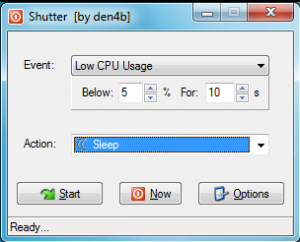
    Sometimes, though, life is more complicated. Maybe you want to leave your PC running and have it automatically close at a particular time, say; when a program has finished running, or on some similar event. And that can be more difficult to organize — unless you get a little help from Shutter.

    This compact tool comes in a tiny 430KB download, and there’s no installation required, no adware or any other concerns: just unzip it and you’re ready to go.

    And, while there’s no local help, the straightforward interface means you’re unlikely to have any major questions about its core functionality. Take the default “Countdown” event, for instance: all you have to do is set a timer to 5 minutes, 1 hour or whatever, choose the action you’d like performed at the end of that time (Shutdown, Sleep, Hibernate, Logoff and so on), and click Start. Shutter will begin the countdown and carry out your chosen action after the defined time.

    Countdowns are just the start, though. You can also tell Shutter to activate at a specific time; if your CPU usage drops below a certain level; if your battery is low; when a user is inactive; when a window closes, or a process stops; when a ping is no longer returned, when a file exceeds a given size, and more.

    Despite its name, Shutter isn’t just about shutting down. You can alternatively have the program sleep or hibernate your system, turn off your monitor, mute or unmute the master volume, play an alarm, and more.

    And the Options dialog reveals even more power. You can have the program run specific programs when the defined event occurs, for instance, play a sound, or close named windows. There are lots of ways to fine tune things, including the ability to restart an event when it’s been triggered. You even get a web interface to control the program remotely.

    Yet all of this comes in a tiny program, requiring less than 1MB hard drive space and 3MB RAM, which is entirely free for personal use.

    If we go looking for problems, then the fact that there have been no updates since 2010 might be a minor issue. There’s also no local documentation, and the online help isn’t particularly good (although you won’t need it very often).

    For the most part, though, Shutter is a very capable shutdown tool with a great deal of features and options, and it’s well worth a closer look.

  • RetroShare lets you build your own invitation-only social network

    Social networks are great, in theory. But then you run into problems with other users, advertising, spam, unexpected and unnecessary interface redesigns, security issues, privacy problems and the list goes on.
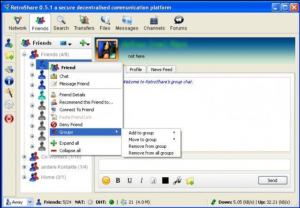
    If you’re in the mood to try something different, then, you might be interested in RetroShare. It’s a cross-platform, open source tool which provides a rich set of features — instant messaging, voice chat, forums, channels, file sharing and more — but in a peer-to-peer form, so you only get to connect to people that you’ve specifically invited.

    Unsurprisingly, getting this all set up requires a little work. RetroShare encrypts you connections with GPG (GNU Privacy Guard), for instance, so you’ll need to generate a key to establish your identity, then exchange keys with friends when authenticating your connection. This isn’t difficult (creating a key is just a matter of filling in a form, and you only need to exchange keys once), but it’s undeniably more complicated than signing up with Facebook.

    And there may be issues in connecting from behind a firewall, too, although it all depends on your setup: if UPnP is working then all should be well, if not then there may be some further configuration necessary (the official documentation explains more).

    Once everything is working, though, browsing the RetroShare toolbar will quickly reveal a very rich set of features. You get file sharing, for instance. Instant messaging. Chat rooms. An email-type system, forums, channels and more.

    We’re not just talking some pre-built configuration, either. You can add as many forums as you or your friends would like to use, for instance. Each of them get your choice of custom name and description. Messages within them can be authenticated, or anonymous (so a network of work colleagues could allow anonymous messaging to encourage users to speak openly, for example). And if you’ve a lot of forums then you can even subscribe to your favorites, say, making it easier to find new messages to you at some later date.

    The core file sharing mechanisms are just as versatile. You can attach files to individual messages, for instance, or share entire folders and allow others to browse them. A detailed Transfers window keeps you up-to-date with your own downloads and there are plenty of useful configuration options (you can set a maximum number of simultaneous transfers to avoid sapping your bandwidth, for example).

    And of course all this is decentralized, peer-to-peer, so there’s no central server, no-one else monitoring things: it’s just you and the people you’ve invited.

    RetroShare won’t be for everyone, then. And if you really just want a simple way to display last night’s photos to as many people as possible then maybe Facebook really is the best solution, after all.

    But, if you’d like something more private, more secure, an environment which is just for you and those you invite, then the program could be the ideal choice. Just keep in mind that there will be quite an initial learning curve as you figure out how everything works.

    Photo Credit: Oleksiy Mark/Shutterstock

  • Mirage Anti-Bot 3.0 blocks access to websites infected with dangerous malware

    PhrozenSoft has released Mirage Anti-Bot 3.0, a tiny tool which aims to prevent your PC from accessing sites infected by the Zeus, SpyEye and Palevo families of malware.

    The core of the program remains very simple. It just downloads the excellent www.abuse.ch blocklist and updates your HOSTS file accordingly, immediately preventing you from accessing any of the included malicious domains.

    The official release statement said that Mirage Anti-Bot 3.0 will now handle this update “silently and automatically”, though. The new release is also able to log any attempts to reach a blocked site. And you can even add new sites to the HOSTS file yourself, perhaps useful if you want to prevent your children from reaching some specific domains. (This isn’t exactly bullet-proof protection, but may be enough to baffle young children or the less technical in general.)

    And in general the author claims Mirage Anti-Bot 3.0 has been recoded entirely, making it better performing and easier to use.

    Does the reality match up? Not entirely. The program does suffer from one issue, in that it needs to run as an administrator, but not only fails to tell you this, but also doesn’t complain if you forget. So when we first launched Mirage Anti-Bot as normal, it told us our system had been updated even though actually nothing had changed at all.


    Of course, once you’ve realised the problem, this is simple enough to fix, for example just by tweaking the program’s shortcut to ensure it’s launched with the necessary rights (right-click, click Properties > Compatibility, check “Run this program as an administrator”).

    And with that sorted, Mirage Anti-Bot 3.0 provides a quick way to block access to many Zeus, SpyEye and Palevo-infected sites. It’s also easy to use, relatively lightweight (it required barely 7MB of RAM on our test PC), and on balance could help to provide a useful extra layer of security for most systems.

    Photo credit: Albert Ziganshin/Shutterstock

  • Put your friends on Avatar, Iron Man or Lord of the Rings posters with Funny Photo Maker

    Transforming a standard portrait photo into something which stands out from the crowd, a shot you’d genuinely like to share with others, usually takes a great deal of time and expertise. But if you don’t have much of either, you might want to consider Funny Photo Maker, an excellent tool which produces great results with the absolute minimum of hassle.

    As you might guess from the program name, this isn’t a regular photo editor and won’t be for everyone. But if you’d like to take a friend’s face and place it on an ape, a magazine cover, movie poster or something similar, then you really need to take a closer look.

    Getting started is extremely easy. Just open a portrait shot, optionally choose the Edit option and position a selection rectangle (or other shape) around the face you’d like to use. And then start browsing the program’s templates to see what’s on offer.

    The Magazine section has covers for Allure, Cosmopolitan, GQ, Vogue and more, for instance, and just clicking any of these will display that issue with a picture of your friend on the cover.

    If they’re more interested in Hollywood then you or your friends could appear on posters like Avatar, Iron Man, Lord of the Rings, Twilight, X-Men and more.

    And you also get lots of clever and inventive frames. So again, in just a click or two you could have an image which displays your photo in an art gallery, on the side of a truck, as the face on a dollar bill, and on the big screen in Time Square, amongst many others.

    If this is a little too off the wall for your needs, there are more standard effects available under the “Artistic” tab. You can add snow or rain to an image, say; turn it into an oil or water painting; apply some excellent lighting effects, turn the image into a collage, and more.

    Funny Photo Maker also includes a very basic editor of its own where you can do simple work: sharpen an image, tweak brightness and contrast, add a text caption, clipart and more.

    And when you’re done, the program provides options to save your image as a file, or upload it directly to Facebook or Twitter.

    You do have to keep your editing expectations fairly low here, as the program is more about ease of use than trying to rival Photoshop. So you don’t get advanced selection tools to try and precisely separate a face from the image background, for instance, and there aren’t 100 hi-tech ways to adjust your image colors (or really any at all).

    That doesn’t matter, though. Funny Photo Maker works because you can have the basic setup complete within seconds, then there are a huge range of quality effects to explore, and applying them mostly only takes a click. If you want a fast and fun way to get more creative with your images then this tool is an absolute must.

  • Manage all of your downloads with EagleGet

    Downloading is such a fundamental part of the online experience that you might expect every browser to include a quality download manager by default. The standard offerings are usually a little more basic, though, so if you’d like some help in, say, downloading online videos more easily, then you’ll need to install a specialist download manager like the new EagleGet.
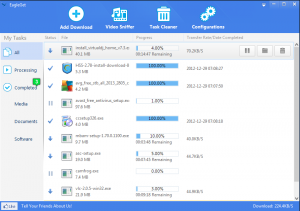
    This kind of tool is notorious for trying to drown your PC in adware during installation, but EagleGet is much more straightforward, for the moment at least: it’ll install itself, and nothing else at all. This might be because the program is still in beta, of course, but at the moment it’s safe to try.

    And the basics of the program seem easy to use, too. It installs add-ons for IE, Firefox and Chrome; intercepts regular download links, as you click them; and then claims its multithreaded approach can increase download speeds by up to 6 times. Any actual performance gains will be rather more variable, but it did work well enough in our tests, and of course can help you to resume a download if the connection has been broken for some reason.

    You need to download a video? That’s straightforward, too. Just browse to it as normal (YouTube, Facebook, Vimeo, all the main sites are supported), start playing, and hover your mouse cursor over the screen. Click the Download button when it appears, choose a file format and size if you’re offered a choice, and it’ll grab a copy for you.

    If you’re at a web gallery, or some other page with several files you’d like to download, then right-click, select “Download all links with EagleGet” and the program will list them for you. Entering a keyword lets you filter just the links you need — MP3, say, or perhaps JPG — and then it can download them all with a click.

    And the program provides other conveniences, including for example monitoring the clipboard, so if you copy a URL there then it’ll pop up and offer to download the file. (You can turn this off if it’s inconvenient, of course.)

    EagleGet is also very new, and still in beta, so unsurprisingly it has its share of issues. And most are trivial, like the number of spelling mistakes throughout the interface, or the way it insists on displaying its tiny status toolbar all the time, even when the rest of the application has been minimized.

    More substantially, though, the program doesn’t provide as much choice when downloading YouTube videos as we’d like. (Sometimes it’ll offer no choice at all, sometimes you’ll get a few file sizes, but it’ll never tell you which size relates to what resolution.)

    And in one significant beta bug, we found we were no longer able to use WordPress in IE with the EagleGet add-on installed; for some reason the browser no longer allowed us to complete multiline text boxes. The problem didn’t seem to affect other browsers, but that’s still totally unacceptable, and hopefully it’ll get fixed soon.

    EagleGet currently has some problems, then, but already it’ll work very well for many users, and it looks like a very promising tool. If you’re unhappy with your current download manager then this is certainly one to watch.

    Photo Credit: Colin Edwards Photography / Shutterstock

  • Quttera URL Scanner bulks up VirusTotal

    VirusTotal.com is perhaps best known for its free virus detection service, which allows you to upload almost any suspect file for a speedy verdict from all the main antivirus engines (and several of the lesser ones, too). The service can also vet URLs for presence of malware, though, and VirusTotal has just extended this capability even further with the inclusion of a URL scanner from Quttera.

    What’s interesting about Quttera is it’s not just another signature matching tool. Instead it uses a wide range of heuristic techniques to detect JavaScript exploits, suspect HTML code, malicious PDF files and exploits concealed in other content.

    Does it work? As with most heuristic technologies, accuracy is variable: it’ll miss some threats, and raise false alarms elsewhere. We’ve had some good results with the tool, though, and its inclusion at VirusTotal is another sign of confidence. The program should be a welcome addition to the service.

    If you could use Quttera yourself, though, perhaps to monitor your own website, it’s worth keeping in mind that the service isn’t just online only. The company has also provided a Windows client which will scan your preferred URLs, entirely free of charge.

    This isn’t quite as convenient as it sounds, unfortunately. The program uses a command line-based interface, for instance, which may require a little thought initially. And you’ll need some web development and security knowledge to get the most from its detailed reports and alerts.

    If you’re running your own website, though, Quttera URL Scanner does provide an easy way to look for changes which might indicate you’ve been hacked. And the company produces similar tools to check sites from Chrome or your WordPress dashboard; check their site for details.

    Photo Credit: Aaron Amat/Shutterstock