
Author: Mike Williams

  • Create animated GIFs from YouTube videos with Any GIF Animator

    From a Captain Picard facepalm to a dancing Homer Simpson, there’s an animated GIF for every occasion. Which is one reason why they’re still regularly used in emails, forum posts, on web pages and so on. (Although another is probably compatibility: unlike more modern technologies, such as HTML5 or CSS3, animated GIFs work just about everywhere.)

    If you’re tired of reposting one of the standard animations, though, why not create a new GIF of your own? It’s surprisingly easy. Any GIF Animator imports just about any video or YouTube clip, and once you’ve zoomed in on the section you’d like to use, can have a quality animated GIF ready and online in just a few seconds.

    After a quick installation (no adware, but the program does ask to install Media Player Codec Pack Lite) you’re able to import your first video. The program can open a wide range of formats (3GP, ASF, AVI, DAT, FLV, MKV, MOV, MP4, MPEG, RAM/RM/ RMVB, TS, VOB, WEBM, WMV), and it’ll also download YouTube clips if you just provide the appropriate URL.

    An embedded media player then allows you to browse through your video clip, find and mark the section you’d like to convert. Oddly, you can’t step through the movie in frames — the smallest increment is a tenth of a second — so you’re not able to be as precise as we’d like. But otherwise this is a fairly simple operation, and you’ll quickly have your core clip ready.

    If you’d like fine control over your animation then the good news is that Any GIF Animator provides lots of configuration options. So you can set the GIF’s size and frame rate; crop the image; tweak saturation, brightness and contrast; add a text caption, choose the best dithering method, set the animation type (looping, direction) and more.

    But if you’re not sure whether you need any of this, or are just in a hurry, then you can just accept the default settings — they work well, most of the time.

    And when you’re happy with the clip, all you have to do is click “Convert to GIF” and Any GIF Animator will process your chosen video, create an animated GIF version, and upload it to the AnyGif server, where you’ll be given the URLs you need to share the clip with others.
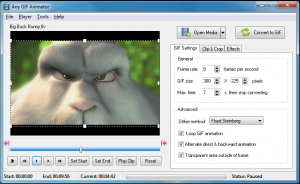
    One very obvious issue here is that the program doesn’t offer you a choice about uploading animations — it just does it. And your GIF will then immediately be visible to anyone who visits the site, so bear that in mind before you create anything of a, well, personal nature. (We’d also urge caution if you’re looking for something family-friendly; the program itself is fine, but view what others are creating on the website and you’ll find plenty of porn.)

    Perhaps most annoyingly, Any GIF Animator doesn’t even provide an option to save a local copy of your animation. If you want to do this then you’ll need to either allow it to be uploaded, then save it from your browser, or make a copy of the temporary file the program creates — see C:\Users\[UserName]\AppData\Roaming\Any GIF Animator, for instance, or search your system for out.gif.

    There’s a lot to like about Any GIF Animator, then, and you can use it right now to produce quality animations. The program also has some significant annoyances, though, and it really needs a local save option to be added very soon.

    Photo Credit: Alex Kosev/Shutterstock

  • Get your files in order with Just Manager

    There are many reasons to be annoyed by Windows, but perhaps one of the most common is its feeble file manager. Explorer is desperately short on features and functionality, and there’s no sign of this changing any time soon: if anything, it looks like Microsoft is trying to head for a simpler world where most people never bother with file management at all.


    Fortunately you don’t have to put up with the standard Windows offerings, though, as there are a host of third-party file managers to explore. And the latest, Just Manager, is particularly promising: it’s still in alpha, but if you’re interested in Explorer alternatives then it’s definitely worth a few minutes of your time.

    The program’s portable build is extremely compact, for instance, at barely more than 500KB. And its installation is extremely simple: a single executable, one DLL, a few settings and language files, and that’s it. Just Manager isn’t going to clutter your system.

    Launch the program and there are no obvious compromises in the interface, though, which looks just as you’d expect for this kind of tool: multi-pane, with a tabbed interface, already network-enabled (your existing mapped drives should already be available, and you can easily add more), with full drag and drop support, and so on.

    And despite its alpha status and small size, Just Manager still has room for some useful extras. Like a small command line at the bottom of the program window, for instance. Navigate to a folder, enter a particular command there — “attrib *.exe” or whatever it might be — and a console window will open to show you the results.

    But that’s just the start. There’s also a batch file renaming tool. A capable search dialog. An option to change the file stamps and attributes for your chosen files (and we mean all the attributes: Compressed, Offline, System, Sparse file, Reparse point and more). A folder comparison tool. You even get an FTP client (basic, but it works).

    And this can all be configured via a surprisingly capable Settings box, where for example you can already customise the entire menu system. So you can browse to a particular item and remove or rename it, replace its icon, even give it an entirely different action of your own (so clicking “Search”, for example, could launch any other search tool you might want to use).

    This is still an alpha, of course, and so you’ll spot deficiencies and problems from time to time. Icons can’t display the contents of files, for instance (image file icons won’t show picture thumbnails). You can’t drag and drop files onto a tab that isn’t currently selected. And we found the program crashed a few times for no apparent reason.

    Still, even now Just Manager is a likeable tool with a lot of features, and already far more powerful than Explorer in many areas. Development seems to be proceeding well, too, and we’ll be interested to see where the project goes next.

    Photo Credit: S.john/Shutterstock

  • Call us shocked! WinZip for Windows 8 isn’t free after all

    Yesterday it appeared that WinZip for Windows 8 app was now available for free. Which would have represented a fairly swift change of direction, as it’s not even three months since the app first appeared in the Windows Store with a price tag of $7.99.

    But apparently this is not the case. The Windows 8 store may label it as free, and you won’t be told otherwise on installation, but it seems the app is only free for a 15 day trial, after which point you’ll need to subscribe for the same $7.99 a year.

    And that’s plainly not something to get too excited about.

    Could the app still be worth considering? The interface looks good and works well, allowing you to browse files and folders with a clean and touch-friendly tile-based interface.

    It runs on Windows RT, as well as Windows 8.

    And WinZip for Windows 8 also provides access to the ZipSend service for sending archives to others, while allowing you to securely share your files via Facebook, Twitter, LinkedIn, Dropbox, Google Drive, SkyDrive and more.

    But on the other hand, the app only handles ZIP and ZIPX files, which is fine when you only need to create and manage your own archives, but could be an issue if you regularly download or are sent other formats.

    And that annual $7.99 does seem a little much, especially when 7-Zip and other competitors deliver so much power for precisely nothing at all.

    If you’re running Windows RT, then, or just like Windows 8′s “modern UI” so much that you never want to leave, then WinZip for Windows 8 may still appeal. But everyone else should probably head off to the desktop, where there are far more archiving programs to choose from.

    Photo Credit: olly/Shutterstock

  • It’s free! WinZip for Windows 8

    WinZip Computing has announced that its WinZip for Windows 8 app is now available for free.

    This represents a fairly swift change of direction, as it’s not even three months since the app first appeared in the Windows Store with a price tag of $7.99.

    Still, given the number of other quality free archiving tools around, the move probably isn’t a great surprise.

    Is the app now worth considering? It depends what you want to do. One potential problem here is that the app only handles ZIP and ZIPX files, which is fine when you only need to create and manage your own archives, but could be an issue if you regularly download or are sent other formats.

    Otherwise, though, the interface looks good and works well, allowing you to browse files and folders with a clean and touch-friendly tile-based interface.

    It runs on Windows RT, as well as Windows 8.

    And the app also provides access to the ZipSend service for sending archives to others, while allowing you to securely share your files via Facebook, Twitter, LinkedIn, Dropbox, Google Drive, SkyDrive and more.

    You could of course achieve much of this by combining a few other appropriate apps, but WinZip for Windows 8 does still provide some very useful functionality, and if you’re yet to explore the world of modern UI archive management then it’s not a bad place to start. Especially now the price tag has been removed.

    Photo Credit: Arkady/Shutterstock

  • Need a truly useful dictionary? Try TheSage

    When you need to use a dictionary then the quickest solution is usually to head off online. There are plenty of excellent free services available, and if you’re just looking for a quick definition then they’ll probably do a very good job.

    If you need more, though – more frequent lookups, better searching features, more options and control — then there’s still a case for installing a dictionary application. And TheSage is the perfect example.

    The program is extremely comprehensive, for instance, with 210,000+ definitions (and a thesaurus detailing 1,400,000 relationships between them). It’s free, and unrestricted. And installation is straightforward (there’s even a portable option, if you need it).

    It won’t exactly take long to get started with TheSage, either. Enter a word in the box, click “LookUp” and you’ll get a definition right away. This will include a guide to how the word is pronounced (click this and you’ll hear it spoken out loud), and many of the definitions will also have examples showing you how they’re used.

    Knowing how to spell the word you’re after is often a problem with dictionaries, of course, but TheSage provides multiple tools to help.

    You can just give it a try with your best guess, and the program will intelligently suggest matches (type “dicshunary”, for instance, and it knows that “dictionary” is probably what you meant).

    You can opt to “search as you type”, which is rather like flicking through the pages of a paper dictionary. So as you type each letter, TheSage will display what it thinks is the most likely match, and once you spot what you need then double-clicking it will bring up the definition.

    And you can even use a variety of wildcard searches, very helpful if you’re confident of the spelling in all but one or two places.

    Elsewhere, there’s another handy extra in the Anagram feature. Enter an appropriate word, click Anagram, and you’ll see a list of all the full and partial anagrams it can make.

    And while all this happens locally, no need to be online, the program also recognizes that sometimes the web is the best place to go. So if you enter a word or phrase, and click “Go online”, within a few seconds the program’s internal browser will display tabs with results from Wikipedia, Wiktionary, Google’s Define service, and a regular Google search.

    If there’s a problem here it’s that TheSage tries perhaps too hard to hide most of its functionality. Launch the program and you’ll see only a few basic search options, for instance. To find the Web search you’ll have to spot a tiny arrow in the extreme left of the program window, click it, select “Other Searches”, and click the Internet icon. Which isn’t exactly obvious.

    Take the time to explore everything it has to offer, though, and you’ll find TheSage is an excellent tool, one of the most capable dictionaries around (free or otherwise). And if online equivalents aren’t quite providing the power you need then you really should give the program a try.

    Photo Credit: NinaMalyna/Shutterstock

  • Don’t expect too much from Rootkit Remover

    Bitdefender Labs has released Bitdefender Rootkit Remover, a free stand-alone tool for dealing with known rootkits.

    The company report that Rootkit Remover can remove infections from a wide range of threats, including Mebroot, all TDL families (TDL/SST/Pihar), Mayachok, Mybios, Plite, XPaj, Whistler, Alipop, Cpd, Fengd, Fips, Guntior, MBR Locker, Mebratix, Niwa, Ponreb, Ramnit, Stoned, Yoddos, Yurn, Zegost and Necurs, amongst others.

    The program’s emphasis is very much on simplicity. There’s no installation required, no need to worry about compatibility with other security products, and no lengthy running times, either. Just click “Start Scan” and Rootkit Remover checks for specific signs of infection by known rootkits. If anything is found, it’ll be removed; and if your system is clean, the scan could be over in less than a second.

    You shouldn’t expect too much from Rootkit Remover, then. It doesn’t perform any kind of general analysis to help you detect and remove brand new threats, and of course it can’t stop you from being infected in the first place (so is no substitute for a regular antivirus engine). This is really just about providing a single dedicated tool to quickly remove malware which Bitdefender knows about already.

    Still, this isn’t in itself a bad thing. If you think you might be infected by a rootkit and your current antivirus engine hasn’t raised an alert, then there’s no doubt that this new tool provides a very quick and easy way to get a second opinion, and perhaps solve the problem entirely. Especially as the official Bitdefender Labs blog post on the release suggests it’s going to be regularly updated, with support for tackling “new rootkit families… added as they become known”.

    But if you’d like to try it yourself, there are now two downloads available: Bitdefender Rootkit Remover x86, and Bitdefender Rootkit Remover x64.

    Photo Credits: maraga/Shutterstock

  • Scarab Darkroom lets you view and edit RAW images

    Take a photo with most digital cameras and by default you’ll get a JPG file, which is great for compatibility purposes, but does involve some compromises in image quality. And that’s because your picture will go through various processes before the final JPG is produced — sharpening, adjusting colors and contrast, compressing the results — and each step results in the loss of some information.
    Take pictures using a camera’s RAW format, though (if it has one), will give you access to the full and unprocessed image data. And you can then apply any tweaks you like on a case by case basis, for the best possible results. You’ll probably need a specialist tool to access the RAW images, but that may not be a problem: Scarab Darkroom, for instance, is a very capable RAW converter with support for cameras by Canon, Nikon, Olympus, Panasonic, Pentax, Samsung, and Sony, and you can download it and it entirely for free.

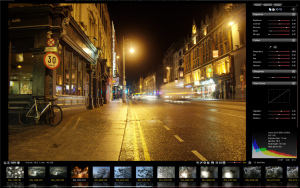
    After a quick and easy installation, the program presents a straightforward interface. A right-hand tabbed sidebar displays the drives and folders on your PC; you’ll navigate through these to a folder containing your RAW images; and their thumbnails will then appear at the bottom of the program window, making it easy to spot and view whatever picture you need.

    There are a few small buttons above the thumbnails with various viewing-related options: rotate, crop, zoom and so on. And you can also drag the image with the mouse, and zoom in and out with the mouse wheel, so even if you’re viewing a very high resolution photo, it’s quick and easy to find and examine a particular detail.

    Life gets more interesting when you click the Adjustments tab, though, where Scarab Darkroom provides tweaks for Exposure (Brightness, Contrast, Recovery, Blacks, Fill Light), Colors (Temperature, Tint, Hue, Saturation, Vibrance), Tone Curve (Highlights, Midtones, Shadows) and Sharpness. Drag a particular slider and the picture will update accordingly, giving you immediate feedback. And it’s easy to copy your settings to the clipboard, and restore them later, so once you’ve found a configuration which delivers good results then you can quickly apply it to all your other shots.
    There’s also a Metadata tab, although this is relatively basic by comparison. It displays a few of the key image details — exposure, aperture, focal length, ISO speed, flash used, date taken, camera, owner — and allows you to set the image rating, but that’s about it.

    And when you’re happy, and it’s finally time to abandon RAW for an image format you can actually use elsewhere, then the program can save your pictures as JPG or TIF files.

    There are a few small gaps in functionality here, mostly because this is the free version of the program. The developer is currently working on a commercial build, and so extras like noise filtering are going to be reserved for that edition.

    It seems unreasonable to complain, though, because otherwise Scarab Darkroom is an excellent tool. There’s no adware, no marketing annoyances; it’s fast, easy to use, supports a lot of RAW formats and is still being regularly updated to add more. Go grab a copy immediately.

    Photo Credit: diez artwork / Shutterstock

  • Calligra rolls out a new version of its popular productivity suite

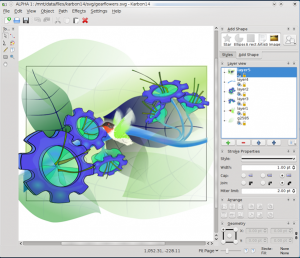
    The Calligra team has announced the release of version 2.6 of the Calligra Suite, Calligra Active and the Calligra Office Engine, a versatile Linux-based productivity suite.

    The big news in this suite is the addition of Calligra Author, a specialized tool which aims to help authors through the process of creating eBooks, including the ability to add interactive content (animations, embedded web content, scripting, and more).

    Application enhancements see spreadsheet application Sheets finally gaining a Solver, while Stage now allows you to create and work with animations in your presentation slides, and Krita adds support for the OpenColorIO color management system.

    Document compatibility improvements mean that Calligra 2.6 is now better at handling Microsoft Office documents. The suite can also now load and save 3D shapes and annotations, and is able to export documents to EPUB2, while MOBI exporting is apparently scheduled for inclusion in 2.6.1.

    And of course there’s the usual stack of smaller tweaks, including an improved layout for Words, more reliable CSV import and export in Kexi, various Krita speedups, more chart customizations (you can now set the fonts for titles, labels and so on), as well as a lengthy list of bug fixes.

    As previously, the Calligra team only provide the source code, so obtaining the package may require a little work. The official release announcement provides more details.

    Of course there are also builds of Calligra available for OS X and Windows, but they’re best treated with caution. Even the developers describe them as “preliminary” and “highly experimental”, and our initial tests of the current Windows build suggest that nothing much has changed — it’s packed with problems. So while the Linux suite works well, the Windows version is only really worth a look if you’ve a particular interest in Calligra or want to see how it’s developing on other platforms; it’s not yet something we’d want to use on a regular basis.

  • Record everything on screen and create quality presentations with ActivePresenter Free

    When you’re creating a presentation, a demonstration, a software tutorial, or just trying to show someone else what’s happening on your desktop, then you could just take and save screen grabs at the appropriate moments. But while that sounds simple enough, it’s not exactly convenient. You’ll have plenty of work to do later in converting your grabs into something meaningful. And even then, the finished results may not be that professional.
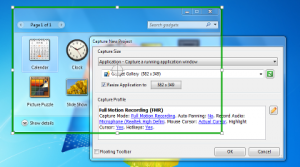
    Fortunately ActivePresenter Free offers a more capable alternative. It’s a powerful screen recorder which can track everything you’re doing, and automatically add some useful annotations. You can then quickly customize the results with an excellent editor, before saving your project as images (JPEG, PNG) or video (WMV, AVI, MPEG4, WebM).

    Create a new project and the program allows you to record a fixed area, an application window or the entire screen. It’s smart enough to grab images only when you take some action, like clicking a button or typing. But ActivePresenter can also record onscreen activity as a video, if you like, with an audio narration as well.

    And that would be useful enough, but it’s actually just the start. Because if, say, you click on the View menu within a program, ActivePresenter doesn’t just show an image with the cursor in the appropriate position. It can also highlight it, and even add a callout to make things clear to the reader, like “Select [View] menu item”. So you may need to do very little post-processing to your images, because ActivePresenter has sorted out the basics already.

    If you need to do more, though, that’s not a problem. The program includes a capable editor which allows you to further customize each slide with new shapes, captions, highlights, images, cursor paths, zoom and pan effects, even audio or video clips.

    And if you don’t like some aspect of how the program works, just check the Preferences dialog — it’s quite astonishingly customizable. So if you’re creating a cursor path, for instance, you’re able to set the default cursor highlight shape, color, size and opacity, the type of movement path, the cursor shape, even the noise it makes to indicate a left, right or double-click.

    This is the free version of ActivePresenter, of course, and so we were expecting it to be hobbled by ridiculous restrictions — you can only record 3 slides, they all have a massive watermark, and so on. But, surprisingly, there’s nothing like that here. The commercial versions (priced from $349.95) do have many more features, including the ability to add interaction to your projects (questions, quizzes, scripting and more), or export to PDF, Word, PowerPoint and so on. But the free edition has no length restrictions, watermarks, nag screens or anything similarly annoying, and if you need to export your on-screen activities to video then it should serve you very well.

    Photo Credit: Alexey Kashin/Shutterstock

  • Replace Notepad with the powerful and smarter EverEdit

    Windows Notepad may be easy to use, but it’s also horribly basic, and so it’s no surprise that an entire industry has grown up in providing more powerful alternatives. Some, like Notepad++, have become famous in themselves, but there are also plenty of powerful but lesser-known tools around, and EverEdit is one of the most interesting.
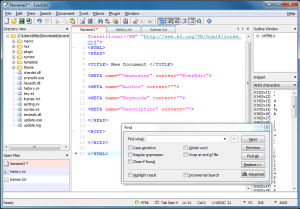
    The program gets off to a good start with its ultra-compact 1.25MB download, for instance. There’s no installation, no adware, not as much as a “Donate” button — just unzip the file somewhere and you’re ready to go immediately.

    EverEdit’s versatility is apparent very quickly, too. Click File > New, for instance, and you’ll find the program has built-in template support (there are C, HTML and PHP templates included, and it’s easy to add your own). And while full Unicode support means EverEdit can open text files in any encoding, the program also has an option to open binary files in its own simple hex editor.

    The interface is surprisingly configurable for a program of this size, too. As well as having a central tabbed area where you can work on your documents, EverEdit can display a Directory View to browse your system; an Outline window for easier navigation of lengthy documents; a list of open files, and a command window.

    There’s even a Snippets window for speedy entry of commonly used text. Choose the HTML category, say, then double-click “Object (Flash Movie)” and EverEdit will insert an ‘<object type=”application/x-shockwave-flash”…’ tag at your current cursor position.

    Other elements of the interface proved smarter than we’d expected. The status bar, for example, doesn’t just display details about the document and your current cursor position; it’s also clickable, so you can select your current tab size (or coding, or insert mode or whatever) and change it to something else.

    There are a stack of other extras, too, from the small (a Print Preview option, and the ability to set the program window transparency, or set it “always on top”), to the surprisingly large, like macro and plugin support.

    And of course you also get lots of core editing and developer-oriented features, like drag and drop support when moving text around, case conversion options, line manipulations (sorting, remove duplicates, more), auto-complete, code folding and more.

    The program isn’t perfect, of course. For all its functionality, there are some features which seem relatively basic when compared to the best of the competition (syntax highlighting), while one or two others are missing entirely (there’s no option to maintain multiple clipboards, for instance).

    More seriously, the features you do get aren’t always organized in an intuitive way. And there doesn’t seem to be any English language documentation, either, so figuring out how some of the more advanced features might work could prove quite a challenge.

    This isn’t a fatal problem, though. You won’t need any help to use the core EverEdit features, and there are more than enough of those to justify downloading the program. And if you’re willing to invest some time in exploring its features then there’s plenty more to discover.

  • Want more from YouTube? Try Freemake Video Downloader 3.5

    Rival developers Ellora Assets Corporation and DVDVideoSoft Ltd have released major updates for their freeware video download tools for Windows PCs. Ellora’s Freemake Video Downloader 3.5.0.1 makes YouTube downloading even easier by embedding handy download buttons into the web pages themselves.

    In the meantime, DVDVideoSoft’s Free Studio 2013 v6.0, a collection of video, music and photo tools, debuts a brand new interface and reworked Facebook uploader tool.

    Freemake Video Downloader 3.5’s main claim to fame is to make it possible to save — and convert — video from a wide variety of online sources. Version 3.5 targets the number one video website — YouTube — by integrating the program more tightly directly into the YouTube site itself on compatible web browsers (Internet Explorer, Firefox and Google Chrome).

    Once installed, users will be able to trigger Freemake Video Downloader directly from Download buttons found on single videos, channels, playlists, artist pages and user pages, including favorites, uploads, history and more.

    The new build also expands its coverage of supported YouTube categories to include both YouTube Music and YouTube Education. Freemake also promises to rip artist videos and MP3s direct from artist pages too. The update is rounded off by another minor improvement — the ability to resume interrupted playlist downloads.

    Also released is DVDVideoSoft Ltd’s Free Studio 2013 v6.0. The new release integrates a brand new interface into its YouTube downloading component, which the company claims has been built based on user suggestions and feedback.

    The new build also promises a reworked — and correctly functioning — tool its Free Uploader to Facebook component. A problem with the mistiming of edited video in Free Video Dub has been corrected, while Free Audio Converter has also been improved for stability purposes.

    Both Freemake Video Downloader 3.5.0.1 and Free Studio 2013 v6.0 are available as freeware downloads for PCs running Windows XP or later.

    Photo Credit: cybrain/Shutterstock

  • Set System Restore points from the command line

    Windows System Restore is usually an excellent technology. Your PC creates Restore Points automatically at key times, and if disaster strikes then you can restore your system settings or key files in a click or two. It all seems very reliable — until, that is, you need to use a Restore Point and then your system hasn’t been creating any for quite some time.

    The reality is there are all kinds of problems which can affect System Restore. At the simplest, another user might have accidentally turned it off. But it can also be disabled via Windows policies, or just stop working altogether if you have issues with WMI or your Windows services. And that’s why it might be useful to have a copy of QuickSystemRestore around as a backup plan.

    The program is a tiny (96KB) tool, no installation required, just download the executable somewhere safe. And then, when you run it as an administrator, it’ll try to create a Restore Point for you.

    That’s simple enough, of course. But life gets more interesting if that creation attempt fails, because the program doesn’t just give up, or make an Event Log entry you’ll never, ever read. Instead it tries to repair things, and get your PC working again.

    This starts very simply, for instance by activating System Restore if it’s currently turned off, and restarting the necessary services.

    But if that doesn’t help then the program will try more advanced repairs for System Restore itself, and the WMI Service. And if these fail it’ll warn you of the problem and suggest you reboot, just in case that might resolve the situation.

    One annoyance here is that, if you forget to run QuickSystemRestore as an administrator, it won’t alert you to the problem. Instead it’ll display misleading alerts suggesting that System Restore is somehow at fault, which isn’t exactly helpful.

    Set QuickSystemRestore up correctly, though, and this won’t be an issue. You might then use Task Scheduler to manually run the program every day or two, perhaps, and if anything does happen to System Restore you can be sure that it’ll quickly be restored to full working order.

    Photo Credit: Lilya/Shutterstock

  • Dukto shares files fast with ‘buddies’ on your LAN

    Sharing files across your network sounds like it should be simple, but the reality is often very different. There are lots of factors to consider — the basic LAN setup, protocols, users, permissions, and more — and if you’re trying to connect different platforms as well then life will only get more complex.

    If your networking needs are simple, though, Dukto could offer a more appealing approach. It’s a straightforward tool which runs on Windows, OS X, Linux, Symbian and iOS, and helps you transfer files or folders across your LAN without any hassles at all.

    Launch the program on a PC and you’re presented with a very simple, Metro-like interface, with an icon representing your user and computer name. And when other network users also launch Dukto, they’ll automatically be discovered, and their names added to your “buddies” list.

    Starting a data transfer is then as easy as clicking an icon for one of the other systems, then dragging and dropping whatever folders you need onto Dukto. Conveniently, you can also send text, very handy for passing on long URLs.

    And that’s about it. Dukto already knows where to save any incoming data (your desktop by default, though you can change this to wherever you like), so all you have to do is watch as the program transfers your data. Which probably won’t take long, as it’s very fast.

    There are a few small extras, if you need them. You can review the IP addresses of everything Dukto has discovered, for instance, and send data directly to an IP address if that’s necessary. But for the most part, it really isn’t. Dukto just works.

    That doesn’t mean the program is entirely perfect, of course. If we’re being picky, it’s a little annoying that the interface can’t be reduced to a smaller size (if there’s only one client then you’re left with an unnecessary amount of white space). And more significantly, it really needs an Android version.

    Considering what you’re getting, though — and all for free (although there is a commercial Dukto Pro iOS version) — Dukto is a triumph, and an exceptionally convenient way to transfer files across your network. Go grab a copy immediately.

    Photo Credit: Joe Wilcox

  • Attribute Changer lets you tweak file attributes, date stamps, metadata and more

    When Windows Explorer doesn’t immediately provide all the information you need on a file or folder, a quick right-click > Properties will give you easy access to assorted other low-level details: attributes, date stamps, metadata and so on. But the standard Properties dialog has several limitations. It doesn’t show all the file attributes, for instance (Hidden and System are missing, others are a little hidden), while details such as file stamps are displayed, but can’t be edited.
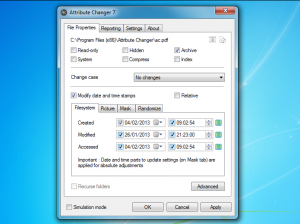
    If you’d like to take better control of your file and folder properties, then, you’ll need to get a little help from a third-party tool. And Attribute Changer‘s lengthy feature list suggests it could be a great place to start.

    After an adware-free installation, right-clicking an object in Explorer and selecting “Change Attributes” will display the core program’s interface, a tabbed dialog with a lot of options. And the first you’ll see (unsurprisingly, given the program’s name) is a full list of file attributes — Read-only, System, Hidden, Compress, Archive and Index — which can all be tweaked with a click. (Altering the System attribute in particular can be dangerous, of course, so you do need to be careful here. If you don’t know why, then this isn’t the program for you).

    You also get to see your file creation, last modified and last accessed times. You can manually adjust any of these, set them automatically to the current time, or even generate random date and timestamps between the range you specify. Attribute Changer can even set the EXIF datestamp of your photos to whatever you like.

    And as you browse the various tabs, so even more options appear. At its simplest, you can use the program to standardize the case of your selected files and folders in various ways (both the name and extension can be in upper or lower case). But if you need rather more power then there are all kinds of configuration options available. So you can have the program include or exclude particular files from modification if they match the criteria you specify, for instance (file names, dates, times, attributes and more).

    If you think this sounds very powerful, then you’re right. But some of the more advanced operations are a little more complicated than they need to be, thanks to a less than intuitive design. Documentation comes in the form of a separate PDF manual rather than a regular Help file, another inconvenience. And the program also seems to have a few bugs, or at least interactions which we didn’t understand. Because we really didn’t see why enabling the option to save program settings should have disabled our ability to change file stamps, for example.

    Still, for all that, Attribute Changer’s basic options — tweaking attributes, changing the case of names, setting file datestamps to “right now” — proved quick and easy to use, and some of the program’s other abilities (applying random timestamps, say) are hard to do in any other way. If you need to take more control of your file properties, and are willing to take the time to master its quirks, then Attribute Changer could prove a very handy tool.

    Photo credit: NinaMalyna/Shutterstock

  • Lock down almost any PC with Deskman

    If there’s an aspect of your PC which you don’t like then it can normally be changed very quickly: a right-click option here, maybe launch a Control Panel applet there, install a new program perhaps, and the system should soon be more suited to your needs.
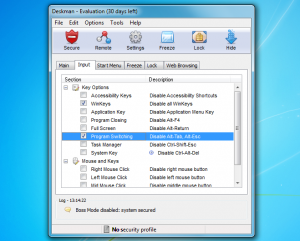
    But while this configurability is great on your own computer, it’s a real problem when you want a PC to be much more restrictive: a system which you’ll install in a school, say, or a business. What you’ll probably want to do then is set up some basic configuration, and make sure your users can’t do anything to change it — and that’s where Deskman comes in.

    The compact commercial tool (priced from $60) appears deceptively simple at first, with the bulk of its functionality available in just a single dialog box. Is that it, you might wonder? Browse through the tabs, though, and you’ll be surprised at just how much the program can do.

    You might start by building a Safe Start Menu, for instance, with only the applications you’d like your users to access. The regular Start Menu can then be hidden (although it still exists, if you need to use it yourself later).

    And because of course users might try to launch programs in other ways, Deskman also provides a Freeze option which allows you to define exactly which programs can be run.

    If browsing is an issue, then you can turn it off entirely, or restrict users to visiting just specific sites which you define.

    And you can set up your preferred desktop with your own choice of application icons, shortcuts and more, and the program will maintain and restore this for you, no matter what your users might try to do.

    More experienced users will of course try various tricks to get around this, but Deskman has options to block them all. So you can disable or limit Task Manager, for instance; disable the Windows keys, Alt+Tab and all the other system keypresses; hide the system tray, application buttons or the entire taskbar; restrict access to Control Panel, Explorer and a whole lot more.

    And while the sheer volume of options means it’ll take a while to set up Deskman properly, the mechanics of the process isn’t difficult. For the most part you’re just working your way through a tabbed dialog, checking boxes next to a restriction you need, and the program will then apply these with a click.

    Deskman may initially feel a little expensive, then, but if you really need to protect a computer then it’s well worth the investment: the ability to preserve your system setup without you regularly having to manually restore it will save you a great deal of time and hassle. It’s a very powerful tool with a lot of options, and there’s a 30-day trial available so you can sample them for yourself.

    Photo Credit: Kutlayev Dmitry/Shutterstock

  • avast! 8 beta is available — get it NOW!

    AVAST Software has released the first public beta of avast! 8 (or the first official one, anyway). Downloads are available for avast! Free Antivirusavast! Pro Antivirusavast! Premier Antivirus andavast! Internet Security.

    The immediately obvious change is avast’s clean new GUI. The home page presents a simple front end to each product, dividing its functionality up into six tiles, but clicking one of the tabs at the top of the screen allows you to quickly drill down into the detail.

    Explore the menus a little further and you’ll quickly spot several new tools. Perhaps the most important is the Software Updater, which will check your installed applications for missing updates. We’re not sure how many programs are supported, but already it’s covering the most important candidates: Adobe Reader, Flash, Java, all the main browsers, and so on.

    Elsewhere, Browser Cleanup aims to help you remove annoying addons from your browsers (although this only appears to work with IE and Firefox at the moment, at least on our system), AccessAnywhere allows you to set up remote access to your PC, while DataShredder will securely wipe files, drives or partitions. The last two will only be included as a part of the new avast! Premier product tier, though, so keep that in mind when you’re deciding what to download.

    And of course there have also been improvements to the core protection technologies, so for instance FileRep and WebRep are now better able to identify and new threats in near real time.

    Keep in mind that this is a beta, and even by those standards it has plenty of problems. In particular, there’s no Windows 8 support yet, and Facebook registration is buggy: you’re better off registering with an email or skipping it altogether.

    In our brief tests we’ve also noticed performance issues and some product instabilities. And the official avast! forum announcement talks of several other issues, including broken profile detection with the firewall, stability issues with Outlook plugins, and a significant Data Shredder bug (it can’t shred files or partitions: oops).

    This is only to be expected with betas, though, so isn’t any particular cause for alarm. So if you want to install avast! Free Antivirus or avast! Internet Security then go ahead (apparently they can be installed over an existing version, keeping your current settings), just expect occasional problems as you explore the new features.

    Photo Credit: almagami/Shutterstock

  • Free up disk space by uninstalling unwanted software with Should I Remove It?

    When you’re looking to improve your PC’s speed and stability then there are plenty of actions you might take, but one of the most effective is often just to uninstall any applications, add-ons and extras which you don’t really need. You’ll free up plenty of system resources, and that alone could help to deliver a real performance boost.
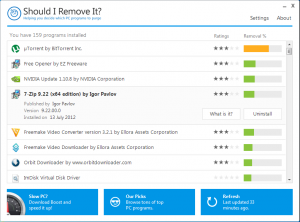
    You’ll have to figure out exactly which programs you need to keep, though, and which can be safely uninstalled, and that can be a challenge if you’ve hundreds of apps to explore. Don’t worry, though, because Should I Remove It? is here to help: just download the program, the authors say, “and within seconds we will help you purge your PC”.

    As Should I Remove It? is all about reducing clutter, it was good to see the program come in the form of a very small download (1.16MB), which doesn’t include any adware itself. Installation is quick and easy, and within a moment or two we were looking at a list of our installed applications.

    The program displays software in the order in which it’s removed by other program users, with the most-often-dumped at the top. Presumably the theory here is that if everyone else is uninstalling it, then perhaps you should consider doing so, too — but we’re not sure this logic really holds, especially when we looked at the list on our test PC. Was uTorrent really the program most worthy of uninstalling on our system, for instance? Does it really make sense that a program as useful as 7-Zip should appear in 4th place, or that Freemake Video Converter and Downloader would follow immediately afterwards?

    If we scrolled to the bottom of the list, then, to find the programs most rarely removed, would that tell us anything more helpful? No, not really — the app with the lowest removal rating on our system was the “Microsoft All-In-One Code Framework Sample Browser”. And we’d hazard a guess that’s just because hardly anyone else has ever installed it.

    The opening program list doesn’t tell you much useful, then, but fortunately Should I Remove It? has another useful trick. When you scroll through your applications you may find some you don’t recognize, or otherwise decide you’d like more information about them. And if you click that app, and select “What is it?”, Should I Remove It? will open a web page which tells you more.

    Launch the page for Orbit Downloader, say, and you’ll see a basic description of the program’s functionality, and a link to the developer. There are key program details, including the installation folder, uninstaller location, and files installed by the program, as well as their purpose (so for example you’ll read that “orbitnet.exe” is the Orbit P2P service).

    The “Behaviors exhibited” information then explains more about what the program does on your system. Which in Orbit’s case means installing a couple of IE extensions (listed here with the file names and ClassID), as well as adding a couple of Windows Firewall exceptions.

    And there’s even more, including the Windows versions it runs on, the rating given to the program by other users, the PC manufacturers who install it, and the list goes on.

    Should I Remove It? can’t immediately tell you which programs to keep, and which to uninstall, then. But it can help you in your own research by providing a great deal of useful information about your installed applications. And because it’s so small and hassle-free itself, the program will probably make a good addition to most PCs.

    Photo Credit: Pavel Ignatov/Shutterstock

  • Got a PC problem? Try OSForensics 2.0

    Passmark Software has released OSForensics 2.0, the latest edition of its excellent computer forensics package. And while it’s more about improving on what’s gone before than adding any major new functionality, there are still some very useful additions here.

    While previously the program could only index the documents on one drive at a time, for instance, OSForensics 2.0 now allows you to specify as many drives per index as you like, and search them in a single operation later: seems like a small change, but this makes the program much more convenient to use.

    If you regularly use the indexing feature then the good news is it’s no longer necessary to configure its fine details each and every time. A new Template option allows you to define the file extensions you’d like to check, what exactly you’d like to index (title, content, file name, metadata), exclude filters, stemming rules and more, and you can then reload the template you need for a particular job in a couple of clicks.

    And while indexing itself can still take a very long time, improved caching means file searches can sometimes be as much as 500% faster than the previous release.

    Elsewhere, there have been various improvements to the email, raw disk and internal file viewers. Many are small, but still very welcome, such as the new ability to maximise the file viewer window. And a further key change sees the program now able to open Office documents directly, another positive step which should significantly improve performance.

    The OSForensics internal web browser has been extended with the ability to add or save complete web pages, as well as a region of the screen.

    And there are the usual stack of smaller enhancements, from performance improvements with FAT volumes, to enhanced compatibility with Opera, and a lengthy list of bug fixes (the official What’s New page tells all).

    What hasn’t changed, though, is the generous licensing model, where an enormous amount of functionality is available for free, with only minimal restrictions (the new web page images have watermarks, for instance).

    OSForensics 2.0 offers file search tools, undelete functions, memory and disk viewers, password recovery options, drive imaging tools and a whole lot more, for instance, so you may find the program useful even if you’ve no specific interest in computer forensics. Take a look: it’s one of the most powerful free tools of its kind available anywhere.

    Photo Credit: Phil Holmes/Shutterstock

  • Capture videos from any website with Any Video Recorder

    When you need to download a local copy of an online video then there are plenty of tools around which will try to help. Freemake Video Downloader, for instance, makes it easy to grab movies from YouTube, Facebook, Google, Vimeo and many other big-name sites.
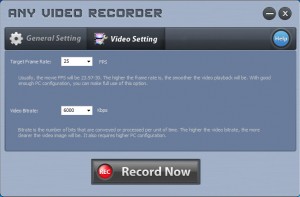
    Other sites make it more difficult to capture their content, of course, but if the regular downloaders can’t help then you can always turn to Any Video Recorder. This is a screen recorder which just captures video as it’s played back, so if you can watch it on your system, then Any Video Recorder should be able to record a copy for you.

    Installation was easier than we expected, as the program thankfully doesn’t try to equip your PC with pointless toolbars, or any other kind of unwanted adware. It needs to install a couple of drivers to capture the video, but this caused no problems or issues.

    And on first launch Any Video Recorder presented a much simpler interface then we were expecting. A basic console allows you to choose your output folder, video file name, target video frame and bit rate, but that’s about it. The default settings are reasonable, too, so we left everything as it was and moved on to our first recording.

    The idea is that you’ll browse to and find the video you’d like to play, then switch back to Any Video Recorder and click “Record”. It’ll ask you to start the video, so you’ll Alt+Tab back to your browser and click Play. And Any Video Recorder then attempts to automatically detect the video player area, drawing a red rectangle around it after a few seconds.

    In our tests the automatic detection was generally poor, never getting it completely right. But fortunately the red rectangle can be quickly resized and repositioned with your mouse to match the actual area you’d like to record.

    And with that done you’ll need to pause your video, return it to the beginning, click “Rec” on the Any Video Recorder console, before clicking “Play” on the video player. This is a little fiddly, but it’s not difficult, and only takes a few seconds. And when playback has finished, all you have to do is click the Any Video Recorder “Stop” button, at which point the program will save the captured clip to an MP4 file (there are no other format options), before opening an Explorer window at the output folder so you can check the results.

    Does this work? On a powerful PC, we found the finished videos were generally very good. Video quality was acceptable, and audio seemed a little quieter than the original, but not enough to be a problem. And we had one or two audio sync issues, but never figured out why — it could have been a problem related to the source material.

    You do need to be realistic, though. If you’ve a very basic PC which barely has the power to play HD video, for instance, you’re not going to be able to capture it as well without running into some major playback and image quality issues.

    And it’s important to keep in mind that screen recording is far less convenient than other video download methods. A tool like Freemake Video Downloader might grab a 10 minute clip in seconds, while you do other things. But Any Video Recorder will require that you actually wait the full 10 minutes for that clip to be played. And you can’t minimize your player window, or move another window in front of the player, or you’ll disrupt the recording: essentially you should just leave your system alone until the recording has finished.

    Any Video Recorder is definitely a tool of last resort, then — you wouldn’t want to use this if a more conventional video downloader is available. But if you have exhausted all other options then the program works well, being adware-free, easy to use, and usually producing a good quality capture of your source material.

    Photo credit: d13/Shutterstock

  • ScanNow for Universal Plug and Play warns if your network is vulnerable to the latest security flaws

    Rapid7 — the security company behind vulnerability scanner Metasploit — has released details on three security flaws affecting some Universal Plug and Play implementations. And their research indicates that 40 to 50 million IPs are vulnerable to at least one of those vulnerabilities, which the company says is exposing users “to remote attacks that could result in the theft of sensitive information”.

    Could you be vulnerable? Fortunately Rapid7 has provided a free Windows-based tool, ScanNow for Universal Plug and Play, to help you find out.

    The program is portable, as you’d expect — no need for installation here. And it’s relatively easy to use. After registering your use of the program by providing your email address, all you have to do is provide the IP range you’d like to scan (ScanNow detects and provides sensible defaults) and then wait as it checks your network.

    Once the process has finished you’ll see the ScanNow report. This starts by detailing the vulnerabilities it’s been looking for, so you’ll need to scroll down to the more interesting “Overview of Results”, which will reveal the number of network devices detected and how many of these were flagged as “Exploitable”.

    And the “Result Details” section then lists which IP addresses have a detected device, and which of these appears to be vulnerable to the new security holes.

    If it turns out you have an exploitable device then don’t panic just yet, it’s not necessarily a total disaster. If the device can’t be accessed from outside of your network, for instance, then it’s not going to get hacked.

    When a device is facing the internet, though, you should definitely look at disabling its UPnP implementation. And arguably if you don’t need the technology then it’s a good idea to do this anyway (UPnP has had plenty of vulnerabilities discovered before, and we’ve no doubt others will appear in the future). Check your hardware documentation for more details.

    And it may also be worth monitoring your network hardware manufacturer’s websites over the next few days to pick up on any response. Right now, for instance, Cisco have posted a Security Advisory for Cisco products, and a Knowledge Base article which details Linksys products known to be affected, and what to do about this. And we’ve no doubt that further responses will be appearing very soon.

    Photo credit: Andrea Danti/Shutterstock