Author: Mike Williams

  • Make sense of your drive’s data with Active@ Disk Editor

    If you’re confident enough with hard drives to have tried editing them before at the sector level, then you’ll know that most disk editing software is, well, less than helpful. Open a drive and you’ll generally be presented with a basic hex view of your data, then left on your own to figure out what it all means. And okay, it’s true, sector editors are only for the most knowledgeable of PC users, but even experts could benefit from a little help, occasionally.

    You don’t have to put up with this, though. Some editors do make a real effort to help you interpret what you’re seeing while browsing a drive. And you don’t always have to pay big money for them, either: Active@ Disk Editor can be yours for free.

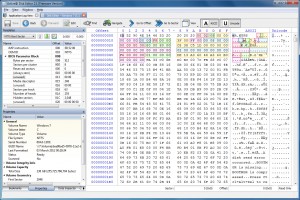
    On launch the program presents a clear dialog which prompts for the device, partition or logical drive you’d like to view. You can also open disk images in DIM, Microsoft’s VHD and VMWare’s VMDK formats. And whatever you select is then displayed in a familiar hex editor-type view: but that’s just the start.

    There’s no need to start guessing where key drive structures are, for instance. If you want to look at the boot sector, directory entries, the MFT and various other NTFS/ FAT/ FAT32/ exFAT/ HFS/ ext2/ ext3 structures, all you have to do is choose the appropriate template from the list. Select “Master Boot Record”, say, and the hex editor view will jump to that point on the disk, while the Templates window interprets the data for you (you’ll see bootstrap code, details on individual partitions, the disk serial number, and more).

    And this low-level knowledge of how your disk works can be very useful. Choose the “NTFS Boot Sector” template, for example, and Active@ Disk Editor doesn’t only display a table of its core values (“Signature”, “Bytes per sector”, “Sectors per cluster” and so on), but also shows the same values for the boot sector copy. If you spot a problem then you can edit these directly (so you’re working with decimal values rather than in the raw hex view), and that alone could be enough to get a drive working again.

    Typically you’ll have a more complex problem to solve, though, perhaps interpreting some figures of your own — and Active@ Disk Editor can help here, too. Just browse to the sector you need, click at the relevant point, and check the Data Inspector view. This looks at the data you’ve selected, then interprets and displays it as a binary value, ANSI character, Unicode character, 16/ 32/ 64-bit value, even a time (DOS, Windows or Unix) — just pick the one you want.
    If you’re looking for particular data but aren’t sure where it is (the contents of a lost file, for instance), then a Find option will help you locate them. You can search for a specific ANSI, hex or Unicode sequence, and there are even options to use regular expressions or wildcards.

    Of course you can also edit the disk, too. A Navigate option helps you locate the sector you need; you’re able to edit individual bytes, copy and paste information, clear or fill selected blocks; and if things go wrong then Undo and Revert Changes options should help you to avoid disaster.

    And perhaps most remarkably, all this comes in a free package with the absolute minimum of dependencies, which means it’s able to run on anything from Windows 98 to 8.

    Active@ Disk Editor still needs to be used with extreme care, of course. As with any other low-level drive editing tool, a single mistake could very easily cause a major loss of data.

    But if you know what you’re doing, give it a try: we found the program to be an excellent way to inspect and edit the contents of our drives.

    Photo Credit: Balandina G/Shutterstock

  • XOWA makes Wikipedia available offline

    When you’re permanently connected to the internet via one device or another, then checking something on Wikipeda is very easy: just browse to the site, enter the topic and you’ll be reading more within seconds.


    Life isn’t so simple for everybody, though. If you don’t have a smartphone, perhaps can’t get a signal, or are in an area with unreliable broadband (or maybe none at all) then accessing the site will be much more of a challenge. Fortunately there are other options, and although it’s still only an alpha build, XOWA is already one of the best.

    The Java-based program takes a little time to set up. After unzipping the download, it must download Simple Wikipedia (a subset of the full site, though with more than 90,000 pages), as well as ImageMagick and Inkscape if you want to display images. This could obviously be a problem if your internet access is slow, but XOWA does at least make the process simple: click a couple of links and the appropriate files are automatically downloaded and installed for you.

    There was one small glitch here, as after installing the graphics components we just got an error message when trying to view any page. This wasn’t anything major, though, and after restarting XOWA worked just fine.

    The core interface looks and feels just like the normal website. There’s the search page top right, the usual tabs, and simple navigation tools (bookmarks, your browsing history). Every page is rendered very accurately (you’ll forget you’re not in a browser), and you can even edit your local copy of the current page.

    What’s more, if you really need more offline resources, then the program can link those in, too. So while editing a page in your offline Wikipedia, for instance, you could in theory look up the spelling of a word in your offline Wiktionary.

    Of course none of this will help very much if you regularly use Wikipedia to provide more information on current events. The web version can be updated with the latest developments on some topic within minutes, but this offline subset will be out of date before you even download it. And so you have to think of XOWA as more like a print encyclopedia; it’s not going to cover what happened yesterday, but is still just fine for general reference purposes.

    And of course there are a few issues. As you’re not working in a browser, for instance, XOWA provides a “forward” and “back” button of its own. But these are so small that it took us a while to even notice them. Hopefully clearer navigation is on the list of “things to do”.

    Problems like this are to be expected for an alpha build, though, and elsewhere XOWA performs very well. If you need a portable and cross-platform mini-Wikipedia which you can use anywhere, then go grab a copy right away.

    Photo Credit: Diego Cervo/Shutterstock

  • Want a smarter spell checker? Try Ginger

    Everyone makes spelling mistakes from time to time, and if it’s just the occasional typo on an internet forum then most people aren’t going to care.

    If you’re prone to more regular errors, though, even when you’re working on more important documents, then this could lead to problems. And that’s where Ginger comes in.

    The program is a cloud-based spell checker which works with Office 2003, 2007 and 2010, as well as Firefox and IE (other options, including an Android app, are apparently coming soon). And unlike most of the competition, Ginger doesn’t just detect errors by checking individual words. It also looks at the context of the current sentence, and adapts itself accordingly.

    Suppose you type “were are you?”, for example. There’s no spelling error here, but Ginger will recognise there’s an issue with context, and know that you really meant “where are you?”.

    The program can detect missing words, too, spotting a missing “the” in “the dog chased cat”.

    Split words aren’t a problem, with “I went in side” becoming “I went inside”.

    And in some cases you can watch this process at work, while you type. Enter the phrase “Juzt tipe sum words”, for instance, and Ginger will highlight the first two words, which it knows should be “Just type”. But if you then end the sentence with a full stop, it will also highlight “sum”, which although spelled correctly is clearly used out of context.

    Whatever your errors happen to be, correcting them is very straightforward. There’s no need to work through the errors individually: just hover your mouse cursor over one of the highlighted words, and Ginger displays a pop-up alert containing what it believes to be the correct sentence. If you’re happy, clicking this will update your document immediately. And a second editing option allows you to delete some corrections, while keeping others.

    Ginger also has a few issues. It really needs to cover a wider range of programs, for instance. The program is cloud based, so you need an internet connection for it to work. And it’s heavier on system resources than we expected. Apart from installing an Office addon, browser extensions and so on, it also adds a couple of background processes which grabbed around 90MB of RAM on our test system.

    These aren’t critical problems, though, and on balance Ginger remains a capable and effective spell checker.

    Photo Credit: Creativa/Shutterstock

  • When all other Windows troubleshooting fails, try WMI Diagnostic Utility

    Windows Management Instrumentation (WMI) is an important Windows framework that is used by many system components, as well as plenty of third-party applications, so if it’s ever damaged then you could experience all kinds of odd system problems. There’s no single place that you can check to see whether WMI is working, either, as it’s just too complex, and so Microsoft has developed a script called the WMI Diagnostic Utility to provide some in-depth troubleshooting information.

    The tool is aimed at system administrators and other IT professionals, so if you’re a Windows novice then it’s probably best to stay away. If you’ve even just a moderate level of PC experience, though — you’ve no problems running the occasional tool at the command line, say – then it could be worth a look.

    To run it, extract the contents of the download to somewhere safe, launch an elevated command prompt (right click cmd.exe, select “Run as administrator”), change to your new folder, and enter cscript wmidiag.vbs.

    And then wait. WMI really is massive, so the script has a lot to do, and it’ll take some time to gather the necessary information (four to five minutes on our test PC). The command window will update occasionally with details of the current test, though. And when it’s done, Notepad (or whatever else is your default for plain text files) will open to display the finished report.

    As you’re scanning the details, you’ll find a lot of very low-level, technical information which isn’t going to mean very much at all. We were told that our test PC had 1848 “WMI static instances”, but no “WMI dynamic instances”, for example. Is this normal, good, bad…? We don’t have the faintest idea.

    Amongst all this, though, are plenty of nuggets which you may find useful. So we were told that our system had no WMI system or repository files missing, for instance: just knowing that may be helpful if you’re trying to diagnose some odd Windows problem.

    The script also complained that a Registry setting wasn’t what it expected, telling us the precise key and what it’s value should be. Might that also be useful? We don’t know, but again it gives you a starting point. If something similar happened on your system, you could at least enter the key name at Google, see what it’s for, whether the setting might relate to any issues you’re having.

    And the script, as well as the documentation which comes with it, also explains how you can fix some problems by running command line tools such as WMIDIAG.

    This still isn’t a tool you’ll need to run very often. If your PC is taking an age to boot, say, you’ll be better off following the usual troubleshooting tips first (check your startup programs, your Windows services, clean and defrag your hard drive, and so on).

    But, if you’re suffering from major Windows problems, all the regular solutions have failed and you can’t find an answer (or, maybe, you’ve just heard somewhere that your type of problem might be WMI-related), then it may help to run the WMI Diagnosis Utility as a last resort. The tool checks a lot of Windows components, and there’s just a chance that it could uncover something useful.

    Photo Credit: Vladru/Shutterstock

  • HFS simplifies the process of sharing files across your network or the web

    When you need to share files with others, setting up a web server probably won’t be the first idea that comes to mind. It just seems like too bulky a solution, too complex, and so you’d probably opt for something more conventional: setting up a network, using a file sharing service, whatever it might be.
    With the right software, though, setting up a web server can be much more straightforward than you think. And the open source HFS (Http File Server) is a particularly good example of this, because even if you’re a networking novice, it could have you sharing your files locally within minutes.

    This all starts with an ultra-compact download (559KB), all the more surprising because it’s not even zipped. The entire program is contained in a single executable which you just download and run.

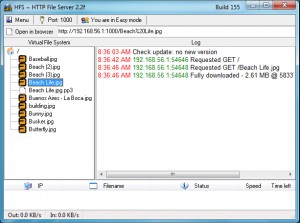
    The interface is relatively straightforward, too. If you’ve set up a server before then you’ll probably guess that the “Virtual File System” pane is where you’ll share your files. But even if you’re a beginner, hovering your mouse cursor over the pane will explain all with a tooltip asking you to “drag your files here”.

    And all you then have to do is drag and drop the files you’d like to share onto the Virtual File System pane, click the “Server is currently OFF” button to turn it on, and give the IP address HFS displays to someone else on your local network. When they put that into a browser they’ll find a simple page with your files displayed, ready for immediate downloading.

    If you want to share your files across the internet then there is more work to do, but HFS can at least help you get started. Click Menu > Self Test and the program analyses your system and network setup, before explaining what else (if anything) you need to do to make this happen. If you’re new to this kind of networking complexity then there may still be some research to do (on our system we were told simply to ensure out router was “configured to forward port 7000 to your computer”, for instance), but it’s still much more straightforward then many similar tools.

    And when you’re ready to consider what else you might need from a file sharing tool, there are plenty of options on offer. So you can password-protect particular files and folders, for instance. You might allow users to upload, as well as download files. There are various speed limits and controls to help ensure the program doesn’t tie up all your bandwidth. And there’s dynamic DNS support, a configurable HTML template, a custom scripting language, and lots of configuration settings to help get everything working properly.

    HFS still has some limitations. While in theory you could use it as a web server to host your own website, for example, that probably wouldn’t be a great idea. It’s short on features (there’s no PHP support, for instance), doesn’t run as a service, and tends to do most things in its own, very non-standard way: even if you did get something to work here, it may not be easily transferrable to another host.

    If you’re just interested in an alternative way to make files available on your network, though, it’s a very different story. HFS is lightweight, quick and easy to configure, and ideal as a simple way to share some files or folders with others.

    Photo credit: mojito.mak[dog]gmail[dot]com/Shutterstock

  • Back up all types of USB drive with USB Image Tool

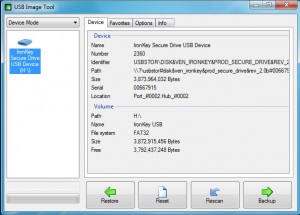
    Alexander Beug has released USB Image Tool 1.60, the latest version of his compact, portable and free backup tool for USB devices.

    And a very welcome addition this time is support for non-removable USB devices. So on launch, the program won’t only list any mobile USB devices you might have connected (keys, cameras, MP3 players and so on), but it’ll also display regular USB drives, memory card readers and so on, and allow you to back them up.

    Another new feature is the Reset button. USB Image Tool has always been able to, say, restore an 8GB image to a 16GB drive, but you would then effectively “lose” the extra space. In version 1.60, though, clicking Reset will overwrite the boot sector, causing Windows to reformat the drive with its original capacity.

    USB Image Tool 1.60 is also now simpler to use, as there’s no need to manually run it as an administrator: the program now prompts for the appropriate rights on launch.

    A new option to define the program’s buffer size may help improve performance, which could be important if you’ll now be using USB Image Tool to back up large USB drives.

    There are a few extra options in the command line version of the program, and a couple of bugs fixed (see the official change log for more).

    And, remarkably, all of this still comes in an ultra-lightweight portable package (even unzipped, it still required only 422KB of drive space on our test PC), with no adware or similar annoyances.

    Put it all together and USB Image Tool 1.60 is an excellent tool, especially now it’s able to back up just about any USB storage device. Of course the GUI doesn’t support extras like scheduling, but if you’re happy to create your own scripts then it’s not difficult to set that up: just launch usbitcmd.exe from the command line to get a feel for your available options.

    Photo credit: chien321/Shutterstock

  • Edit and convert videos to any format with Video to Video

    If you’re looking for a free video converter then there are now plenty of great free programs around, which is plainly very good news for the end user.
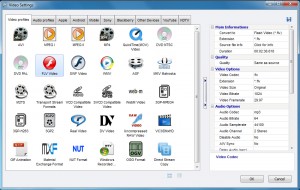
    Software developers, though, are having to cram in ever more features to help their converter stand out from the crowd and Video to Video is a particularly strong example.

    The program supports over 200 input formats, for instance, while exporting over 700. And so it can handle several file types which aren’t so well covered elsewhere (DV, VC3, MXF, NUT).

    Video to Video also provides output profiles for a host of different devices: Apple, Android, Mobile, Sony, Blackberry and more. We’re not just talking about one or two generic examples, either. Click the Android tab, say, and you’re presented with more than 240 profiles for mobile devices from all the major manufacturers (and quite a few of the minor ones, too).

    You could then accept the default profile settings, click Convert and wait for your new videos to appear. But if you like more control, then you’ll love the options available here. You can set your video and audio codecs, bit rates, resolution, aspect ratio, frame rate and more. There’s subtitle support. You can crop, pad, rotate or flip the video. There are options to tweak brightness, contrast, colors, hue and saturation. And an “Other Filters” list contains tools to sharpen your video, remove noise, stabilize a clip, remove a logo, and more.

    A “Tools” menu provides some useful processing options, allowing you to trim videos, join them, rip and burn video DVDs, and more.

    There are some unexpected bonus features, too. So the program can actually create animated GIFs from a video, for instance. And an “Images to Video” tool proves a surprisingly powerful way to create video slide shows, with support for a soundtrack, text captions, a vast number of custom transitions, and more.

    And all this comes in a straightforward portable package with no codecs to install, no adware, not even a “Donate” button (unless you head to the website).

    There are some downsides, too. Once you get past the basics, for instance, the interface isn’t always as intuitive as it could be. And we did run into one technical issue when creating a video slide show; the conversion process failed for no apparent reason when exporting to AVI, but worked just fine if we chose MP4 instead.

    For the most part, though, the program performed very well, importing all the files we threw at it, and quickly converting them to our chosen formats. And so if you’re in the market for a video converter with some real power, then should probably download a copy of Video to Video right away.

    Photo Credit: Spectral-Design/Shutterstock

  • Google rolls out Chrome 25, lets you talk to websites

    Google has announced the release of Chrome 25 to the Stable Channel for Windows, Linux and Mac, and as revealed in the beta, this release features a major change in the way extensions are handled.

    In particular, the previous support for the automatic and silent installation of extensions will now be disabled by default, as apparently Google has noticed that this feature “has been widely abused by third parties to silently install extensions into Chrome without proper acknowledgment from users”. We could argue Google really should have predicted that in the first place, but at least it’s seen the light now.

    This change will have an immediate impact, as any extensions previously installed in this way will be disabled by default, while a one-time dialog will ask users to re-enable them.

    And the other result is that, in future, every Chrome extension will require specific consent from the user before it can be installed.

    Elsewhere, Chrome 25 adds support for speech recognition via the Web Speech API, which means you could be talking to websites very soon. Once you’ve installed the new build then you can get a feel for how this could work at Google’s speech demo page.

    The official Chrome blog post on this release reports that it also includes “better support for HTML5 time/date inputs” and “better WebGL error handling”.

    And there are also the usual collection of bug and security fixes, although one of the solutions was a little drastic: the Webkit MathML implementation apparently includes a “high severity security issue”, and so it’s been disabled in this release.

    The extra security alone makes it well worth upgrading to Chrome 25, then, but if you need to know more than the fine detail on this release is available at the SVN Revision Log.

  • Windows File Protection sniffs out system problems

    If Windows is proving particularly unreliable on your PC then that could mean a key operating system component has been deleted, or replaced. Fortunately, Windows File Protection (WFP) monitors your key system files, and if any are removed then it can automatically restore the original. And you can also use the System File Checker (sfc.exe /scannow) to manually check for and resolve any problems.

    But while this usually works well, it can also lead to problems, particularly if you want to replace a file which the system is protecting. But which files are covered by WFP, exactly? Windows won’t tell you – and that’s why you might need System File Lister.

    The program is a tiny 40KB download, just unzip it, launch SystemFileLister.exe, and it’ll begin to list the protected files for you. There will probably be a lot — the program found almost 15,000 on our test PC — so be patient, this could take a while.

    When it’s done, though, you can scroll the list, or sort it by file path if you’re interested in a particular folder.

    A Search box allows you to search for file names containing any given text.

    And you can also browse to any individual file on your system to check whether it’s on the Windows File Protection list.

    All this is presented in an interface which is, well, basic. You can’t resize the window, copy file paths to the clipboard, export the file list in any way, or open a particular file path in Explorer, for instance — there are no convenient extras here.

    System File Lister does provide an occasionally useful function which you can’t easily achieve in any other way, though, and so if you’re interested in this topic then it’s probably worth adding a copy to your portable troubleshooting toolkit.

    Photo Credit: cbeniel/Shutterstock

  • Find new ways to open file types with OpenWith Enhanced

    If you’re wondering how to open a particular file on your PC, then right-clicking it and selecting Open With may provide some options — but only if you’ve already installed an application which can handle that particular file type.
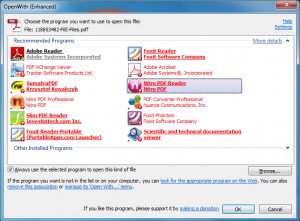
    OpenWith Enhanced takes this idea a step further, replacing the standard Windows with an extended version which not only displays your installed programs, but also lists other popular options, both commercial and free, and links directly to their download page.

    The program installs quickly and easily, with no adware to worry about. When we immediately tried right-clicking an image and selecting Open With…, though, the standard Windows dialog was displayed: it turned out we needed to restart before OpenWith Enhanced would work.

    With that done, though, everything ran very smoothly. We right-clicked an image, selected Open With > Choose default program, and our installed graphics software was listed. And a couple of seconds later, additional recommendations appeared (highlighted in red to show they’re not installed yet) for Picasa, IrfanView and XnView for Windows. Hover a mouse cursor over any of these and you’ll usually a few sentences describing the program, as well as its popularity with other OpenWith Enhanced users. And if you decide you’d like to try the program, double-clicking it opens a browser window at the download page.

    There are plenty of programs supported here, at least for some file types. Try OpenWith Enhanced on a PDF file, say, and you’ll be told about Foxit Reader, SumatraPDF, Nitro PDF Reader and Foxit Reader, as well as commercial options like Nitro PDF Professional and Adobe Acrobat.

    And there are a few interesting bonus extras, including options to disable particular file associations, remove a file type, or manage its “Open With” menu.

    The program does also have some limitations. You may choose “Open With” on a video because you’d like to edit it, for instance, but what you’ll see is a list of media players. And while this isn’t always the case, there is more focus here on finding applications to view a file type, than process it in more advanced ways.

    Of course this can still be very useful, though, whether you’re presented with an unusual file type, or would just like another way to view something more standard. And as it’s also free, lightweight and generally easy to use, OpenWith Enhanced will probably be a welcome addition to most people’s PCs.

  • View, fix, or delete broken shortcuts with ShortcutsMan

    There are many ways to break a shortcut. Moving an important file might do it; manually deleting a program is another possibility; and of course too many uninstallers will leave application shortcuts behind. And because there’s no visible sign that a shortcut is broken it’ll just stay there, cluttering your system, until eventually you click it and discover the problem.
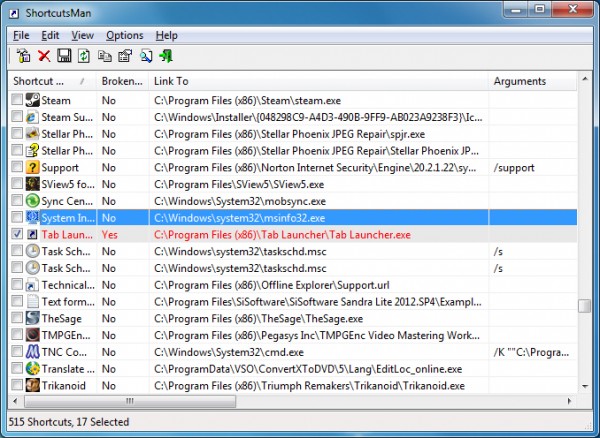

    If you’re tired of junk shortcuts, though, ShortcutsMan offers an easier way to control them. It’s a lightweight and portable application which quickly provides a very detailed report on your system shortcuts, highlights any that are broken, and allows you to fix or resolve these with a click.

    As usual with NirSoft tools, ShortcutsMan is amazingly small (the 32-bit download is a mere 39KB). There are no annoying extras or dependencies, either, so the program will even work on ancient Windows 9x systems.

    This doesn’t mean the program is lacking in power, though. Launch ShortcutsMan, it’ll scan your Start Menu, desktop and a few other areas, and immediately you’ll see a very detailed report on every shortcut it’s found: their name, command line arguments, window style (normal, minimized, maximized), hotkey, location, date, any custom icon file, and more.

    And this kind of information can be interesting in itself. Seeing which applications take command line arguments might be useful, for instance, as you can then explore their documentation, find out what other switches are available. Being reminded of system hotkeys (like Ctrl+Alt+N) is also helpful. And ShortcutsMan can even save these details as a report if you’d like to preserve them for posterity.

    The big plus point here is that ShortcutsMan will also detect and highlight any broken shortcuts, though. And you can scroll through the list to view these, or click the “Broken Shortcut” column header to group them all together.

    Choose particular shortcuts of interest (or click Edit > Select Broken Shortcuts to select them all) and you’re then able to delete them all.

    And alternatively, the program provides a Resolve option which tries to find the missing object and update its shortcut accordingly. Which sounds good, but proved oddly inconsistent in our tests. We moved one file, for instance, breaking two identical shortcuts, selected them and clicked File > Resolve. The first one was fixed correctly, but the second one was unchanged.

    ShortcutsMan has one or two problems, then, but don’t let that put you off. We’re not sure why the Resolve function had some issues, so perhaps it’ll work for you, but even if it doesn’t there’s more than enough functionality here to justify the tiny download. And so if you’d like to know more about your shortcuts, this is an excellent way to get started.

    Photo Credit: iQoncept/Shutterstock

  • Instantly block inappropriate websites with DNS Angel

    Parental controls software is normally bulky, complex, and the kind of application which can take some considerable time to configure. There may be lots of files to install, resident components which must always be running in the background, user profiles to create, content filters to customize, and the list goes on.
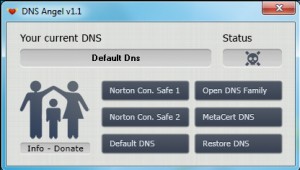
    If your child protection needs are simple, though, you may not have to worry about any of this, as DNS Angel can provide a reasonable amount of protection with a single click.

    The program is a tiny download (506KB), free, portable and extremely easy to use. Just launch DNS Angel and it will present you with buttons for the more family-friendly DNS servers it supports (Norton, OpenDNS and MetaCert). Click one of these — we’d start with MetaCert if you’re unsure — and immediately the server will block any attempt to reach an inappropriate website (porn, phishing sites, known malware sources and more) and any browser or other internet tool which you might have installed.

    This worked well for us. MetaCert, for instance, has rated hundreds of millions of web pages for family safety. The web moves quickly and it may still be possible to access some dubious sites, but everything we tried was blocked, while regular sites remained unaffected.

    But if you do have any problems then clicking “Restore DNS” will restore your original DNS settings, while choosing “Default DNS” tells Windows to obtain your settings automatically (they might be assigned by your router, say).

    There are also some problems here. You don’t get an option to configure the type of protection you get, for instance. The same sites will be blocked, whether your child is 6 or 16.

    And, of course, if a user of the PC has any technical knowledge then the DNS change is very easy to do. If you leave your copy of DNS Angel lying around, say, they could reverse its effects with a click. Or they could do this anyway via the standard Windows network settings.

    Still, if you just want to protect a single, very young child, DNS Angel and the whole DNS-based approach to site blocking could work well. Although you may also want to take additional measures, such as having them log in via a limited user account, to further control exactly what they can and can’t do.

    Photo Credit: wavebreakmedia/Shutterstock

  • Use AllOff to automatically shut down an idle PC

    In theory Windows should be able to shut down a PC when it’s been idle for a while, and even if that doesn’t work for you, there are plenty of tools around which promise to do something similar. In practice, though, the difficulty of detecting idle time accurately means that these tools aren’t always reliable, which is why many people take the safer approach of leaving their system running all the time.
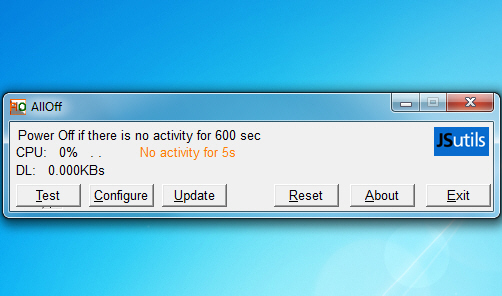
    AllOff is a little different, though. This free (for personal use) tool doesn’t just shut down your PC after some fixed period of time, or when your keyboard or mouse haven’t been used for a while. It also monitors CPU usage, even download speeds, and provides a host of configuration options to ensure everything works just as you require.

    After a slightly more complex installation than usual (you have to register the program with your email address), AllOff presents its default console. It’s not exactly going to win any interface design awards, but this does provide all the key details you need. So you’ll see that by default your system will close if there’s no activity for 10 minutes; an “idle” counter will show you how close you are to that figure; and a couple of figures for your CPU usage and download rate highlight any current background activity.

    Click Config, though, and you’ll find the program’s settings, which is where life gets much more interesting.

    By default AllOff will calculate your average CPU usage over 5 seconds, for instance, which makes it less likely that the idle count will be reset by a brief spike in activity. But you can adjust that averaging time to anything from 1 to 30 seconds, as well as setting a minimum CPU usage figure which you’d consider as idle, to make the program even more accurate.

    You can set the minimum download rate, which again aims to prevent the idle count being reset unnecessarily (when some update checker briefly connects to its website, for instance).

    AllOff will also leap into action if your mouse and keyboard have been inactive for your preferred period of time.

    And there’s plenty more. You could enable only some of these idle detection methods, say, perhaps ignoring the CPU check and using only download rate, keyboard and mouse monitoring. You’re able to have the program control a remote PC. There are multiple logging and console display options (minimize to the system tray, set the AllOff window to be “always on top”). And of course you can choose your preferred action when the program does finally activate (Hibernate, Log off, Power off, Reboot, Shutdown, Standby).

    Even at this final point, though, AllOff still gives you choices. So you can have your system power down in a couple of seconds. But if you’d prefer to be cautious then you can have the program display a warning alert for up to 10 minutes, giving you time to cancel the shutdown, while clearing the “Force” checkbox means open applications won’t be forced to close.

    You don’t have to get into any of this complexity at first, of course — in our experience the default settings worked very well. But, if you do have any problems, AllOff’s extensive configuration options should help you fine tune its performance, and it certainly earns a thumbs up from us.

    Photo Credit: Sashkin/Shutterstock

  • MemTest86 now maintained by PassMark Software

    The classic free memory diagnostic tool MemTest86 has been maintained by author Chris Brady since 1994, but this has finally changed, with Australian company PassMark Software taking over the program this month.

    It doesn’t seem like there’s any need for MemTest86 fans to be concerned, though. The program code remains open source, and so of course it’s still available to download for free.

    The only major commercial addition we noticed was a new option to purchase a bootable USB key with MemTest86 pre-installed, yours for $16 plus postage, which seems a reasonable price (although you can still download an ISO file and configure a USB drive yourself for free, if you prefer).

    MemTest86 is remaining an open source product, free to download and use

    Anyone who wants to order a CD or USB key will now benefit from new options to pay by credit card, or have their order delivered by FedEx as an alternative to regular airmail.

    PassMark has also created a MemTest86 forum on their own support site where users can discuss any issues and ask for help.

    And the company has pledged that there will be “more active future development on new versions, with some type of UEFI version of the application being the immediate priority”.

    Does this mean the beginning of the end for the free version, though? PassMark suggest not, as they hope to earn some income by “selling pre-made bootable USB drives, support services and using some of the MemTest86 algorithms in our other products”.

    And as the company already maintains a great free product in OSForensics, with no particular restrictions or annoying marketing hassles, we’d say there’s good reason to be optimistic that this move won’t be a problem, and in fact could bring new life to the MemTest86 project.

  • Replace Windows Run box with the more powerful Run-Command

    The Windows Run box has always been a quick and easy way to launch programs, but it’s not exactly packed with features. You can specify an application to launch, choose something you’ve run recently from the History list, and, well, that’s about it.

    You don’t have to live with these limitations, though. Grab a copy of the new Run-Command and it’ll take your Run box to a whole new level.

    The program is a tiny download (42KB), so you can just unzip and go. And it’s extremely portable. There are no .NET or other major dependencies, and the author says it’ll run on anything from Windows 98 to 8.

    Launch Run-Command and at a minimum it’ll work more or less like the regular Run box. You can enter a URL, file or folder name (or browse to it), press Enter or click Run and it’ll launch as usual.

    There’s also a button to run programs as an administrator, though. (You can do the same thing from the regular Run box by entering a program name and pressing Ctrl+Shift+Enter, if you remember, but this is certainly easier).

    There are easy ways to launch commonly-used tools. So for instance Run-Command has built-in icons for Regedit, Cmd.exe, the Computer Management and System Properties dialogs, and more.

    There’s even a customizable Favorites system, which acts something like a mini Start menu. It comes with built-in links to many system tools, but you can also add more of your own. And if you’re using Run-Command from a USB stick then this could help you to create your own portable working environment.

    Through all of this the program does its best to stay out of your way, by default minimizing to the system tray. But it’s easy to launch via the regular Win+R key (although you can change this to whatever you like). And background RAM use is reasonable at around 7MB.

    There is also one annoying bug. Our test PC happened to have the display of icons on the desktop turned off, but we noticed that launching Run-Command (and closing it) caused them to be displayed again. There’s no harm done, you can just hide them once more, but it still quickly becomes extremely irritating.

    This may not be an issue which applies to all systems, though. And if you allow icons to be displayed on your desktop then this won’t be an issue, anyway. So if you’re interested in the idea, don’t let this put you off: just download Run-Command and see how it works for you.

    Photo Credits: ostill/Shutterstock

  • InfoRapid KnowledgeBase Builder lets you create interactive mind maps

    When you’re having problems understanding an idea, or conveying it to someone else, then building a mind map can often help. Just the process of defining the core concepts and showing how they’re related will often make things very much clearer.
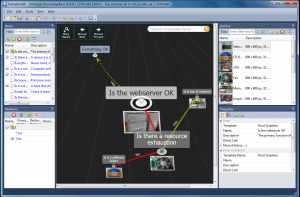
    If you’re familiar with the basics then creating a map doesn’t require very much, of course — a pen and paper will probably do. But if you’re a beginner to this kind of outlining approach then a little software-based assistance should help to make things clearer, and while it has some problems, InfoRapid KnowledgeBase Builder is an interesting place to get started.

    The program is a relatively small download (under 5MB), for instance. It’s free for personal use. And there’s no adware, no installation hassles, in fact no installation at all: just unzip the download somewhere and you’re ready to begin.

    KnowledgeBase Builder launches with a sample mind map covering the process of troubleshooting a web server. And at first this just looks like a more attractive flowchart, with questions like “Is it out of memory?” and “Is it a software failure?”, and yes/ no arrows leading from these to some other step. But actually this is just the start.

    The example map looks basic, yes, but this is only because the initial view is hiding its complexity from you. If you click one of the questions on the map — “Is it out of memory?”, say — then the program will zoom in on that point, display an extra question, and other issues which you might want to consider (“Is the CPU overloaded?”). Clicking new questions will do the same thing, and the whole map quickly becomes an interactive tool, leading you through the process to help figure out whatever you might need to do.

    Not every mind map requires this dynamic approach, of course, but if you’d prefer a more static view then that’s possible, too. Just keep clicking “More Details” at the top of the map pane and KnowledgeBase Builder will expand the map, showing more and more information, until it’s all visible (subject to your screen size, anyway).

    If the example map doesn’t interest you, however it’s displayed, then KnowledgeBase Builder has something else you can try. Click File > New, then Tools > Generate Site Map, point the program at www.google.com, and in a few seconds you’ll have a map showing the initial pages on the Google site. This can be excellent way to visualise site structure, especially as it’s so dynamic: you can click on a page, move to it, see all the pages available from that link, and more.

    And, of course, once you understand how this all works then you can begin to enter the objects and relationships necessary to build maps of your own. Although this may take quite some time; there are lots of options here, and vanishingly little help.

    One major issue with all of this is there’s no way to export your maps in a standard format that others can view them immediately (you can save the details in a CSV file, but that probably won’t help you very much).

    Still, you can show people a map on your own system. And as the KnowledgeBase Builder is just a single executable, you could always zip up your own database with a copy of the program if you need others to see it. Plus the maps look so good that even just printed copies may be useful. So, while there limitations here, if you’ve any interest in this kind of tool then InfoRapid KnowledgeBase Builder definitely deserves a closer look.

    Photo Credit: Creativa/Shutterstock

  • Give ‘Happy Birthday’ credits, using Skype 6.2

    Skype has announced the release of Skype 6.2 for Mac and Windows.

    It’s essentially a maintenance release, although Windows users will notice a new-look top toolbar. Four icons immediately above the Contacts list and Recent Conversations tab provide quick access to Home, Calling Phones, Creating Groups and Adding Contacts.

    The other addition this time around (for all platforms) is what the company calls “eGifting”. Which sounds like it’s going to be some major new technology, but actually just means that, when you get a birthday notification, you’ll now also see a prompt suggesting that you send them a Skype gift of credit.

    Elsewhere, you’re now able to send one-way SMS without the hassle of adding and verifying your mobile number, which works for us.

    Some worthwhile bug fixes mean that Skype will no longer hang when signing out with a Facebook account, and there should no longer be any mismatch between the credit amounts displayed in Skype and the account window.

    But a notable remaining “known issue” means that the program may crash when logging in if “Call Recorder” is installed. A fix is reportedly on the way, but in the meantime, if you’re affected, all you can do is uninstall “Call Recorder”.

    Those are the highlights, but Skype 6.2 for Mac and Windows do have a few other bug fixes and issues, too – if you want to know more, then the official Skype blog post on the release has the full list.

    Photo Credit: Sarah Newton/Shutterstock

  • Trikanoid gets mouse support

    It’s not even a month since we wrote about Trikanoid, a fun remake of 80’s arcade classic Arkanoid. But developers Triumph Remakers have been busy, and version 1.2 for Windows has just been released (the Mac build is coming soon), with some very welcome additions.

    Top of the “new features” list must be mouse support. Previously the program only supported keyboard control, which wasn’t the most natural way to move your pad around, but being able to control it with your mouse, instead, is a real improvement.

    Trikanoid 1.2 also now allows you to move your pad at the normal, constant rate, or an accelerated ball speed-dependent rate (so when the ball shoots off your pad at an angle and a very high speed, your pad will also move more quickly). This may help you catch balls you’d otherwise miss, but of course you’ll also need great judgment to position your pad accurately when it’s moving so fast, so we’re not yet sure how useful it will be. Try it and see.

    Elsewhere, if you were at all confused by any aspect of the game in the previous edition, you might appreciate the new on-screen instructions.

    And some well-judged compression in the installer means that the download size has been reduced by around 70%.

    While the new mouse support is certainly welcome, we have noticed a minor problem or two.

    We’re not entirely sure about the first, but mouse movement doesn’t seem to be quite as smooth as it should be, almost as though there’s a jump when the pad first starts moving. But we’ll need to spend more time playing the game to be sure (that’s our excuse, anyway).

    The second issue, though, is that the program actually captures the mouse, so if you Alt+Tab away from Trikanoid to some other application then it’ll no longer work (the mouse cursor remains visible, but you can’t move it). This isn’t a major problem – if you want to do something else, just close Trikanoid rather than Alt+Tabbing – but it’s still a little annoying.

    We’d hazard a guess that the issue will be fixed very soon, though. And even with this, Trikanoid is still a fun arcade remake, with great sound and graphics, and the new mouse control makes it more playable than ever.

    Photo Credit: ARENA Creative/Shutterstock

  • Kiwi System Info reveals much, but not enough, about your PC

    If you regularly troubleshoot other people’s PCs then you’ll know that the process usually starts by collecting system information. Which graphics card does it have, for instance? How many network interfaces, which USB controller, what user accounts are there? And whatever it might be.

    You may be able to collect some of this data by browsing the target PC, but life will probably be a lot easier if you have a system information program to collect and present everything in a single place. And few tools provide quite as much data as the free Kiwi System Info.

    The program certainly doesn’t look like it’s going to tell you very much. It’s a tiny 195KB download, for instance, and unzips to a single executable. This looks like the kind of tool that will tell you your Windows version, total RAM, free hard drive space, and that’s about it.

    But the reality is quite different. Kiwi System Info organizes its data into 7 key areas: “Hardware Info”, “Data Storage”, “Memory”, “System Info”, “Network”, “User & Security” and “Developer”, and each of these in turn has multiple categories to choose from. So “Hardware Info” includes “BIOS”, “Printer” and “Processor”, for instance; “Data Storage” has “DiskDrive”, “DiskPartition” and “LogicalDisk”; and “System Information” gives us “Account”, “Process”, “Service” and so on. Just select a category and you’ll see a report covering that particular area.

    While this sounds great, there is a catch here. Kiwi System Info works by using Windows Management Instrumentation (WMI) to discover and display the information available on the current PC. This is very easy to do, which is why the program can be so small, but the problem is that most WMI data is highly technical, poorly presented, or both. Which doesn’t make for great reports.

    When you’re browsing categories, for instance, options like CIMLogicalDeviceCIMDataFile, HeatPipe and PerfRawData_W3SVC_WebService probably aren’t going to mean much to the average user (or even many experts).

    And worse still, when you do select a more basic category you’ll often find that its data isn’t presented particularly helpfully. When we clicked “DiskDrive” on our test system, for instance, it listed our drives with their physical IDs rather than drive letters (so \\.\PHYSICALDRIVE1 rather than D:), reported our drive D: capacity as “1000202273280″, and didn’t list the drive space used at all.

    This isn’t necessarily a fatal problem, though. Look past the occasionally dubious presentation and there’s still lots of useful information here. So if you choose “Service”, say, you’ll see all your installed services, their full names, descriptions, short names, the service executable file, its current process ID, whether it can be paused, whether it can interact with the desktop, and more (all of which can be exported as a TXT file with a click). If you’re an experienced PC user, and willing to spend time discovering which areas of the program are helpful, and which really aren’t, then Kiwi System Info could prove very helpful.

    For simpler and more general troubleshooting, though, you’ll need a regular system information tool, as well — Piriform’s Speccy, for instance, delivers a great amount of detail but in a much more readable way.

    Photo Credit: Liv friis-larsen/Shutterstock

  • Take total control of your HOSTS file with HostsMan

    The Windows HOSTS file is based on a simple idea — it just redirects specific domain names to your preferred IP address — but this has some very useful applications. If you want to block access to a particular website, for instance, just add its domain name to HOSTS, point it to an IP address representing your local system (127.0.0.1, usually), and you won’t be able to reach the site in any browser.
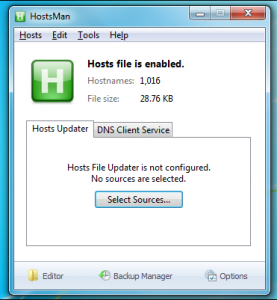
    But that’s just the start. You could also use HOSTS to block advertising servers, and known malicious sites. And sometimes malware will tweak your HOSTS file to gain control over your internet access. If you want to review all this then you could just open HOSTS in Notepad, but HostsMan could be a much better option — it’s a compact, portable and free HOSTS file manager with a stack of features.

    Launch HostsMan as an administrator and you might start by viewing your own HOSTS file. Click Editor, the file will appear, and you can browse it to see what entries (if any) it contains.

    There are plenty of editing options here. Right-click and you’ll find options to create, edit, disable or delete entries, copy them to and from the clipboard, and add comments. An Edit > Find option contains a powerful search feature, with regular expression support, to help you locate particular entries. And useful management features include options to delete the empty lines in a file, the comments, and more.

    And better still, if you’re worried about malware then you can ask the program to look for possible hijacked HOSTS entries, or just display any which have been created or modified recently.

    HostsMan has another very useful security function elsewhere, though in its Hosts Updater. This provides built-in access to seven popular HOSTS files which can help to block ad servers, known malicious sites, and so on. You can add more sources if necessary, then import these to update your own HOSTS file.

    It’s worth keeping in mind that an incorrectly updated HOSTS file can cause problems, perhaps blocking access to sites you’d like to reach (especially relevant as this is a beta version, and bugs are to be expected). Fortunately HostsMan also includes a backup tool where you can save your current HOSTS file, and restore it later if necessary. Click Tools > Backup Manager, then Create Backup to save your current HOSTS. Or, if you want to return to the default Windows HOSTS setup with no redirections at all, click “* Original Hosts *” > Restore Backup.

    And just in case this isn’t enough, HostsMan also contains several time-saving shortcuts. If a HOSTS file change doesn’t work right away, for instance, it could be because Windows has cached the previous IP address; click Tools > Flush DNS Cache to try again. Or, if you want to update or access the file yourself, there’s no need to manually browse to it: just click Tools > Open Hosts Folder, and there are menu entries to open it in Explorer, a command window or PowerShell.

    There are plenty of powerful functions here, and as HostsMan 4 is also in beta right now it’s probably not a good choice for networking beginners.

    If you’re already used to exploring your HOSTS file, though, the program should prove an excellent assistant which will make the management process very much easier.

    Photo Credit Konstantinos Kokkinis/Shutterstock