 Launch an application on the Windows desktop and you have complete freedom to position and size its window however you like (as long as it’s resizeable, anyway). But while this is all very flexible, it also brings management problems when you need to position windows precisely, set and restore a particular window size, and so on.
There are some keyboard shortcuts which might help, just a little (press Win+Shift+the up or right arrow to maximise the current window vertically or horizontally, for instance). If you need more control, though, you might like to try Gridy, which provides plenty of useful windows management features in a very compact and convenient package.
The program is portable, so it’s easy to try: just download, unzip and go. Then try dragging and dropping a desktop window with the mouse, and you’ll notice the first Gridy feature — your windows now snap to a grid. It’s quite fine (32 pixels by default), but if you’re trying to align windows then it should be enough to make your life much easier.
Or maybe you’d prefer to move your window from the keyboard? Just hold down the Win key, press one of the arrow keys, and the current window will snap from one grid position to the next. (You can do something similar anyway by pressing Alt+Space, then M, but Gridy’s approach is a little more straightforward.)
And if you have a situation where you need to position a window outside of the grid, that’s possible too. Simply hold down the Shift key and drag with the mouse.
This would be useful in itself, but Gridy is just getting started. The program can also store the size of the current window (Win+Shift+Home) and restore it later (Win+Home). Or you can store the size and position of up to 9 windows (Win+Ctrl+Numpad 1-9), then recall them as required (Win+Numpad 1-9).
Elsewhere, pressing Win+F10 toggles transparency for the current window.
Win+F12 toggles “always on top”.
And there are plenty of configuration options on offer. You can change the grid resolution, the transparency level, the hotkeys, how the program treats the screen edge (whether it lets windows moves past the edge, or not), and more.
This isn’t bad at all for a free tool which normally requires less than 3MB RAM. And so if you’re looking to bring a little order to your desktop, give Gridy a try – it’s capable, configurable and extremely easy to use.
Photo Credit: Lilya/Shutterstock
 If you’ve built up a large MP3 collection over the years, then fitting everything you’d like onto your phone or MP3 player could now be a challenge. You could just try to be a little more selective in what you transfer, of course, but
  Exactly how much you’ll save will depend on the original file quality and the options you’ve selected, but taking a look at the bitrate of each will give you a good idea. We reduced 10 tracks with a bitrate of 320kbps down to 128kbps, for instance, and the disk space required dropped similarly from 138 to 55.4MB. We thought the sound quality remained acceptable, too, although of course this depends very much on personal taste, the type of music, and the device where you’ll be playing it back.
 It’s no secret that keeping your installed software up-to-date is a very good idea, for a lot of reasons (improving security, fixing bugs, boosting performance and more), but if you don’t have the time to regularly visit developer’s websites then individual updates are easy to miss.
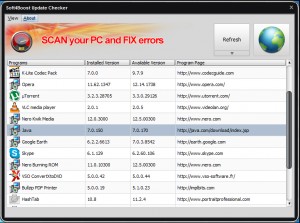 The program does still have some small issues, mostly related to its interface. When you’re viewing a list of items on a grid you’d expect to be able to use the cursor keys to scroll, right? Not here: they do nothing at all (you can spin the mouse wheel instead, but that won’t help if you don’t have one).
 GIMP is the most powerful free graphics editor around but you can extend it even further with the right extensions. You’ll need to find them first, of course, because GIMP doesn’t have any built-in mechanism to show you what’s available. But if that’s too much trouble then you could always install
  The standard Windows taskbar clock is small, simple and efficient, but also a little dull. And there are no significant options to change how it looks or behaves, either, so if you’d like to customize this part of your desktop then you’ll need a little assistance from the
 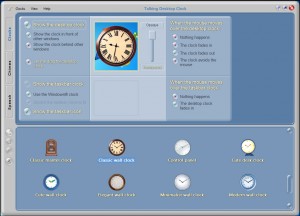 As you might guess from the name, Talking Desktop Clock can also say the time (or play a custom sound) every 15, 30 or 60 minutes, or at some other preferred interval. Conveniently, you can restrict this to a particular time of day only, perhaps 8:00am to 6:00pm. The program would then remind you of the time during the working day, when you most needed it, but be quiet at other times.
 Windows 8 has several annoyances, but perhaps one of the most notable is its requirement to run apps full screen, or in an ugly 2/3, 1/3 mode. When you’re used to being able to position and arrange application windows just as you like, this seems like a significant backward step: we have far less choice then we did before.
 Launch Windows, open a folder or file, install, remove or run a program — just about everything you do on a PC results in Windows writing to the Registry. And over time that means the Registry files will grow, as they contain more and more “slack space”, gaps where old entries used to be.
 Still, if your system shows a larger figure — or you’re just thinking that “every little helps” — then all you have to do is click “Compress”. After a second or two (it’s very quick) the program will tell you it’s done, and recommend you reboot. And as we’re not quite sure how this defragmentation will affect processes which are currently accessing the Registry, it’s probably a good idea to do this right away.
 When you’re troubleshooting a network problem then it often makes sense to take a look at your network adapters, and all their associated details. But Windows doesn’t make this nearly as easy as it should. The information is available, but very fragmented, so you’ll probably have to browse various Control Panel applets and run a few command line tools to get the details you need.
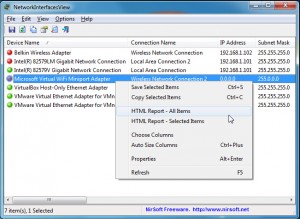 That’s just the start, though. NetworkInterfacesView also provides an Instance ID, which looks cryptic Still, even without these extras,
  Bitdefender has released the first public beta of
  AVAST Software has announced the public availability of avast! 8, which now comes in four main flavors:
  Download an ISO disc image onto a brand new PC and you probably won’t need any third-party software to handle it. Windows 8 makes it easy to mount the image as a virtual drive, so you can access the contents without needing to burn them to a physical disc.
 The disc then becomes available in Explorer just as though it was a physical drive.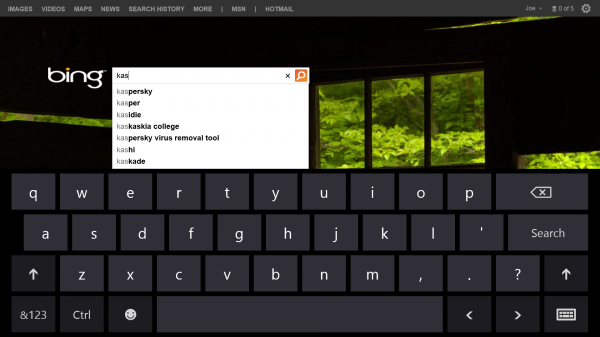
 If you’d like to edit an audio file then there’s plenty of free tools around to help, however most of them are prone to altering your files in unexpected ways. To test this yourself, just open any file, save it with a different name, and compare that file with the original. Even though you’ve not performed any operations on the second file at all, you’ll still often find there are differences, and inevitably that’s going to mean some compromise in sound quality.
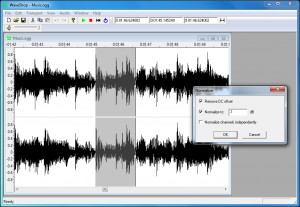 The program has some effects you can apply, too. You’re able to amplify audio, for instance, fade it in or out, or scan your file for clipped audio.
 If your browser has been taken over by an aggressive addon then you can try the standard routes to remove it (the “Manage Addons” dialog in IE, for instance). These can be confusing for beginners, though, and may not always work, so avast! has developed a custom
 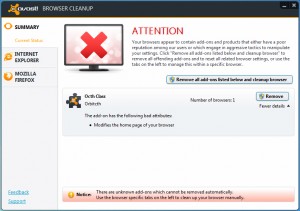 It’s quite possible you might have nothing listed on the Summary page, of course, and in that case you can just click one of the left-hand tabs to view the addons for a particular browser. As we’ve mentioned, this can be done from within the browser anyway, but the Cleanup tool does have a small advantage: by default it excludes add-ons with a “good” rating, so cutting the list down to size and helping you focus on any potential threats.
 Accidentally deleting a partition seems like a major disaster when it first happens. Not only have all of its files disappeared, but you can’t even see that drive any more.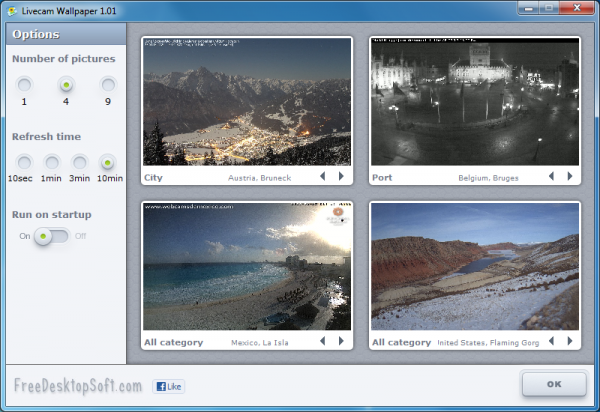

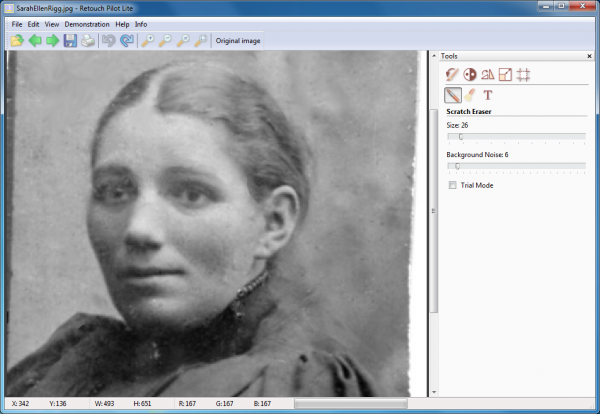
 If the latest Java security scares have persuaded you to ditch the technology forever, then removing it from your PC is normally straightforward. Java’s regular uninstaller should do the job in just a few seconds.
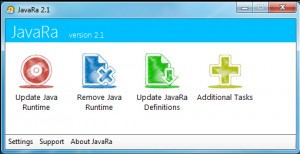 For all this, JavaRA didn’t always quite work as we’d like.