Author: Mike Williams

  • Extract JPEGs from almost any file with deJPEG

    If you’re viewing a PDF and find an image you’d like to reuse, then extracting it is usually easy enough: just right-click the picture, select Copy, and it’ll be sent to the clipboard, ready for pasting wherever you need.

    This approach isn’t exactly convenient if you want to extract a large number of images, though. And it may not work with some PDF files, or other file and document types. In situations like these, what you really need is a more automated approach, a program which can extract the JPEGs from almost anything – and that’s exactly what deJPEG claims to do.

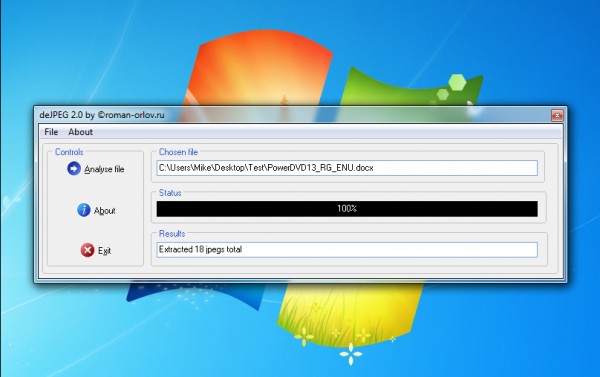
    The program is compact, portable and extremely straightforward. Just point it at your document, click “Analyze”, and the program will scan through every byte of the source file, looking for JPEG-like structures, and saving anything it finds as separate files.

    The best part of this approach is that it’s not relying on any knowledge of file formats. DeJPEG doesn’t care whether the target is a PDF file, a spreadsheet, a database or anything else; whatever you give the program, it does precisely the same thing, just searching for and extracting any embedded JPEGs. And so it stands at least a chance of working with most file types (and won’t break because there’s some minor format change, either).

    But this lack of specific format support also leads to problems. In particular, if the content of your target is compressed (as with Office documents, say) then deJPEG isn’t going to notice that. It’ll scan the file as it is, rather than reading the decompressed stream, and so will miss any JPEGs it might contain.

    DeJPEG’s interface is also rather more basic than we’d like. You can’t define an output folder, for instance – any extracted JPEGs are automatically saved to the same folder as the source.

    Does it work, though? We had some odd failures; pointing the program at a few documents delivered oddly distorted images, others extracted files didn’t appear to be regular JPEGs at all. But in the majority of our tests deJPEG worked perfectly, sometimes extracting hundreds of images in just a few seconds.

    We can’t definitively say deJPEG will work for you, then – it all depends on the source files. But if this kind of application could save you time, then it’s certainly worth a try. Go grab a copy, check it out on your own documents.

  • ForceDel lets you delete any file — even locked ones

    Deleting files on a PC is normally very easy. But sometimes, just occasionally, Windows will tell you that it can’t help because the file is “in use”. And that can quickly become very frustrating, especially if you can’t see why the file is open, or it’s something you really need to delete (a malware component, say).
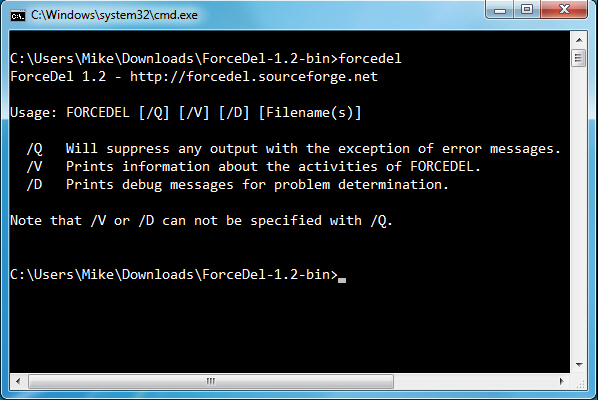
    To resolve this you should try closing all running applications, rebooting, perhaps try to delete the file from Safe Mode. But if this doesn’t work then you could always turn to ForceDel, a tiny command line tool which can forcibly delete files, even if they’re open in another application.

    Don’t be put off by its command line nature — ForceDel is extremely simple to use. There are a few command line switches (run ForceDel on its own to see them), but essentially all you have to do is give the program the name of the file you’d like to delete — ForceDel “c:\users\MyName\Desktop\Annoying.zip” — and it’ll try to close any open handles, before eliminating the file for you.

    And if you want to keep things really simple, there’s not really any need to use the command line at all. Just drag and drop the file you want to delete onto ForceDel, and the program will remove it right away.

    Or, if course, you could use one of the GUI competitors, most notably Unlocker. This allows you to unlock files from their right-click menu, and provides some useful extras (it can show you which process has locked a file, for instance, which may tell you a great deal in itself).

    But whatever you’re doing, it’s worth keeping in mind that this is a very risky business. If an application thinks it has a file open, but you’ve just erased it, then there’s no way to tell what might happen next. Crashes, lockups, file corruption, maybe nothing — it all depends on your individual setup, and how that program reacts.

    As a general rule, then, ForceDel should be used only when absolutely necessary. Save any currently open files before you start unlocking. And restart your system as soon as you can safely do so, after the target files have been deleted, to eliminate the chance of any problems cropping up later.

    Photo credit: megainarmy/shutterstock

  • Add a Modern UI-style Start menu to Windows 7 or 8

    Microsoft’s decision to drop the Start menu in Windows 8 has caused plenty of controversy, but fortunately it’s made little difference to the end user. Developers quickly realized that many people really don’t like the new interface at all, and they’ve produced a host of free tools to help make Windows 8 look and feel as much like Windows 7 as possible.

    Start Menu Reviver, though, has a different aim. Instead of ignoring Microsoft’s Modern UI, it adapts it, with configurable tiles rather than text links. There’s good integration with Windows 8, including the ability to launch Start Screen apps from your desktop. But at the same time, it’s not tied to Windows 8 systems: if you like the look, you can install and run the program on Windows 7, too.

    After a straightforward setup, Start Menu Reviver displays a link to a demo video where you can learn more about how this works. But although this is useful, you’ll figure out most of the details for yourself, so it’s safe to dismiss that for now and jump right in.

    Just as you’d expect, Start Menu Reviver pops up whenever you click the Start orb or press the Windows key. (It’s not made any drastic low-level changes to achieve this, though, so if you have any problems with the program then it can easily be dismissed: just right-click the Start orb and select Exit.)

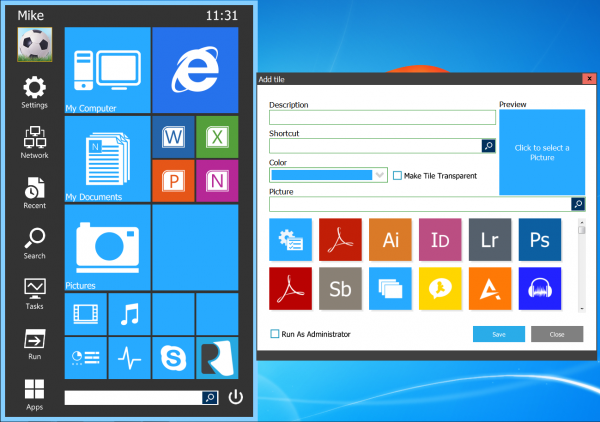
    The opening menu looks good, and works well. Left-hand buttons give you one-click access to common destinations: the Search window, Run box, Recent Documents list, Network and Sharing Centre and more.

    Right-hand tiles initially give you access to various folders (My Computer, Documents, Pictures, Music, Videos), applications and system areas (Control Panel, Task Manager), as well as switching you to the Start Screen in Windows 8 (you can launch Windows 8 apps from the menu, too).

    Elsewhere, a Search box helps you find what you need, and a Power button displays all the usual options: Log Off, Switch User, Lock, Sleep, Hibernate, Restart, Shutdown.

    You’ll also want to customize these tiles, of course, and there are multiple ways to do this. Move the mouse cursor to the right of the menu, for instance, and a view of your Program Files folder appears; find an executable, drag and drop it onto a tile and it’ll be added immediately.

    Alternatively, right-clicking any of the right-hand tiles provides an option to customize it with a shortcut of your own. This can point to a program, document or website, and can optionally be set to run as an Administrator, if necessary. And if there’s not enough space, the larger tiles can optionally be used to hold four individual shortcuts, giving you up to 32 in total.

    There are some annoyances here. If you type the name of a program in the regular Start Menu search, for instance, you can immediately use the up and down cursor keys and press Enter to select and launch whatever you need. With Start Menu Reviver, though, the keyboard focus remains on the Search box, so you can’t do any of this. To select and launch a program you must double-click it with the mouse (or tap it on a touch screen).

    Start Menu Reviver also isn’t quite as configurable as we’d like (the left-hand buttons appear to be fixed). It uses a notable amount of RAM (50MB or so on our test PC), and requires a “helper” service to be installed.

    The program looks great, is free (for personal use) and has plenty of features, though, so if you need a Start Menu alternative then it’s well worth considering.

  • Quickly convert any video using TEncoder

    Converting videos from one format to another can be a complicated business, so it’s no surprise that most conversion tools focus on ease of use above all else. But this can also mean the programs lose a great deal of functionality. Encoders such as FFmpeg — the engine behind many free converters — are absolutely packed with features, but the need for simplicity means most of these aren’t accessible to the end user.

    There are some projects which take a different view, though, and TEncoder is a good example. This is a converter which isn’t afraid to expose options and settings, and at first glance this makes for a cluttered and intimidating interface. But look past that and you’ll find a tool which manages to be both powerful, and (once you know where everything is) generally very easy to use.

    When it comes to importing your source videos, for instance, you can drag and drop them onto TEncoder, just as you’d expect. But the program also has an Add button which allows you to manually import individual files, a folder, even an entire folder tree — a very useful extra.

    Cluttered? Yes. Once you’ve learned the basics, though, TEncoder is surprisingly easy to use

    And it’s a similar story elsewhere. So if you’re in a hurry, or don’t need the program’s more advanced features, that’s not a problem. When converting videos to play on a mobile device, for instance, all you have to do is choose your hardware from the more than 800 profiles on offer. TEncoder will then set itself up accordingly. And once you’ve clicked “Encode” it’ll convert them for you, using a multi-threaded engine which delivers great performance.

    If you do need more fine control, though, TEncoder provides access to all the usual settings: video and audio codecs, bitrates, resolution and frame rates, aspect ratio, output format and more. A Trim tool helps you select the part of the video you’d like to convert, and there’s good support for embedding subtitles into the finished movie.

    There are also some advanced filters, including “Deinterlace” and “Crop”. But again, while these look intimidating, they’re implemented with care. We really had no idea whether selecting “Linear Blend” or “Kernel Deinterlace” would deliver the best results for our source video, for example, but it turned out this didn’t matter: the Deinterlace dialog includes a Preview button, which means you’re able to see the effects of each option before running the full conversion job.

    And if you do manage to assemble a particular group of settings which you’ll use again, you don’t have to remember and re-enter them each time. Just save them as a custom profile and you’ll be able to recall them later in a couple of clicks.

    TEncoder may have a complex interface, then, and even video experts may wonder precisely what some of its options will do. But the extra functionality doesn’t get in your way, and once you’ve learned the basics, the program turns out to be powerful, yet also easy to use. Give it a try.

  • RAM CPU Taskbar puts info where you need it

    If you’re worried about your PC’s RAM or CPU usage, then installing a system monitor can sometimes be useful. This will usually give you an on-screen display indicating when there’s a high demand for your system’s resources, so alerting you to potential problems as soon as they happen, and perhaps helping you to figure out the cause.

    Having this extra on-screen display can be a problem, though. Usually you either have to free up a little space for a desktop gadget, or you’re left to peer at some tiny system tray indicator. So it’s good to see RAM CPU Taskbar take a different route, by using your entire taskbar as a CPU and memory meter.

    Download and run the program and it’ll add an icon to your system tray, and a couple of bars to the right of your taskbar. The top one highlights CPU usage, starts green, turns amber and then red as the figure approaches 100 percent; the lower bar alerts you to RAM use and works in much the same way.

    We wondered if this would be intrusive or annoying, but our tests didn’t show any problems. The bars are visible below your taskbar buttons, but they don’t obscure them or otherwise get in your way. And the default refresh rates — once every 10 seconds for RAM, every second for CPU usage — mean that the bars aren’t constantly moving around, so distractions are kept to a minimum.

    If you are unhappy with some aspect of the display, though, you can probably tweak in in the program’s comprehensive Settings dialog. There are options to disable either of the bars, for instance; set them to be left or right-aligned; set their positioning, refresh rate, colours and more.

    We’re still not entirely sure that we would use RAM CPU Taskbar for long. If a PC has resource issues then we’d rather launch a copy of Process Hacker and figure out the cause right away.

    But, if you are looking for a simple memory and processor meter, then the program’s ability to display system information without requiring any extra screen real estate is a major plus. Take a look.

    Photo Credit: NinaMalyna/Shutterstock

  • Get ‘Easy Access’ to local apps from Firefox

    From docks to desktop gadgets, the Start menu to the Start screen, there are many ways to launch applications on your PC. But most of these are quite bulky, giving you a new interface to explore, and perhaps tying up valuable screen real estate.

    If you’re looking for something simpler, then, more lightweight, then you might be interested in a new Firefox add-on called Easy Access.

    Install the extension and you’ll see an icon appear to the right of the Firefox status bar. Clicking this reveals a drop-down menu with some default entries – Notepad, Paint, Calculator, My Computer, Switch Profile – and selecting any of these will launch that program.

    There’s a “Manage Your Own Easy Access” option which allows you to add further programs of your own (you’re able to specify the program name, and, optionally, any command line switches).

    And you can also add any or all of these program icons to the Easy Access bar, which should ensure you’re able to launch any of them with a single click.

    As launchers go, Easy Access isn’t exactly sophisticated. There’s no folder or other mechanism for grouping your programs, for instance. You can’t reorder them. There’s no way to provide a custom icon, or any similar more advanced customisations. We didn’t even see an option to remove the default menu entries.

    Still, if you almost always have a Firefox window open then Easy Access does do exactly what its name suggests, giving you simple one-click access to any extra tools or applications you need, and if that sounds interesting then we’d recommend you give it a closer look.

    Photo Credit: Liv friis-larsen/Shutterstock

  • Quickly turn JPGs into PDFs

    When you need to distribute a particular set of images – or perhaps reconstruct some scanned pages into a digital version of the original document – then being able to combine those JPGs into a single PDF can be very useful. There are commercial tools which will handle this for you, but if your needs are simple then there’s no need to spend big money; the free (for personal use) JPGasPDF could provide everything you need.

    The program is compact (a single 572KB executable), with a basic straightforward interface. If you’re in a hurry you could just click the Add button to select your images, the Create button to save the finished PDF, and, well, that’s it — your document will be saved right away.

    JPGasPDF does have one or two tiny extras, though, which help to make the program more interesting. So if your imported images are in the wrong order, for instance, that’s no problem – you can drag and drop to rearrange them.

    Better still, you can save image lists and reload them later. This means that you could create a basic document template — a collection of images which you’d like to open and close your PDF, say — and then add other JPGs somewhere in between.

    And the program even previews each image as you click on it. The preview pane is ridiculously small, unfortunately — around 80×60 pixels — and so almost entirely useless for text-based pages, but if your images have distinct graphics then there’s a faint chance you might recognize something.

    JPGasPDF has some room for improvement. We’d like to see it able to import images via drag and drop, for instance – right now you can only do this via the Add button.

    And the program really needs a better way to let you view the contents of an individual image, even if it’s only double-clicking the file to open it in the default JPG handler (this seems the simplest option, as currently there’s no double-click action at all).

    Otherwise, though, JPGasPDF does its work very well, and is also compact, easy to use, with no adware or other marketing hassles at all. If you don’t currently have anything similar then we’d grab a copy immediately.

    Photo Credit: Lilya/Shutterstock

  • Use Google Fonts offline

    Google Fonts is an excellent resource for web designers, with hundreds of top quality open source fonts freely available for anyone to use.
    Now, though, you can also easily access and use the same fonts on the desktop, Windows or Mac, just by installing the SkyFonts client. The program requires you to first create a fonts.com account. But with that out the way, SkyFonts adds an icon to your system tray and is ready for use.

    When you need a new font, right-click the SkyFonts icon, select Choose Fonts > Google Fonts, and a webpage will open at the fonts.com site. Click “Browse Google Fonts”, use the browser to find a font you need, click SkyFonts > Add, and it’ll immediately be downloaded and installed.

    The program can also synchronize your fonts with other devices, as well as automatically detecting and downloading any font updates.

    And if you need to track what you’ve done, then right-click the SkyFonts icon and click Font Activity for a list of installed fonts.

    While this all works very well, the interface is a little uncomfortable, particularly with the need to switch between the SkyFonts client and its web interface.

    The client feels a little underpowered, too — it can’t display a preview of any font, and we couldn’t see an integrated way to remove our chosen fonts — yet it still grabbed more than 50MB RAM when running in the background on our test PC.

    Still, if you’re looking for a simple way to find and install new fonts, particularly if you want to synchronise them across several systems, then SkyFonts could prove very useful. Check it out.

    Photo Credit: Hitdelight/Shutterstock

  • Check5 tracks files, folders in real time

    Launch a program, collect an email, visit a website — just about everything you do on a PC results in some kind of change to the files on your PC. And normally the low-level details of this won’t interest you in the slightest, but there will be occasional exceptions.

    Maybe you think you’ve been infected by malware, for instance. Perhaps you’re wondering what an installation program is adding to your system. Or you might just want to know why your hard drive activity light is flashing, all the time. But whatever the reason,Check5 can help, by monitoring any folders of interest and showing you, in real time, exactly how their contents are changing.

    To try this out you must first point the program at the folders you’d like to track. Click Folder Monitor > Add Folder to Monitor, and repeat the process for everything you’d like to watch. (Or just specify a root folder — C:\ , say – to monitor a full drive.)

    Now just launch any program which creates, amends, deletes or renames files in any of those folders, and you’ll see its actions displayed in the main File List Grid: the file name, path, size, attributes, and created, modified and last access dates.

    If your applications are generating a lot of activity then this can become hard to follow, but there are ways to improve the situation. Monitoring somewhere lower down the folder tree can help, for instance. And an Event Logging menu allows you to record only the event types which interest you: file creations, say.

    Just in case this isn’t enough, Check5 also includes various batch file management tools which you can apply to the logged events. So if, say, you’ve recorded 500 files being created in a particular folder, then the program can rename all of those according to the rules you specify, in a single operation.

    Well, that’s the theory, anyway. In practice we found this aspect of the program to be confusing and rather impractical, but if you need this kind of feature then it might (just about) come in useful.

    We suspect that most people, though, will use Check5 solely for its file monitoring features. And that’s just fine, because these are good enough to justify installing the program, all on their own.

    Photo Credit: S.john/Shutterstock

  • DeskIntegrator puts you in control of the right-click menu

    Your PC is packed with applications, and you need to be able to launch them at speed. So of course you might start by creating a few shortcuts, and either dropping them on your desktop, and pinning them to the taskbar. It’s simple, and straightforward – but of course it can also quickly become very messy.
    If you’d prefer a clean desktop, then, you might be interested in DeskIntegrator’s approach. This compact free tool adds applications to the desktop context menu, and launching them becomes as easy as right-clicking the desktop, and choosing whatever you need from the list.

    The program is convenient to use. It’s portable, so there’s no installation: just download, unzip and launch it (as an Administrator), and you’re ready to go. The core process is very similar to creating a shortcut. You’ll enter a title (the name that will appear in the menu), a path (browse to its executable), optionally provide a custom icon. You can choose approximately where your entry will appear in the menu, too — the top, middle or bottom — which could be useful if you want to group similar applications together.

    When you’re ready, click “Add/Modify” to insert your chosen program. You can then enter the details of another program, or just right-click the desktop to see how your custom context menu is looking.

    And if you discover you’ve made a mistake, no problem — clicking the “Remove Menu” tab displays a list of all your menu customisations (as well as the standard Windows options, and anything added by third-party tools), and allows you to delete whatever you like. This is useful, but you do need to be careful here: there’s no “Are you sure?” prompt after you’ve clicked “Remove”, and if you accidentally delete the standard Windows “Screen resolution” entry, say, there’s no way to bring it back.

    DeskIntegrator does have one notable problem. The program absolutely must have administrative rights, and if that doesn’t happen, it handles the situation very poorly. On our PC it displayed a misleading alert about “Registry permissions” before crashing with a .NET error message; not too impressive.

    Still, while this is sloppy, it’s easy to avoid: just manually run the program as an administrator when necessary (right-click, select “Run as Administrator”), or configure it to run this way all the time (right-click DeskIntegrator.exe, select Properties > Compatibility and check “Run this program as an Administrator”).

    With the rights issue out of the way, though, DeskIntegrator works very well. We’d still try to keep its use to a minimum, just to avoid cluttering the desktop context menu and making it harder to access other entries. But, if you prefer your desktop to have the minimum of visible and pinned shortcuts, then DeskIntegrator just might be able to help.

    Photo Credit: ARENA Creative/Shutterstock

  • Ratool protects USB thumb drives

    USB keys are compact, highly portable and a very convenient way to store and transfer information.


    Unfortunately, they also make it extremely easy for others to copy files from a PC without your knowledge. And they can act as carriers for some very nasty viruses. So if you’d like to restrict their use on your system, you might be interested in the new Ratool.

    Launch the program and a simple interface presents you with three main options.

    Select “Allow Read Only”, for instance, and users will no longer be able to copy files to a USB key. (Try to do so in Explorer and you’ll be told the drive is “write-protected”).

    Or, if you don’t want the system to recognize USB drives at all, then you should select “Disable USB Disks Detection”. Plug in a USB key now and it won’t appear in Explorer, or be accessible to your applications.

    And the third option is to “Allow Read & Write”: select this if you want to restore normal operations.

    If this is all sounding a little familiar, then you’re right, there are plenty of tools around which do more or less the same thing. But, these tend to work by simply applying a few Registry tweaks, and so it’s not difficult to reverse their effects. All another PC user has to do is download a similar “USB manager” themselves, and they’ll be able to turn off your protection in seconds.

    Ratool, meanwhile, will by default “lock” its changes, making them much more difficult to remove. We tried this, and sure enough, once Ratool had set our USB access preferences, three similar tools weren’t able to change them back.

    If you really want to be secure, there’s even an option to password-protect the program, preventing other users of your system from launching Ratool and restoring their USB access.

    And bonus tools include options to disable autorun, show hidden files on your drive, or safely remove it. Which isn’t bad for a single 363KB executable, with no adware or other marketing annoyances.

    On balance, then, Ratool really does deliver something more than the usual USB access control freeware. Try it, see for yourself.

    Photo Credit: chien321/Shutterstock

  • Accelerify speeds up your PC clock

    When testing your PC, you might sometimes want to see what happens over a period of time. Will your backup start when it should, for instance? Is your antivirus launcher working correctly? Will your alarm pop up? When will that trial version expire, and what happens when it does?

    If you’re only looking to test just one of these actions, then manually resetting your system’s clock will probably be enough. But when your testing becomes more involved — you want to check out a program which adjusts screen brightness depending on the time of day, for instance — then you’ll benefit from a more automated approach. And there’s no simpler way to get this than with Accelerify.

    The program is a tiny (7.26KB download) console-based tool which increments your PC clock at regular intervals — by default, moving it on an hour every 10 seconds — so making time seem to pass more quickly while you just monitor what’s happening; a very straightforward approach.

    It’s easy to use, too. Launch the program from Explorer as an Administrator (right-click, select Run as Administrator) and it’ll pop up in a console window, and immediately begin incrementing your clock. You can return to your desktop, launch a program or otherwise monitor your system. And when you’re done, return to Accelerify, press a key, and the program will stop its work, restore your original time and close down.

    If the default interval and increment don’t suit your needs, then that can be adjusted via command line switches. And so you could choose to step forward 30 minutes every 2 seconds, 3 hours every 15 seconds, or whatever you like (accelerify_Readme.txt has the details).

    Be careful, though. We found that if we incremented the clock too rapidly — an hour every second, for instance — then some scheduled applications missed their cue, and didn’t pop up when we expected.

    And you also need to be sure that you close the program via the approved, “press any key” route. If you just close the window then your clock will be left at its new setting, and you’ll have to restore the correct time yourself (in Windows 7, right-click the clock, select “Adjust date/time” > Internet Time > Change Settings > Update now).

    Accelerify isn’t exactly a tool you’ll use every day, then, but if you’re testing anything based on time then it could be very useful. Take a look.

    Photo Credit: Sukharevskyy Dmytro (nevodka)/Shutterstock

  • VirusTotal Uploader lifts files to cloud scanning

    VirusTotal.com is a great resource, a powerful tool which can quickly check just about any file for malware with around 50 of the world’s leading antivirus engines. But if you need to submit more than one or two files then its limited browser-based interface will quickly become a problem, and so you may want to try the new PhrozenSoft VirusTotal Uploader, instead.

    Once installed, the program makes it much easier to check the files you need. At its simplest, you can just select one or more files in Explorer, drag and drop then onto VirusTotal Uploader, and they’ll be uploaded for you. A straightforward interface keeps you informed on the upload process, and results are displayed as they arrive.

    That’s just the start, though. If you’re manually hunting for malware then you might start by checking your running processes, so it’s good to see that VirusTotal Uploader can do that, too. If you spot something which looks odd, select it, click the Submit button and it’ll be added to your upload queue.

    The program provides additional tabs to view your startup programs, services, and any process with an open network connection. Again, you can run a scan on anything which looks out of place.

    And there’s even a “Download and Scan” tool; give the program your URL and it’ll download the file and get it checked out for you.

    PhrozenSoft VirusTotal Uploader does also have multiple issues. It needs to be installed when we’d prefer a portable version, for instance. And by default it installs itself in your Appdata\Roaming folder, rather than \Program Files (not exactly a critical issue, but we still find it annoying).

    There are several interface irritations, too. The way its functions are organised over two windows feels a little cumbersome. Its program and process displays can’t be sorted by name, path, process ID or anything else. And there’s just a general shortage of extras. So you might hope that double-clicking or right-clicking a process would let you see its file properties, say, but actually there are no double-click actions or right-click menus at all.

    Still, this is the program’s first public release, so problems are to be expected. These are mostly quite minor, at least, and we’ve no doubt that usability will improve quickly. The core functionality of PhrozenSoft VirusTotal Uploader is already very good, though, and if you’re going manually malware-hunting then we’d take the program along – it’s sure to be a major asset.

    Photo Credit: Tom Wang/Shutterstock

  • Got a badly-formatted PDF? Try Briss

    It’s not difficult to create PDFs these days. If your application doesn’t already have a “Save as PDF option”, then a virtual printer like Bullzip will generally get the job done.

    These converted documents won’t always be formatted properly, though, and large or oddly-sized margins can be a real problem — but that’s where the open-source Briss comes in. If you need to crop PDFs, perhaps to remove page numbers, maybe just to make the document easier to read on a small screen, then this small free program could an excellent solution.

    Briss is a compact Java-based tool, and so there’s no installation required — just unzip it, browse to and launch briss-0.9.exe. Click File > Load File, choose the PDF you’d like to crop (pressing Cancel at the “Input” screen, this time) and you’re ready to begin.

    The program will open your PDF and analyze it, before displaying the results in an appropriate structure. We tried this with a PDF book, for example, and it organised all the left pages into one group, all the right pages into another. Every page in each group was then overlaid on top of the other, so we could see the extent of our document. And a blue rectangle was displayed over each group.

    To define the cropping area, all we then had to do was move and resize the two blue rectangles accordingly. Everything below the rectangle would be preserved, while everything else disappears — it’s very quick and easy. If you’re unsure at any point then clicking Action > Preview will show you what your current cropping arrangement has done, while clicking Action > Crop PDF will save it for real. (Don’t worry, the original document is preserved, this only saves a copy.)

    Useful though this is, it’s only part of what Briss can do. If you’ve scanned a book, say, you might find your PDF now has two book pages squeezed into one document page, which looks ugly and messes up your PDF page numbering. But use Briss and you can define regions within a document page, and split them back into separate pages, restoring the original structure and probably making the file much easier to read.

    And there’s even simple command line support, allowing you to set up scripts which can process a folder of PDFs entirely automatically.

    All of this is presented in a rather basic interface, which takes a little time to master. If you occasionally need this kind of PDF cropping or reorganising ability, though, it’s worth investing your time – once you’ve learned the basics, Briss becomes one of the quickest ways to crop a PDF that we’ve seen anywhere.

    Photo Credit: Hitdelight/Shutterstock

  • Trend Micro Rootkit Buster lives up to its name

    Anti-rootkit tools used to be bulky, complex, packed with so much low-level jargon that even most Windows experts might struggle to figure out what was going on. And they were risky to use, too, with the authors often employing unauthorised low-level coding tricks which could easily blue-screen your PC just by running a regular scan.

    If you know what you’re doing then there’s still scope for a little low-level Windows exploration, of course, but most people just want something which will check their PC for threats, finding and removing them with the maximum speed, and minimum hassle. And that’s just what you get withTrend Micro Rootkit Buster.

    The program comes in both 32-bit and 64-bit flavors, for instance (make sure you get the right one for your system), and both builds are portable. They’re not even zipped up – just download the relevant executable and launch it.

    The Rootkit Buster interface is just as simple and straightforward. The program organizes the system areas it can check into three main areas — “Files or Master Boot Records”, “Services” and “Kernel Code Patches” — and each of these can optionally be disabled, if you can think of a good reason to do so.

    Generally, though, all you then have to do is click “Scan Now, and watch as Rootkit Buster scans the system areas you’ve specified, delivering its verdict and disabling any threats (if present) in little more than a second.

    As its extreme speed suggests, this isn’t the most thorough of security health checks, and Trend Micro Rootkit Buster is no substitute for a regularly updated, full-strength antivirus tool.

    The program is convenient and easy to use, though. And new support for detecting malicious Master Boot Record modifications mean Trend Micro Rootkit Buster should be notably better at spotting and disabling at least some rootkits. So while it’s a little on the basic side, we’d recommend keeping a copy around, just in case you’re infected by something which your regular security package can’t remove.

    Photo Credit: alexskopje/Shutterstock

  • PostImage lets you take, edit and share screengrabs with ease

    While the ability to capture and share an image of your screen is extremely useful, it’s not exactly an area where Windows has excelled. Under DOS pressing PrtSc sent an image of your screen to the printer; under Windows 3.x the grab was copied to the clipboard; after more than 20 years, Windows 8 added the ability to save an image by pressing Win+PrtSc; and that’s about it.
    If you’d like something a little more capable, then, it’s probably best to forget Microsoft and look for a third-party solution. And if you’re particularly interested in sharing screengrabs then PostImage could make an excellent choice.

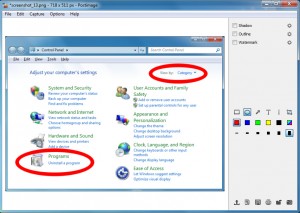
    After a simple and adware-free installation, PostImage runs in the background, consuming a reasonable 10MB RAM. Press PrtSc at any point and you’re able to choose a rectangular area of the screen which you’d like to capture, or you can press Alt+PrtSc to capture the currently active window.

    While this sounds fairly standard, the area capture is at least very well implemented. Once you’ve defined a rectangle, PostImage displays its dimensions in pixels, for instance. And you can freely resize and reposition this until it matches whatever you need.

    After grabbing something, you’re able to work on it with the PostImage editor. The program can crop or rotate the image; annotate it with shapes, arrows or captions, or add a shadow, outline, even a watermark (text or image-based).

    When you’re finished (or if you don’t need to edit the screengrab at all), PostImage provides many different ways to share it with others. You can upload it to the PostImage server (postimg.org) and receive a direct link. There are options to share the link via Twitter, Facebook or Reddit, while an Email tool opens your default New Message dialog, with the image link already inserted.

    And there are a few other options, too, ranging from the simple (Save, Print) to the more surprising, in particular a tool which uses Google to find images which resemble your capture. We grabbed our Start menu on a Windows 7 test PC, for instance, and PostImage opened a web page with the search results for “Windows 7 start menu”, and links to similar images.

    PostImage clearly isn’t going to appeal to everyone. The program doesn’t have the extended capture types you’ll sometimes see elsewhere (freehand, say). You can’t configure the hotkey. And the program is short on automation options. You might want to always save an image, maybe print or upload it, but there’s no way to set a default action — you must select it manually, each and every time.

    If you just need a more convenient way to take and share simple grabs of your desktop, though, PostImage works very well. It’s free, compact and easy to use, with a capable editor and plenty of image sharing options. So even if you need a little more power, this is a program to watch: it’s not even at version 1.0 yet, and we’ve no doubt that there’s plenty more to come.

    Photo Credit: Iaroslav Neliubov/Shutterstock

  • Even as alpha build, GTKRawGallery impresses

    Most digital cameras will by default save photos as JPEG files, and it’s easy to see why: they’re small, can be saved and reloaded quickly, and are supported by just about every graphics package available.

    Switching to your camera’s RAW format (if it has one) can be worthwhile, though: you’ll get minimally processed images containing all the data from your camera sensor, giving you much more precise control over how the final photo will look. RAW images are also huge, and can’t be opened by nearly as many tools, but there are still some great free options available — and even though it’s only in alpha, the open sourceGTKRawGallery is already a promising contender.

    The program opens with a fairly conventional photo manager. A thumbnail browser helps you navigate your image library. You can organise your photos into custom libraries. There’s a basic search tool, a tag editor (EXIF, IPTC and XMP), batch file renamer and more. And this isn’t just for RAW files — the program can work with all the more standard formats, too.

    Double-clicking an image opens it in a new window for processing. This doesn’t work so well for viewing, as its toolbar is way too small, and there seems to be a distinct lack of keyboard and mouse shortcuts (don’t expect to use the “+” and “-” keys or the mouse wheel to zoom in and out, for instance – you have to use the toolbar buttons). But if you just want to get on with processing your photo then the news is better, with GTKRawGallery organising a host of functions into eight tabs: “Exif”, “Keywords”, “Dcraw”, “Enhance”, “Transform”, “Effects”, “History” and “Metadata”.

    Experienced photographers might start with the Dcraw panel, where they’ll find tweaks for white balance, gamma, black point, saturation, brightness and more. There are denoise and media filters, along with a chromatic aberration tool and color management options. You can save your preferred settings as presets, too, making it easier to reapply them consistently on future images.

    Clicking the Enhance tab reveals plenty of additional options, including controls for temperature, levels, curves, highlights, shadows, exposure and more.

    But if this is all just a little too complicated, the Transform tab has more straightforward tools: flip, rotate, resize and crop, red eye removal and so on.

    A fairly standard (although well implemented) list of effects ranges from the practical (sharpen, unsharp mask, reduce noise) to the more artistic (oil paint, charcoal, sketch). All of these can be configured in various ways to customise the results.

    And when you’re happy, any selected images can be burned to disc, emailed, or uploaded to Facebook, Flickr, Picasa or Facebook.

    GTKRawGallery has some issues. The interface doesn’t always work as you might expect, for instance, and its performance isn’t always the best. That’s no surprise for an alpha, though, and the program already has some very impressive features and functionality. If you’re looking for a powerful and free photo processing tool then this is one project you’ll want to watch.

    Photo Credit: NLshop/Shutterstock

  • Malware Scene Investigator is your forensic savior

    Your PC is behaving strangely. You think it might have been infected by something, but your regular antivirus tool hasn’t raised an alert. And so you decide to try and investigate the problem yourself.

    Figuring out where to begin can be difficult, though. Which drivers should you investigate, which startup programs or processes? If you want to manually search for malware but aren’t sure where to start, then the free Malware Scene Investigator could prove very useful.

    The program is a tiny download (500KB), portable and extremely easy to use. Close any running programs, launch Malware Scene Investigator, click Start Scan, and a tabbed interface then displays the results in two forms. Clicking Report provides a quick summary, while the Detailed Log tab gives you a more in-depth view.

    The program may be small, but Malware Scene Investigator isn’t short on ambition. The program aims to highlight HOSTS file manipulation, unknown drivers, and dubious proxy settings. It looks for unusual disk partitions, Registry modifications or startup programs. You’ll be warned of executable files in your temporary folders (a common route for malware), and the report includes general information about your PC’s state (open network connections, running processes, scheduled tasks, recently created \Windows\System32 files, and more).

    We tested this out on a test PC, and the program generally did very well. It highlighted some active third-party drivers, for instance; picked out an unusual Windows service setting; even warned us about a suspicious startup entry which we had already become concerned about separately. This turned out to be entirely innocent, but it was impressive that, while we had spent some time in identifying this file, Malware Scene Investigator managed to highlight the same executable in around two seconds.

    Checking for outdated software was less successful, though, at least in our case. The program claimed that we had an outdated version of Flash installed, but this wasn’t true: it just hadn’t identified our installed Flash version correctly.

    Malware Scene Investigator isn’t for novices, then. And you can’t rely 100% on everything it says: the program can only give you pointers as to what you should investigate next.

    But, if you are worried a PC has been infected by malware, or just want a general security check, then the program is worth a try, and it certainly deserves a place in your security toolkit.

    Photo Credit:  Johan Swanepoel/Shutterstock

  • Keep your system safe with Panda Global Protection 2014 Beta

    Panda Security has announced the availability of the first public beta for its do-everything home user suite, Panda Global Protection 2014. The package includes an antivirus engine, firewall, identity protection, spam filter, parental controls, virtual keyboard, local and online backup modules, file encryption and shredding, and remote PC access.

    New features this time include boot analysis of your system for better detection of even the stealthiest of malware. There will also now be protection for Mac, iOS and Android devices (the latter component isn’t available yet, but clicking “Multi-device protection” within the program will tell you more).

    And this is all packaged in a very Windows 8-like interface, with colorful tiles giving an appealing front end to the suite.

    What’s the program like? We found it installed easily, without requiring other security packages to be removed first. (You may still want to do so to reduce the chance of conflicts, but it’s not necessary).

    The interface looks good and is generally easy to use. The Windows 8 style of interface isn’t applied consistently just yet, and occasionally you’re left to explore some fairly complex dialogs, but for the most part it works very well.

    Performance, however, did prove to be an issue for us. Scans took an age, and other programs were considerably slower once Panda Global Protection 2014 was installed. This is of course exactly the kind of thing you expect from a beta, though, so we wouldn’t draw any conclusions from it just yet.

    On balance, the suite has an extensive list of features, looks good and is (for the most part) easy to use. If you’re also affected by the performance problems then you won’t want to run it for long, but otherwise Panda Global Protection 2014 looks promising, and we’ll be interested to see how it progresses.

  • WinRAR 5.0 Beta 1 releases — get it NOW!

    The first public beta of WinRAR 5.0 is now available. And it’s an interesting release with quite a few new features, although most are based around the addition of a new archiving format — RAR 5.0.

    This first aims to improve compression performance by increasing the maximum and default dictionary sizes. Some older and less efficient compression algorithms have been ditched, while RAR 5.0 decompression can make use of multiple CPU cores.

    A new Reed-Solomon-based recovery record improves your chances of reconstructing a corrupted archive.

    Security enhancements see AES-256 encryption now used in CBC mode. A new file checksum scheme makes it harder for attackers to find file contents. And smart password verification means the program can usually detect a wrong password without first having to unpack the full archive.

    RAR 5.0 also sees several smaller enhancements in various areas. File times are now always stored in UTC, for instance, simplifying archive exchange between different timezones. And NTFS symbolic and hard links can now be saved simply as links, without having to archive their contents.

    More general improvements include a maximum path length of 2048 characters for regular RAR and ZIP archives, while there’s now extraction-only support for the XZ archive format.

    And one or two features have been dropped, including support for file comments, although archive comments remain as before.

    If you need the full details then they’re available on the WinRAR What’s new page. Otherwise, WinRAR 5.0 Beta 1 for Windows, OS X and Linux is available now.

    Photo Credit: Arkady/Shutterstock