Author: Mike Williams

  • PC Hunter finds what ails your PC

    Task Manager, Regedit and Explorer are fine for basic Windows troubleshooting, but if your system is having real problems, or you’re trying to manually remove a virus, say, then stronger medicine will be required.

    And it would be difficult to find anything quite as strong as PC Hunter.

    At first glance the program seems much like many similar system information tools. There’s a tab listing your running processes, for instance. A second covers your Windows startup programs, while others detail your Windows services, file associations,

    Look a little closer, though, and you’ll find many tabs have several sections. So “Startup Info” lists services and scheduled tags along with the regular startup programs, while the “Network” tab covers open network connections, IE plugins, HOSTS file, and more.

    There are also many sections aimed squarely at experts: Ring 0 hooks, Ring 3 hooks, filter drivers, DPC timers, HAL callbacks, file system filters and callbacks and a whole lot more. (Fortunately you don’t have to explore any of those unless you really want to.)

    PC Hunter has built-in file and Registry browsers, too. And that could very useful if, say, a virus has disabled Regedit, or Explorer is unstable and won’t work properly.

    And most important of all, PC Hunter isn’t just producing static text reports. It can also carry out useful functions on the various objects it identifies.

    For example, if you’re having malware problems then you might want to delete several programs at once. No problem: click Process, select the offending items, right-click one of them, and there are options to kill all the processes, “force kill” if they’re stubborn, even delete the process executable after it’s been terminated.

    If you’re the technical type then there are all sorts of powerful tools at your disposal. You don’t only get to view suspect system hooks, for instance – the program can even run a disassembler at the relevant address to get a clearer look at what’s happening.

    But again, you don’t have to explore these technicalities, and the program has plenty of more straightforward options available. So if you’re wondering which processes have a particular file open, for instance, just click File, right-click the file and select “View Handle” for a list. While other right-click options allow you to search for a file online, upload it to check for malware, verify its process signature, repair a file association, delete a user account and more.

    One issue we did notice here was a performance lag in some windows. Expand a folder tree in the File browser, for instance, and there was a noticeable delay. And this can lead to some initial confusion if you click something, see there’s no instant response and click it again. But you’ll figure it out within a few minutes.

    There are some minor interface irritations. The File Handles window opens at too small a size, for instance, and it can’t be resized, only maximised. Not a big deal at all, but it is annoying.

    And the layout of the program as a whole means it’s not quite as comfortable to use as, say, Process Hacker or Process Explorer. If you just need an expanded Task Manager then they’re still your best option.

    PC Hunter is still an excellent tool, though, packed with functionality, and if you’re ever likely to go hunting malware manually then you need a copy to hand. Give it a try.

    Photo Credit: cbeniel/Shutterstock

  • Get notified about Windows 8 updates

    It’s no secret that Windows 8 has seen some controversial changes, in particular the removal of the Start menu. But with all the focus on these larger issues, you might have missed some smaller, but also significant design decisions. Like, for example, that there’s no longer any desktop alert when Windows updates are available.

    There is a new alert on the logon screen, of course. And you can always set up Windows to install updates automatically. But, if you don’t reboot often (or you bypass the logon screen), and you want to keep tighter control over your updates, then you’ll need to look elsewhere for a little extra assistance. And Windows Update Notifier is the perfect candidate.

    The program is very lightweight, for instance, arriving in the form of a 90KB download.

    And it keeps any hassles to a minimum. So on first launch, you won’t see a splash screen, or a wizard, or a settings dialog, or anything at all. The program will just take a few seconds to scan for updates; a desktop alert then lets you know if you’re missing something, and clicking this opens the regular Windows Update window, ready for installation.

    Windows Update Notifier is so unobtrusive, in fact, that it won’t even set itself up to run when Windows starts. If you’d like to change this, call up the program’s settings box (right-click its system tray icon, select “Settings”) and check the relevant box.

    The options dialog also allows you to decide how often the program will check for updates. By default this is every 60 minutes, but the process isn’t always quick, so you might want to increase the interval a little.

    And if you’re using Windows Defender then the program also has an option to install Defender updates automatically. You’ll have to set up Windows Update Notifier to run as an administrator for this to work, but there are instructions on how to set everything up, if you need them.

    On balance, dropping the alert seems like another Windows 8 oddity. Changing default behaviour is one thing, but why remove the option entirely? Still, if you care about the issue then Windows Update Notifier does at least make it easy to resolve. Just grab a copy and normal service will be restored within seconds.

  • URL Snooper lets you download streaming media files

    If you’d like to download a YouTube video then there are plenty of options available, from web services like KeepVid to dedicated tools like Free YouTube Download.

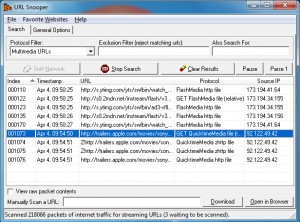
    Capturing streaming videos from other sites can be a challenge, though, as their URLs are often concealed by scripts and similar tricks. Examining the page source will sometimes give you clues, but URL Snooper could be a simpler option: the program just watches your internet activity, and displays a list of any streaming URLs it finds.

    Getting started with URL Snooper is surprisingly easy. It’s a small (3MB) download, and portable, so there’s no installation required. And while the program uses WinPcap to capture your network traffic, there’s no need to install that, either — simply launch the program and you’re ready to go.

    URL Snooper will first present a very simple interface, just an empty table. But to see it in action, open a site which streams video (not YouTube, it’s not compatible), play a clip, and any URLs detected by the program will be displayed right away.

    Does it work? Our results were a little mixed. We had no luck with Facebook, for instance, but the program detected rtmp:// URLs at Metacafe, and found addresses from simpler sites — Apple Trailers, say — without any problems at all.

    If you’re not successful immediately, though, URL Snooper does have some extra options which can help. Click File > Advanced and you’re able to filter detected URLs by protocol or keyword, for instance.

    And in particular, if you select “Show All” in the Protocol Filter box then the program displays every URL it’s detected, whether it’s related to streaming media or not (images, icons, ad servers — it even detected and displayed the URL of our antivirus tool’s streaming update file). This makes URL Snooper useful in many more situations, so we’d recommend you keep a copy to hand, just in case you ever need a better understanding of how your internet connection is being used.

    Photo Credit: Yuriy Boyko/Shutterstock

  • Malwarebytes Secure Backup saves to the cloud

    Malwarebytes has unveiled its new Secure Backup product, an online service created in conjunction with SOS Online Backup, which automatically scans your files before they’re uploaded to the cloud. This ensures that, if you’re ever hit by a virus, you’ll know you can restore a backup without any danger of reinfection. And if you want to share a file with others, then, again, you can all be confident that it’s clean.

    The current Secure Backup download is a beta offering 5GB of online storage, which will expire after 14 days. If you like the idea and decide to upgrade, though, there are 100GB ($59.95 per year), 200GB ($119.95) or 500GB ($299.95) packages available.

    The backup client is simple and easy to use. It automatically scans for documents, pictures, music or videos on your system, and can upload those in a click or two. But if you need more control, there’s also an option to select whatever individual files and folders you’d like to protect.

    Backups may then be scheduled to run at intervals of anything from an hour to a month, with an option to receive email reports whenever a backup job ends.

    A Secure Backup console provides some useful configuration settings, including include and exclude settings. (No option to limit bandwidth use, though, which we always like to see in online backup tools.)

    And there’s also a web portal which allows you to access and restore your files from anywhere, as well as share particular files or folders with others.

    How useful might this service be? In an ideal world your PC would be set up to detect malware as soon as it arrived, not just before you’re despatching it elsewhere.

    In practice, though, it’s not uncommon common for people to reinfect their systems via backups, so having this second layer of protection certainly isn’t a bad thing.

    And if you regularly share files with others, then using Secure Backup should reassure everyone that their downloads are clean.

    We’ll need to run more intensive tests to see how Malwarebytes Secure Backup performs as a backup tool, then, but in principle this could be a useful service. If you’d like to try it for yourself then a 14-day trial version is available now, but keep in mind that it is still flagged as a beta: don’t rely on it as your sole backup program just yet.

    Photo Credit: Sergey150770/Shutterstock

  • NetConnectChoose lives up to its name

    NirSoft’s prolific Nir Sofer has announced his latest release,NetConnectChoose. And it’s a tiny tool which displays all your active internet connections, and allows you to choose one that Windows should use by default.

    But if that doesn’t sound relevant to you, don’t worry: despite the program being as compact as ever (a 60.6KB download, including the Help file), Softer has still managed to cram in some useful extra functionality, and NetConnectChoose will also display a host of statistics on every connection it finds.

    Browse the table and you’ll find your network adaptor’s MAC address, for instance. The length of time the connection has been running. Its current send and receive data speeds; the number of bytes and packets sent and received; your IP address, default gateway, name servers and DHCP server; your MTU setting, interface speed and more.

    This information isn’t just static text, either. Leave the program open while you start a download, say, and you can watch as the “received data speed” (and other figures) update in real time.

    Unusually for NirSoft tools, NetConnectChoose can be accessed from a system tray icon, allowing you to view this data — or change your default internet connection – in a couple of clicks.

    And if you need to refer to the connection details later, they can be saved as a report in various formats (TXT, CSV, HTML and more).

    Sofer reports that NetConnectChoose does have one significant issue. If you use it to change the default internet connection on a Windows XP system, then all existing TCP connections will stop working. That’s obviously going to be a little annoying, if, say, you’re half way through some bulky download, so use the program with care.

    NetConnectChoose doesn’t have the same problem on Windows Vista, 7 or 8, though, where it works very well. The connection statistics it displays can be useful, too, and on balance it probably deserves a place in your troubleshooting toolkit.

    Photo Credit: Sergej Khakimullin/Shutterstock

  • Genie Timeline Professional 2013 review

    If you like to keep your backups simple then image-based solutions have an obvious attraction. There’s no need to spend an age figuring out what to protect, and then change your settings regularly to suit some new application: you just back up everything, and so can always be sure you’re fully protected.

    Don’t rule out file-based backups just yet, though. Genie Timeline Professional 2013 can be set up in just a few clicks; runs regularly to protect even your most recent files; keeps multiple versions of a document, allowing you to restore whatever you need; and that’s just the start.

    Launch the program and the focus on ease of use is immediately apparent. There’s no need to browse to, or create a folder to hold your backups, for instance – just choose a drive (internal, external or network), and Timeline Professional 2013 will take care of everything else.

    Deciding what to back up doesn’t have to be any more difficult. The program provides 13 tiles representing different types of files — “Pictures”, “Office Files”, “Email”, “Music” and so on — and all you have to do is check a box for each category you’d like to protect. (You may not even have to do that, as the most common options are checked by default.)

    You don’t even have to schedule your backups, as the program will by default select different backup intervals for your files, depending on their type and size. And even the “advanced” options, encryption and compression, can be enabled with just a click.

    This doesn’t always work quite as smoothly as you might hope. Checking a tile like “Pictures”, for instance, won’t necessarily protect all your images – only the formats the program recognises (bmp; jpg; jpeg; jpe; gif; tif; tiff; png; raw; dng; nef; cr2). You could edit this list to, say, add support for PSD files, but then you’ll have to know all the formats you might use, and suddenly the program isn’t quite so beginner-friendly any more.

    Other backup categories have their limitations, too. The Email option only supports Microsoft tools, for instance (Outlook, Outlook Express, Windows Mail, Windows Live Mail), while you can save the bookmarks for the top browsers, but nothing more (the ability to save profiles would be very useful).

    Still, if you want more control then clicking the “My Computer” tab displays a familiar Explorer-type screen, where you can manually select whatever files and folders you’d like to protect.

    And there’s a new “Filter my selections” option which allows you to define file types which you’d like to include or exclude from the backup. So if you want to add support for, say, PSD, OGG and TS files (none of which are covered by the default selections) then filters allow you to do it in one place.

    Arguably, having to do this at all makes Genie Timeline Professional 2013 much like any other backup tool. Still, at least you only have to set it up once, then you can sit back and leave the program to do its work, while you get on with more important things. (And we do mean “leave”: install the iPhone or iPad app and you can monitor your backup status wherever you are.)

    Recovery

    Disaster has struck, and you need to recover some files? There are several ways to go about it.

    If the file still exists but you’d like to recover an earlier version, right-clicking it in Explorer and selecting “Show Versions” will display your options, and you can restore an older copy with a click.

    The program also adds a Timeline Explorer view to Explorer. Choose a backup time and you’re able to browse everything it contains, restoring individual files as required. (These Explorer integrations can be disabled if you don’t want other users to have access to them.)

    Genie Timeline Professional 2013 has an “Advanced Restore” option with even more powers. Again, choose a backup time and you can browse everything included in that job. There are sometimes so many files that it’s hard to find what you need, but this version now includes a filter where you can choose to see only deleted or new files, for instance, making your browsing a little more manageable.

    “Advanced Restore” is further improved this time with the addition of a search box. If you’re looking for a specific file there’s no need to browse for it, just enter a part of the name and you’ll be presented with all available matches (including previous versions) and again you can restore individual files with a click.

    Another option is simply to manually switch to your backup drive, where your files are available in their original folder structure (our fourth backup job stored test desktop files at D:\_Genie Timeline(4)\0\C\Users\Mike\Desktop, for instance).

    And if you’d enabled Disaster Recovery, and prepared by burning a disaster recovery disc (available as a separate download for Genie Timeline Professional 2013 owners), then this may be able to help you get a broken PC working again by restoring your system folders. Boot from the recovery disc and a simple wizard walks you through the process.

    There are some problems here. If you’ve chosen to encrypt your backups, for instance, you may not be pleased to find that all your file and folder names are still visible to anyone with access to the destination folder.

    And restoration isn’t always as straightforward as you might like. If you’re at the Timeline Explorer, say, you can right-click and restore individual files, but not several files or folders in a single operation. And the new Search option locates files, not folders, and again only allows you to restore one at a time. (Recovering folders and multiple files is available via Advanced Restore, but that’s not always as convenient to use.)

    For the most part, though, the process works very well. There are plenty of recovery methods, and once you understand how the program works, the most common situations — restoring an individual file or one or more folders — can be completed quickly and easily.

    Settings and Options

    As we’ve seen, Genie Timeline Professional 2013 is fine for simple applications, but what if you need a little more power?

    One issue is the program’s inability to maintain more than one backup job. In an ideal world you might want one job to back up your documents every few minutes, say, while another saves your emails every day, and a third protects your downloads every week. But here there’s just one backup job, and if you want to do something differently then you’ll have to change its settings. Every single time.

    Scheduling is at least reasonably flexible, though. If you don’t want to allow the program to decide, you can have backups run at regular intervals from 3 minutes to 24 hours, or on a weekly schedule.

    Disaster Recovery backups provide even more control, as you can run them at anything from one day to six monthly intervals.

    You can keep control of your backup size, both by setting an overall limit, and telling the program to delete files once they’re older than a defined number of days.

    And although the program is extremely lightweight and didn’t noticeably affect other applications at all, there are some useful performance-related settings.

    A “Game Mode” disables backups when you’re running full-screen applications, for instance.

    You can prevent backups from starting as soon as your system boots, when they’re most likely to clash with other programs.

    And if you just want to get a backup finished as soon as possible, Genie Timeline Professional 2013 finally allows you to turn on the high-speed Turbo Mode manually, a small but worthwhile improvement.

    The program is easy to set up, then. Backups run smoothly, if a little slowly; restoration is straightforward, and there are some useful configuration options. The new features are conveniences, more than must-haves, and the inability to run multiple backup jobs will annoy many, but if your needs are simple then Genie Timeline Professional 2013 could still be a very good backup choice.

    The software lists for $59.95 and is available for Windows XP, Vista, 7, 8.

    Verdict: It’s lacking a few advanced features, but Genie Timeline Professional 2013 remains very easy to set up and use, and if you’re only looking for the backup basics then we’d give it a try.

    We Like: Easy to set up and use, won’t slow down your PC, keeps multiple file versions, several restore methods, disaster recovery disc.

    We Don’t Like: Can only run one backup job, slow backup speeds, encryption doesn’t conceal file and folder names, gets notably more complex as you move from the default.

    Photo Credit: Balazs Justin/Shutterstock

  • CyberLink releases PowerDVD 13

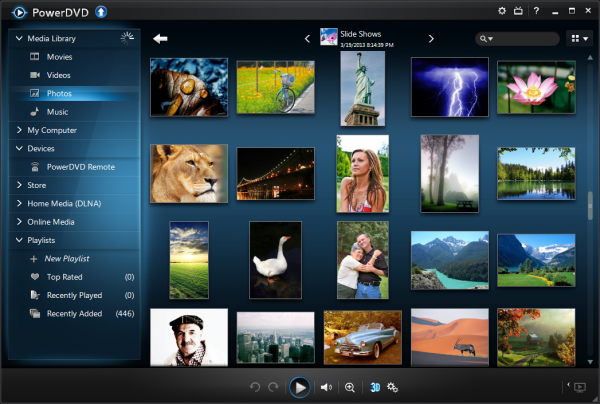
    CyberLink has unveiled PowerDVD 13, the latest edition of its popular media player. And it’s an interesting upgrade with new features wherever you look.

    New support for APE and AVCHD 2.0 1080p/3D extends your playback support, for instance, while everyone will benefit from a new focus on performance. The media player has been optimized to deliver an “instant start”, while new BD-Live Bypass technology means Blu-ray playback is 58 percent faster than PowerDVD 12.

    A new Movie Library organises your MKV and MP4 files, DVD and Blu-ray discs in a single folder, with cover art, and links to more information on the movie. New conveniences include the ability to resume watching a movie just where you left off, and you can add comments and connect with friends via social media.

    The playback interface has been revamped. There are more straightforward controls, which can instantly be hidden; it’s easier to find movie scenes; you can jump backwards and forwards through a video via the keyboard, and a new speed navigator helps you set fast or slow motion playback. (And if you’re still not happy, new configuration options allow you to customise the interface, change hotkeys, mouse wheel actions and more.)

    PowerDVD 2013′s TrueTheater technology is now even available for Full HD video, automatically sharpening the picture, optimising colours and lighting for the best possible image quality.

    And there’s also a new mini Music Player; an all-new subtitle engine with dual subtitle support; and various Windows 8 additions, including touch optimisation, and a Windows 8 edition of PowerDVD’s Mobile app.

    As usual, PowerDVD 2013 comes in three edition. Deluxe ($54.95) is the base, with core media and DVD playback issues; Pro ($79.95) adds Blu-ray support, while Ultra ($99.95) includes 3D support, smart device syncing, full DLNA support, 7.1 audio and more.

    Not exactly cheap, then, but PowerDVD 2013 does at least have some worthwhile new features to help justify the cost. The performance and interface enhancements are particularly welcome, and if you need a high-end media player then PowerDVD 13 is still worth a look.

  • Avast! Internet Security 8 review

    Avast! 8 is the latest generation of avast!’s security range, and as usual it’s available in several different packages, from the basic avast! Free 8 to the do-everything Premier build.

    If you just want solid, standard all-round protection, though, avast! Internet Security 8 could be the best option. It takes all the core security suite basics — antivirus, browsing protection, firewall, spam filter — and extends them further with some useful new tools, making for what seems to be an appealing mix.

    How does it feel in real life, though? We took the suite for a test run, to find out.

    Avast! Internet Security 8 arrived in the form of a 135MB download, which unfortunately will install the Google toolbar by default. You can easily avoid this by choosing the “Custom Installation” option, but this is still the kind of issue we’d expect from dubious freeware, not commercial products from big-name companies.

    Installation is at least quick, though, with the program telling us it was done after only around 40 seconds, and not even requiring a reboot. It was time to explore.

    Interface

    Avast! Internet Security 8 opens with a new touch-enabled Windows 8-style home page; six chunky tiles provide access to its various function areas (“Scan”, “Firewall” and so on), while a summary box displays your current protection and highlights any problems.

    This screen is really just a front end, though, so if you choose one of the options (or simply click the Security tab) then you’ll find an interface which looks very similar to previous avast! editions.

    A left-hand summary tab gives a more detailed view on how your system is doing. This now includes figures for all eight shields, as well as tooltips with more information (hover your mouse cursor over “File System Shield” displays the last scanned and infected files, for instance).

    And the other tabs also provide quick access to common actions (launching a full system scan, say), useful settings and system information.

    One small annoyance is that you can’t maximise the program window any more (if you want to avoid scrolling then you can manually resize it, but that’s not exactly convenient). But that aside, the avast! Internet Security 8 interface works well, providing easy access to its functions and a good summary of your current protection status.

    Scanning

    Avast! has never had the fastest scanning engine around, but this edition does see one or two interesting performance optimizations. For example, it will by default now scan files in the order they’re stored on disk, rather than spidering through folders, and this should help keep seek operations to a minimum.

    The end result was still a fairly average 19:22 for the first full scan of our test system. This dropped by a third once avast! began to make use of its persistent cache, though, while Quick Scans were completed in under 5 minutes, and in general we found the program to be noticeably faster than the previous edition.

    Scanning accuracy is more important, of course, and the program detected 95% of the test malware in our own small test. The independent testing labs tend to give avast! more mid-range ratings (AV-Test’s “Average Protection 2012″ chart placed avast! Free 11th out of 20), but avast! 8 improvements – an enhanced behaviour shield, more frequent updates and more – may help lift it in the rankings.

    One notable plus with avast! 8 is that it can now scan emails even if you have SSL/ TLS security enabled in your email client. Although some people have reported problems with this, it worked well for us.

    But whatever you’re doing, avast! has its usual minimal impact on system performance. Even when scanning, the suite typically only has three processes running, consuming perhaps 50MB RAM at most and little CPU time: it’s not going to slow you down.

    Phishing, firewall and antispam

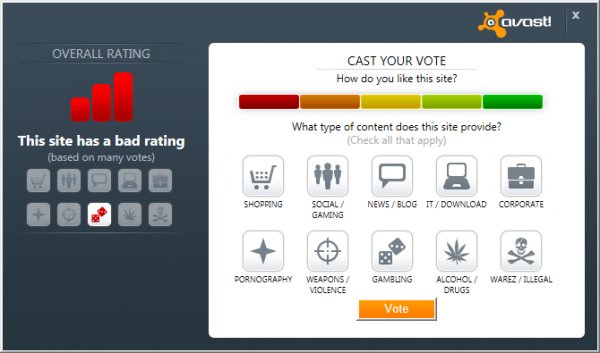
    Run a web search and avast! Internet Security 8 checks the results with its WebRep tool, highlighting sites which other avast! users have rated poorly. And a toolbar icon displays the same information when you’re at the site — green for safe, yellow for uncertain, red for risky — allowing you to see at a glance when you might need to be careful.

    Of course user ratings can only give you a very general picture of a site, so avast! Internet Security 8 also has a separate antiphishing module which tries to detect and warn you about scam sites. This delivered average results in testing, picking up only around half of sample sites, but the program did do better with web-based malware. Detection rates were excellent and all forced downloads were blocked.

    Avast! Internet Security 8 includes additional protective layers, too. Suspect programs are launched in a sandbox, an isolated environment which limits any damage they might be able to do. And the suite also comes with the SafeZone, a virtual desktop with its own custom browser, separate from the rest of your system. Do your internet shopping or banking here and you’ll know your details are safe from monitoring by keyloggers and similar stealthy malware.

    Elsewhere, the firewall does a competent job of hiding you online and protecting your system from network attacks, all without any hassles from alerts. But it can also be disabled easily — just set the “avast! Firewall” service Startup type to “Disabled”, and reboot — and while the suite recognizes the problem, it’s not smart enough to spot the cause, or resolve it. We’re not sure how important this is (if you’re infected by malware which can stop services then you’re already in big trouble), but it’s still an issue we’d like to see fixed.

    Fortunately the spam filter does rather better, its 94 percent detection rate being above what we’d expect from a security suite. The program did also falsely flag 5% of our legitimate emails, but that can be addressed in several ways (tweaking filter sensitivity, adding addresses to your whitelist and more), and on balance it works well.

    New tools

    There’s no backup component here, no parental controls, but avast! Internet Security 8 has been extended with a couple of lesser tools.

    Browser Cleanup is a simple program which tries to identify and help you remove IE or Firefox addons which “either have a poor reputation amongst [avast!] users or which engage in aggressive tactics to manipulate your settings”.

    While this sounds good, we’re not sure that it’s highlighting the worst offenders (on our PC it picked up on Firefox’s popular “YouTube Ratings Preview” extension, as well as the Winamp Toolbar), and experienced users probably won’t be impressed. But security novices may find the program useful, especially as it resets browser settings after removal, and on balance it’s a small plus.

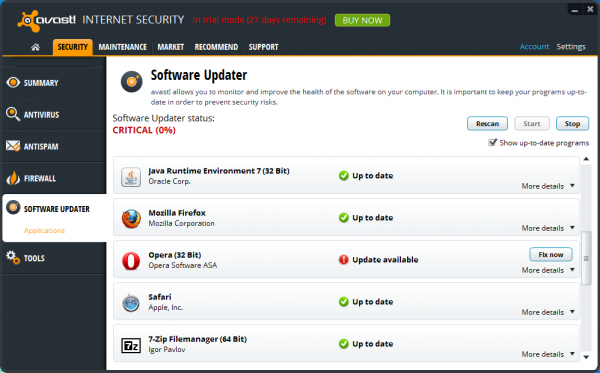
    Software Updater is a more promising addition, a handy tool which scans the software installed on your PC and then checks for any missing updates. While it doesn’t cover everything, there’s a sensible focus on the components which really matter — browsers, Flash, Java, Adobe AIR, Adobe Reader, iTunes, uTorrent and so on — and the program correctly detected and highlighted outdated software on our test PC, installing most new updates with a click.

    We say “most” because there were occasional issues, as for instance all Chrome updates just failed with an error. But even here, Software Updater still helps, by first alerting you to the update, and then providing a “click here” link which takes you to a web page with more information. It’s definitely a positive addition to the suite, and we’ll be interested to see how it improves in future.

    Verdict: avast! Internet Security 8 isn’t the best security suite around, but it’s a solid mid-range product which improves on the previous edition in a number of ways, and is a worthwhile upgrade for avast! fans.

    We Like: Lightweight; improved scanning performance; effective firewall; SSL email scanning; high spam detection rate; excellent sandbox and SafeZone; highlights missing software updates.

    We Don’t Like: Scanning speeds could still be faster; firewall can be disabled; some legitimate emails flagged as spam; Software Updater can’t always install updates.

    Available for Windows XP, Vista, 7 and 8, all 32 and 64-bit editions. MSRP: $49.99.

    Photo Credit: Andrea Danti/Shutterstock

  • Airytec Switch Off gives you total control over your PC’s shutdown options

    Manually shutting down your PC when you’ve finished a task is easy enough, but Windows isn’t quite so straightforward when it comes to automating the process. Playing around with the power options and the task scheduler may deliver what you need, but for real flexibility you’ll be much better off turning to the free Airytec Switch Off.
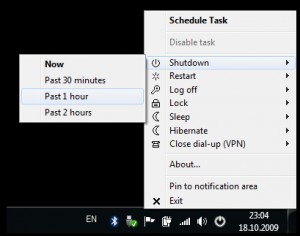
    The program is a surprisingly tiny download (191KB), which once installed adds an icon to your system tray. And right-clicking this displays a menu showing the various actions it can carry out: shutdown, restart, log off, sleep, lock, and more.

    If you want to activate any of these immediately, then you can do so — just choose that action and click “Now”. But there are also timed delays, from 5 minutes to 5 hours. And these can each be applied in three different ways.

    For instance, you could tell Airytec Switch Off to shut down your PC in precisely 5 minutes time; or to wait until the user has been inactive for 5 minutes (no mouse or keyboard activity); or to look for 5 minutes of computer inactivity (that is, CPU usage has been below a set threshold for all that time).

    This works well, and is straightforward to use — but it’s just the start of Switch Off’s capabilities.

    You don’t just have to choose from the program’s list of standard actions, for instance. Airytec Switch Off also supports scripts, so you can have it launch any program you like. For example, the default list of program actions doesn’t include “Hibernate”, but you can easily rectify this yourself: just use a script which calls the Windows Shutdown command to hibernate the system for you (“shutdown.exe /h”).

    Airtytec Switch Off also includes a complete task scheduler. If you’d like actions to run daily, weekly, at system start or log on, perhaps, you can set them up here.

    And there’s even a web interface, which allows you to shut down your PC from any internet-enabled device. (Although if you’re concerned about the security implications, this is at least turned off by default.)

    Perhaps most impressive of all, though, is despite all this power, Airytec Switch Off really is very lightweight, with its core requiring less than 1MB RAM on our test PC.

    One possible issue here is that development seems to have stalled. The program hasn’t been updated in almost two years, so it’s possible this will be the last version.

    Right now, though, Airytec Switch Off works very well. And if you’re looking for a PC shutdown tool with some real power and versatility then it’s still worth a closer look.

    Photo Credit: Sashkin/Shutterstock

  • Sysinternals updates Autoruns and Process Monitor

    Sysinternals has announced updates for Autoruns and Process Monitor, as well as the release of a new command line tool, Registry Usage.
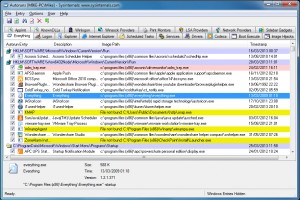
    The Autoruns tweaks are the most significant. In particular, all reports now include a timestamp for executable files, folders or Registry keys. And so if you browse to HKLM\SOFTWARE\Microsoft\Windows\CurrentVersion\Run in the Everything view, say, you’ll now see a timestamp which tells you when that Registry key was last modified.

    Of course, while this is a welcome addition, it does highlight one current failing of the program: you can’t simply click a column header to sort entries by date (or any other field). Perhaps that will be next.

    Elsewhere, Process Monitor gains support for Windows 8 file information query types, as well as having a minor bug fix in its tooltip handling.

    And the new Registry Usage (RU.exe) is a simple command line tool which give you details on the size, value and subkey counts of a specified Registry key.

    To try the program out, just open a command line at the folder where it’s located, and launch it with a suitable path (short and long forms are supported: “ru hkey_current_user” or “ru hkcu”, for example). After a pause you’ll see a report listing the number of values and keys within that path, and their total size in bytes.


    Other options allow you to itemize subkeys, as well as control the number of levels the program will browse, as well as exporting the details as CSV for easy reference and analysis later.

    And, as usual, launching Registry Usage without any command line switches will display information on the program’s various options.

    Photo Credit: andrea michele piacquadio/Shutterstock

  • Genie Timeline 2013 — three editions, one solid choice for backups

    Genie9 has released Genie Timeline 2013, the latest edition of its easy-to-use backup tool. As previously, the program is available in three editions — Genie Timeline Free 2013Genie Timeline Home 2013 ($39.95) and Genie Timeline Professional 2013 ($59.95) — and all of these gain plenty of features in the new release.

    This starts with the new protection level, for instance. This will immediately highlight any problems — lots of file changes which haven’t been backed up, say, or you’ve run out of free space on the destination drive — giving you a quick and easy view of your backup status.

    All three editions also offer you more restore features. You can search old backups for a particular file name, for instance, or filter the restore view to show new, modified or deleted files.

    Genie Timeline Home 2013 also gains an enhanced disaster recovery engine, as well as the ability to strip deleted files out of your backup.

    As you’d expect, Genie Timeline Professional 2013 has even more. The program now has include and exclude filters, for instance (with regular expression support). You can actually decide when to turn turbo mode on, if you’re in a hurry. The backup folder name can now include a user and computer name, for easier identification, while new low-level options mean you can choose a delayed start for the Genie Timeline service.

    And all three versions have a revamped interface, which is now looking more Windows 8-like than ever.

    The end result is a solid, if not revolutionary change for Genie Timeline Free 2013 and Genie Timeline Home 2013. The restore view filtering is welcome, though, while the include and exclude filters are a great addition to Genie Timeline Professional 2013, and on balance Timeline remains a capable and effective backup tool.

    Photo Credit: Raimundas/Shutterstock

  • openElement WYSIWYG HTML editor mini-review

    We’re a little skeptical of “free” WYSIWYG HTML editors. Most are either outdated, too basic or packed with adware (and some manage to be all three). OpenElement claims to be different, though: ” a powerful next-gen HTML editor” with “no ads, no restrictions, no experience necessary”, meaning that a “professional and dynamic website is within reach to anyone with zero coding”. Sounds great, so we decided to take a closer look.

    Installation is easy, and the program really doesn’t have any adware or other hassles. There is no commercial version, you don’t have to register, there are no nag screens or anything else. The “worst” we see is a tiny “Contribute” icon on the many window, so small and unobtrusive that you may not notice it for a week, and a suggestion on the “Publish” dialog that you use their partner for your hosting (but that’s easy to ignore, if you like).

    The program opens with an appealing web-like interface, clean and straightforward. And you’re prompted to create either a new project, or choose from a range of templates. These are quite complex, lots of color and graphics, more suitable for personal than business use. But most do look quite good, as least for this type of site; you can preview them online before you start; and there are a few more minimalist templates on offer, if you look carefully.

    Opening a sample template reveals multiple pages, and you can switch between these using a Site Explorer panel, or just by clicking tabs at the top of the site window. And making basic template changes is fairly easy. In just a few minutes you can change text, add your own images and more.

    Try to move on, though, and life gets more complicated. Our tab has sites labelled “Menu”, for instance — how to customize those? Clicking them displays an option to “open the layer containing this element”: not so clear to beginners. And clicking this doesn’t help, either. No “menu designer” dialog pops up, and if you’re a web design beginner than it won’t be at all obvious how you can make this work.

    If you do have more web design experience, though, it will be a little different. OpenElement supports lots of different page elements — text, images, tables, links, tree views, menus, forms and so on. You can add Flash animations, HTML5 or YouTube videos, Google Maps, a PayPal button, and even unexpected extras like a “disable right click” option. Just drag and drop these onto a page, organize them as you like, and click “Preview” occasionally to make sure all is well.

    Exploring the menus further reveals lots of other useful options (again, if you’re experienced). So the Project tab has options to edit your .htaccess file, for instance, or add a FavIcon. And the Resources tab not only provides folders to hold the images, Flash, video, audio and other files for your site, but even has a tab where you can access fotolia.com to, say, find more photos for your site.

    And once you’ve finished all this, an extremely comprehensive “Publish” dialog helps you get everything online (the program can generate a sitemap file, a robots.txt, help with translations support, and upload everything to your FTP server).

    Even if you’re a knowledgeable user, though, there will be issues. The program isn’t always intuitive, for instance. Right-click a page object and you might expect a “Properties” option, or at least quick access to all the things you can do with that element — but this doesn’t happen. You may have to left-click an object, then click the separate Properties tab to get more of a clue (and sometimes even that will tell you “no element selected”).


    There are plenty of options to create and customise your site

    There are translation issues, too. Remnants of the original French pop up here and there: “Nouveau Project” isn’t difficult to guess, but “Parcourir” is less obvious for non-French speakers.

    On balance, then, the program is going to be too complex for most web design beginners. And everyone will have to struggle occasionally to find their way around the interface, and figure out what’s going on.

    But that doesn’t make openElement a bad program. It has far more scope and range than most free HTML editors, while also avoiding the usual toolbars, ads and more. The program has lots of templates, supports all kinds of page elements, and if you know what you’re doing, could be a very good website creator. We’ll be interested to see how it develops in future.

    Photo Credit:  YuanDen/Shutterstock

  • When your laptop is lost or stolen, try IPFetcher

    There are plenty of web services around which can try to help you find a stolen computer. Usually this involves equipping your system with a small agent of some kind, which then uses the system IP address, wifi connections and more to determine its current location, before communicating this to a central server.

    If you’d like something more lightweight, though, there are a few simple free tools around which you might like to try. IPFetcher, for instance, won’t grab images from your webcam, and can’t lock down your system remotely. But it can retrieve a system’s IP address, then email or upload it to an FTP server, and that’s more than enough to be useful.

    The program arrives as a compact (1.2MB) download. Unzip this, install the two components included (IPFetcher.msi and IMFetcherBackend.msi) and reboot your PC.

    Launch IPFetcher from the Softraven section of the Start menu, and click either “Set FTP” or “Set Mail”, depending on which method you’d like to use. In both cases you’ll need to complete a form with your server names, account details and so on.

    Setting up the program is awkward – but you only have to do it once

    The “Set Mail” page includes a “Test Mail” button, which in theory should send a test message to confirm your settings are correct. But in practice this didn’t work for us. If we tried it, the program interface would first stop responding for a while, before displaying a horribly technical .NET error message (even though we’d entered the right information).

    There are other setup problems, too. Once you’ve completed the form you’ll probably click “Save”, but this just displays a less than clear error message. You’ll have to click “Set interval and log” and set both the “Reset log count” and “Repeat hours” (how often the location will be sent) values; “200″ and “24 hours” will be fine for now. We would manually start the service, too, just in case (click Service Settings > “Click to manually start Service”).

    Finally, enter a password in the box, click Save and reboot your PC.

    If this sounds all a little irritating, then it certainly was. But if you’re interested in the idea, don’t let it put you off. Once we were past the clumsy setup process we found IPFetcher worked very well, correctly retrieving our external IP address and emailing or uploading it as we’d specified. And there’s no further maintenance required, unless you change your email account or FTP server, anyway — it just works.

    Photo Credit: Matt Antonino/Shutterstock

  • Give Windows a big makeover with RainMeter 2.5

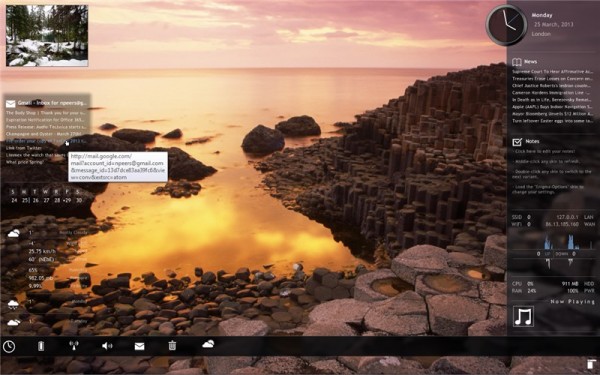
    If you’re looking to give your Windows desktop a radical makeover, then Rainmeter 2.5 is one tool worth looking at. This open-source desktop customization tool goes beyond Windows’ own rather limited tools by provide alternative “skins” that can be downloaded or created from scratch.

    Version 2.5 offers a number of new features – many aimed at skin developers – including a new FileView plugin, support for the scroll wheel and macro mouse variables. The update also promises dozens of other improvements and bug fixes.

    The headline new feature is the FileView plugin, which can be used to index and gather information about all files and folders within a specified path. The plugin supports commands for scrolling through the file index, moving around the folder tree and selecting files for display or opening in a specific program.

    Skin and meter developers gain a new ClipString=2 and ClipStringW/ClipStringH options for more dynamic clipping and wrapping of strings when sizing the containing meter to accommodate all its contents. Also added are new Mouse Actions to support the scroll wheel, and Mouse Variables to provide the current X and Y position of the mouse in pixels or percentage. A new OnUpdateAction command allows actions to occur when supported elements (skins, meters and measures) are updated normally or by a “bang”, while an OnChangeAction command has been added to Measures to allow actions to take place when the measure changes.

    Developers can also now execute actions when a skin gains or loses focus when clicked in Windows via OnFocusAction and OnUnFocusAction commands. All measures and meters can also be updated with bangs by the addition of support for * as a wildcard parameter to !UpdateMeasure and !UpdateMeter commands.

    Fixes include a plugged memory leak for the Skin Packager, while the Calc now handles negative numbers that haven’t been enclosed in brackets correctly. A dialog layout problem with right-to-left languages has also been resolved.

    Rainmeter 2.5 is a free, open-source download for both 32-bit and 64-bit versions of Windows XP or later, including Windows 8.

  • ShadowCopy can copy any file — even if it’s locked

    Copying files in Windows is normally as easy as a quick drag and drop — but if they’re locked, it’s a different story. An error message will warn you that the file is in use, and you’re left to resolve the situation yourself, or just try again later.
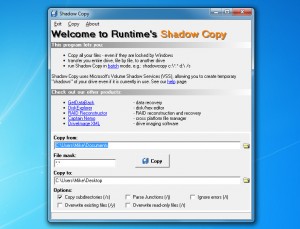
    One alternative is to run a backup program, as most can use Microsoft’s Volume Shadow Service to copy locked files. But this could seem like overkill, especially for only occasional ad-hoc copies, which is why you might prefer the simpler and more lightweight ShadowCopy.

    The program installs easily, and is very straightforward to use. At its most basic, you can just specify the source and destination folders, the files you’d like to copy (*.*, *.docx or whatever), click Copy and wait as the files are transferred.

    If you need a little more control then ShadowCopy does provide a few extra options. You can decide whether it should copy subdirectories, for instance, or overwrite existing files, just by checking a box or two.

    And if you want to do this regularly — or automatically — then the program’s support for command line switches means you can run it from a script. For example, something like “shadowcopy c:\*.* d:\ /s” will copy everything on your C:\ drive — even if it’s locked — to D:\, including all subfolders.

    This is all presented in a very basic way, and needs to be used with some care. Once you’ve initiated a copy, for instance, there’s no way to cancel it. And in our tests the program allowed you to click Copy, even if a copy is already running, which caused such confusion that it shut down almost immediately.
    If you only use ShadowCopy occasionally, though (or from a script), then this probably won’t matter too much, and on balance it’s still a quick and easy way to copy locked files.

    Photo Credit: bloomua/Shutterstock

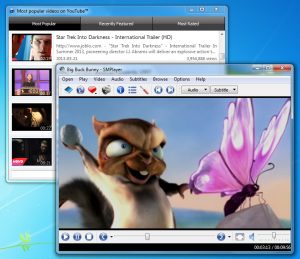
  • SMPlayer adds automatic update checker and other tweaks

    Ricardo Villalba has updated SMPlayer, his open source media player and front end for MPlayer, to 0.8.4.

    And if you’re a fan of the program then the good news is that you’ll no longer have to manually check for updates: this build now does so automatically, and alerts you whenever a new version is available.

    Subtitle handling is enhanced with new support for encoding ISO-8859-16.

    There’s also a new option to define the frames per second for external subtitles (right-click, select Subtitles > Frames Per Second, and choose from Default, 23.976, 24, 25, 29.970, 30).

    Apparently the video equalizer dialog has been rewritten. Whether this is just an interface issue, or might help people who’ve had problems getting the equalizer working, isn’t clear, but if you’ve had issues with that area of SMPlayer before then you should try this build.

    Elsewhere, there are new Thai and Hebrew translations, along with some undefined “bug fixes”. And if you’re interested in the technicalities, the SVN log has now been moved to assembla.

    This isn’t the most significant of updates, then, but the automatic update checker is worth having. And if you’ve not upgraded in a while, it’s also worth remembering that the previous edition had an important fix for YouTube playback. Either way, SMPlayer remains a likeable media player with lots of features: go check it out.

  • Let MusicZen organize your MP3s

    In theory, every time you import MP3 files to a PC you should rename them to follow consistent rules, then save them in an appropriate folder where they’ll be easy to find, later. In practice, of course, life’s too short — so it’s just as well that MusicZen can handle all this for you.

    The program is available as a tiny (627KB) executable, and it really couldn’t be much easier to use. At a minimum all you have to do is download and run it, choose the folder where your MP3s are right now, and a destination folder where the finished results will be stored. Then click “Organize”, and watch as the program goes to work.

    As with similar tools, MusicZen uses MP3 tags to figure out what it should do. And this starts by creating the new folders where your music will be stored. By default it organises these by artist, then album, but there are several other options available (Artists\Years, Artists\Years\Albums, Artists, Albums, Years\Albums, Years).

    Each file will be renamed along the way, which may help if you’ve no consistent naming structure right now (mixed upper case, dashes or underscores as separators, and so on). By default they’ll be named using the track number and title, but this changes according to your folder structure. If you’re organising files according to their year, for instance, they’ll given the album name first, then the track number, and finally the song title.

    You’re also able to decide whether files will be copied or moved, but otherwise that’s about it: MusicZen will handle everything else itself. This includes sorting out duplicates (if a file it’s moving already exists, then the original will be left in the source folder). And if some MP3s have no tags then they’ll be saved in an “Unknown” folder for manual reorganization later.

    If you’re thinking this sounds very much the same as other MP3 renaming or organising tools, then you’re right. The core functionality is identical, and if anything you have less options than with some other programs. You can’t define exactly how your MP3′s should be renamed, for instance, only choose from the options provided by the program.

    MusicZen does have one major plus, though: it’s extremely easy to use. There’s no installation required, no complex settings to consider, and the interface has an app-like simplicity. Even the Preferences tab contains only three controls; a “Change” button which you click repeatedly until you’ve selected the folder structure you need, and a couple of radio buttons to decide whether files should be copied or moved. It’s all very well designed, and a great choice for anyone who wants a hassle-free way to reorganise their MP3s.

    Photo Credit:  CREATISTA/Shutterstock

  • Debenu PDF Tools Pro drops its $59 price tag, goes free for the next few days

    Debenu PDF Tools Pro is a powerful set of PDF tools which can help you to merge and split PDFs, convert them to text or images, edit properties, add or remove passwords and a whole lot more.

    Normally $59, the package available for free — but Debenu says this is only for “a few more days”, and the offer could expire at any time, so if you’re interested then we’d grab a copy now.

    Need more information? Here’s how it works.

    The program doesn’t have a central interface, instead just adding itself to your Explorer context menus. Right-click a PDF, select “Debenu PDF Tools Pro” and you’ll find a menu listing its various options.

    A “Convert” menu allows you to convert PDF files to text or images. You can also select multiple images and convert them into a single, or multiple PDFs.

    The “Extract” menu can extract text and images from a PDF file. You might use this to grab the embedded images within a PDF, say.

    The “Security” menu allows you to add or remove a PDF “Open” password, or apply a digital signature to the file.

    There’s a simple PDF viewer, a document properties tool, and an option to extract PDF form data.

    And the Edit menu has so many functions that it could be an application all on its own. It can add or remove attachments; extract, remove or edit bookmarks; edit existing document properties, or add custom properties of your own; view, add or remove document JavaScripts; and insert, extract, delete, crop or rotate one or more of the document pages.

    There isn’t always a lot of depth to these functions. If you’re converting a document to images, say, you don’t get to choose the image file format, the base file name, or anything else: just specify a file folder, lots of JPEGs are dumped there, and you’re left to organise them yourself.

    Debenu PDF Tools Pro does still provide a great deal of power, though, while also being very well presented and generally very easy to use. And it’s certainly worth the download, so go grab a copy immediately, while the offer is still available.

    Photo Credit: Mmaxer/Shutterstock

  • Makeover Windows 7 with Modern UI

    Windows X has released updates for its skinning tools, Windows 8 UX Pack 7.0 (for Windows 7) and Windows 8 Transformation Pack 7.0 (for Windows XP, Vista and 7). The programs bring much of the look and feel of Windows 8 to earlier desktops.

    One notable change this time around is the inclusion of WinMetro as an alternative Start Screen for both packs. Windows X says the program is stable and not resource hungry, which perhaps is why they’ve made it the “Immersive UI” alternative, but if you prefer the older Newgen, just the charms bar, or nothing at all, then all those options are still available.

    Both packs also gain an updated Glass UI theme, and an updated Windows 8 visual style for Windows 7.

    Enhanced audio features include improved sounds scheme files handling in Windows 8 Transformation Pack 7.0., and new sounds scheme media files in Windows 8 UX Pack 7.0

    And Windows 8 Transformation Pack 7.0 benefits from updated font installation code.

    This isn’t the most essential of updates, perhaps. If you’re not interested in WinMetro then the updated theme and visual style are the real highlights.

    Both the Windows 8 UX Pack 7.0 and Windows 8 Transformation Pack 7.0 remain very comprehensive, though, with logon screens, wallpapers, themes, a Start Screen which automatically configures itself to suit your needs, along with a Windows 8 Start orb,user tile, Aero auto-colorization, and more. In our experience both packs can be installed and removed easily, and they’re a good choice for anyone who would like the look of Windows 8, without the hassle of upgrading.

  • JumpListsView tracks PC activities

    NirSoft has announced the release of JumpListsView, a new tool that displays details of the jumplist records stored on Windows 7/ 8 PCs.

    And the end result is a detailed report on many of the files and folders opened on your PC, perhaps going back months.

    Simple launch this tiny (80KB) executable and it extracts all jumplist records from the \Users\[User Profile]\AppData\Roaming\Microsoft\Windows\Recent\AutomaticDestinations folder, displaying each file or folder name; path; record, created, modified and accessed times; file attributes, size, entry ID and application ID in the usual NirSoft grid.

    This can be sorted in various ways. If you’re looking for a particular file, say, clicking the “Filename” column header will sort the list into alphabetical order. Or you might sort by “Created Time”, allowing you to see what’s been happening on your PC yesterday, last week, last month, or as far back as the jumplist records allow.

    The program also includes a Find option to help you locate specific file or folder names.

    The full list (or just your selected items) can be saved to a TXT, CSV, HTML or XML report for analysis later.

    And some advanced options allow you to standardise the times to GMT, or import jumplists from another folder.

    You don’t need to worry about the details to find JumpListsView useful, though. Whether you’re trying to remember the name of that podcast you opened yesterday, or just want to get an idea of what your kids were doing on the system last night, the program provides a quick and easy way to find out.

    Photo Credit: olly/Shutterstock