Author: Mike Williams

  • Calculatormatik is a feature-packed calculator and conversion tool

    If you ever need to carry out a quick calculation or unit conversion then there are plenty of online resources which can help. And Google is a great place to start; just enter your calculation in the Search box and see what happens.

    There’s still a place for calculator software, though, especially if it supports a wide range of functions. So we were particularly interested to find Calculatormatik, an extremely versatile tool which crams 100 conversion and calculator-type options into a mere 198KB download.

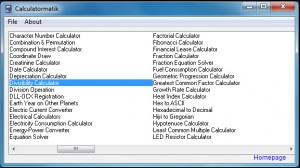
    As you might expect for a program of this size, the interface is, well, a little basic — just a resizable box with a list of the various calculators. These are arranged in alphabetical order, too, rather than grouped by types, and the names don’t always make it entirely clear what they do. But if you spend a while poking around, you’ll find some useful tools.

    Take the “Area Calculator”, for instance. Sounds simple, but it doesn’t just let you calculate the area of, say, a circle, or square. You can also select an ellipse, a kite, a triangle, trapezoid and more. And there are options to calculate the surface area of cones, cylinders, spheres, a torus and more.

    The “Weight Converter” is similarly varied, with support for converting grams and milligrams, pounds and ounces, grains, stones, Newtons, carats and more.

    There are assorted mathematical tools: a geometric progression calculator, along with quadratic and simultaneous equation solvers. Software-related options include a “Byte Converter” (convert between bits, bytes, kilobytes, megabytes and so on), a “Base64 to String” converter and “MD5 Hash” calculator. And specialist tools cover topics ranging from LED Resistance to Fishing Boat Speed. They’re all basic, and limited in various ways, but still have enough power to come in handy.

    If you’re not the mathematical type, don’t worry, there are plenty of more general tools available. Enter your birth date in the Birthday Calculator to see your age in months, weeks, days, hours and minutes, for instance. Dieters may appreciate the Body Mass Index and Basal Metabolic Rate calculators. There are practical calculators to help you figure out mortgage and lease repayments, compound interest and fuel consumption. And you even get tools which really aren’t calculators at all, though they’re still useful: a simple stopwatch, say, or a random password generator.

    Calculatormatik has definite room for improvement. The interface needs work; it doesn’t matter how far you resize the program window horizontally, for instance, the program will still only display two columns. The individual calculator interfaces generally look as though they’ve been thrown together in seconds. And some kind of program help would be welcome, too, even if only online.

    Even now, though, this is still a fun program with some useful functionality. And there’s almost certainly plenty here for you, whether you’re mathematically-minded or not.

    Photo Credit: kurhan/Shutterstock

  • AutoScreenShot helps you monitor PC use by taking regular screenshots

    If you’d like to keep an eye on your kids’ PC activities then you could pay big money for a full-strength parental controls package, with comprehensive monitoring tools, detailed reports and a whole lot more.

    If your needs are more basic, though, you could just download AutoScreenShot, a tiny free tool which will save regular screenshots which you can review later.

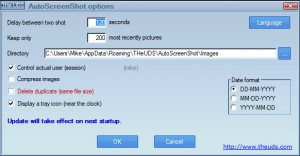
    The program is easy to configure. Options start with choosing the capture interval, for instance (once every 120 seconds, by default), and the folder where your images will be stored.

    You can tell the program to keep only the most recent images, too — the last 200, say — which helps to keep drive space requirements in check.

    When you’re done, click the OK button, and that’s it — the captures will begin. There’s no immediately obvious sign of the program’s presence, and it tied up only minimal resources (under 6MB of RAM on our test PC, even with the configuration dialog open). Add it to your startup folder and you’ll have a very simple monitoring system.

    We say “simple” because AutoScreenShot isn’t exactly difficult to bypass. If anyone checks your startup programs, or Task Manager, they’ll find AutoScreenShot.exe, and browsing your screenshot folder will reveal exactly what it’s doing.

    There are some technical irritations, too. If the program is running without a system tray icon, for instance, then you can’t access the Options dialog any more. To tweak any settings you have to manually edit its Options.ini file, or delete this and restart the process. This isn’t a critical issue — there aren’t that many settings and you may never need to change any of them — but it’s still annoying.

    AutoScreenShot is also free and easy to use, though, and if you just want to monitor novice or non-technical users, or would like the screen grabs for some other reason, then the program may still be useful. Take a look.

  • XnSketch turns your photos into art

    Most photo editors have a few filters which can turn regular photos into instant works of art: an oil painting, say, or a pencil sketch. But if you’d like more — or you just want the arty effects, without the photo editing overhead — then XnSketch is a simple free tool which just might be able to help.

    The program runs almost everywhere (Windows, OS X, Linux, iOS, Android), and is very easy to use. We tried the Windows build, and it came with no adware or other unwanted extras — just unzip the download and you’re ready to go immediately.

    The XnSketch interface is clean and simple. Open an image (there’s support for more than 50 file formats) and it’s displayed in a preview window. You can apply one of 22 effects — pastels and sketches, cartoons, halftones, print and stamp options — by clicking its thumbnail at the bottom of the screen. And as you select each one, the preview is updated to show you the results.

    If you’re not quite happy with an effect then you can tune it by adjusting various settings. There are always sliders for brightness, contrast, gamma, exposure and saturation, but some effects provide additional options: edges, colours, opacity, blur and so on.

    And when your masterpiece is complete, you can save the results as a JPG or PNG file, or share them via Facebook, TwitPic, Flickr, Picasa, email or a host of storage providers. Click File > Share > Imgur, for example, and XnSketch will upload your current image, then open a web page to display the online version, and all you have to do is share that URL with whoever you like.

    There are a few issues here. Some of the effects are a little too minimal, for instance, and there’s not always any real way to tweak their strength. When applying an “Oil Painting” effect, say, we often found the results were too similar to the original image. Other programs will often allow you to amplify the effect, perhaps increasing the brush size, but XnSketch just doesn’t have that level of configurability.

    Other effects do deliver excellent results, though, and there’s no doubt that the program is exceptionally easy to use. So while graphics experts will probably stick with photo editor filters, if you’re just looking to quickly apply a few fun effects, and share the results with the world, then XnSketch looks like a great choice.

  • Ubuntu 13.04 ‘Raring Ringtail’ gives some, takes some

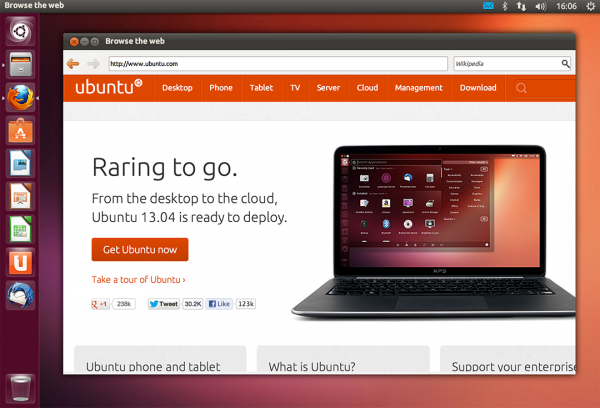
    It’s no secret that Ubuntu is heading for desktop/ mobile convergence, with a runs-everywhere build expected within a year. But while 13.04 (“Raring Ringtail”) shows some signs of movement in that direction, the new release isn’t exactly packed with new features: in fact, it’s taken one or two away.

    Of course there’s no harm in consolidating your code base occasionally, and Canonical appear to have done that to good effect. They claim that it’s the fastest Ubuntu experience to date, with an updated kernel delivering “dramatic graphical performance enhancements”, reduced RAM requirements and more. And while this might be aimed at helping the system run on mobile devices, it’s also very welcome for regular desktop users.

    And it’s a similar story with other smaller, more subtle tweaks. Like the new “fuzzy search”, for instance: if you make a typo when entering an application then that may not be an issue, as Raring Ringtail will try to figure out what you mean. This may be targeted at users with tiny on-screen keyboards, but everyone will benefit from it occasionally.

    More generally, improved social networking support means you can choose which applications integrate with Facebook, Twitter and more, directly from the Online Accounts pane. You can then search photos across all your enabled accounts via a new Unity Dash Photo lens (if you turn on the “Show online results” feature, anyway).

    And new task management options make it easier to switch between multiple windows; just hover over an icon in the dock and use your scroll wheel to select the folder you need.

    What you won’t get this time is Gwibber, which has been removed as the developer is working on its successor. Similarly, Wubi — the Window dual-boot tool — has been left out of the release due to “various bugs”, while there’s no longer any option to install the Gnome classic shell.

    And some much-anticipated features are also absent. In particular, Smart Scopes, which promised to extend Unity Dash with some very powerful web search capabilities, was reportedly too unstable to make the final cut.

    Raring Ringtail is something of a transitional release, then; there are worthwhile improvements here, but nothing revolutionary, and the missing tools and options will annoy some. Still, it’s a step in the right direction, if only a small one, and most Ubuntu users will benefit from the new release.

  • Photo Commander 11 adds auto backups, 3D support, new effects

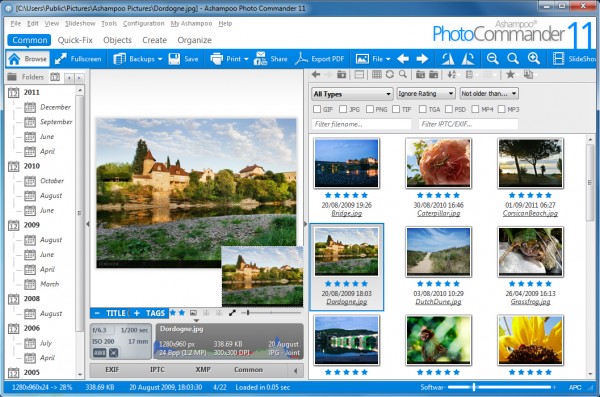
    Ashampoo has announced the release of Photo Commander 11, its all-in-one tool for organizing, editing and sharing digital images.

    New features this time start with the program’s automatic backups. Images are preserved as you work, and with a click you can restore a previous copy, or return to the original file.

    Elsewhere, a new Effect Centre gives easy access to effects, with real-time previews. There are many new effects on offer, including a Tilt-Shift, Motion Blur, Zoom Blur, Glass and Video. And an Effect Pen enables you to “draw” any effect directly into the image, for the maximum possible control.

    Improved compatibility means new support for Adobe XMP metadata, more RAW files and 3D (MPO and JPS formats). The ability to display 3D images as animations helps you to view them on 2D displays, while a new wizard converts 3D images to regular 2D.

    Of course there’s the usual range of small interface improvements, performance optimizations and other tweaks you’d expect from an upgrade.

    And this builds on what was already a very large feature set, including a very configurable browser; a host of image editing, repair and annotation tools; and the ability to share your pictures by creating slideshows, web albums, calendars, greetings cards and more, or just uploading them directly to Facebook, Picasa or YouTube.

    If there’s an issue with all of this, it comes in trying to get started: there are so many features to explore that it can take a while to find your way around. But persevere and you’ll find Ashampoo Photo Commander 11 is an excellent graphics tool with the power to handle all your photo workflow needs.

    It will set you back $49.99 (Windows).

  • Hitman Pro: Your second line of malware defense

    No matter how strong your PC’s defences, there’s still a chance that a virus will be able to bypass them, eventually. And so it pays to have a Plan B, a “second opinion” malware remover which you can turn to in an emergency: something like Hitman Pro, in fact.

    The tool is a relatively small download at under 10MB, and doesn’t require any installation. Just launch it, click Next > Next, and the program will quickly scan your system, looking for suspicious files. Anything it doesn’t recognize is sent to the program’s Scan Cloud, where it’s checked by multiple engines (Bitdefender, Emsisoft, G Data, IKARUS) before a verdict is given.

    This first element of the program is entirely free, and useful enough in itself; anything which lets you check your files with all those engines, free of charge, from the same scan, is well worth adding to your security toolkit.

    The catch? To remove something you have to run the program as a trial version. That’s not actually an issue with a one-off infection, as if you don’t want to pay the $24.95 annual subscription then you can just let the trial expire. But it does mean that you can’t use Hitman Pro for ongoing detection and removal.

    Don’t give up on the program just yet, though, because Hitman Pro does have another useful feature, KickStart. It’s specifically designed to remove ransomware, which locks your PC, demanding money before you can access your PC. And it’s just about the easiest way to eliminate this kind of threat that you’ll find anywhere.

    The idea is that you’ll use another PC to download Hitman Pro, and create a bootable USB flash drive. This option is a little more hidden than you might expect — it’s launched from the tiny icon next to the “Settings” button — but once you’ve found it, a simple wizard will help you create your recovery drive.

    Now boot your locked PC from the USB key, instead, and it’ll start Hitman Pro for you. The nice touch is that this isn’t some DOS variant, or a Linux version. KickStart boots your own operating system, bypassing the ransomware, before allowing you to remove it as normal. And again, while businesses have to pay, home users can remove the ransomware for free if they sign up for the trial, which sounds like a reasonable deal to us.

    Photo Credit: Sergii Korolko/Shutterstock

  • DiffView reveals what’s really going on with your PC

    Even when they appear idle, PCs are forever buzzing with background activity, as Windows and application processes save data to log files, tweak Registry keys and carry out assorted other updates. Normally this can be safely ignored, but sometimes — if you think you’ve just installed malware, say, and would like to check what it’s done — then you might wonder what’s changed on your system in the past few minutes.

    And that’s where DiffView comes in. If you want to find out more about recent activities on your PC, then you’ll first need to tell DiffView where you’d like it to scan. Clicking the Files tab reveals an Explorer-type view where you can select particular folders – \Windows, say, or \Program Files – while the Registry tab allows you to select a particular area of the Registry.

    Next, you’ll have to define how “recent” these changes might have been. Enter “5″ in the “Diff time” box, say, and the program will only look for items which have been created or modified in the last 5 minutes. (You can enter much higher figures here, but remember that there are legitimate background changes going on all the time, and the further back you go, the more these will clutter your finished report.)

    With the configuration done, all you have to do is click “Scan files” or “Scan reg”, depending what you’re doing, and wait for the results. This can take a while if you’re scanning the entire Registry — so you might want to tag an extra 5 minutes onto your “Diff time” figure to make up for that — but be patient, it will finish eventually.

    Once the process is complete, DiffView displays a tree view report of your system, instantly highlighting any recent additions changes in the areas you’ve specified.

    And a Report button (scroll down in the “Common” box if you don’t see it) can even create a text report for reference later.

    DiffView has its limitations. In particular, the program will only highlight new or modified files and Registry keys; it can’t warn you if something is deleted. And so if you want comprehensive real-time system monitoring, then you’ll still need to use something like Sysinternals Process Monitor.

    DiffView can be very useful when you just need a quick ad-hoc check, though. And it’s also free, no adware annoyances, and a ridiculously small 71KB download, which works for us. On balance, the program will make an excellent addition to anyone’s troubleshooting toolkit, and you should go grab a copy immediately.

    Photo Credit: Lighthunter/Shutterstock

  • Eliminate adware with the Junkware Removal Tool

    If you regularly try out freeware tools then you’ll know many come bundled with annoying adware. This can use all kinds of dubious tactics to install itself on your PC, and getting rid of these irritations later can be a problem (even if you remove the core code, remnants usually remain to clutter your system).

    Fortunately there are plenty of tools around to help clean up your PC — and Junkware Removal Tool is just about the simplest we’ve ever seen.

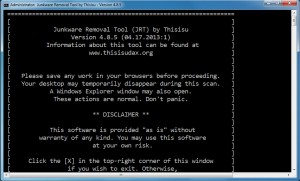
    The program arrives as a tiny (538KB) executable, no installation required, so it’s ready to go immediately. On launch it opens in a console window — there’s no GUI here, no options or settings to consider — and with the tap of a key it’ll start scanning your system.

    This isn’t a particularly quick process, but then Junkware Removal Tool does do quite a thorough job, checking running processes, loaded modules, browsers, the Registry and more.

    And it supports removing a reasonable number of products, too, at least for a product managed by a single developer. The Junkware Removal Tool names the following, as examples: Ask Toolbar; Babylon; Browser Manager; Claro / iSearch; Conduit; Coupon Printer for Windows; Crossrider; DealPly; Facemoods / Funmoods; iLivid; Iminent; IncrediBar; MyWebSearch; Searchqu; Web Assistant. (The program change log reveals support for several others, too.)

    One issue we noticed is that the scanning process is rather more intrusive than you might expect from this kind of tool. It will close any open Explorer or browser windows, for instance, which can be annoying: to avoid problems, it’s best if you close these yourself before launching a scan.

    You also get precisely no control at all over its final actions. Forget ideas of reviewing a final report, deciding to keep this, or remove that: Junkware Removal Tool simply deletes any remnants of its target products, and displays a text file showing you precisely what actions it’s taken.

    This does make the program exceptionally easy to use, though. Just tap a single key to launch its scan, and there’s nothing else to do.

    And in our tests Junkware Removal Tool also proved very effective, safely removing active adware from one system, and cleaning up the remnants still remaining on another.

    The program still wouldn’t be our first choice for an adware remover; it just doesn’t support enough products, and we like to have more control over the removal process. But it’s capable enough that you should probably keep a copy around, just in case your first line tools fail and you need a little extra assistance.

    Photo Credit: Stephen Finn/Shutterstock

  • G Data releases 2014 security software

    G Data has announced the availability of its new consumer product line, including G Data Antivirus 2014G Data InternetSecurity 2014, and the high end G Data TotalProtection 2014.

    And the company is particularly highlighting its new CloseGap technology, which apparently “provides fast, effective protection against computer malware, based on a balanced combination of reactive and proactive malware detection techniques”.

    What does that actually mean? We’re not entirely sure. But if you’re looking for something more specific, the entire range now includes an Autostart Manager, a tool to help accelerate your boot times. Essentially it’s an integrated startup delayer-type program, delaying certain autostart program to help your desktop load more quickly.

    G Data TotalProtection 2014 also adds a device control option, which allows you to define which external storage drives can be used to read or write data. You can create a rule which allows your own USB drive to back up data, for instance, but other drives won’t be allowed access.

    The interface has been completely re-engineered to make it easier to use. We’ve heard that particular claim many times before, but at a first glance the new build does seem to offer real improvements.

    And, more generally, G Data says both its BankGuard technology (which protects your online banking and shopping technologies) and behavioural monitoring has been enhanced.

    As an upgrade, this isn’t exactly exciting. The device control option is the most interesting addition, but that’s only available if you opt for the top of the range version.

    G Data’s antivirus engine remains one of the best, though, coming top of the list (again) in the most recent A V Comparatives File Detection tests. And so if it’s accuracy you’re after, then you might want to sample the new range. 30-day trial editions of G Data Antivirus 2014G Data InternetSecurity 2014, and G Data TotalProtection 2014. are available now.

    Photo Credit: kentoh/Shutterstock

  • Is Windows tracking every folder you open?

    Every time you create, modify or access a folder on your PC, Windows records these details in the Registry. There’s nothing shady about this — the action is a key part of recording your folder view settings, and maintaining a list of your favorite folders — but it does introduce a privacy risk, as snoopers can use the data to track some of your PC activities.

    Exactly how much information is exposed here will vary, but if you’re not already familiar with the issue then it makes sense to check your PC with the free ShellBag AnalyZer & Cleaner. There’s no adware, no installation required, just download and launch the program and in a few seconds you’ll have the full picture.

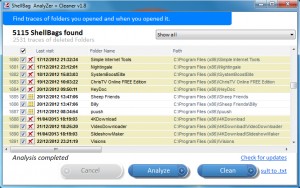
    The initial report presents you with a simple table, listing each opened folder, its name, path, and last visit date. You can click any column header to sort by that field, too, so for instance clicking “Last visit” will show you the folders you’ve browsed in time order.

    It’s surprising how much data can be available here. On one test PC, ShellBag AnalyZer & Cleaner found traces of over 5,000 folders opened, stretching back for years (although you can filter the report in various ways if you’d like to make it more manageable).

    What’s more, this list also includes deleted folders. And so while you might think you’ve removed any trace of something sensitive by deleting the folder where it was stored, that’s not necessarily the case: dates and times when you opened that folder may still be visible here.

    If you’re worried about any of this, though, clicking Clean will provide some possible solutions. The program can delete references to particular folder types, scramble dates and times, even securely overwriting this information so there’s no way it can be recovered later. (Which seems like overkill to us, but it’s good to have the option.)

    It’s important to be careful about the options you select, however. If you delete the references to folders which still exist then you’ll lose their Explorer view settings, for instance — perhaps not what you want. And ShellBag AnalyZer & Cleaner can also delete references to system folders, but says that’s “not recommended”.

    Neither of these options is selected by default, so don’t let that put you off using the program — just be sure to pay attention when you’re exploring what it can do.

    Photo Credit: Brian A Jackson

  • Freegate protects your privacy from prying eyes

    Anonymous proxies can be a very useful privacy tool, hiding your IP address from websites, and perhaps allowing you to bypass local restrictions on the websites and pages you can visit.

    The technology can also be complicated, interfering with your regular network settings, and drastically cutting your online performance, of course. But Freegate proves that it doesn’t have to be that way.

    The program is a compact 2.75MB download, for example, with no installation required, no extra network layers to cause other issues: close Freegate down and your system will be back to normal.

    It’s simple to use, too. After a one-time opening screen, where it asks whether you’d like to use its own servers or restricted Chinese offerings (it’s developed for use in China, though works well elsewhere, too), Freegate quickly finds a few servers and redirects your web traffic through them.

    Once its working, the program will then open a browser window at a Chinese-language site, but otherwise there’s no adware or ads to worry about (and even that initial browser launch can be turned off in the settings).

    And there are one or two configuration options which might be handy, too, like the ability to delete your IE history when Freegate closes (there’s no support for other browsers, though, unfortunately).

    Performance during our tests wasn’t bad. Inevitably, there are some issues; pages might take longer to load than expected, and a few would freeze occasionally. But overall it worked well.

    If you want an easy way to bypass some IP-related restriction on your general browsing, then, Freegate is ideal. It’s small, simple and won’t get in your way.

    But as with most similar free tools, there’s no way to tell how secure your traffic really is. And so if you want to do anything sensitive — shopping, online banking and so on — then we’d recommend you close it down to restore your normal network settings, first.

    Photo Credit: Slavoljub Pantelic/Shutterstock

  • SpeedyPainter is clean, simple and straightforward

    If you’ve spent some time exploring the world of free PC paint programs, then you’ll know that most of them look much like any other application. There are menus here, ribbons there, toolbars, flyouts — it’s all very familiar, if not particularly likely to inspire your creativity.

    The OpenGL-based SpeedyPainter, though, takes a different approach. It strips the interface down to the basics, reducing all the usual distractions to the absolute minimum, and instead concentrates on delivering a clean, simple and straightforward painting experience.

    At first glance this may look just too limited. The program arrives in the form of a 1.87 MB download, for instance, so you probably won’t be expecting the longest of feature lists. And the opening interface doesn’t exactly look polished; it’s just a few buttons, sliders and other controls, scattered around the edge of the painting area.

    Get started, though, and you’ll find SpeedyPainter offers far more capabilities than you might expect. Wacom tablet support means you can vary stroke size and opacity with your pen pressure, for instance. A versatile color picker can pop up at your cursor position for quick and easy access. There are rotate, flip and crop tools; you get layer support and a selection tool; there’s even a perspective grid overlay to help you produce more realistic images.

    These tools have plenty of functionality, too. So you could just draw a crop rectangle and apply it, just as you’d expect. But you can also rotate it, or pan the image underneath, to help you select the exact area you need. (And just wait until you see what you can do with the Perspective Grid…)

    But this is rarely, if ever confusing, because as you choose individual options, so the program will display simple on-screen prompts to explain what you can do. While more detailed help on the various hotkeys is only ever a click away.

    And once your masterpiece is complete, SpeedyPainter won’t just save the image. It also captures each stroke as you work, and can export the results as an AVI file (480p, 720p, 1080p), a great way to see how the picture was produced. Don’t take our word for it: browse the official gallery and see for yourself.

    Photo Credit: Galushko Sergey/Shutterstock

  • Synei Utilities gets your PC into shape

    The PC world is packed with supposed performance-boosting suites, most of which are almost exactly the same. You’ll have a program to list your Startup programs, another one to delete your temporary internet files, a few system tweaking options – all very predictable (and, usually, not even that effective).

    The news that Synei are introducing a very similar range of free tools — a disk cleaner, services optimiser, startup manager and more — probably won’t fill you with excitement, then. But wait: while the tools are far from perfect, there’s more than enough functionality here to make them very interesting.

    Take Synei Service Manager, for instance. Optimizing your PC services is a complex business, and even the most experienced user will need a little help occasionally. Just launch Synei Service Manager and the program will quickly recommend which services you should tweak, either to improve performance or restore your default settings.

    And it’s a similar story with Synei’s Startup Manager. The program doesn’t just list your startup programs and leave you to decide what to do next; it can compare them with a database of 16,000 items, immediately highlighting anything it believes is unnecessary.

    The Disk Cleaner is even better, helping you scan your hard drive for all the usual leftovers (browser histories, redundant system and application files). We’ve seen this many times before, but Disk Cleaner is unusual in that it actually freed up more space than CCleaner on our test system. And that’s before we ran its Deep Cleaner, an extra tool which searches for leftover files by extension (*.TMP, *.OLD and so on).

    And Synei System Utilities makes each of these tools available from a single interface, as well as adding some extras (a simple backup module, a documentation-free Windows tweaker, and graphical front ends for Windows defrag and chkdsk). It’s nothing too special, but the program does include a scheduler which allows you to run any of its tools unattended, and that could be useful.

    Synei’s tools do have a few problems. The startup program and service suggestions they make aren’t always good, for instance, and that means the utilities really aren’t for beginners. You’ll need to review the recommendations they make very carefully before accepting any changes.

    If you just take any advice as a starting point, though, tools like Service Manager and Startup Manager could be very helpful. The Disk Cleaner is a particular highlight. And, best of all, Synei’s programs are particularly convenient to use: they’re tiny (the entire suite is under 5MB in size), adware free, portable, and run happily on anything from Windows XP through to 8.

    We would still treat the programs with extreme caution. They’re new, and will have bugs — don’t run them anywhere that doesn’t have a full system backup to hand.

    But, if you’re looking for some small and simple maintenance tools then Synei’s collection shows promise, and we’ll be interested to see where the company takes them next.

    Photo Credit:  Denis Davydov/Shutterstock

  • Adobe releases Photoshop Lightroom 5 Beta

    Adobe has announced the first public beta of Photoshop Lightroom 5. And while a first look suggests this isn’t the most major of upgrades, there are still some worthwhile improvements to be found.

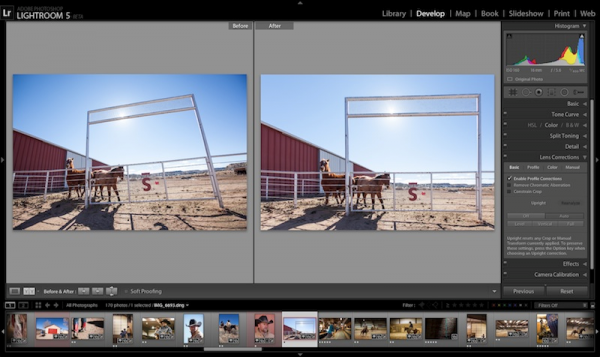
    A new one-click Upright tool can analyse your images and detect tilted lines, for instance. You can choose a correction method, but otherwise the program will straighten images all on its own.

    Lightroom 5 gains some more Photoshop-like technology with its enhanced healing brush, which can heal or clone with brush strokes.

    A new radial filter allows you to apply your preferred Lightroom image adjustments to a circular mask, which can then be resized or feathered to produce a more natural effect.

    A Smart Preview option helps you work remotely from your original images. Lightroom 5 can create smaller versions of these files, called Smart Previews; if you’re disconnected from the source images then you can work on the Smart Previews, instead; and when you reconnect, the program is able to reapply all your edits to the original pictures.

    Elsewhere, more capable photo book creation includes book templates which you can customise to suit your needs.

    And it’s now possible to combine video clips, images and music to produce your very own HD video slideshow.

    While there’s no single killer feature here, the automatic perspective correction and enhanced healing brush are going to be very useful. And if you’d like to try them out, the beta of Photoshop Lightroom 5 is available now. (No need to worry if you have an earlier version; Adobe says it can be installed alongside an existing copy of Lightroom installation without overwriting anything.)

  • Reduce oversized PDFs with ORPALIS PDF Reducer Free

    Saving a document as a PDF generally produces a very small file, which is one reason the format is such a popular way to share information.

    This isn’t always the case, though. And so if it’s important your documents are as compact as they can possibly be, then you might like to try shrinking them even further, with a little help from the free (for personal and non-commercial use) ORPALIS PDF Reducer Free.

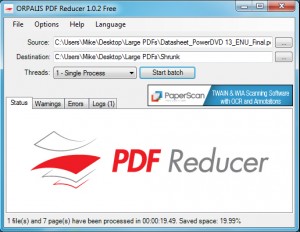
    The process starts by specifying your source file, and its destination folder. Sounds straightforward enough, right? But you need to be careful.

    The issue here is that ORPALIS PDF Reducer allows you to specify the same folder for your source and destination, but it doesn’t support overwriting the source file. So if you try this, you’ll find the program makes you wait for the entire compression process (that’s anything up to 50 minutes in our tests), before failing with a “can’t overwrite the document” error message. Which is just a little annoying.

    Once you understand the problem, though, ORPALIS PDF Reducer is straightforward enough to use, if rather slow in processing our files. And while we found a few documents weren’t cut in size at all, others shrank by anything up to a spectacular 80% (although that kind of higher level did usually involve some level of quality loss).

    The technology behind this isn’t too complicated: essentially it involves recompressing document images with a new quality and DPI setting, while removing form fields, annotations, bookmarks, embedded files and more. Although if you have issues with any of this, the Settings dialog allows you to define exactly what you’d like the program to do.

    What’s more, the Settings dialog also apparently includes an option to allow for batch processing (General > Input Mode > Folder Selection). This didn’t work consistently for us, though — sometimes the files were compressed correctly, on other occasions the program seemed to be using the wrong folder path — so if you enable this, test the program carefully to make sure it’s working as you expect.

    Should you try ORPALIS PDF Reducer Free, then? There is definitely some sloppy programming here, and PDF Compressor, which we looked at last year, seems far more professional (and faster, too).

    Still, if you test ORPALIS PDF Reducer Free with a few small files, first, then you’ll soon learn how it works.The program provides a good level of control over how your PDFs will be compressed, and the end result is often a significant reduction in file sizes. Give it a try, see how it works for you.

    Photo Credit: Arkady/Shutterstock

  • Fotor fixes photos fast

    Already well known for its easy-to-use iOS and Android photo editing apps, Fotor has just entered the desktop market with the release of the free Fotor 1.0.0 for Desktop and Mac.

    And while the program is relatively simple, oriented more to quick optimizations rather than complex edits, it’s also very easy to use, and has more than enough functionality to justify a download.

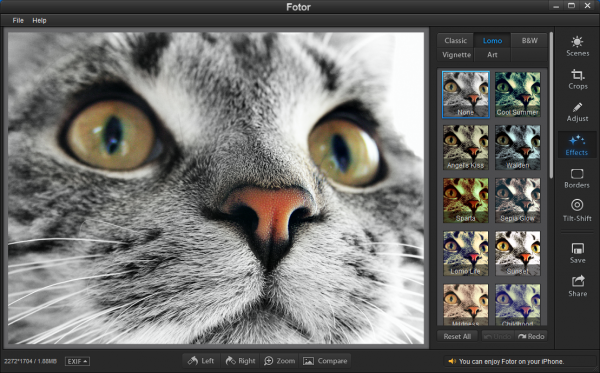
    If a picture has lighting issues, for instance, you don’t have to start playing around with brightness, contrast, colors or anything else. Just choose the conditions which applied when the photo was taken — “Backlit”, “Cloudy”, “Sunset” and so on — and the program will automatically optimise the image for you.

    If the lighting is fine, but you’d just like it to look a little more interesting, then Fotor has 60+ colour and lighting effects which could help. Again, it’s all very easy. Choose a category from the list (“Classic”, “Lomo”, B&W”, “Vignette”, “Art”), and thumbnails will show you how the current picture will look for every available effect. And if you see something you like, simply click it for a closer look.

    It’s just as easy to add a border to your image (and there are 30 available).

    A very configurable Tilt-Shift effect allows you to fully customise the strength and position of the blur.

    If you prefer more practical options, then there are also tools to rotate or straighten your image; sharpen or blur it; tweak exposure, brightness, contrast, saturation, temperature and tint; crop your photo, and view its EXIF data.

    And when you’re ready, there are tools to quickly share your images on Flickr, Facebook and Twitter.

    If there’s a small problem here, it’s that the Fotor interface still feels more like an app than a Windows application. You can’t open multiple images at once, for instance. There’s no edit menu here, no right-click options. There are no single letter shortcuts for menu items (you can’t press Alt+F, O to open a file, say), and other standard hotkeys — like F1, for instance — aren’t supported at all.

    Still, once you’ve got used to this, Fotor does prove to be very quick and easy to use. Some of its tools are very capable (there’s an excellent Crop function, for instance), and on balance it’s a simple but effective way to optimise and share your latest photos.

  • Le Dimmer helps you avoid distractions and stay focused on your PC work

    If you’re working on some important PC task and want to avoid distractions, then maximizing your program window is usually a good place to start. But if you need to monitor several programs — or the window just can’t be maximized — then Le Dimmer may offer a more interesting approach.

    The program is tiny, portable, and has just a single task: after launching, it dims everything on your desktop apart from the current window.

    The effect can be quite restful on the eyes, depending on your applications, with all the usual brightness reduced by a considerable degree. (Although if you run a program with a white background then the contrast becomes greater, so it won’t work for everyone.)

    It all runs entirely automatically, too. There’s nothing to do, no complex interface to navigate, the program just works. All you have to remember is to right-click the system tray and select “Quit” if you decide you don’t need the effect any more, and want to resume normal operations.

    If you do need more control, though, there is a useful command line switch available. Pass the program a number between 0 and 255 (“LeDimmer.exe 150”) and you’re setting the “Dim factor”. 150 is the default; increasing this will darken the dimmed part of the screen even further, while reducing the value will brighten it. (Check the program’s ReadMe.txt for details.)

    Le Dimmer isn’t quite bullet-proof. We changed our screen resolution while running the program, and not only did it not notice, but after a few clicks it also managed to crash Explorer. Oops.

    Still, no data was lost, even with this extreme test. The rest of the time, Le Dimmer worked just fine. And if you’re looking for a way to focus your attention on one task, while not entirely losing track of some others, then the program could prove very useful.

    Photo Credit: kentoh/Shutterstock

  • Get more from your keyboard with 7+ Taskbar Numberer

    Keyboard task switching under Windows normally means repeatedly pressing Alt+Tab or Win+Tab, cycling through your running applications until you find what you need. But this is a more direct way. If you see you required program is, say, the 7th button on the taskbar, then pressing Win+7 will launch it directly.

    When your taskbar is cluttered then of course it may take a moment to figure out exactly which number any particular button might be. But that’s where the free 7+ Taskbar Numberer comes in. The program can add number overlays to each of your taskbar buttons, helping you identify them at a glance.

    If this is sounding familiar, then you’re right, we covered the first version of the program last year. But the latest build has two interesting improvements.

    First, it introduces an option to hide the numbers until the Windows key is pressed. If you didn’t like the number overlays then this may appeal, as normally your taskbar will look just as it always did.

    (Unfortunately the numbers will also reappear whenever you press the Windows key for some other reason — Win+R to open the Run box, say — which can be distracting, but on balance we think it’s a useful addition.)

    And second, 7+ Taskbar Numberer is now fully compatible with Windows 8, which may help you launch regular Windows programs from the Start screen.

    If you’re at the desktop, say, having 7+ Taskbar Numberer will help you see that Firefox is, perhaps, button 9 on the taskbar. If you later want to return to Firefox from the Start Screen, there’s no need to use Alt+Tab, or click the desktop tile, then the Firefox taskbar button: just press Win+9 and the browser will reappear immediately. (Win+number is a standard task switching hotkey, of course, but 7+ Taskbar Numberer just makes it a little easier to use.)

    One small down side here is that getting 7+ Taskbar Numberer set up and working as you’d like still requires a little work. There’s no automated setup, so you’ll need to save the program somewhere safe, set up a shortcut, give it the correct command line arguments, and so on.

    It’s not difficult, though – the program’s readme.html file has everything you need — and on balance7+ Taskbar Numberer makes it notably easier to switch to and launch running and pinned applications.

    Photo Credit: Liv friis-larsen/Shutterstock

  • CyberLink PowerDVD 13 Ultra review

    After 15 years of development, it’s probably no surprise that PowerDVD has become one of the most powerful and comprehensive media players around. Music, video and movies, DVD and Blu-ray, 3D, DLNA, mobile device syncing, Flickr, Facebook and YouTube – the program does it all.

    There’s still plenty of room for improvement, though, and PowerDVD 13 Ultra takes the package forward with a range of new additions. There’s even wider file format support; enhanced video quality for HD footage; a new movie library, complete with cover art (for files as well as discs); a smarter, simplified interface; an all-new subtitling engine; and a new focus on performance to try and make this “the fastest, most responsive PowerDVD ever”.

    Of course, while this all sounds very promising, media players of this complexity also have plenty of room for problems. Could the reality live up to the press release? We installed a copy of PowerDVD 13 Ultra on our test PC and took a closer look.

    Playback and Performance

    PowerDVD 13 Ultra supports a wide range of file formats, particularly video. The current list includes 264, 26L, 3GP, ASF, AVC, AVI, BSF, DIV, DIVX, DVR-MS, FLV, H264, JSV, JVT, M1V, M2T, M4V, MK3D, MKV, MOD, MOV, MP4, MP4V, MPG, MPV, MTS, MVC, QT, TIVO, TOD, TP, TPD, TRP, TS, TTS, VC1, VOB, VRO, WM, WMV and WTV.

    It’s no surprise that the program handled all our test files without difficulty, then, opening and playing them just as we expected.

    And this included some intentionally “difficult” files, in particular a few old and oddly structured AVIs. We tried these with VLC Media Player, and on several occasions it either refused to play the audio, the video, or both; PowerDVD 13 Ultra got everything right, first time.

    When viewing HD footage – on file or disc – you’re now also able to turn on PowerDVD’s TrueTheater technology, which aims to sharpen images, enhance colour and lighting, and generally deliver what CyberLink are calling “quality beyond HD”. It’s one of the headline new features, in fact. So we were surprised to find that, when we viewed an HD YouTube video with it turned on, an alert told us “High-definition content detected. We recommend that you turn off all TrueTheater video technologies… when playing high-definition content.”

    Still, if you ignore any such alerts, and you’ve a powerful enough PC, we felt that TrueTheater generally delivers great results. Whether it’s particular important to have “quality beyond HD” is another issue, but it’s good to have the option.

    Elsewhere, PowerDVD 13 Ultra now supports playing AVCHD 2.0 format video (including AVCHD progressive and AVCHD 3D).

    Audio enhancements see new support for playing the lossless APE format, and the introduction of a new music miniplayer. In a couple of clicks the standard interface can reduce to a 175×175 pixel square with basic playing controls, perhaps handy if you want to listen to music while working on something else. (Although, annoyingly, this is supposed to use your music file cover art, and for some reason PowerDVD ignored ours entirely.)

    And in another headline claim, CyberLink are saying this all happens faster than ever, with anything up to a 58% improvement in Blu-ray movie launch speed (we couldn’t completely verify this, but it is noticeably faster), and “instant” playback for music, video and photos.

    Instant? We decided to put this to the test with a 2.5 GB MPEG video, and it turned out that while PowerDVD opened this in around 1.25 seconds, VLC Media Player managed the same task in about 0.95 seconds (other files showed similar results).

    If you care about fractions of a second, then, you probably won’t be impressed. But even if it’s not quite as “instant” as the competition (which, to be fair, offers far less features), PowerDVD Ultra 13 does fire up quickly, and the program isn’t nearly as bloated and overweight as some people would have you believe.
    Interface Improvements

    While PowerDVD 13 Ultra initially looks much the same as previous editions, take the time to explore and you’ll find plenty of new features.

    Playback is now smarter. PowerDVD 13 automatically rotates photos and videos shot in portrait orientation, for instance. And it automatically resumes file-based movies from where they were stopped, although you do have to click “Stop” for this to work. (If you pause the movie, then click Back, when you play the same video it’ll start at the beginning again).

    There are new ways to manually control playback, too. Clicking the Fast Forward or Rewind buttons launches the Play Speed Navigator, where you can set precise playback speeds up to 32x, or rewind speed up to 16x. You can just press the left key to jump back 8 seconds, the right key to jump forward 30 seconds, a quick way to zoom in on the point you need. Or if you’re heading back further, just hovering your mouse cursor over the navigational slider will display thumbnails of scenes you’ve watched already, helping you find the right spot in just a click or two.

    The interface has plenty of small tweaks, which help make it easier to use. So you can drag anywhere on the video screen to reposition the PowerDVD window. When playing a movie in full screen, the caption bar shows the current time of day, and hovering your mouse cursor over this will display the time it’s due to finish. And if you don’t want to see any controls at all, just move your mouse cursor to the side of the screen and they’ll disappear (move it away to bring them back).

    And new customisation options help you to organise the interface just as you’d like. You can decide exactly what you’d like to display on the caption and playback bar, for instance. And you can also reassign program hotkeys and mouse wheel actions to your preferred tasks.

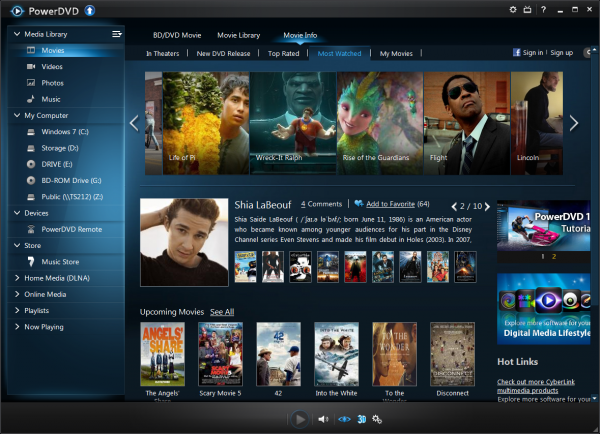
    Probably the largest addition, though, is the new Movie Library. Point PowerDVD at the folders containing your movies; it’ll display them, automatically assigning cover art; hovering a mouse cursor over a thumbnail will display basic information (genre, release date, studio name, a rating from other users); and you can search for, or filter movies in various ways (“10 recently played movies”, say, or “movies not watched yet”).

    There are links to information on most films via CyberLink’s MoovieLive service, too: you can view cast details, a synopsis and reviews, as well as reading user comments or adding your own (if you’ve a MoovieLive account).

    There are issues here, too. Cover art mismatches are common (our “Panic Button” got assigned the “…Benjamin Button” cover, for instance); the online content isn’t particularly compelling, and the interface is sometimes less than intuitive. But the library is already a neat way to view and organise your movies, and on balance we think it’s a positive addition to the package.

    New Features and Functionality

    While we’ve tried to pick out what we think are some of PowerDVD 13 Ultra’s highlights, the program has plenty of other additions to explore. Like the new subtitle engine, for instance, which allows you to play two subtitles simultaneously for both Blu-ray and MKV/ MP4 movies, as well as setting their size, colour, position and more.

    Elsewhere, Cinema Mode (the simplified interface optimized for remote control) has new touch screen support, and can be used for file playback, as well as discs.

    PowerDVD can now share content on USB or NAS devices, while CyberLink also claims to offer improved DLNA performance (we couldn’t verify the latter, but it’s a complex area and we may simply not have used the appropriate test).

    There are multiple tweaks to try and help address performance issues, including a reduced number of background processes, and a less system-intensive scanning of your media library (with an option to pause this, if required). Which is welcome, although arguably there’s still work to do. We left the program idle after playing, for instance, and found it was using four processes (PowerDVD13.exe, PowerDVD13ML.exe, PowerDVD13Agent.exe, PowerDVD.exe), and consuming around 450MB RAM in total.

    And of course all this builds on a host of pre-existing PowerDVD features, including support for playing 3D files (and displaying 2D media in a 3D format); YouTube, Facebook and Flickr integration; smart device syncing; full 7.1 audio support, and mobile and remote control apps which now come in iOS, Android and Windows 8 forms.

    Is PowerDVD 13 Ultra for you, then? That depends. It’s still fairly expensive, and hasn’t changed radically in this build: if you didn’t like version 12, you probably won’t like this one, either.

    For PowerDVD fans or the uncommitted, though, it’s a different story. PowerDVD 13 Ultra is noticeably faster than before, and a host of small interface and playback tweaks help make the program much easier and more comfortable to use. If you’re particularly interested in one of the areas which has seen a notable upgrade — subtitling, say — then you’ll definitely appreciate the latest developments, and on balance it’s definitely worth giving the trial build a spin.

    Please note, while we’ve discussing the high-end Ultra version here, there are two other editions available. If you don’t need 3D, 7.1 audio, smart device syncing or full DLNA support then we’d consider the Pro build. And the base Deluxe edition is cheaper still, but it doesn’t support Blu-ray – you get standard media and DVD playback support only.

    Verdict: It may not deliver any single revolutionary change, but CyberLink PowerDVD 13 Ultra is still a welcome update, delivering a media player which is faster, easier to use and handles more file types (and offers more playback control) than ever before. If you need a very powerful player — and you don’t mind the price — we’d give it a try.

    We Like: Wide and reliable file format support, enhanced performance, movie library automatically finds cover art, YouTube/ Facebook/ Flickr support, simplified and customizable playback interface, easier movie navigation, excellent subtitle support.

    We Don’t Like: It’s not cheap, regular movie cover art mismatches, still requires plenty of system resources, didn’t display our audio cover art, in one or two areas the interface can be confusing.

    Photo Credit: FotoYakov/Shutterstock

  • Is your photo out-of-focus? Try SmartDeblur 2.0 beta

    Vladimir Yuzhikov has released the first beta of SmartDeblur 2.0, a powerful tool for recovering data from blurred images.

    Top of the new features list is an “auto-detect blur” option, which allows the program to automatically figure out whether your image is suffering from motion, Gaussian, or just plain old out-of-focus blur, and perform the appropriate corrections.

    And as a result, there’s no need to try and guess this yourself (although you can manually choose a blur type, if appropriate) — just open an image, click “Analyze Blur”, and within two or three minutes you’ll be presented with the results.

    As with the previous edition, SmartDeblur 2.0 beta comes with a sample image to illustrate its capabilities — and they really can be spectacular. It’s just astonishing how much detail can be recovered in some cases (it’s much more than basic sharpening).

    We did also find many images where the first pass delivered terrible results, but there is something else you can try. If you’re trying to highlight one element in particular — a person standing against a wall, say — then click and drag on the image to draw a rectangle around them, and then click “Analyze Blur”. SmartDeblur then restricts its checks to the area you’ve highlighted, and in our tests this frequently made a very great difference.

    There is also a down side to the new build, unfortunately. Yuzhikov says the program has been rewritten to use “freely available libraries”, and because of this “performance is several times slower than our internal version”. He hopes to improve this in future, but in the meantime, imported images will by default be resized to 1,000 pixels on their largest side (although it you’re the patient type, you can still increase the limit via SmartDeblur’s settings).

    Photo Credit: Olaru Radian-Alexandru/Shutterstock