Author: Mike Williams

  • Break you bad web habits by going Cold Turkey

    You’re at the PC, with lots of important work to do. And you’re going to get started on it — once you’ve checked Facebook. And Twitter. Then watched a YouTube clip someone mentioned earlier, checked what’s happening on eBay, and worked your way through a host of other online distractions.

    Sounds familiar? Then you might like Cold Turkey, a simple free tool which can temporarily block access to your favourite web destinations.

    Launch the program and it first asks which sites you’d like to block. You can block some popular sites — Facebook, Twitter, YouTube, eBay and more — just by checking a few boxes, while a Custom Sites dialog lets you enter URLs of your own.

    The next step is decide how long the block will last, which can be anything from 10 minutes to a week.

    Finally, click “Go Cold Turkey”, and after a quick “Are you sure?” check, that’s it — try to visit the sites you’ve specified in any browser and you’ll get a “not found” error.

    Don’t think you can easily get around this, either. Changing your system time won’t help. Closing down the Cold Turkey processes won’t do it. And if you’re thinking the HOSTS file might be involved here, you’re right — but simply editing that alone won’t remove the restrictions (and there’s no “back door” to regain access, either, so you need to be careful in how you use the program). You could keep trying other things, but it’ll probably be easier to get on with the work you should be doing, anyway.

    This isn’t a perfect solution, of course. It can’t stop you browsing sites via a smartphone, tablet, or any other internet-enabled device you might have around.

    If you’re just looking for a quick and easy to selectively block a few web distractions, though, Cold Turkey will get the job done. And if you need more power, check out the Serious Edition ($4.99), which can block sites for up to one month, and prevent you launching specified applications, too.

    Photo Credit: Karen Roach/Shutterstock

  • Lose something on you PC? Recent Files Scanner has your back

    You’ve lost that important document you were working on yesterday; you’re wondering which files a program is accessing; or maybe you’d just like to know what someone else has been doing on your PC. There are many reasons why you might want to know which files have been created, modified or accessed on your PC — and Recent Files Scanner is just the tool to help.

    To get a feel for how the program works, just launch it and click the green Scan button. By default it will scan your Documents folder and any subfolders, and you’ll quickly be looking at a report listing everything you’ve modified recently.

    Click Settings and you can customise your scan, setting details like the folder to check, and the search depth (the folder only, 1 level, 10 and so on).

    There’s an option to set the range of dates that interests you. This is initially set to the last week, but you can change this to the last day, three days, 5 days around last Christmas, whatever you like.

    And elsewhere there are include and exclude filters; you can specify content which the file must include; you’re able to decide which file date to check (created, modified or accessed), and more. Click the Start button again to try the new settings.

    The report you’ll produce from this isn’t just a text list. Right-click any file and you’ll find options to open it, view its containing folder, check the file’s properties, view a preview (for images) and more.

    And if this still isn’t enough, click the binoculars icon and the program will monitor whatever folders you’ve specified, displaying newly created, changed or modified files in real time.

    There are some oddities here. In particular, the program didn’t always work as we expected, either intermittently refusing to scan the path C:\ and replacing this with its own Program Files folder. We couldn’t figure out why, though — other root folder scans worked fine, as did monitoring subfolders — so this might be a specific issue with our test system.

    Recent Files Scanner has some issues, then, but if you can live with its quirks (or perhaps avoid them entirely) then you’ll find a capable tool, very useful for monitoring file-related activity.

    Photo Credit: megainarmy/Shutterstock

  • Microsoft’s new Office Configuration Analyzer helps troubleshoot Office problems

    Microsoft Office has released the Office Configuration Analyzer Tool (OffCAT), a portable utility which can check all your installed Office applications, report on any problems, and provide links to possible solutions.

    If you’ve ever tried to diagnose an Office problem yourself then you’ll know it can be difficult, just because there are so many factors to consider (Registry settings, add-ons, Office policies, installed updates and more). But OffCAT aims to help by quickly locating and highlighting any issues for you.

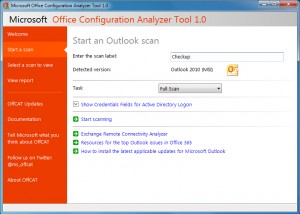
    The process starts very simply: launch the program click “Start a scan” and choose the Office tool you’d like to check (Access, Excel, Outlook, PowerPoint and Word are all supported).

    You then have the option to enter a “scan label”, just a name to identify this scan from any other (useful if you’ll regularly scan lots of machines). This isn’t necessary, though, so you can just click “Start scanning” and OffCAT will run some detailed checks on your setup, displaying a summary in just a few seconds. Click “View a report of this configuration scan” for the full details.

    The Configuration Report opens with an “All Issues” tab which highlights anything interesting. Exactly what you’ll see here depends on your setup, but scanning Outlook on our test PC revealed that we were missing some updates, and that there was a problem opening hyperlinks. Clicking this provided a simple text explanation, along with links to view the relevant Microsoft support web page, or download a Microsoft Fixit file to resolve the issue automatically.

    Sometimes you may see a “Critical Issues” tab with details on more serious problems. If the program has crashed recently, for instance, details will appear here, again with links which might help.

    An “Information Items” tab lists your installed updates, with information on when each one was installed, whether it’s uninstallable, and a link to find out more.

    And if you’d like to keep the report for later reference (or to compare details like installed updates with another computer, say), then you can print it, or save a copy in HTML, XML or CSV formats.

    OffCAT has a few very small issues. We would like to see a single option to check your entire Office setup, for instance, rather than having to run each one individually. And the “Scanning Summary” (the list of checked items displayed immediately after each scan) won’t be useful to most people; you should at least have the option to skip that and display the full report immediately.

    For the most part, though, the Office Configuration Analyzer Tool is an excellent program: portable, fast, easy enough for PC novices to use, while also providing the more in-depth information that experts need. If your copy of Office is currently misbehaving, grab a copy and find out why.

    Photo Credit: Kar/Shutterstock

  • Metascan Client scans for viruses from the cloud, but doesn’t remove them

    OPSWAT has announced the availability of Metascan Client, a lightweight on-demand virus scanner.

    The program is extremely basic — there’s no real-time protection or scheduled scanning, and it can’t remove whatever it finds — but could still be useful as a backup to your regular antivirus tool.

    Metascan Scan is extremely convenient to use, for instance. It’s portable, entirely free and couldn’t really have a much simpler interface: you just launch it and click “Scan”.

    The program then checks all your running processes and modules, calculating hash values for each. These are sent to the Metascan server, where they’re passed to several antivirus engines. (It’s not clear which ones will be used at any one time, but OPSWAT says the list includes ESET, AVG, Microsoft , Bitdefender, Symantec, F-Secure, GFI, Kaspersky, and McAfee).

    If the engines don’t recognize a hash, the relevant file is uploaded to the server for a closer look. And once the process is over you’ll be given the results.

    This is all a little basic, and there are a few obvious improvements which could be made. Our test reports gave us the all-clear, for instance, based on an “Engine count” of “5″, but we would have liked to know which engines had been used.

    The ability to scan more than just running processes would be useful, too. And there is a sign of that in the interface, which includes greyed out “Full Scan” and “Custom Scan” options, so perhaps we’ll see more features later.

    Even now, though, Metascan Client could be very useful. If you think your PC has been infected by something, but your regular suite hasn’t raised an alert, then it provides a quick and easy way to check your running processes against several antivirus engines. And that alone makes it worth including in your portable security toolkit.

    Photo Credit: Andrea Danti/Shutterstock

  • Folder SimpBurn is a fast, free and portable disc burner

    Are you tired of bloated disc burning suites? You’re not alone. Modern burning programs are mostly very overweight, packed with unnecessary functions which you’ll probably never use.
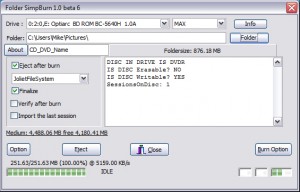
    If your needs are very simple, though, there are some effective freeware burning apps around, and Folder SimpBurn is a particularly straightforward example.

    The program arrives as a small download (560KB). And it’s portable, so easy to use just about anywhere: just unzip it and launch Folder_SimpBurn.exe.

    Folder SimpBurn has all its options on a single dialog, and this makes it very straightforward to use. At a minimum all you need to do is choose your optical drive, select a folder which you’d like to burn, click Burn Option > Start Burn, and then watch as your disc is created (CDs, DVDs and Blu-rays are supported, as both single and multisession discs).

    If you need more control, then it’s also possible to set the maximum burning speed and the disc name, as well as choosing the file system (your options are ISO9660, Joliet, UDF, or Joliet/ UDF).

    There’s some ISO support, too. Click “Burn Option” and you’ll find tools to save your selected folder as an ISO file, or burn an existing ISO file to disc.

    And other small touches include a “verify” option, some disc erase tools, and an “Info” box which displays your disc burner’s capabilities.

    It’s not all good news. The interface is a little unconventional, with buttons which open menus; it really needs a little documentation (even the German language-only manual doesn’t tell you much); and the “Add to context” menu, which supposedly lets you create discs directly from Explorer, didn’t work for us.

    Folder SimpBurn does well at its core tasks, though, reliably burning folders to disc and creating ISO images with ease. And if you’d like to be able to do this from just about any PC, without having to install anything, then the program should serve you very well.

    Photo Credit: Kachan Eduard/Shutterstock

  • Chocolatey uses PowerShell command line to keep software up-to-date

    Windows software management is a tedious business. If you want to download a particular program, you have to find the relevant website, then the download link, save the file locally, grab any other components the program might need, and install everything in the right order. You’ll need to start again for every new program. And they’ll all have their own procedures for updating, or uninstalling.


    What if you could automate all of this, though? Manage downloads, updates and everything else, just with a few keypresses? That’s the aim of Chocolatey, a tool which brings Linux-like package management to the PC.

    The program comes in the form of a PowerShell-based command line tool. And yes, we know, that’s less than ideal, but don’t let it put you off just yet. Chocolately doesn’t require any PowerShell knowledge to use; if you use the command line occasionally then you’ll be able to try out.

    Getting started is simple, as there’s nothing for you to download. Just paste the text below into a command prompt (copy it to the clipboard, launch cmd.exe, right-click in the window, select Paste) and press Enter.

    @powershell -NoProfile -ExecutionPolicy unrestricted -Command “iex ((new-object net.webclient).DownloadString(‘http://chocolatey.org/install.ps1′))” && SET PATH=%PATH%;%systemdrive%\chocolatey\bin

    The Chocolatey code should download automatically, while status messages keep you up-to-date with the installation process. And when it’s done, close and reopen the command window and you’re ready to go.

    Installing programs is now as simple as using the “cinst” command. Would you like a copy of Skype, for instance? Type “cinst skype” (less the quotes), press Enter, and Chocolatey will handle the rest. Or try “cinst keepas” to install KeePass Password Manager, “cinst procexp” for Process Explorer, “cinst gimp” for the GIMP image editor, and more. (Enter “clist” at the command line for the full list of packages, or use “clist | clip” to copy the list to the clipboard).

    This isn’t just a matter of downloading an installation file and leaving you to do the rest, either. If a program needs something else installing before it’ll work, Chocolatey will grab that first. And as long as the application allows it, installation is silent – there’s no working your way through some tedious setup program.

    Better still, Chocolatey can also handle updates for you. So if you need the latest version of Firefox, just enter “chocolatey update firefox” (or “cup firefox” for short) and it’ll be downloaded and installed.

    Or, if you really want to save time, using “cup all” will check everything you’ve installed via Chocolatey and update it to the latest version.

    Plainly the command line approach here is still a hassle, but the key is that it’s scriptable, and that brings some very interesting opportunities.

    If you want to set up a PC to your specifications, then you could create a batch file with the appropriate “cinst” commands (as you’ve seen, they’re not exactly complicated). Once Chocolatey is installed on the target system, run the batch file and all the programs you need will be downloaded and installed. Add another shortcut to run updates – or maybe a batch file which you have Task Scheduler run once a day – and suddenly your software maintenance has become a whole lot easier.

    Photo Credit: Yellowj/Shutterstock

  • PhoXo is an excellent photo editor

    Launch most photo editors for the first time and they’ll try to impress you with their serious credentials: flyout toolbars, feature-packed menus and so on.

    Run the free PhoXo, though, and what you’ll notice first is the Clip Art window, all smiling emoticons and cartoon pigs. Not much chance of doing any serious work here, you might think, but wait — give the program a little time and you just might change your mind.

    Close the Clip Art and Frame windows and PhoXo looks a little more like a regular image editor. It can open a basic range of formats (JPG, PNG, PSD, BMP, TIFF, TGA, ICO), and supports all the usual core editing options: crop, resize, rotate, sharpen and so on.

    Keep exploring, though, and you’ll find the program often gives you more functionality than you might expect. There’s not just the standard Blur filter, for instance. You also get a Zoom Blur, a Radial Blur, a very effective Motion Blur, even a despeckle option.

    There are plenty of colour adjustments, too: hue and saturation; RGB; color tone, level and balance; gamma; automatic contrast and enhance options, and more. And the layer support provides plenty of creative opportunities.

    As we explored elsewhere, PhoXo kept coming up with surprises. For example, we expected the Shape tool to just draw a few basic shapes on top of the current image. But in reality the shapes immediately acted as a frame for your photo, so drawing a heart shape around a couple, say, would crop to that part of the image. (And there are some interesting shapes, including some with rough edges.)

    The Effects menu is another area which initially looks disappointing, as many of the filters sound extremely familiar. But again, PhoXo really delivered. The “Oil Painting” option gave us particularly good results, right away. And “Lens Flare” was similarly effective, while also being so easy that just about anyone could use it.

    As ever, it’s not all good news, and there are a few interface oddities here. In particular, the program always opens full-screen, regardless of how you closed it; we were constantly reaching for the Edit menu, just through habit, but annoyingly there isn’t one; zoom handling is a little awkward, and the program would benefit from more keyboard shortcuts.

    Overall, though, PhoXo is an excellent editor, easy enough for beginners yet with the power to do more serious work.

    Photo Credit: Imageman/Shutterstock

  • Make the most of your keyboard with MadAppLauncher

    There are plenty of ways to launch programs using hotkeys, and even Windows has one of its own (right-click a shortcut, select Properties > Shortcut and click the “Shortcut key” box), but remembering enough of these to cope with all your applications is extremely difficult.
    The open source MadAppLauncher takes a different approach, though, which is very much simpler. It uses a simple QWERTY-type layout, and allows you to assign one program to each key. The relevant application icon and name is displayed alongside the key letter, so if you press H, say, whatever is in the H box will be launched.

    You also get ten tabs, which correspond to the number keys, and each of these have their own QWERTY layout. This allows you to separate your programs into ten groups of up to 30 applications, for 300 in total. And if that’s not enough, you can save your current layout with a descriptive name (“Internet”, “Work”, whatever fits) and then create and load as many others as you need.

    Every application “key” can be customized in much the same way as a regular Windows shortcut. You’re able to set its name,icon, target, command line arguments, starting folder, window style (normal, hidden, minimized, maximized and so on).

    Unusually, you even get some control over the window size and position, so for instance you might decide to launch a program in the bottom half of the screen (assuming the application supports that, anyway). This doesn’t always look good — the application may appear somewhere else, then move — but it does work.

    And there are all kinds of options here. You can move an application from one key to another; keep MadAppLauncher on top of other windows; show or hide the program when Windows starts, and more.

    We had some issues here, too. Some of the program’s default settings are a little annoying, so for example if you drag and drop the program window then it’ll just snap back to the centre of the screen. Just about everything can be reconfigured via the View menu, and the Hotkey and Options dialog, but it could still be annoying for beginners.

    Elsewhere, there’s very little documentation. And if you expect your launchers to look stylish and glossy then, well, MadAppLauncher will leave you extremely disappointed. But, if you just want a simple way to organise large groups of applications, folders or files, then the program should serve you very well. Go check it out.

    Photo Credit: Lilya/Shutterstock

  • Monitor your graphics card load, temperature, fan speed and more with GPU-Z

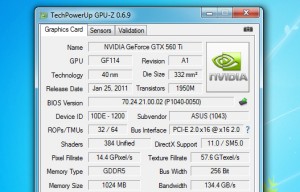
    TechPowerUp has released GPU-Z 0.6.9, the latest version of its lightweight graphics card information tool.

    This build adds direct support for even more graphics cards, including AMD Radeon HD 8870M, and NVIDIA GeForce GTX 650 Ti Boost, GT 415 and GT 750M.

    NVIDIA Kepler DirectX support has been revised to 11.0. (This complication isn’t TechPower’s fault, though; originally NVIDIA said its Kepler GPUs had full DirectX 11.1 support, but late last year it emerged that four non-gaming features were missing, so 11.0 is more accurate.)

    The interface has gained a few tooltips, which should help beginners to find their way around. Hovering the mouse cursor over that tiny icon to the right of your BIOS version, for instance, will now explain that it can save or upload your BIOS. It’s now easier to spot the PCI Express Render Test (the question mark icon) which helps to confirm your card slot configuration. And there are a few similar additions elsewhere.

    The latest build also adds a couple of fixes. If your system has the Intel OpenCL driver bug, for instance, then the program won’t display the same warning twice. And the shader count for the AMD Radeon HD 7790 is now displayed correctly.

    Otherwise, though, GPU-Z 0.6.9 remains its usual excellent self. It’s small (a 1.24MB download); can be installed or run stand-alone; provides all kinds of details for a wide range of graphics cards (GPU, BIOS, memory type and size, clock speeds, driver details, DirectX support and more); and plots clock speeds, fan speeds, system loads, and voltage over time, making the program an excellent troubleshooting tool.

  • Paragon Backup & Recovery 2013 Free is now Windows 8 compatible

    Paragon Software has revealed the latest edition of its excellent imaging tool, Backup & Recovery 2013 Free.

    The most important addition this time around is the program’s new “Windows 8 Compatible” stamp. If you’re upgrading soon, or have done so already, then Paragon Backup & Recovery 2013 Free should work just as it always has.

    And as a part of this, Paragon Backup & Recovery 2013 Free now also supports Windows 8 Storage Spaces. (Paragon first made this technology available back in December 2012 in an update for their Hard Disk Manager Suite and Professional packages, but it’s finally filtering through to the free products.)

    Storage Spaces is an interesting Windows 8 feature which allows users to combine the space in multiple existing hard drives, then reallocate it to virtual volumes in whatever configuration they need.

    And Paragon Backup & Recovery 2013 Free now recognizes Storage Spaces volumes and treats them like any other, which means you can freely back up, partition or delete them, without worrying about the underlying technology.

    That’s all we’ve noticed with regard to new features. There’s not even an interface revamp, the usual trick companies employ when an upgrade isn’t looking too exciting. (Although that’s probably a good thing, especially if you’re an existing user: at least you can download and use the new version immediately, without having to find your way around rearranged dialogs and menus.)

    Then again, when you consider how much Paragon Backup & Recovery 2013 Free offers — wide hardware support, full and differential backups, file exclusions, partitioning tools, a bootable recovery disc and more — it’s hard to see what else the company might reasonably have added. If you need an imaging backup tool, take a look, it’s still one of the best options around.

    Photo Credit: Raimundas/Shutterstock

  • JPEGView is a surprisingly powerful image viewer

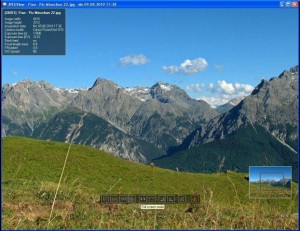
    At first glance, JPEGview doesn’t appear as though it’s going to be a particularly interesting image viewer. A 798KB download suggests there can’t be too much power here. And on launch the program asks you to choose an image, and then just displays it, with no menus, toolbars or other obvious signs of any interface.

    First impressions aren’t always reliable, though — and you’ll quickly realize that as you begin to explore.

    Touch the left and right cursor keys, for instance, and you’ll find you can browse through all the images in your chosen folder. There’s support for a reasonable range of file types, including some RAW formats: JPEG, BMP, PNG, TIFF, GIF, WEBP, WDP, HDP, JXR, PEF, DNG, CRW, NEF, CR2, MRW, RW2, ORF, X3F, KDC, NRW, DCR, SR2 and RAF. And JPEGView loads and processes them quickly, too, thanks to its support for SSE2 and multiple cores.

    Move your mouse cursor over the image and a small control overlay appears, with some useful options. You can step backwards and forwards through images in the same folder, for instance; switch to a full screen or “actual size” view; rotate images by fixed increments or just by dragging the mouse; and there’s perspective correction, auto image enhancement, and a simple EXIF viewer.

    JPEGView would be useful if it only did this — but the program is just getting started. Move your mouse cursor below the control overlay and more options should fade into view (if they don’t, maximize the window and try again).

    A collection of sliders allow you to tweak contrast, brightness, contrast, colors (CMY/ RGB); there are options to tweak your shadows and highlights, correct colors and contrast; there’s an Unsharp Mask option, and you can rename the image, too.

    Still not impressed? Then right-click the image for even more. Like the option to display your images as a slideshow or movie (that is, at speeds of anything up to 100 per second); a complete batch file renamer/ copier; and a settings file which gives you more options, including the ability to extend JPEGView with other programs and custom commands.

    And even this isn’t the end. Pressing F1 reveals a list of more than 50 keyboard shortcuts covering every aspect of the program’s operation. And so if you’re unhappy with the way it cycles only through images in the current folder, for instance, you can press F8 to have the program browse through subfolders as well, or F9 to work through the current folder and its siblings (folders at the same level).

    Despite all this power, JPEGView isn’t going to appeal to everyone. The fact that most of the program’s interface is entirely hidden is one issue, for instance. We quite like that — it’s clean, stays out of your way, yet remains very easy to access — but beginners may be confused.

    And at the same time, you don’t get the same level of functionality here as, say, with IrfanView, so more experienced user might also have some complaints.

    On balance, though, we think JPEGView is an excellent image viewer. After all, it’s well designed, crammed with features, highly configurable, tiny, portable and free — and that works for us. So go check out a copy for yourself, see how it performs for you.

    Photo Credit: Iaroslav Neliubov/Shutterstock

  • Uh-oh, that spreadsheet was important after all? Pandora Recovery restores deleted files fast

    It doesn’t take much to accidentally delete a file. A brief lapse of concentration, a click in the wrong place, selecting “Yes” instead of “No”, and that’s it: your data has gone.

    As long as you’ve a good undelete tool to hand, though, this doesn’t have to be a disaster. And this doesn’t have to be expensive.Pandora Recovery comes with plenty of useful features and functionality, and it’s entirely free (for personal use, at least), with no adware or annoying restrictions.

    The program does its best to cater for all levels of user. On first launch, for instance, it fires up a Recovery Wizard which walks you through every step of the undelete process, even suggesting you check the Recycle Bin as a first step.

    But if you don’t need that level of hand holding, then you can dismiss the wizard forever and continue manually. It’s still not exactly difficult: click a drive, the program scans for deleted files, and presents them in an Explorer-type view. Just browse to the right folder and you can recover them in a couple of clicks.

    If you’re not sure where the files were located, or they were spread across your system (lots of JPEGs in multiple folders, say), then you’ll need Pandora Recovery’s search tool. This is quite powerful, allowing you to search by file name, size, even creation and last modified date, so for instance you could look for everything modified yesterday. A Preview option (text or image based) gives you the chance to check whatever the program finds, and again the files are easy to recover.

    And if these initial checks don’t locate your files, you can always turn to the surface scan. This can only recover a few file types — ZIP, BMP, DNG, GIF, JPG, PNG, PSD, TIF, DOC/ DOCX, PPT/ PPTX, XLS/ XLSX, OST, PST, MP3, MOV and PDF — and is much slower, but in our tests did a very good job of finding and restoring data.

    We did have some small issues with Pandora Recovery. The image preview option failed regularly, with the program reporting “no preview available”. And the first scans regularly failed to retrieve anything at all on our test FAT drives (USB keys). Running a surface scan successfully restored all our files, but if you’ve lost something the program doesn’t recognise then you won’t be so lucky.

    For the most part, though, Pandora Recovery performs very well. It’s easy to use, but also has some powerful features, and is one of the better free undelete tools around.

    Photo Credit: Pavel Ignatov/Shutterstock

  • Keep software current with OUTDATEfighter

    There are plenty of tools around to check your PC for missing updates, but most have significant issues. Soft4Boost Update Checker is good at detecting updates, for instance, but it won’t download or install them – that’s left up to you.

    OUTDATEfighter (from the makers of SPAMfighter) is a little more ambitious. Not only will it find updates, but it can also download and install them for you. There’s a Windows update checker as well. And the program is free, so there are no annoying omissions and you’re not forever being nagged to “upgrade”.

    Getting started is simple enough: launch the program, click “Scan for Program Updates” and it’ll examine your installed applications, compare their installed versions against a central list, and produce a report listing available updates.

    Installing all these updates is as easy as checking the Name box, and clicking “Update Selected Software”. OUTDATEfighter then downloads the various files and launches them for you. These won’t be silent installations — you’ll have to work through each setup program, just as normal – but overall you should still save plenty of time.

    If you want more control over your updates, it’s also possible to select particular files from the list. And if OUTDATEfighter can’t download an installer itself, or you need to keep the file to use elsewhere, then the program also provides a direct link to the official download page (click the “Information” icon, and click “Link”).

    Elsewhere, an Uninstall tab lists your installed applications and can launch their uninstaller with a click.

    An “Update Windows” tab seems to be an equivalent to the regular Windows Update tool, listing “Important” and “Optional” updates and installing whatever you select.

    And there are a few useful configuration options, including an “Ignore List” which tells OUTDATEfighter to ignore particular programs which you’d rather manage yourself.

    In our tests, OUTDATEfighter detected only an average number of updates. And for some reason it couldn’t install a Chrome update; we tried repeatedly, but each time were told “Download failed: try again”. Maybe it was a temporary issue, or something related just to our setup, but there was no way to tell.

    We had issues with the “Update Windows” module, too. The regular Windows Update tool said our test PC required only one “Important Update”, but OUTDATEfighter listed eight, most of which weren’t important at all (a fax tool for our all-in-one printer, for instance). Not only does this increase the chance that you’ll install files you wouldn’t otherwise have touched, but it also makes it harder to spot the worthwhile updates amongst the rest.

    This isn’t necessarily a critical problem. The ability to batch download all your available updates is very convenient, and we’d certainly recommend giving OUTDATEfighter a try, just to see what the program can do for you.

    We would also recommend you leave the Update Windows function alone, though. Or at least check what each update does before you agree to install it.

    Photo Credit: ARENA Creative/Shutterstock

  • Identify resource-hogging Firefox add-ons with about:addons-memory

    If Firefox seems to be using a lot of memory on your system then a resource-hogging add-on could be responsible, but finding out for sure can be a challenge. Entering about:memory in the address bar will provide lots of figures on RAM allocations, for instance, but they’re extremely technical, more about “heaps” and “compartments” than providing information which most people can actually use.
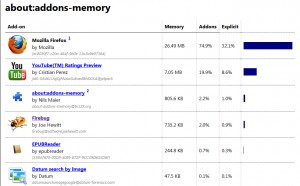
    About:addons-memory is a simple Firefox extension which takes a different approach. There’s no jargon, no unnecessary technical details, just install it (no restart required) and enter about:addons-memory in a new tab for an instant report on your extensions and their memory usage.

    The list is conveniently sorted by RAM requirements, so if you do have a problem extension then it’ll probably appear at or very close to the top.

    If you’re curious, though, just scroll down the list for details on every extension you’ve installed.

    And at the bottom of the report is a “Minimize memory usage” button which may help you free up some RAM, as well as a few notes on what the various figures actually mean.

    This all worked very well for us, but if you try the add-on yourself then you’ll need to be careful how you interpret the figures.

    Coming top of the list doesn’t necessarily mean an extension is poorly coded or inefficient, for instance — it all depends what it’s doing.

    And about:addons-memory may not be able to determine the full amount of RAM used by all your extensions, so you need to treat its memory allocations as a minimum: some add-ons could be using more. If you’re thinking this limits its usefulness, then you’re right, but about:addons-memory is still a handy way to start exploring Firefox’s memory usage, and well worth installing.

  • Use YouTube Ratings Preview to find the best videos on YouTube

    While YouTube’s vast choice of clips means there’s always something good to watch, tracking down the best videos can take a while. Especially if you’re clicking each clip in turn, checking the ratings, then returning to your search results to try something else.

    Install YouTube Ratings Preview, though, and you don’t have to worry about that any more. This smart Firefox extension (also available for Chrome) highlights the best-rated videos immediately so you can spot them at a glance.

    Once installed, a Likes/ Dislikes bar under every video thumbnail provides a general idea of its popularity (more green is good, more red really isn’t).

    And if you need precise figures, just hover your mouse cursor over the bar (and it needs to be the bar, not just the thumbnail) to see the percentage of likes and dislikes, the total number of votes, and the overall rating.

    YouTube Ratings Preview has some useful configuration settings, too.

    Enable the Highlight option and the best videos on the page will have a blue box drawn around them, so you don’t even have to bother with looking at individual bars.


    And while those bars are very narrow — only 4 pixels, by default — you’re able to increase them up to 7 pixels, if that’s an issue on your device.

  • Stay informed with Desktop BBC News

    Monitoring the latest BBC news from your Windows desktop used to be very easy: just install the official News Desktop Alert and Ticker and it would keep you up-to-date. The move to smartphones and tablets meant the service was closed a couple of years ago, though, which left your desktop options a little limited.

    Unless, that is, you install the (strictly unofficial) Desktop BBC News.

    The program launches with a small window listing the current UK news headlines. You can change this to display the BBC’s world news, though, or stories from various parts of the site: “Health”, “Politics”, “Science” and so on.

    Click any headline of interest and a very brief summary (maybe 25 words) pops up. And if you click the “Read more” link in that window then the relevant BBC news page opens in the program’s internal browser.

    Any headlines you click are then greyed out, which makes it easy to spot the stories you haven’t read. And Desktop BBC News refreshes its headlines every five minutes, to keep you up-to-date.

    This is all useful enough, but what really makes the program interesting is its extreme configurability. There’s just so much that can be changed: the window position (always on top, pinned, normal), transparency level , headings, colors, the browser to use, the refresh time, how to display stories you’ve read, and more.

    Desktop BBC News does also have some annoyances. Launch it, for instance, and you’ll see a message asking if it can connect to BBC.co.uk and download the latest headlines. At first we were impressed by its politeness, but when we realised this message would be displayed every time it launched – and there was no “don’t display again” checkbox – it became a little more annoying.

    And for some reason the developer has apparently decided that the program doesn’t need a minimise button. Yes, we know it’s meant to be displayed on the desktop, most of the time, but it would still be useful to move it to the system tray, just occasionally.

    These issues aside, though, Desktop BBC News is a compact, capable and configurable tool, and an easy way to keep yourself up-to-date with the latest news.

    Photo Credit: Sergey Nivens/Shutterstock

  • Taskbar Pinner lets you pin anything to the Windows 7 taskbar

    Getting easier access to a Windows 7 shortcut is extremely easy: right-click, select “Pin to taskbar”, and an icon will pop up on your taskbar, ready for immediate use.

    Right-click a file, though — or a folder, a drive, a Control Panel applet or just about anything else — and you’ll find no “Pin” option. There are various manual workarounds you can apply, but your life will be much simpler if you grab a copy of Taskbar Pinner, which allows you to fill the taskbar with just about anything you like.

    The program arrives as a tiny (236KB) download. Unzip this and launch either the 32 or 64-bit Taskbar Pinner, depending on your version of Windows. (Or if you’re not sure, just pick one, and the program will tell you if you need to use the other.)

    The Taskbar Pinner interface looks much like a regular Windows 7 dialog, and it’s very straightforward. You have four options — “Pin a File”, “Pin a Folder”, “Pin a Shell Location” and “Pin a Library” — and all you have to do is click one, choose whatever it is you’d like to pin, and you’re done.

    Probably the most interesting option here is “Pin a Shell Location”, as this gives you access to all kinds of system features (not just your own folders). So you can pin Control Panel applets, Windows Help, the Recycle Bin, Windows Search, the Run box and more.

    Whatever you select can be removed in the usual way, just by right-clicking and selecting the “Unpin” option.

    And if you think you’ll use Taskbar Pinner a lot, then checking the “Explorer context menu” allows you to access it from Explorer, or the desktop, without needing to manually launch the program first. To pin a file, folder or drive to the taskbar, say, you’d just right-click them, select “Pin with Taskbar” and the shortcut will be added right away.

    Photo Credit: valdis torms/Shutterstock

  • Kaspersky releases Anti-Virus 2014 and Internet Security 2014 tech previews

    Kaspersky Lab has announced the public availability of Technical Previews for Kaspersky Anti-Virus 2014 and Kaspersky Internet Security 2014. These are very early releases and some way from being complete, so there’s little information on new features yet – but a few basic details have appeared.

    The interface has been updated, for instance. It’s not radically different, just simplified, and even more Windows 8-like than it was before. The new releases now support touch screens, too, and our initial impressions are that the program could work well in a touch environment. Kaspersky’s Safe Money (a feature which helps to secure your online transactions) now supports more banks and web stores, and allows you to choose your preferred browser.

    The company claims the new release will use less resources. And apparently it will also provide “connected standby technology support”, although what level of support, and where, isn’t yet clear.

    This doesn’t look like a release which is going to win over many new customers, then, but if you’re a Kaspersky fan and want to try it anyway, the process is at least fairly straightforward. There’s no special beta registration, and you don’t have to sign up to anything: just download the installer and you’re ready to go. (Although we would recommend removing any existing Kaspersky installation, first, and running a backup if the system contains anything important.)

    And to find out what might happen then, we’ve briefly installed and tried out both programs, with mixed results.

    Kaspersky Anti-Virus 2014 displayed error messages saying our system wasn’t activated, for instance, while the interface said we were, while Kaspersky Internet Security 2014 noticeably cut our test PC’s performance. But scanning and other features worked well, if a little slower. So on balance, not bad for an early beta, and if you’re interested in Kaspersky products then you should find there’s plenty here to explore.

    Photo Credit: Andrea Danti/Shutterstock

  • Bypass annoying Windows UAC prompts with ElevatedShortcut

    Launch some applications and they’ll display the Windows User Account Control prompt, asking “Do you want to allow the following program to make changes to this computer?”. And while this is great for security, if you’re running the same trusted program on a regular basis then you might begin to find it just a little annoying.
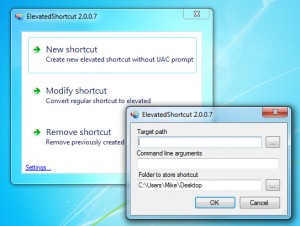
    You could avoid this by turning off UAC entirely, but that’s not ideal (it does have some security value). And so a better idea might be to use ElevatedShortcut. It’s a tiny portable tool which helps you to creates shortcuts that won’t generate a UAC prompt, no matter what you’re trying to launch.

    The program has a straightforward and very Windows-like interface. Simply launch it, click “New shortcut”, specify the program to launch (which you must trust 100 percent, because you are giving it the right to do virtually whatever it likes) and where you’d like your shortcut to be launched: the desktop, say. Then click OK, the shortcut will be created and you can use it right away.

    If you have an existing shortcut to a program then the “Modify shortcut” option will tweak this to again avoid the UAC prompt.

    And if you’re worried about the security implications of doing this, then you might appreciate the “Remove shortcut” option, which lists all the shortcuts the program has created previously and allows you to delete them (all, or individually).

    In our tests this all worked very well, but we wanted to understand more about how ElevatedShortcut worked. What was it doing, and could this have any other effect on our system?

    There was no reason to worry, though: a quick look at the properties of our new shortcuts revealed that they’re just using Windows Task Scheduler to bypass UAC. It’s been public knowledge for a long time that this is possible; all the program does it make the process simpler and more accessible.

    If you’re a little tired of UAC, then, ElevatedShortcut offers a useful and very convenient way to bypass it for programs you trust. Go grab a copy immediately.

    Photo credit: Ronald Sumners/Shutterstock

  • NoteTab Light gives you what Windows doesn’t

    Notepad is such a horribly basic editor that there’s now a host of more powerful alternatives, all competing for your attention. But if you’ve sampled these then you’ll know that they’re often complex, aimed at programmers, and not so useful to people who don’t need Perl syntax highlighting, 18 clipboards, or whatever other high-end options they’re offering.

    NoteTab Light, fortunately, takes a more mid-range approach. It has plenty of advanced features, it’s very configurable (the Options dialog splits its many settings across 17 tabs), but is also easy to learn, and you’ll quickly feel at home.

    Launch the program, for instance, and it displays Readme.txt, WhatsNew.txt and templates files in separate tabs. And so browsing through these not only provides useful information on the program, but also gives you a basic feel for how the interface works.

    Check out the menus and you’ll find a nicely judged editing engine. It has plenty of functionality: you can drag and drop text selections; sort, split and join lines; indent and align text; create bulleted and numbered lists; run Find and Replace operations with regular expression support, and more. But it’s also not as overwhelming as some of the more developer-oriented tools can be, and you may actually feel like you’ll use most of the features (one day, anyway).

    It’s a similar story with the HTML functions. An HTML-CSS library displays all the important tags; double-click these, a dialog appears (when necessary) to help you configure them properly, and the code is automatically wrapped around the selected text.

    There’s also a neat Document to HTML feature, where you can create or open a text document, then have NoteTab Light add an HTML header, line breaks, paragraph tags and everything you need to transform it into a web page.

    Extras like HTML Tidy integration help to clean up your code. But again, while these aren’t aimed at beginners, they’re not overly complex, either. You’ll quickly get a feel for how everything works.

    And there are plenty of interesting and more general editing options available. Like built-in expression evaluation (enter 2.481^3= , press Ctrl+E and the solution will be inserted for you). Tools to automatically capture text as it’s pasted to the clipboard, and insert it into documents. And a series of Clipbook Libraries to automatically correct text, download and edit files from remote FTP servers, create websites with Twitter’s Bootstrap framework, and more.

    NoteTab Light does also have one or two restrictions (it’s the free version of a commercial tool, and the developers are hoping you’ll upgrade). The most notable issue is probably that you only have a single level of Undo. But it also has no spell checker, URL highlighting (in plain text files), or syntax highlighting.

    On the plus side, though, NoteTab Light has no adware, no nag screens or other marketing annoyances. It’s free for personal or commercial use, and has no major dependencies on .NET or anything else, so runs happily on anything from Windows 98 through to Windows 8. And it’s both powerful and usable, an awkward balancing act to pull off, but in our view the program gets it just right.

    Photo Credit: SueC/Shutterstock