Author: Nick Peers

  • Acronis True Image Lite 2013 for local and cloud backup

    Acronis International has added a new, cut-down backup tool to its roster with the release of True Image Lite 2013 by Acronis. Roughly six months after debuting the beta version, True Image Lite 2013 gets a final release, providing users with a simple tool for protecting specified folders through regular “non-stop” backups.

    True Image Lite 2013 offers users two locations for backing up: a local storage device, such as external or network hard drive, and online through the Acronis Cloud, an optional add-on providing 250GB of internet storage for an additional outlay.

    The software has been specifically targeted at novices, designed to make backing up documents and other key files as simple as possible: users simply select which folders they wish to back up, choose a backup destination and then leave the program to continuously update backups as files are added, changed and deleted.

    By adopting an incremental approach to backing up, True Image Lite 2013 stores multiple versions of the same file, allowing users to roll back changes to earlier versions of a file or restore accidentally deleted files from the backup archive quickly and easily should the need arise.

    Should users upgrade by adding the 250GB cloud storage option, they not only get additional peace of mind with having a backup stored in a remote location, but are also able to access their files from anywhere via a web browser or free mobile app for iOS and Android.

    True Image Lite 2013 by Acronis is available now as a free trial download for PCs running Windows XP SP3 or later, and the full version is available in 1-PC and 3-PC licenses with MSRPs of $29.99 and $54.99 respectively. 250GB Cloud Storage is available as a bolt-on for $4.95 a month or $49.99 a year — one month’s free trial is provided with the program itself.

    Also available is True Image 2013 by Acronis, a more fully featured imaging and backup tool, which can be purchased for the bargain price of $24.99 from the Downloadcrew Software Store, a saving of 50 per cent on the MSRP.

    Photo Credit: Balandina G/Shutterstock

  • Google Translate for Android 2.7 adds 16 more languages (but not Klingon — yet)

    Google Translate for Android 2.7, a major update, is available. There’s one new feature — support for the website’s Phrasebook feature — and an extension of the app’s camera-input feature to support an additional 16 languages.

    The app is basically an extension of the Google Translate website, allowing users to translate both text and speech between more than 70 different languages.

    Users wishing to take advantage of the camera-input feature should take a photo of the sign or text in question, then select the portion that requires translating using their finger. Google Translate for Android will then attempt to detect the text and translate it into the user’s native language. The 16 new languages supported in version 2.7 are primarily based in the Baltic, central and southern regions of Europe, but also include Icelandic and Indonesian.

    The new Phrasebook feature basically gives Android users access to the Phrasebook already in use via the Google Translate website. This allows users to build a library of phrases they use regularly or wish to have easy access to while on the road, and utilises their Google Account to sync the Phrasebook across multiple devices. The Phrasebook replaces the old Favourites feature, with existing favourites added to the user’s Phrasebook.

    Google Translate for Android 2.7 is available now as a free download for Android devices, while Google Translate 1.3.1 is also available for iPhone and iPad, albeit without support for camera input or Phrasebooks.

  • Uh-oh, Skype, Viber 3.0 goes desktop

    Mobile VoIP provider Viber has broken new ground by releasingViber for Desktop 3.0 for Windows and Mac, extending its existing mobile service beyond the mobile-only Viber 3.0 app to desktops and laptops.

    The new desktop build provides all the functionality currently enjoyed on the mobile app, including free voice calls, photo messaging, text chat and location-sharing with other Viber users, but also adds support for desktop-to-desktop video conferencing too.

    It’s hard not to draw comparisons between Viber and other similar VOiP services, in particular Skype. However, there are key differences, particularly in the sign up and registration process. Viber users must install the mobile app first and register their mobile number, which is used to identify them on the Viber network.

    The advantage of this approach is that finding other Viber users is simple — by granting the mobile app access to the phone’s address book, it can automatically detect other Viber users and make them immediately visible via the app’s Contacts screen.

    This functionality is mirrored in the new desktop version — users must have first configured and registered the app using their mobile phone, then use this to log into the desktop version. A confirmation SMS is sent to the user’s phone, and then the desktop app is enabled as an extension of the mobile service, allowing users to seamlessly switch devices during calls and chats. This connection extends to the syncing of messages between mobile and desktop apps.

    The desktop application functions in a similar way to the mobile app, albeit with an extended screen and interface. It’s also unique in providing video call capabilities using a compatible webcam — at the present time this feature is in beta, and restricted to desktop-to-desktop calls only.

    While direct video conferencing isn’t yet available to mobile users, brand new versions of Viber 3.0 for iOS and Android have introduced video messaging capabilities, which work in a similar way to the video message feature recently added to Skype. Other new features include new stickers, support for transferring live calls between desktop and mobile, and improved voice engine promising better quality on all networks.

    Viber may initially struggle to compete with more established services such as Skype, particularly if users struggle to persuade their contacts to switch or try the new service. However, with over 200 million users worldwide, it won’t be going anywhere any time soon.

    Viber for Desktop 3.0.0.132799 is available now as a freeware download for PC and Macs with dual-core processors and 1GB RAM. PCs require Windows XP SP3 or later, while the Mac build requires OS X 10.7 (Lion) or later. Also available is Viber 3.0 for Android and iOS.

  • Quack! Quack! Cyberduck 4.3.1 dumps Google Drive, Dropbox support

    Swiss cloud-storage browser tool Cyberduck 4.3.1 has been released for Mac and Windows. This open-source tool provides users with a user-friendly means of browsing FTP/SFTP, WebDAV, Amazon S3, Google Cloud Storage and Rackspace Cloud Files servers.

    Version 4.3.1 builds on the recent 4.3 major update – the program’s first in around 18 months, which improved support for OS X Lion and Mountain Lion, plus expanded support for various services, including S3 and Google Storage. However, support for Dropbox and Google Drive have been dropped alongside Microsoft’s Azure Blob Storage connections.

    The Mac build of Cyberduck 4.3.1 gains significant improvements: it adds OS X Mountain Lion Gatekeeper and Notification Center support, enables Application Sandboxing in OS X Lion and Mountain Lion, and extends support to Retina displays.

    Two new Bucket locations have been added for S3 servers, namely Sao Paulo (South America) and Sydney (Asia Pacific). Users also gain the ability to set up Qloudstat analytics with a single click across all supported storage providers.

    Interoperability with Openstack’s HP Cloud and S3’s Lunacloud Storage has also been implemented alongside website configuration support for Google Storage and Cloudfiles. S3 users gain multi-object delete capabilities, and Cloudfiles users can now edit container metadata. Those connecting to FTP/TLS connections also gain the ability to reuse the Session key on data connection.

    A major disappointment, and one which may limit Cyberduck’s appeal to personal users, is the loss of support for both Dropbox and Google Drive storage, presumably due to changes in how each service is accessed.

    Version 4.3 also fixed a number of major bugs, including one that caused Cyberduck to hang while editing files in an external editor in OS X 10.8.2. Moving folders no longer deletes the folder in Cloudfiles, while users can now choose Save on Close knowing the changes will be uploaded. Version 4.3.1 added further bug fixes — primarily for Windows users, including one which saw modification dates all being labelled 01.01.1970.

    Cyberduck 4.3.1 is available now as a free, open-source download for Windows and Mac. Users are encouraged to donate to the continued development of the software, or can alternatively purchase it for $23.99 through the Mac App Store.

    Photo Credit: Dora Zett/Shutterstock

  • Share files from OS X or Windows with Filedrop

    There are many ways to share files between the computers on your network — simple folder sharing, or cloud-based file syncing are just two ideas that come to mind. But when Apple introduced AirDrop in OS X Lion, it added another way – an elegant, simple means of simply dragging and dropping files to quickly distribute them to other Macs on your network.

    The only problem with AirDrop is that you require other Macs, running OS X Lion or later no less, for it to work. Thankfully, third parties have finally come around to developing cross-platform alternatives to AirDrop, and another promising example has just poked its head above the parapet in the form of Filedrop.

    It’s still early days for Filedrop, as its version number (0.3.214) attests. At the present time there are just two clients available, for Windows and Mac, with the promise of Android and iOS apps to follow. But even at this early stage in its development, Filedrop is already delivering on its promise.

    Like AirDrop, Filedrop works across your local network only. Once installed, fire it up on each of your computers and it’ll immediately display a floating box with all other available desktops (and computer names) shown. Transferring a file from one to the other is as simple as dragging it on to the desktop you wish the file to be copied to.

    When someone attempts to send a file via Filedrop, a pop-up dialog will alert the target user, giving them the opportunity to decline or accept the file transfer. By default, all files are copied into the target computer’s Downloads directory, but this can be changed for the specified file transfer by clicking the Downloads link that appears in the confirmation pop-up.

    There’s a Downloads button at the bottom of the main window too — this works in a similar way to the downloads button in Firefox, allowing you to open files or their parent folder directly from Filedrop. You can also set a different default folder for all file transfers from here, too, say your desktop or a specific Filedrop folder.

    And that’s basically it: Filedrop works with multiple PCs and Macs to give you a simple, fuss-free way of quickly sharing files across your local network. There are some glitches of course, despite opening with modest memory requirements for example (under 30MB in Windows), Filedrop slowly increases its demands as time goes on without appearing to release memory back, certainly not in the short term, so that’s something that will hopefully be rectified in a future release.

    But there’s more to come too with the iOS and Android apps currently in development. These will allow you to transfer files to and from your mobile, enabling it to be used as a “wi-fi USB stick”, plus there will be options for streaming photos and music from your mobile to other Filedrop-enabled devices too. The apps should hopefully be appearing sometime this month.

    In the meantime, Filedrop 0.3.214 is available as a freeware download for PCs running Windows XP or later, and Macs running OS X 10.6.8 or later.

    Photo Credit: mojito.mak[dog]gmail[dot]com/Shutterstock

  • Avast! adds VPN protection, improves stability and performance

    Avast Software has released avast! Free Antivirus 8.0.1488 and avast! Internet Security 8.0.1488 for PCs running Windows XP or later. Version 8.0.1488 is the first notable update since version 8 was released at the end of February.

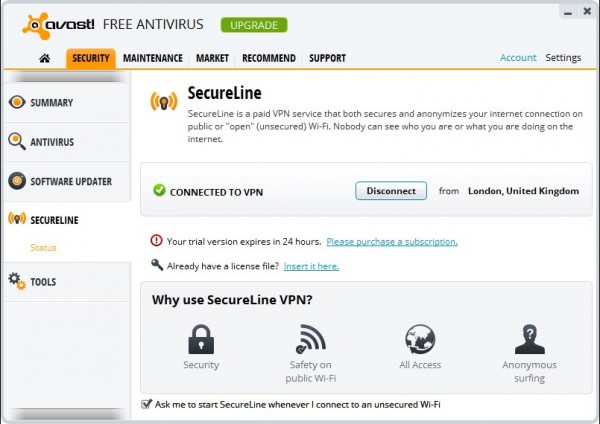
    Version 8.0.1488 adds one major new feature to the security tool’s roster: a SecureLine component, which provides protection for users browsing over Wi-Fi via VPN. The feature isn’t provided free, but comes with a free 24-hour trial that can be activated at any time. Thereafter, access costs from $7.99 a month.

    VPN is used to encrypt data prior to it being transmitted over the internet — although primarily used by businesses, it’s also increasingly used by security conscious users who wish to use “open” Wi-Fi networks — often public — where data can be easily intercepted by other network users. VPNs also allow users to surf anonymously and fake their location to bypass web services limited to specific geographic locations.

    The new SecureLine feature is installed by default with the main avast! Package, but isn’t switched on. Once installed, users should double-click the avast! Notification area icon and choose SecureLine under the Security tab. From here, clicking the Activate link opens a window where users can start the free 24-hour trial or purchase a SecureLine license for $7.99 a month or $59.99 for a full year.

    After activating, users can manually connect to the VPN at any time, choosing the location closest to them or picking an alternative location — at time of writing, nine locations are provided: Dallas, Miami, New York and Seattle in the US, London, Frankfurt, Amsterdam and Prague in Europe, and Singapore. Users can also instruct SecureLine to automatically start whenever users attempt to connect to an insecure Wi-Fi network.

    Version 8.0.1488 also comes with the promised of improved compatibility with Screen readers, and improvements to the Software Updater component. It also fixes several unspecified user-interface glitches and comes with the usual promise of improved stability and performance.

    avast! Free Antivirus 8.0.1488 is available now as a freeware download for PCs running Windows 2000 or later. Users can upgrade to the Pro version with additional sandboxing and online shopping protection for as little as $19.99 for a one-user, one-year license through the Downloadcrew Software Store, a saving of 50 per cent on the MSRP — a two-year, single-PC license is also available. Three-PC licenses for one year and two years are also available.

    avast! Internet Security 8.0.1488 is also available as a free trial download for PCs running Windows 2000 or later. This version adds firewall and anti-spam protection to the features found in avast! Pro Antivirus, and a one-year, single-license version costs just $29.99 at the Downloadcrew Software Store, a saving of 40 per cent on the MSRP. A three-PC license is also available for $41.99, again saving 40 per cent off the MSRP.

  • Twitter updates Android and iOS apps

    Twitter has released Twitter for iOS 5.6 and Twitter for Android 4.0.2, minor updates to its official apps for iPhone/iPad and Android mobile users. Both apps extend support for trend filtering by location to the mobile platform, the feature is already present in the web-based app.

    Other changes to the iOS build include improved playback of Vine video, and the addition of an option to invite other people to join Twitter from within the app. Android users also gain enhancements to the menu button.

    The option for switching between tailored and location-based trends is accessed from the Discover tab on the iPhone, iPod touch or Android phone — tap Trends, scroll down and the new “Change location” option will appear at the bottom (Android users will also need to tap the menu button). Tapping this then allows users to first select a country and then a city or town. At the present time, only major cities are featured.

    Version 5.6 for iOS also follows the recent Vine app update in improving the playback performance of Vine videos. It also changes the way replies to retweets are handled – now both the original tweeter and the person retweeting are included by default when replying. Finally, users can now invite other people to join Twitter from directly within the app itself.

    Android users gain improvements to the menu button, tapping this now adds options for switching accounts and accessing the settings screen. Both mobile app updates are rounded off with the usual raft of non-specified bug fixes and performance improvements.

    The new mobile apps follow hot on the heels of Twitter for Mac 2.2, a surprise update that added Retina display support, a new camera icon to the redesigned Tweet compose box for easy sharing of photos and support for 14 new languages, including French, Chinese, Spanish and German.

    Twitter for iOS 5.6 is a free download for iPhone, iPad and iPod touch.Twitter for Android 4.0.2 requires Android 2.1/2.2/2.3 or 4.1, and is also compatible with Kindle Fire and B&N Nooks. Twitter for Mac 2.2 requires OS 10.6.8 or later.

  • eM Client 5.0 delivers email better

    Email remains one of the most popular forms of communication in the world, currently fending off the unwanted attentions of Twitter, Facebook and Skype after effortlessly swatting away the threat of SMS and the printed letter. Yet we’re increasingly happy to entrust our email to the cloud, accessing through a web browser whenever we want to stay in touch.

    Whether or not your email is with a cloud-based provider like Gmail or Hotmail, there’s always room for a decent email client. And if you want something that’s simple, elegant and feature-packed, we suggest you take a closer look at eM Client 5.0.

    From the moment installation finishes, you see how helpful and simple eM Client wants to be. From offering you a choice of three minimalist skins to detecting existing programs and importing messages, contacts and other online information (including calendars and chat histories), the program bends over backwards to make migration as simple a process as possible.

    Before you know it, you’re up and running, contacts paired and messages synchronising in the background. Everything you expect from a fully formed email client is here, from support for encrypted messages to signatures and templates, email rules and both global and search folders. We especially like the right-hand sidebar, where extra information about a selected email’s sender is displayed, including all past messages from that person.

    But eM Client is more than just a client for email — it handles contacts, calendars, tasks and even chat, with support for Facebook, Skype, ICQ, Yahoo! And Google support. Throw in customizable and RSS widgets, and you’re looking at one fully featured mail client. You can even back up and restore your accounts and messages from within the program.

    There is one downside to all this functionality: the Free version is limited to non-commercial use and two email accounts. If you need more, then you’ll have to upgrade to the Pro version for the princely sum of $49.95. But you get 30 days to decide which is for you before choosing which license to go for.

    eM Client 5.0 is available now as a free download for PCs running Windows XP or later.

    Photo Credit:  2jenn/Shutterstock

  • Accudio Free 1.0.0 gives what Apple doesn’t — sweet music on iPhone

    I used to think my iPod touch was the bee’s knees when it came to digital music players. Exposure to true audiophile-friendly models from the likes of Cowon and Colorfly, coupled with listening to FLAC tracks on my budget Sony Xperia phone taught me better, and for a while I was incredibly frustrated with the shortcomings of Apple’s supposedly market-leading player.

    I’ve since discovered that most of that frustration can be targeted at the frankly rubbish Music app that ships with iOS. And now I’m ready to embrace decent sounding music on my iPod touch thanks to a fabulous app called Accudio Free 1.0.0.

    The biggest frustration with Apple’s Music player is its lack of configurability. Sure, you’ve got 22 basic presets to choose from (tap Settings > Music > EQ to access them), but they often make things worse, not better. Apply Bass Booster for example, and the mid and high levels become so muddied as to render most tracks unlistenable.

    Accudio Free offers two key improvements over the default Music player. First, its developers have carefully analysed over 300 pairs of headphones and worked out the best sound settings for each. So your first task on firing up the app is to see if your headphones are included – all of Apple’s basic buds are there, along with a wide range of cheap and not-so-cheap models.

    With your model selected, the app attempts — with great success on the most part — to provide Hi-Fi sound quality through those phones, resulting in an immediate improvement. But there’s more: Accudio also provides a “simulation” mode, which attempts to reproduce the sound quality from a handful of top-quality cans on your current model.

    On its own, this makes a real difference to the sound, but Accudio goes further. The second improvement it offers is not one, but two full sets of graphic equalizer controls. A basic five-bar equalizer, covering sub-bass, bass, vocalist, sibilance and treble, allows you to tweak the reference mode further — up to 10dB in either direction for each frequency.

    And if that wasn’t enough, Accudio also provides you with a Custom Mode that allows you to completely fine-tune all the settings to your personal tastes with a 10-bar equalizer that allows you to pick 10 user-customizable frequencies and tweak them accordingly.

    The Free version tested here limits you to just one reference mode preset and one customizable setting, but upgrading to the Pro version also unlocks some other juicy features, not least of which are support for OGG and lossless FLAC audio formats. Seeing as the true audiophile would pick these over MP3 or Apple’s AAC codec any day of the week, it’s the icing on the cake for frustrated iPhone/iPod touch users.

    Accudio Free is available for free for iPhone, iPod touch and iPad running iOS 4.3 or later. Accudio Pro, available as an in-app upgrade via Settings > Etc > Store, costs $4.99.

    Photo Credit: Joe Wilcox

  • Skype for Desktop 6.5 Beta brings video messaging to Windows

    Microsoft has released Skype for Desktop 6.5 Beta, a new preview version for Windows users. The new release is notable for introducing support for Skype Video Messaging to Windows, a feature that allows users to send pre-recorded video messages to other Skype users when offline. The feature has already landed inSkype for MacSkype for iOS and Skype for Android.

    The new video calling feature allows users to record video messages that can be sent to other contacts, even when they’re not online, and requires that Adobe Flash already be present on the computer.

    Recording a video message is simple: select the intended recipient, then click the Video Message button that appears in place of the Video Call. Users then click the Record button and record a message up to three minutes in length before choosing to either discard or send the message.

    Recipients will see the embedded video appear in their chat window, and clicking it will play the video full-screen. Users can play back their video messages too, but only after they’ve been sent.

    At the present time, 25 free video messages are available — we presume that after these free messages have been used up, users will need to subscribe to a premium Skype package to continue using the service.

    Skype Video Messaging has already been implemented on other major platforms, and Microsoft promises the feature will be live in Skype for Windows 8 “shortly”. In the meantime, both Windows Phone and Windows 8 app users can view and receive messages, but not send them.

    Two bug fixes have also been implemented in this new release, both falling into the “Calling” category. The first resolves issues with the ability to call being disabled when trying to call a number in certain scenarios, while the second improves the application’s stability when placing outgoing calls on a computer where no webcam is present.

    Skype for Desktop 6.5 Beta is available now as a free download for PCs running Windows XP or later (including Windows 8 in desktop mode).

    Photo Credit: alterfalter/Shutterstock

  • Rainmeter 3.0 Beta gives Windows better skin

    There are plenty of ways you can spruce up your Windows desktop, but if you’d like to inject some useful functionality into it with the help of customisable information panes and interactive widgets, then you shouldn’t look much further than Rainmeter 2.5. The open-source skinning tool isn’t for novices, but spend a bit of time with it and you’ll soon find your desktop is as functional as it’s attractive to look at.

    One of Rainmeter’s weaknesses is the quality of the text displayed, particularly at smaller sizes. That’s about to be rectified however, and you can see how they’re getting on by installing the latest pre-release in the form of Rainmeter 3.0 Beta.

    For the release of version 3.0, the main focus so far has been to ditch the ageing GDI+ rendering system for both text and graphics in favour of a more powerful Direct2D system used in Windows 7 and 8. So far, development has focussed on implementing improved text rendering on string-based meters, particularly where the text is smaller than normal.

    Initial results look promising — we immediately noticed a vast improvement in the legibility and quality of small text on display, but there are a number of issues requiring attention, including slight differences in wrapping and relative positioning behaviour.

    As a result, the feature is currently disabled by default — users must add UseD2D=1 to the [Rainmeter] section of the Rainmeter.ini configuration file to enable it. The quickest way to do this is from within Rainmeter’s own Manage section: click Edit settings to open the file in Notepad, insert the line, save your changes and then restart Rainmeter to see the effect.

    The nature of the beta means other features may come and go before final release: an early 3.0 beta introduced icons for the Unload Skin and Exit options in the Rainmeter context menus, but these were removed just a week later after style issues with XP were discovered, for example.

    Other minor changes implemented so far, and still present, include a new OnDismissAction command for the InputText plugin, reduced resource usage when using the OnChangeAction command and a new OnWakeAction command that takes effect when Windows resumes from sleep or hibernation. With beta updates appearing on a weekly basis, expect further refinement of these features.

    Rainmeter 3.0 Beta Build 1906 is available now as a free, open-source download for Windows XP or later. Also available is the latest stable build, Rainmeter 2.5.

  • RainbowDrive finds the pot of gold in cloud storage

    One way to gain loads of free online storage space is to mix and match storage providers, taking advantage of each to quickly build up tens of gigabytes of cloud-based storage for backup, sync and sharing purposes. The downside of such an approach is the fact you need to manage each provider using its own dedicated app.

    Nowhere is this frustration more evident than when using a tablet or phone to access your data, as you have to switch between apps to try and locate where you’ve stored a particular file. But help may be hand in the form of an app for Windows 8, iPad and Android calledRainbowDrive 2.0.0 that attempts to bring multiple providers together under one roof.

    The premise is simple: RainbowDrive aims to bring together all your SkyDrive, Dropbox, Google Drive and — Windows 8 only at present — Box.net storage accounts into a single, centralised app. Fire it up, log into your various accounts and you’re good to go.

    RainbowDrive even supports multiple accounts from the same provider, although the free version of the iPad and Android versions both restrict you to just three accounts in total — you can gain a fourth by sharing the app on Facebook via its Settings screen. No such limitation currently applies to the Windows 8 version.

    One logged in, the app should quickly synchronise with each account in turn — we say “should” because we found it took ages to sync with our 25GB SkyDrive account on the iPad, and then got stuck at 100 percent, although it worked fine in Windows 8.

    Once synchronised, you can browse your data one of two ways: RainbowDrive defaults to a “by type” view, so all your data across all your accounts is amalgamated together, but you can also browse by individual storage account if you prefer.

    From here, you can easily download and upload data to your accounts, play back media and open files in compatible apps. It’s also possible to share file links too — by email and any other supported networks (such as Twitter or Facebook). You should also be able to search across all your cloud storage too.

    As we’ve already said, there appear to be some glitches with the app, but it’s still worth investigating if you have accounts with the current list of cloud providers. We expect Box.net support to be rolled out to iPad and Android owners in due course, but whether wider provider support is on the way is not yet clear.

    RainbowDrive 2.0.0 is available now as a free app for Windows 8, iPad and Android. Version 2.0.0 has just been released for Windows 8, adding support for Box.net accounts, promising faster loading of the file list and implementing French and German translations.

    Photo Credit: Dan Collier/Shutterstock

  • SpiderOak 5.0.1 improves cloud sync

    Cloud-based storage provider SpiderOak has released SpiderOak 5.0.1, a brand new version of its desktop client for Windows, Mac and Linux. The chief highlight of version 5 is a new feature called SpiderOak Hive, a new centralized folder for quick and easy sync between devices.

    Version 5.0.1 also implements integration in Windows Explorer, support for passwords in ShareRooms and remote diagnostic tools to help SpiderOak’s support teams resolve issues with end users.

    The new SpiderOak Hive feature is not innovative in itself — it simply apes the centralized folder syncing implemented by rivals such as Dropbox and SkyDrive by placing a folder in a non-transferrable location: the user folder in OS X, the user’s Documents folder in Windows or the Home folder in Linux. This folder is a convenient one-stop shop for copying and retrieving data, but doesn’t supersede SpiderOak’s existing sync capabilities, whereby users can specify two or more folders on different devices for keeping in sync.

    Version 5.0.1 also adds Windows Explorer integration, allowing users to right-click files and folders for backing up, sharing and, if stored online, for retrieving earlier versions of files. OS X and Linux implementation is promised in a future update.

    Improvements have been made to the ShareRoom feature, whereby users can share content with others. It’s now possible to specify passwords for ShareRooms, adding a much-needed extra layer of security to the whole sharing process. The ShareRoom creation wizard has also been tweaked to make it easier to follow.

    When troubleshooting problems with customer support, users are now able to switch on remote diagnostics, allowing customer support teams to view metadata about the user’s setup. This metadata does not contain sensitive information such as backup data, passwords or encryption information, and is disabled by default — users must explicitly allow it by ticking “Allow Remote Diagnostics?” under the General tab under Preferences.

    Another security tweak requires users to change their password upon setting up their first device when an automatic password was generated due to disabling JavaScript during the signup process.

    A number of bug fixes have also been implemented: users are better able to recover from certain error conditions during LAN sync, for example, while a bug preventing downloads from automatically resuming after a network outage has also been fixed.

    SpiderOak 5.0.1 is available now as a free download for Windows, Mac and Linux. Free 2GB user accounts are available, with paid-for plans starting from $10 per month for 100GB of storage.

  • CCleaner 4.01 freshens up your browser


    Piriform has released CCleaner 4.01 and CCleaner Portable 4.01, a minor update to its popular Windows freeware system cleaning tool. Version 4.01 is the first release since version 4.0 split users into free and paid-for camps by restricting product features to Pro license holders only.

    Most of version 4.01’s tweaks are available to both free and paid-for users, and revolve around improving existing tools and adding cleaning support to several new applications.

    Improvements in CCleaner 4.01 revolve around better support for existing browsers: there’s improved cleaning for Google Chrome’s History along with better compatibility with Internet Explorer 10 and later builds of Firefox (version 19 and upward).

    Windows 8 users should benefit from improved Registry cleaning thanks to an optimized cleaning algorithm, while both new tools introduced in version 4.0 – the Duplicate File Finder and Pro-only System and Browser Monitoring feature — also gain unspecified enhancements and optimizations.

    Application-specific cleaning has been further developed too: added in version 4.01 are support for Adobe Acrobat XI, VSO Blu-ray and DVD Converter Ultimate, Oxygen XML Editor 1.4 and Connectify Hotspot, while two tools already supported — Mailwasher Pro and Google Earth — both gain improved cleaning.

    The update is rounded off with the usual minor tweaks and bug fixes. CCleaner 4.01.4093 and CCleaner Portable 4.01.4093 are both available as free-for-personal-use downloads for PCs running Windows XP or later. Pro licenses are currently available for $24.95, a saving of $8 on the MSRP.

    Photo Credit: Liv friis-larsen/Shutterstock

  • ModernMix 1.05 brings even more Windows 8 fix

    Stardock Software has released ModernMix 1.05, the first major update to its paid-for Windows 8 tool for running full-screen apps in their own window within the confines of the Windows 8 desktop.

    Version 1.05 adds background sound support for apps such as Netflix that don’t explicitly support it, meaning users don’t need to focus on the window in order to hear that app’s audio output. The new feature is joined by a preference that allows this support to be switched off if it’s not wanted.

    Other changes include making it easier to configure individual app behavior via ModernMix’s own configuration screen. Users can now double-click or right-click an app’s entry under App settings to configure its default behaviour, from whether it opens full-screen (a new setting in version 1.05), minimised or windowed to creating a convenient shortcut to the app on the desktop itself.

    Version 1.05 now initiates a “force create” action to ensure the desktop shortcut is created, even if the app has never previously been run. Sadly, on our test machine the desktop shortcuts failed to work, launching the ModernMix configuration screen rather than the app itself — however, apps worked flawlessly using the App shortcuts found on our favoured Start button replacement tool, Classic Shell.

    In addition, the App settings page now lists all installed Modern apps, while ModernMix now alerts users when first running the program to the top-right corner overlay, which allows users to switch between full-screen and windowed mode.

    Bug fixes for version 1.05 include one that ignored ModernMix’s “Return to the Windows 8 menu” setting when apps were dragged to close them. Another resolution ensures all apps, not those that have been run at least once, are named up correctly in the App settings screen too.

    A fix has also been implemented for Netflix playback when the windows is inactive on a secondary display, while the main code has been tweaked to detect if the app launch has been made from the Windows 8 menu or elsewhere to ensure ModernMix correctly implements whatever user-defined options have been set.

    ModernMix 1.05 is available now as a free 30-day trial download for PCs running Windows 8 (an email address is required for activating the trial). The full version can be purchased for $4.99.

  • Get started with BitTorrent Sync

    One of the big advantages of cloud storage is that most services make it easy to use themselves as a tool for effortless syncing of data between computers. Update a file on one device, and it quickly becomes available to everyone else.

    The problem with syncing via the cloud is that you usually have to pay for any meaningful amount of storage space, and that’s before you consider the potential implications of having a copy of your sensitive data stored in the cloud. However tight your cloud provider’s security is, there is always the nagging doubt that your files could be accessed by someone else.

    If you love the idea of syncing – particularly when it comes to huge amounts of data – but want to restrict your files and folders to your own hard drives only, then BitTorrent Sync is shaping up to be the perfect choice. Currently in alpha, it makes the task of sharing or syncing data across multiple computers (including Linux-based NAS drives) as simple, fast and secure as it can be.

    The service is capable of syncing locally using your own personal network, or utilising the internet to sync data remotely, with the data only in the cloud long enough to travel from A to B (or back again). The major drawback, of course, is that your computers need to be switched on and connected for any syncing to take place — with the cloud as an intermediary, this isn’t an issue for the likes of SkyDrive or SugarSync.

    Getting started is easy: with the client installed, create your first shared folder, making a note of the “secret” 32-character code required to sync with that folder from other devices. This is copied to your other devices, pasted into the BitTorrent Sync client there and then the sync connection is made. It’s also possible to generate read-only codes as well as those that expire after a set period for granting others — friends, family or colleagues for instance — limited access to folders.

    You can share as many folders as you like, and sync with as many other devices or people as you like too. Make sure you tweak the client’s preferences should your internet connection grind to a halt — thankfully, like BitTorrent itself, you can put a cap on download and upload transfer speeds.

    One immediate weakness with this first public build is the lack of differential sync — that means if a file is changed on one machine, the entire copy rather than just its changes are synced, which makes the process less efficient than it could be. Nevertheless, BitTorrent hopes to implement differential sync in a future build, which could prove to be the game changer in its favour.

    BitTorrent Sync 1.0.116 is available now as a freeware, but alpha, download for Windows, Mac and Linux. We recommend making separate copies of any files or folders you plan to sync with others in case of possible data loss while the program remains in alpha.

    Photo Credit: olly/Shutterstock

  • BurnAware 6.2 gives more control of what’s backed up when

    Burnaware Technologies has released BurnAware 6.2 Free and BurnAware 6.2 Premium, the latest builds of its free and paid-for disc burning products for Windows.

    BurnAware 6.2 adds two new features to its roster: the first allows users to set individual priorities for any file or folder in the Compilation window — simply right-click the item in question and select Properties. The default setting is Very Low, but can be cranked incrementally all the way up to Very High via the Priority dropdown menu.

    The second new feature is the inclusion of a new dual-paned file manager into the main window, simplifying the task of browsing for and adding new content to the disc compilation.

    Improvements include non-specified enhancements to the burning and copying process — presumably linked in with the new priority setting. By default, the original date and time of files is preserved during the import process too — users can change this setting to the compilation date or a custom file date via the Dates tab of the File > Options screen.

    The method for adding and processing data has been modified, again with no specific details provided, while “Browse for Folder” dialog boxes have also been updated along with tweaks to the user interface and language translations.

    A number of specific bugs have been fixed with this release too: the program should no longer lock while erasing rewritable discs, and compatibility issues with emulation software including Daemon Tools have also been resolved. The sector size of ISO files should also be correctly detected from version 6.2, and fixes for the incorrect timestamp of UDF compilation directories and problems detecting the source drive while direct copying have also been implemented.

    BurnAware 6.2 Free is a freeware download for PCs running Windows XP or later. It supports disc burning, image creation and burning plus disc copying to images. Users wanting direct disc-to-disc copying, audio track extraction and file recovery capabilities should look at BurnAware 6.2 Premiuminstead, which costs $29.95. Also available is BurnAware 6.2 Professional, which costs $39.95 and also offers multi-burn support from ISO images.

     Photo Credit: Anneka/Shutterstock

  • Migrate quickly, simply and securely to a new PC with these three great programs

    The time has come to move on to a new PC, but before jettisoning your old computer, you need to make sure you’re ready for the big move. That means two key things: getting your data, programs and settings migrated across to your new computer, and making sure there’s nothing sensitive or incriminating left on your old PC before you dispose of it.

    Thankfully, both tasks can be made simple with the help of two or three superb tools, all of which are heavily discounted in the Downloadcrew Software Store this month. Step forward Laplink PCmover Professional 8, O&O SafeErase Professional 6 and for those looking to migrate to Windows 8, O&O Migration Kit for Windows 8.

    The first thing to worry about is getting everything across from your old PC to new. You might be thinking that Windows’ own Easy Transfer Tool is the best choice here, but it’s lacking in key areas, including the ability to migrate entire programs and settings across to your new computer.

    This is where Laplink PCmover Professional 8 comes in. Whether you want it standalone or as part of the O&O Migration Kit, this is the go-to app for ensuring your migration is smooth, simple and comprehensive, so you don’t have to waste time digging out program installers and CDs, product keys and praying your settings get transferred across. Instead, simply choose what to migrate, and let Laplink PCmover do the rest.

    If you’re simply upgrading your computer to Windows 8 — or purchasing a new computer with Windows 8 installed — then the O&O Migration Kit for Windows 8 is worth considering. In addition to Laplink PCmover you also get O&O DiskImage 6.8, which allows you to take a fail-safe drive image of your old setup before migrating to Windows 8. If you forget anything, or want to roll back, DiskImage makes it easy to do so.

    Protect your data

    Once you’ve successfully migrated, checked everything’s in place and settled into your new environment, it’s time to take steps to make sure any sensitive data — whether state secrets, private financial information or a letter you never meant to send — is thoroughly removed from your old PC before you pass it on. Even if you’re simply upgrading Windows on an existing PC it still pays to have the tools to hand to ensure personal and private data is securely wiped from your computer.

    This is where O&O SafeErase Professional 6 comes in: not only can you use it to wipe entire hard drives and partitions — perfect when disposing of old hard drives or PCs — you can also use it to securely delete individual files and folders and wipe all your free drive space too, so previously deleted files get scrubbed from existence too. Everything’s handled from a friendly wizard — you don’t need to create bootable media even when scrubbing entire computers — and is an essential step in your migration process.

    You’ll find all three tools available on sale for generous discounts at our Downloadcrew Software Store. There’s a generous 67 percent off a single-migration version of Laplink PCmover Professional 8, which now costs just $19.99, or you can purchase a three-migration license of the program for just $29.99, saving you 65 percent.

    The O&O Migration Kit for Windows 8, which includes a single-migration license for Laplink PCmover Pro 8 as well as O&O DiskImage 6.8, is even better value at $19.95: an amazing saving of 67 percent on the MSRP. If you need to move more than one PC, then you can pick up the 3-migration license version of the O&O Migration Kit for just $24.95, saving you 50 percent on the MSRP.

    Last, but not least, you can pick up a single-PC license for O&O SafeErase 6 Professional for just $12.95, a massive saving of 57 percent on its MSRP.

    If you’re about to migrate to a new version of Windows or upgrade to a new PC, you owe it to yourself to at least check out these great deals: function-limited trial versions of Laplink PC Mover 8 Professional, O&O DiskImage 6.8.1 and O&O SafeErase 6 Professional are all available for you to try out before you purchase.

    Photo credit: dny3d/Shutterstock

  • jAlbum 11.2 improves project handling

    jAlbum AB is released a new version of its cross-platform web media album builder for Windows, Mac and Linux. jAlbum 11.2 builds on version 11’s added support for embedding video clips as well as photos into web albums.

    Version 11.2 allows users to include video without first processing it, adds play button for better identification and includes numerous bug fixes. It’s the third minor update to jAlbum in just 10 days, following on from builds 11.1 and 11.15.

    New features in jAlbum 11.2 include a new Project ordering option — accessible via dropdown menu, users can now sort their projects by name or last used. This is joined by an option allow users to embed videos directly into albums without first processing them – right-click the video clip in jAlbum and select “Include original” to do so.

    Version 11.2 also adds a prominent play button onto video clip thumbnails to make them more easily identifiable compared to photos. Users will also notice that tool-tips appear for longer on-screen when hovering over features — 10 seconds as opposed to the previous version’s four-second duration.

    Also updated is the bundled Turtle skin to version 4.1, while noteworthy bug fixes include updating the preview image when video clip sliders are dragged, fixing a broken filter (SimpleFilter demo) and resolving a character encoding issue for EXIF and IPTC metadata.

    Version 11.2 comes just nine days after version 11.1 was released — this added an option for users to simply link to files rather than copy them into the jAlbum project folder plus included minor UI tweaks and performance enhancements. It also includes updates found in version 11.1.5, released five days after 11.1 — notable changes introduced here included renaming the “Use a folder thumbnail” option to “Make key photo” and moving it higher up the context menu, a move jAlbum AB says was “inspired” by iPhoto.

    jAlbum 11.2 is a free-for-personal-use download for Windows, Mac and Linux. Published web albums are ad-supported — users can purchase a license or JAlbum hosting account to remove these. Prices start from $39 for a Standard, non-commercial license.

    Photo Credit: Laborant/Shutterstock

  • IObit Advanced SystemCare Free 6.2 improves Windows 8 compatiblity

    IObit has released Advanced SystemCare Free 6.2.0, a minor update to its freeware system optimization and maintenance tool. The program, which can be upgraded to a Pro version with enhanced malware protection, deeper cleansing and automatic optimization, offers PC users a wide range of tools for maintaining, cleaning, optimizing and securing their computer.

    Version 6.2 is a minor maintenance release that promises improvements across many of the program’s individual components. It also promises better compatibility with Windows 8.

    Version 6.2 offers better protection from online threats through improved Malware Removal and Surfing Protection tools. Also improved is the Pro-only Internet Boost tool, which can accelerate downloading, surfing, online gaming and video by up to 300 percent.

    The Registry Fix and Toolbox tools have also been worked on with the promise of better stability as well as performance. Similarly improved is the AutoClean tool, which now promises smarter cleaning.

    The final improvement is to the IObit Uninstaller component, which IObit claims is no more effective at removing unwanted components from the user’s PC, particularly browser toolbars.

    The update builds on more radical changes introduced in version 6.1, which added the Action Center to alert users to specific issues, plus extended the cleaning tools to new versions of popular applications.

    Advanced SystemCare Free 6.2.0.254 is available now as a freeware download for PCs running Windows XP or later, although not all available tools are Windows 8-compatible. Users can upgrade from the Free version to IObit Advanced SystemCare Pro by purchasing a license key. This single-PC, one-year license real-time malware protection, deeper cleansing and automatic optimization tools, and can be picked up for the bargain price of just $9,95 from the DownloadCrew Software Store, a saving of 50 percent on its MSRP.

    Photo Credit: Alberto Zornetta/Shutterstock